
1. Product Overview
The InnoView 16-inch Portable Monitor (Model INVPM401) is a versatile external display designed for enhanced productivity and immersive gaming. It features a 1920x1200 FHD resolution, a 144Hz refresh rate, and FreeSync technology for smooth visuals. Its lightweight and slim design makes it an ideal companion for laptops, gaming consoles, and other compatible devices.
Key Features:
- 144Hz Refresh Rate: Provides an ultra-fluid gaming experience with tear-free and stutter-free visuals. (Note: HDMI connection supports a maximum refresh rate of 120Hz).
- 1920x1200 FHD IPS Display: Offers vibrant colors, wide viewing angles, and HDR support for accurate image reproduction.
- Eye Care Technology: Includes Low Blue Light technology to reduce eye strain during extended use.
- Plug-and-Play Connectivity: Features dual USB-C ports and a standard HDMI port for broad compatibility with various devices.
- Portable Design: Weighs 1.73 lbs and is 0.25 inches thin, making it highly portable for on-the-go use.
- 16:10 Aspect Ratio: Provides 11% more vertical screen space compared to standard 16:9 displays, beneficial for coding and spreadsheets.

Image 1.1: The InnoView 16-inch Portable Monitor, showcasing its sleek design and included protective sleeve.

Image 1.2: Visual comparison illustrating the smoothness of a 144Hz refresh rate versus 60Hz on the monitor.
Video 1.1: An official product video from INNO-VIEW demonstrating the 16-inch portable monitor's features and use cases for gaming and laptops.
2. Setup Guide
2.1 What's in the Box
Before proceeding with the setup, ensure all components are present:
- InnoView 16" Portable Monitor x1
- USB-C Full-Featured Cable x1
- Standard HDMI Cable x1
- Protective Sleeve x1
- User Manual x1

Image 2.1: Illustration of the items included in the product packaging.
2.2 Connecting Your Monitor
The InnoView portable monitor supports various connection methods. Choose the appropriate method based on your device.
- USB-C Connection (Single Cable):
If your device (laptop, smartphone, tablet) has a full-featured USB-C port that supports video output (DisplayPort Alternate Mode) and power delivery, you can connect the monitor using a single USB-C to USB-C cable. This cable will transmit both video signal and power.
Note: If your device cannot provide sufficient power, an external power adapter (not included) connected to the monitor's second USB-C port may be required. - HDMI Connection (Video + Power):
If your device uses an HDMI port for video output, connect the monitor using the provided Standard HDMI cable. For power, connect a USB-C to USB-A cable (or USB-C to USB-C) from the monitor to a power source (e.g., a wall adapter, laptop USB port, or power bank).

Image 2.2: Visual guide for connecting the monitor to a laptop using either a single USB-C cable or HDMI with a separate power source.
2.3 Initial Power On
Once connected, press the Power Button located on the side of the monitor to turn it on. The monitor should automatically detect the input signal. If not, you may need to manually select the input source via the On-Screen Display (OSD) menu.
3. Operating Instructions
3.1 Monitor Controls
The monitor features several buttons for control and menu navigation:
- Power Button: Turns the monitor on or off.
- Volume Key: Adjusts the audio output volume.
- Menu Button: Accesses the On-Screen Display (OSD) menu for settings adjustments.
- 3.5mm Earphone Jack: For connecting external audio devices.

Image 3.1: Detailed view of the monitor's power button, volume key, menu button, 3.5mm earphone jack, and input ports (Type-C 3.1, Standard HDMI 1.4).
3.2 On-Screen Display (OSD) Menu
Press the Menu Button to access the OSD. Use the Volume Key to navigate through options and the Menu Button again to select. Common settings include:
- Brightness/Contrast: Adjust display luminance and color depth.
- Color Settings: Modify color temperature, hue, and saturation.
- Input Source: Manually select between USB-C and HDMI inputs.
- Aspect Ratio: Choose between 16:10, 16:9, or other available ratios.
- FreeSync: Enable or disable FreeSync for compatible graphics cards to reduce screen tearing.
- Crosshair Assist: Activate the built-in crosshair for gaming.
3.3 Display Orientation
The monitor supports both horizontal and vertical orientations. You can adjust the display settings on your connected device (e.g., laptop or PC) to match the physical orientation of the monitor.

Image 3.2: The monitor displayed in a vertical orientation, suitable for coding or document viewing.
4. Maintenance
4.1 Cleaning the Monitor
To clean the monitor screen and casing:
- Turn off the monitor and disconnect all cables.
- Use a soft, lint-free cloth lightly dampened with water or a non-abrasive screen cleaner.
- Gently wipe the screen and casing. Avoid applying excessive pressure.
- Do not use alcohol, ammonia, or abrasive cleaners, as these can damage the screen surface.
4.2 Storage and Portability
When not in use or during travel, store the monitor in its protective sleeve to prevent scratches and minor impacts. The monitor's slim and lightweight design facilitates easy transport.
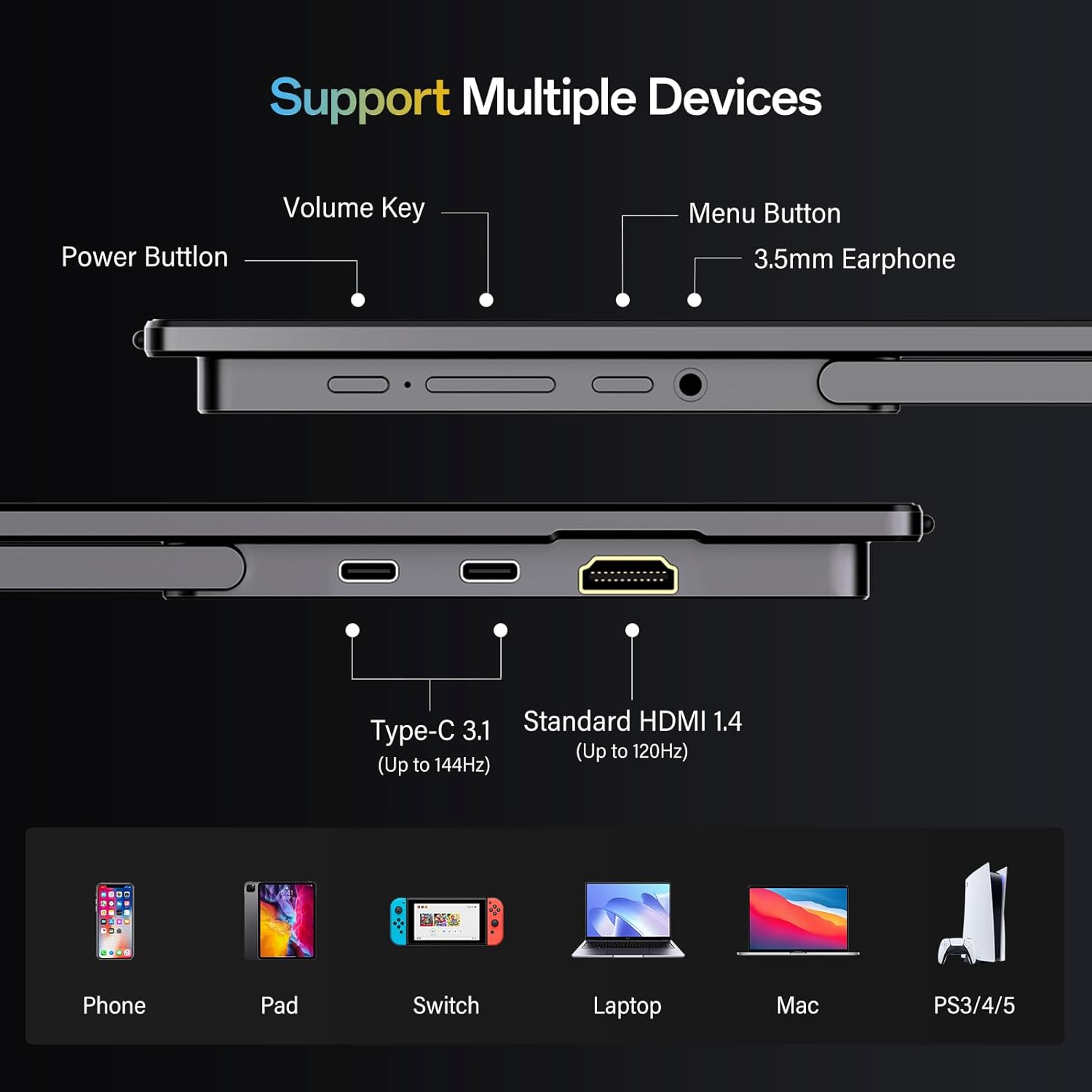
Image 4.1: The monitor's thin profile and light weight, highlighting its portability.
5. Troubleshooting
If you encounter issues with your InnoView portable monitor, refer to the following common problems and solutions:
| Problem | Possible Cause | Solution |
|---|---|---|
| No display / "No Signal" message | Incorrect input source selected, loose cable connection, insufficient power, device not outputting video. | Ensure cables are securely connected. Check if your device is configured to output video. Try a different cable. If using USB-C, ensure it supports video output. Provide external power if necessary. Use the OSD menu to manually select the input source. |
| Flickering screen | Cable issue, refresh rate mismatch, power instability. | Try a different cable. Ensure the refresh rate is compatible with your device (HDMI max 120Hz). Ensure stable power supply. |
| Monitor does not turn on | No power, faulty power button. | Ensure the monitor is receiving power. Check power cables and adapters. |
| No sound from speakers | Volume too low, audio output not selected on device, faulty speakers. | Increase monitor volume using the Volume Key. Check audio output settings on your connected device. Test with headphones via the 3.5mm jack. |
If the problem persists after trying these solutions, please contact InnoView Customer Support for further assistance.
6. Product Specifications
| Feature | Detail |
|---|---|
| Brand | InnoView |
| Model Number | INVPM401 |
| Screen Size | 16 Inches |
| Display Resolution Maximum | 1920 x 1200 Pixels (FHD) |
| Aspect Ratio | 16:10 |
| Refresh Rate | 144 Hz (USB-C), 120 Hz (HDMI) |
| Response Time | 3 Milliseconds |
| Display Technology | IPS, LCD |
| Brightness | 300 Candela |
| Contrast Ratio | 1200:1 |
| Viewing Angle | 178 Degrees |
| Connectivity Technology | HDMI, USB Type C |
| Hardware Connectivity | 3.5mm Audio, HDMI, USB 3.0 Type C (x2) |
| Adaptive Sync | FreeSync |
| Item Dimensions (D x W x H) | 0.6"D x 14.06"W x 9.55"H |
| Item Weight | 1.73 Pounds |
| Power Consumption | 20 Watts |
| Additional Features | Anti Glare Screen, Built-In Speakers, Lightweight, Portable, Tilt Adjustment |
7. Warranty and Support
7.1 Warranty Information
The InnoView 16" Portable Monitor (Model INVPM401) comes with an 18-month warranty from the date of purchase. This warranty covers manufacturing defects and ensures optimal performance under normal use. Please retain your proof of purchase for warranty claims.
7.2 Return Policy
A 30-day return policy is offered, allowing you to return the product if you are not satisfied. Please refer to the retailer's specific return guidelines for details.
7.3 Customer Support
For any technical assistance, troubleshooting, or warranty inquiries, please contact InnoView customer support. Dedicated support is available to ensure your satisfaction.
For more information, visit the official InnoView store: InnoView Store on Amazon


