
1. Overview
This manual provides essential information for setting up, operating, maintaining, and troubleshooting your Lenovo 15.6-inch Laptop V15. This laptop is designed for everyday tasks, including web browsing, document editing, online learning, and general office work, making it suitable for students and home users.
Key features include an Intel Celeron N4500 processor, a 15.6-inch Full HD (1920x1080) anti-glare display, 4GB DDR4 RAM, a 256GB SSD, Wi-Fi 6, Bluetooth 5.2, and Windows 11 Pro operating system.

Image 1.1: Front view of the Lenovo 15.6-inch Laptop V15.
2. Setup
2.1 Unboxing and Initial Inspection
- Carefully remove the laptop and all accessories from the packaging.
- Verify that all components are present: laptop, 65W USB-C Charger, and documentation.
- Inspect the laptop for any physical damage. If damage is found, contact your retailer immediately.
2.2 Connecting the Power Adapter
- Connect the 65W USB-C Charger to the power connector port on the laptop.
- Plug the power adapter into a functional electrical outlet.
- Allow the laptop to charge for at least 30 minutes before initial use, or until the battery indicator shows sufficient charge.

Image 2.1: Location of various ports, including the power connector.
2.3 Initial Power On and Windows 11 Setup
- Open the laptop lid and press the power button.
- Follow the on-screen instructions to complete the Windows 11 Pro setup. This includes selecting your region, language, connecting to a Wi-Fi network, and creating a user account.
- Ensure you have an active internet connection for updates during the setup process.
3. Operating Instructions
3.1 Keyboard and Touchpad Usage
- The laptop features a full-size US English keyboard with a dedicated numeric keypad for efficient data entry.
- The touchpad supports multi-touch gestures for navigation. Refer to Windows settings for customizing touchpad gestures.

Image 3.1: Detailed view of the full-size keyboard and touchpad.
3.2 Display Features
- The 15.6-inch FHD (1920x1080) TN display features an anti-glare coating to reduce reflections and eye strain.
- Adjust display brightness through the function keys (Fn + Fx) or Windows display settings.

Image 3.2: Laptop in use, demonstrating its suitability for productivity tasks.
3.3 Connectivity
- Wi-Fi 6: Connect to wireless networks for internet access. Manage Wi-Fi connections via the Windows network settings.
- Bluetooth 5.2: Pair with Bluetooth-enabled devices such as headphones, mice, or keyboards.
- Ports: The laptop includes various ports for external devices:
- 1x USB-A 2.0
- 1x USB-A 3.2 Gen 1
- 1x USB-C 3.2 Gen 1
- 1x HDMI 1.4b (for external displays)
- 1x Headphone / Microphone Combo Jack (3.5mm)
- 1x Ethernet (RJ-45) Port (for wired network connection)
Image 3.3: Overview of available connectivity ports.
3.4 Webcam and Audio
- The built-in HD 720p webcam features a privacy shutter. Slide the shutter to cover the camera lens when not in use to ensure privacy.
- Integrated stereo speakers provide High Definition (HD) Audio.
- The Headphone / Microphone Combo Jack allows connection of external audio devices.
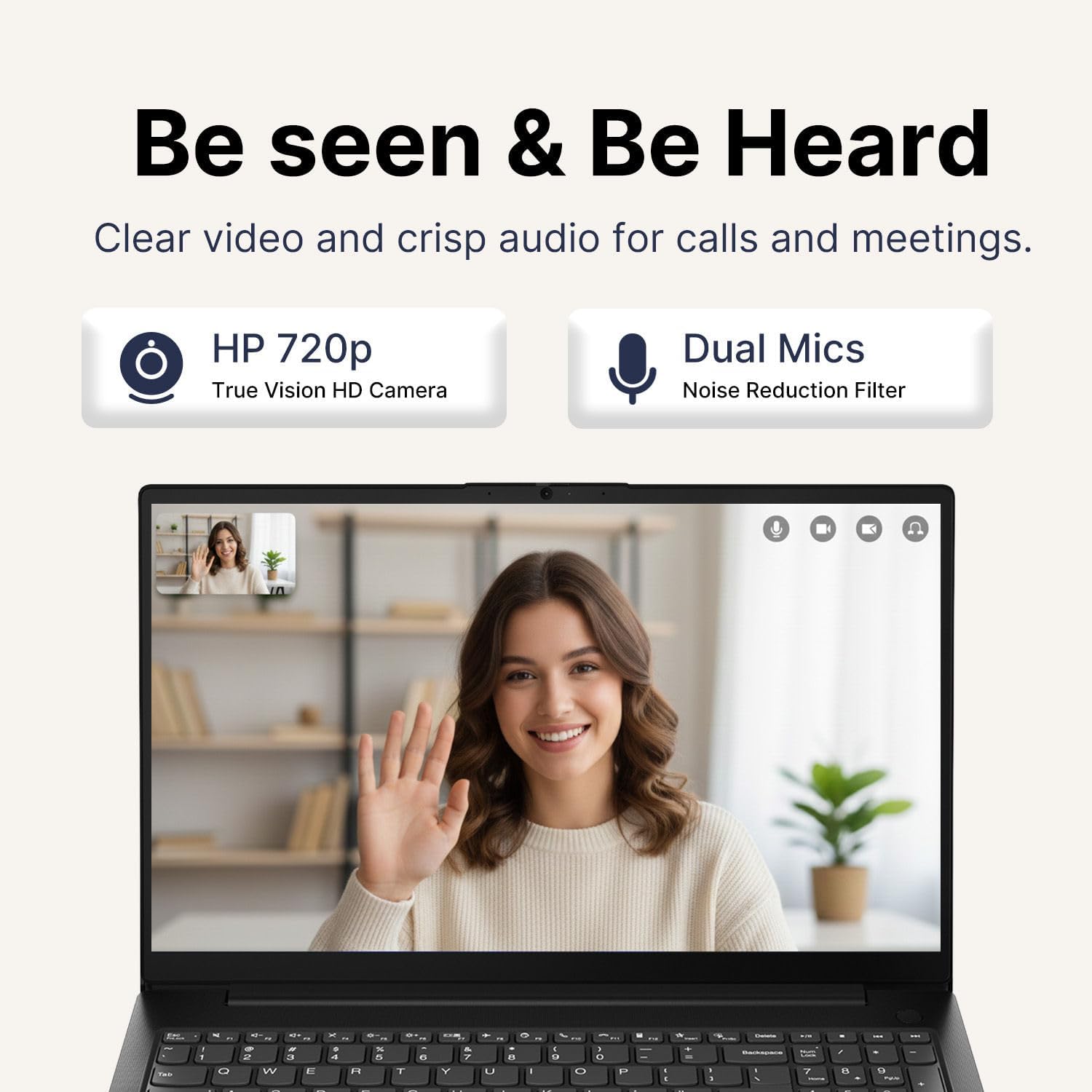
Image 3.4: Laptop webcam and microphone in use for communication.
4. Maintenance
4.1 Cleaning the Laptop
- Screen: Use a soft, lint-free cloth lightly dampened with water or a screen-cleaning solution. Avoid harsh chemicals.
- Keyboard and Chassis: Use a soft, dry cloth. For stubborn dirt, a slightly damp cloth with mild soap solution can be used, ensuring no liquid enters openings.
- Always power off and unplug the laptop before cleaning.
4.2 Battery Care
- To prolong battery life, avoid fully discharging the battery frequently.
- Store the laptop in a cool, dry place when not in use for extended periods.
- The battery provides up to 7 hours of usage on a full charge.
4.3 Software Updates
- Regularly check for and install Windows 11 updates to ensure optimal performance, security, and access to new features.
- Access Windows Update through Settings > Windows Update.
5. Troubleshooting
5.1 Power Issues
- Laptop does not turn on: Ensure the power adapter is securely connected to both the laptop and a working power outlet. Check if the power outlet is functional.
- Battery not charging: Verify the power adapter is correctly connected. Try a different power outlet.
5.2 Display Problems
- No image on screen: Ensure the laptop is powered on. Try adjusting the display brightness using the function keys. If an external monitor is connected, disconnect it to see if the internal display works.
- Flickering screen: Update your graphics drivers. Check display cable connections if using an external monitor.
5.3 Connectivity Issues
- Cannot connect to Wi-Fi: Ensure Wi-Fi is enabled in Windows settings. Restart your router and the laptop. Check for updated Wi-Fi drivers.
- Bluetooth device not pairing: Ensure Bluetooth is enabled on both the laptop and the device. Place devices close to each other. Remove and re-add the device in Bluetooth settings.
- External device not recognized: Ensure the device is properly connected to the correct port. Try a different port or restart the laptop.
6. Specifications
| Feature | Detail |
|---|---|
| Brand | Lenovo |
| Model Name | V15 |
| Screen Size | 15.6 Inches |
| Display Resolution | 1920x1080 Pixels (FHD) |
| Display Type | TN, Anti-glare, 250 nits |
| Processor | Intel Celeron N4500 (2 Cores, 2 Threads, up to 2.8 GHz) |
| Graphics | Integrated Intel UHD Graphics |
| RAM Memory | 4GB DDR4 |
| Storage | 256GB SSD (PCIe) |
| Operating System | Windows 11 Pro |
| Wireless Connectivity | Wi-Fi 6 (802.11ax), Bluetooth 5.2 |
| Ports | 1x USB-A 2.0, 1x USB-A 3.2 Gen 1, 1x USB-C 3.2 Gen 1, 1x HDMI 1.4b, 1x Headphone/Mic Combo Jack, 1x Ethernet (RJ-45) |
| Webcam | HD 720p with Privacy Shutter |
| Audio | High Definition (HD) Audio, Stereo speakers |
| Keyboard | Full Size with Numeric Keypad, US English |
| Battery Life | Up to 7 hours |
| Dimensions (L x W x H) | 14.14" x 9.28" x 0.78" |
| Weight | 3.75 lbs |
| Color | Black |
| Included Accessories | 65W USB-C Charger |

Image 6.1: Laptop dimensions and weight for portability.
7. Warranty & Support
For detailed warranty information, please refer to the warranty card included with your product or visit the official Lenovo support website. The warranty covers manufacturing defects under normal use conditions.
For technical support, driver downloads, and additional resources, please visit the Lenovo Support website: support.lenovo.com. You will need your product's serial number, typically found on a label on the bottom of the laptop or in the system information within Windows.


