
1. Product Overview
This Ftoghe 7-inch Double Din Car Stereo Radio is designed for 1998-2008 Ford E-250 and E-350 Super Duty vehicles. It features a 7-inch IPS touchscreen, Android 15.0 operating system with 2GB RAM and 64GB ROM, and supports a wide range of connectivity and entertainment options.
Key features include Wireless CarPlay and Android Auto, GPS navigation with built-in offline maps, Bluetooth hands-free calling and music streaming, FM/RDS radio, and support for a backup camera. The unit also offers steering wheel control compatibility and a split-screen function for multitasking.

Image: Front view of the Ftoghe 7-inch Double Din Car Stereo main unit.
2. Package Contents
Please verify that all items listed below are included in your package:
- 1 x Car MP5 Player (Main Unit)
- 1 x Power Cable
- 1 x GPS Antenna
- 1 x AHD Backup Camera
- 1 x RCA Input and Output Cable
- 1 x External Microphone
- 2 x USB Cables
- 1 x Instruction Manual
3. Specifications
| Feature | Description |
|---|---|
| System | Android 15.0 |
| Chipset | 8227L-DEMO |
| Screen Size | 7 inch Touch Screen |
| Memory | 2GB (RAM) + 64GB (ROM) |
| Screen Resolution | 1024x768 |
| Mirror Link | Android/iOS support |
| Radio Chip | MTK |
| Power Output | 4x45W |
| Work Temperature | -40℃ to 80℃ |
| Steering Wheel Control | Supported |
| Bluetooth Version | 4.0 |
| Power Amplifier Chip | AC7388 |
| Radio Band | FM/RDS |
| Video Output | Supported |
| Reversing Input | Supported |
| External Microphone | Supported |
| Maps | Built-in offline maps, online maps via WiFi |
| WiFi | Supported |
| USB | Double USB interface |
| Audio Format | APE/FLAC/WAV/MP3/WMA and more |
| Video Format | MKV/RMVB/AVI/MP4/MDV and more |
| Picture Format | PNG/JPEG/JPG/GIF/WBMP/BNP and more |
| Factory Setting Keyword | 8888 |
| Language | Multi-language support (Chinese, English, French, Italian, Korean, Japanese, Arabic, Spanish, Portuguese, Russian, Turkish, Vietnamese, Hebrew, Polish, German) |
4. Setup and Installation
Important Note: This car stereo is NOT a plug-and-play unit. Installation requires cutting and splicing wires. Professional installation is highly recommended.

Image: Warning indicating that the unit is not plug and play and requires wire cutting for installation.
4.1 Wiring Diagram
Refer to the following diagram for proper wiring connections. Ensure all connections are secure and insulated.
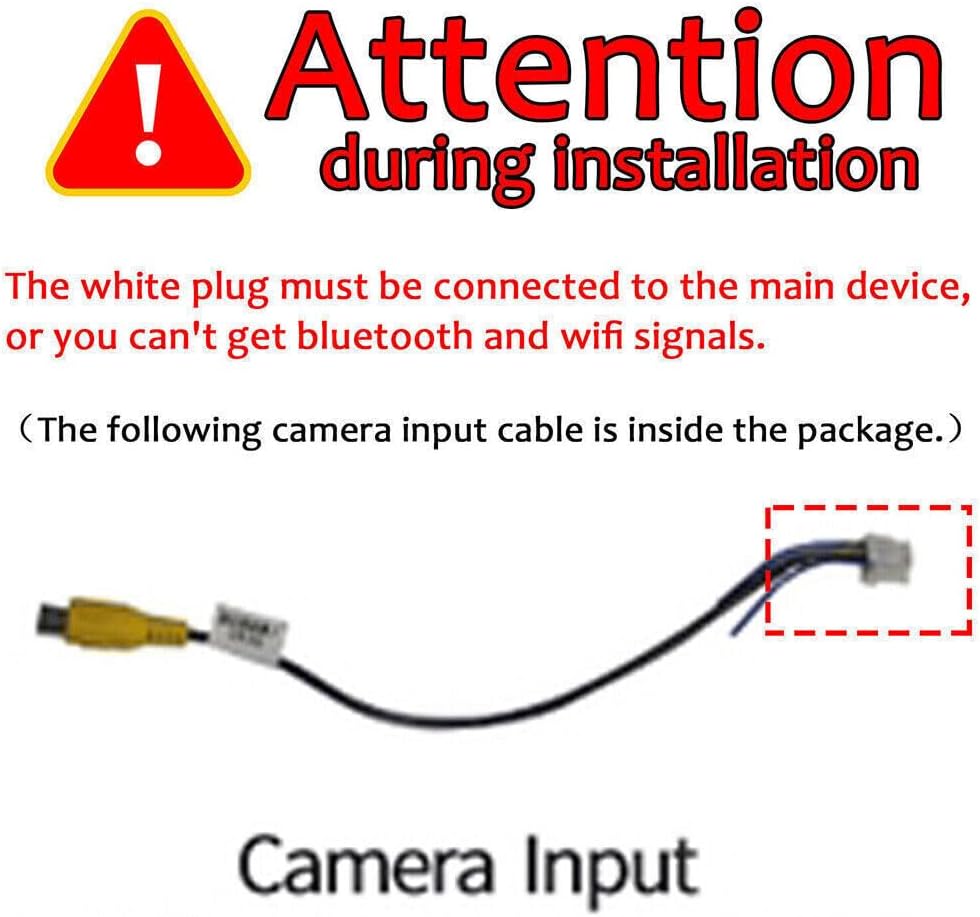
Image: Detailed wiring diagram showing connections for power, speakers, USB, GPS, and other inputs/outputs.
4.2 Bluetooth and WiFi Signal Connection
For proper Bluetooth and WiFi functionality, the white plug must be securely connected to the main device. Failure to do so will result in no Bluetooth or WiFi signals.

Image: Illustration highlighting the white plug connection essential for Bluetooth and WiFi signals.
5. Operating Instructions
5.1 Wireless CarPlay and Android Auto
Connect your smartphone wirelessly via Bluetooth and Wi-Fi to access CarPlay or Android Auto. This allows you to use your phone's apps, make calls, navigate, and play music directly from the car stereo's touchscreen or via voice commands.

Image: Display showing the user interface for Apple CarPlay and Android Auto, including app icons for phone, music, messages, and navigation.
5.2 GPS Navigation & WiFi Connectivity
The unit comes with built-in offline maps. For online navigation and access to other apps, connect the stereo to a WiFi network or your phone's personal hotspot. You can install additional apps like YouTube, Facebook, and various map applications from the app store.

Image: Screen displaying GPS navigation with route information and icons for various navigation and media apps, along with WiFi connection status.
5.3 Bluetooth Hands-free & FM/RDS Radio
Pair your phone via Bluetooth for hands-free calls and audio streaming. Use voice commands for safer operation while driving. The FM radio supports RDS and has 18 preset stations, allowing you to listen to news and traffic updates.

Image: Split screen view showing Bluetooth hands-free call interface on one side and FM radio tuning interface with frequency display on the other.
5.4 Steering Wheel Control
The unit supports steering wheel controls, allowing you to manage music playback, volume, and calls without taking your hands off the wheel. This enhances driving safety and convenience. Refer to the wiring diagram for proper connection of steering wheel control wires.

Image: Diagram illustrating how to set up and use steering wheel controls, showing various button functions like power, volume, navigation, and radio.
5.5 Rear-view Camera Input
Connect the included AHD backup camera to the unit. When reverse gear is engaged, the screen will automatically switch to the rear-view display, providing a 170° viewing angle. This assists in safe parking and maneuvering by showing potential hazards behind the vehicle.
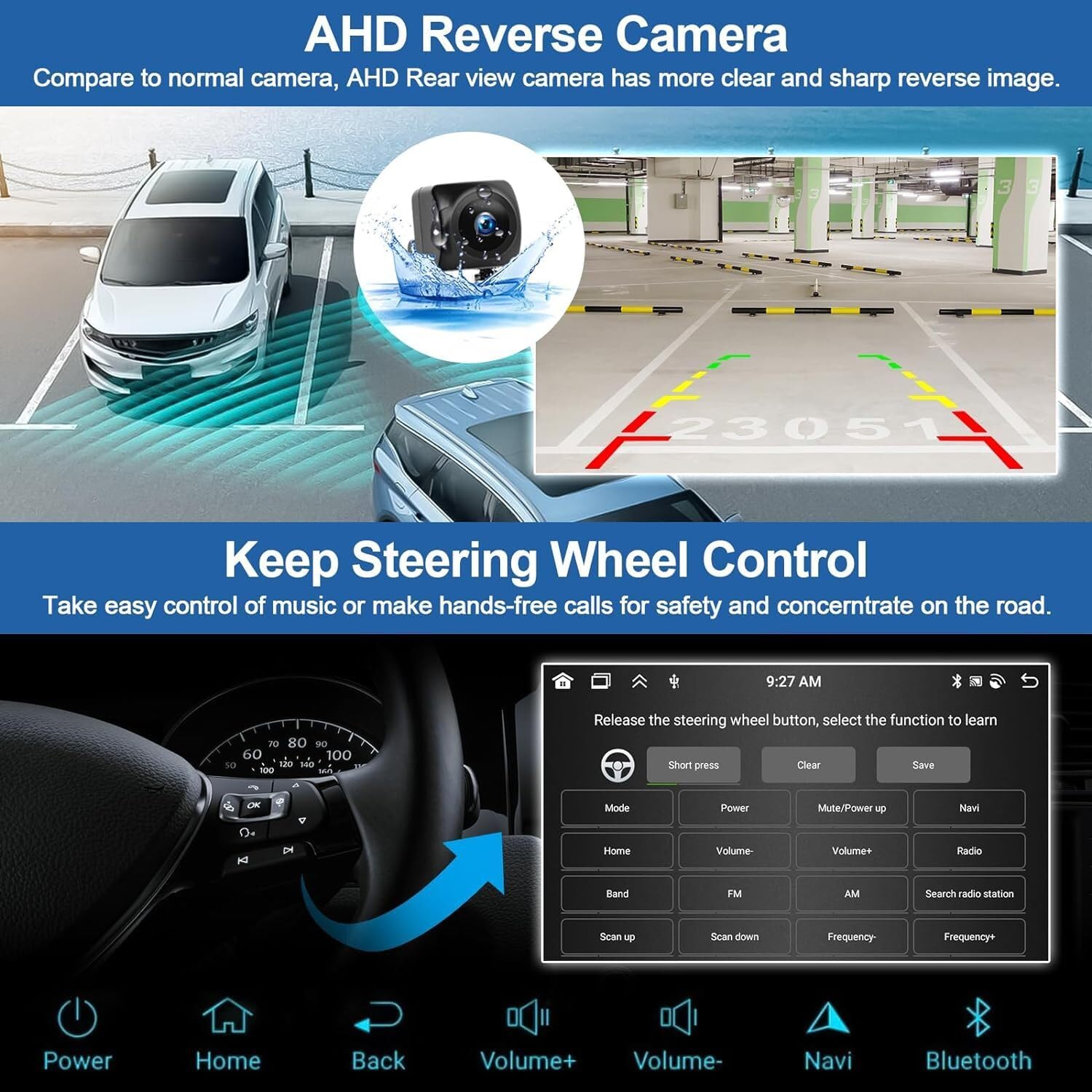
Image: Screen displaying the view from an AHD reverse camera, showing parking guidelines and a wide-angle perspective of the area behind a vehicle.
6. Maintenance
To ensure the longevity and optimal performance of your car stereo, follow these general maintenance guidelines:
- Cleaning: Use a soft, dry cloth to clean the touchscreen and exterior. Avoid abrasive cleaners or solvents.
- Software Updates: Periodically check for available software updates to ensure the system runs efficiently and has the latest features.
- Environmental Conditions: Avoid exposing the unit to extreme temperatures or direct sunlight for prolonged periods.
- Cable Connections: Ensure all wiring connections remain secure. Loose connections can lead to intermittent issues.
7. Troubleshooting
If you encounter issues with your car stereo, refer to the following common troubleshooting steps:
- No Power: Check the power cable connections and ensure the vehicle's fuse for the stereo is intact.
- No Sound: Verify speaker connections. Check volume settings and ensure the mute function is not active.
- Bluetooth/WiFi Issues: Ensure the white plug is correctly connected to the main unit. Restart the unit and your phone.
- GPS Signal Loss: Ensure the GPS antenna is properly installed and has a clear view of the sky.
- Touchscreen Unresponsive: Try restarting the unit. If the issue persists, a factory reset might be necessary (note: this will erase all user data).
- Backup Camera Not Displaying: Check the camera's power and video signal connections. Ensure the reverse gear signal wire is correctly connected.
For persistent issues not resolved by these steps, please consult a professional installer or contact customer support.
8. Warranty and Support
This product may be eligible for extended protection plans. Please refer to your purchase documentation or retailer for details on available warranty and support options.
- 2-Year Protection Plan: Available for purchase.
- 3-Year Protection Plan: Available for purchase.
- Asurion Complete Protect: Monthly plan covering eligible past and future purchases.
For specific product support, please refer to the contact information provided by your seller or on the product packaging.