
Introduction
This manual provides essential information for setting up, operating, and maintaining your iFFALCON 55U95A 55-inch 4K QD-Mini LED Smart Google TV. Please read these instructions carefully before using the product to ensure safe and optimal performance. Keep this manual for future reference.
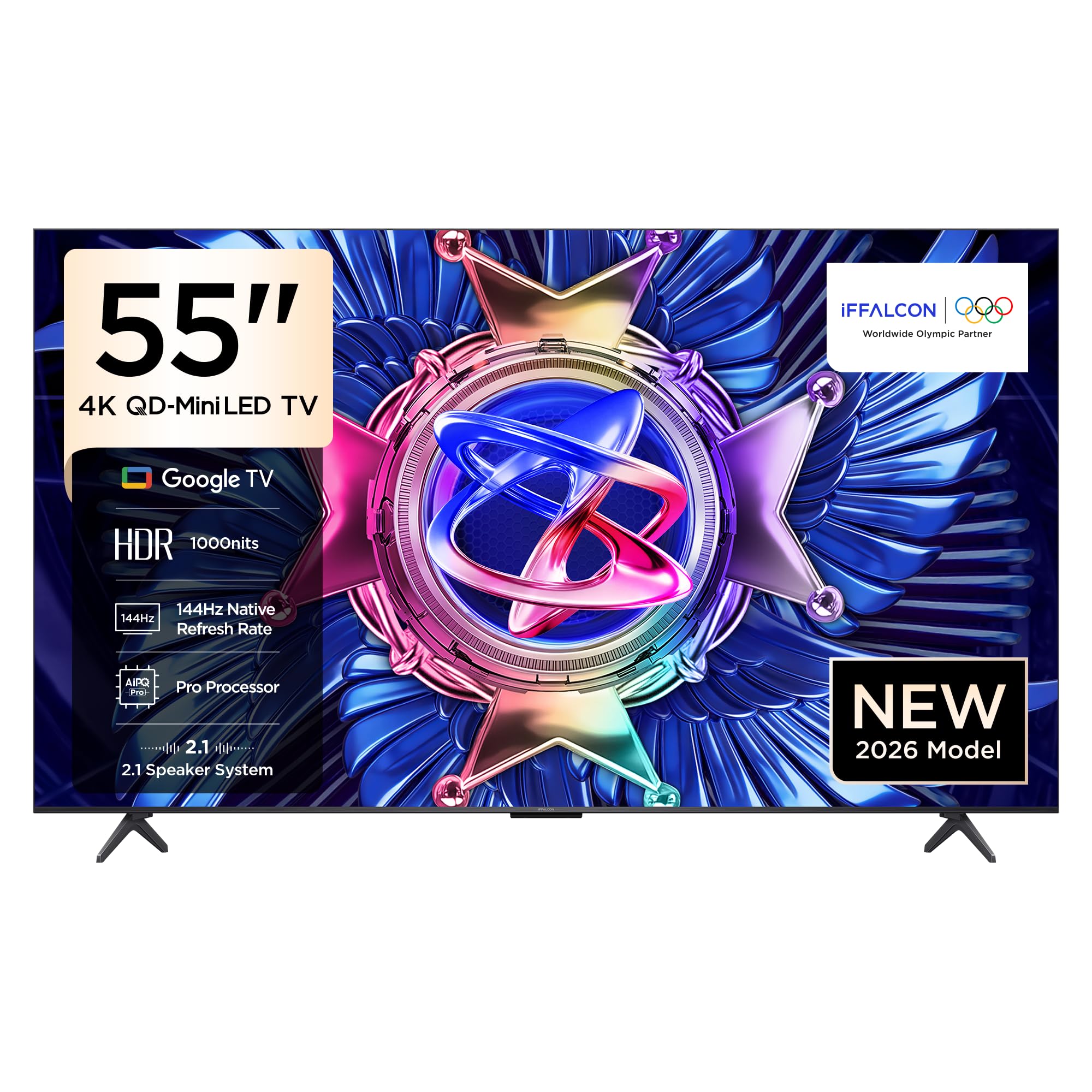
Figure 1: Front view of the iFFALCON 55U95A Smart Google TV.
Setup Guide
1. Unpacking
- Carefully remove the TV and all accessories from the packaging.
- Verify that all included components are present: Power Adapter, Power Cable, Remote Control, Stand, and User Manual.
- Retain the packaging materials for potential future transport or service.
2. Stand Installation or Wall Mounting
Stand Installation:
- Place the TV screen-down on a soft, flat surface to prevent damage.
- Attach the stand bases to the designated slots on the bottom of the TV, aligning the screw holes.
- Secure the stands using the provided screws. Ensure they are tightened firmly.
Wall Mounting:
- If wall mounting, refer to the specific instructions provided with your wall mount kit.
- Ensure the wall mount is compatible with the VESA mounting pattern of your TV.
- Professional installation is recommended for wall mounting.

Figure 2: TV dimensions for placement and mounting considerations.
3. Connecting Peripherals
Locate the input ports on the back of your TV. Connect your devices as follows:
- HDMI Devices: Connect gaming consoles, Blu-ray players, or set-top boxes to the HDMI ports.
- USB Devices: Insert USB drives for media playback or software updates into the USB port.
- Power: Connect the power cable to the TV and then to a power outlet.
- Network: Connect an Ethernet cable for a wired internet connection, or use Wi-Fi for wireless connectivity.
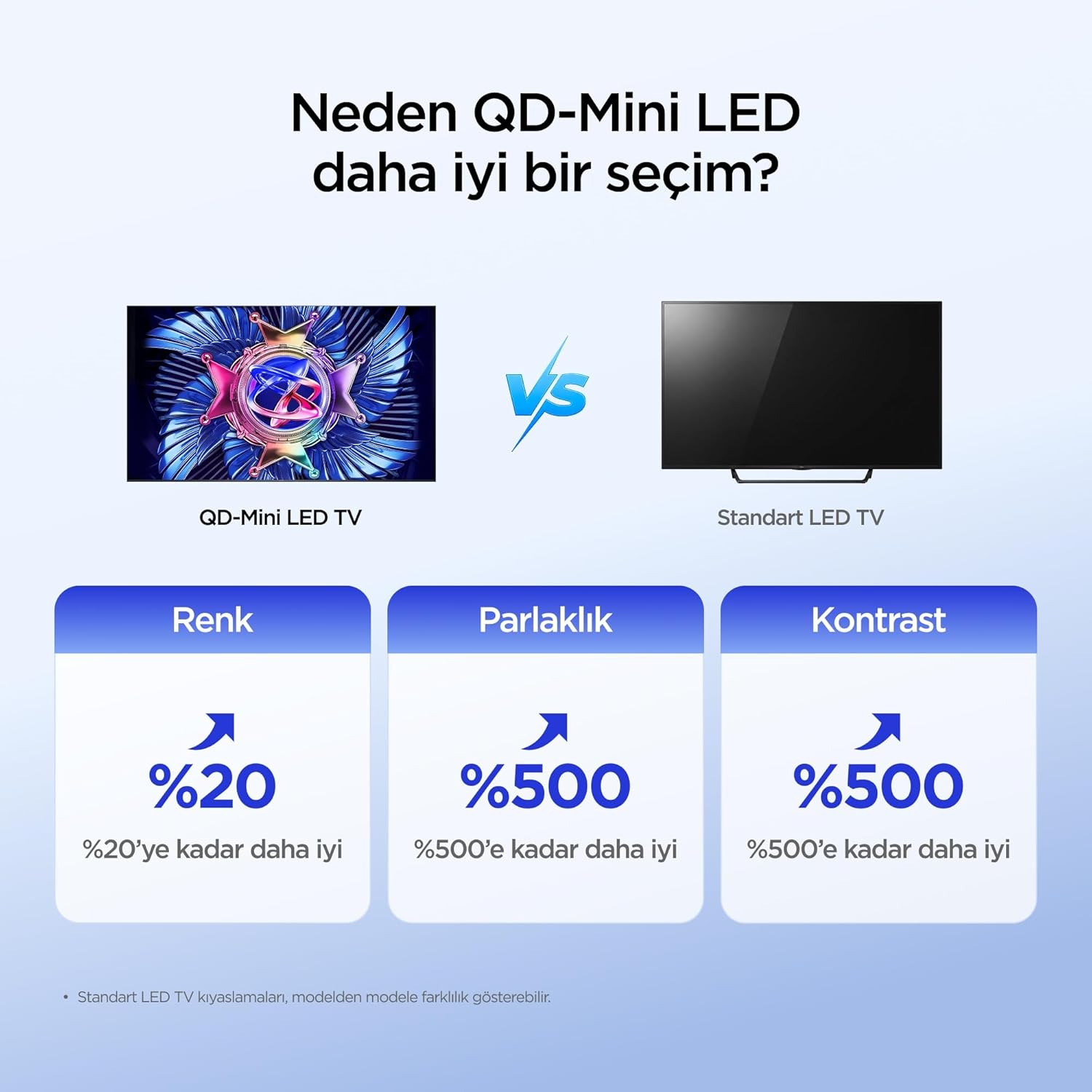
Figure 3: Rear view of the TV with connection ports.
4. Initial Power On and Setup
- Press the power button on the remote control or the TV.
- Follow the on-screen instructions to complete the initial setup, including language selection, network connection, and Google account login.
Operating Instructions
1. Remote Control Functions
The remote control allows you to navigate the TV's interface and control various functions. Familiarize yourself with the buttons for power, volume, channel, input selection, and smart TV navigation.
2. Smart TV Features (Google TV)
Your iFFALCON TV runs on Google TV, providing access to a wide range of apps, streaming services, and smart features.
- Google Assistant: Use voice commands via the remote control to search for content, control smart home devices, and get information.
- Chromecast Built-in: Cast content from your compatible mobile devices directly to the TV screen.
- App Access: Download and install applications from the Google Play Store.
3. Picture Settings
Optimize your viewing experience by adjusting picture settings. The iFFALCON 55U95A features advanced display technologies:
- QD-Mini LED: Offers superior color, brightness, and contrast compared to standard LED TVs.
- 512 Local Dimming Zones: Provides pixel-level light control for precise detail and impressive visuals by managing over 500 local dimming zones.
- HDR 1000nits: Delivers peak brightness of up to 1000 nits, enhancing contrast and detail even in bright environments.
- QLED Technology: Utilizes advanced quantum crystal materials for richer colors, higher stability, and long-lasting color performance, ensuring vibrant and lifelike images.
- All-domain Halo Control Technology: Reduces the halo effect from source to screen, providing clearer details and higher contrast for a premium viewing experience.
- AiPQ Pro Processor: Intelligently analyzes and optimizes content at a pixel level for enhanced clarity, balance, and overall viewing quality.
- Matte HVA Panel: Reduces reflections and glare, offering a clear view even in brightly lit rooms.

Figure 4: QD-Mini LED technology advantages.

Figure 5: Local Dimming Zones for superior contrast.

Figure 6: High HDR brightness for vivid images.
4. Sound Settings
Experience immersive audio with your TV's advanced sound system:
- ONKYO 2.1 Hi-Fi Audio: Built-in 2.1 channel speakers deliver impressive stereo sound with deep bass, providing a cinema-like audio experience.
- Dolby Atmos: Enjoy powerful, clear, and balanced sound with enhanced dialogue and immersive surround sound.

Figure 7: The 2.1 Speaker System provides a Hi-Fi experience.
5. Gaming Features
The iFFALCON 55U95A is designed for an enhanced gaming experience:
- 144Hz Natural Refresh Rate: Provides smoother motion and sharper images, reducing lag and tearing for a more responsive gaming experience.
- Game Master Mode: Optimizes settings for gaming, reducing input lag and enhancing visual performance.

Figure 8: Enjoy smoother action with a 144Hz natural refresh rate.
Maintenance
1. Cleaning Your TV
- Always unplug the TV before cleaning.
- Use a soft, dry, lint-free cloth to gently wipe the screen and cabinet.
- For stubborn marks, lightly dampen the cloth with water or a mild, non-abrasive screen cleaner. Do not spray cleaner directly onto the screen.
- Avoid using alcohol, benzene, thinners, or other volatile substances, as they may damage the TV.
2. Software Updates
Your TV may receive software updates to improve performance and add new features. Ensure your TV is connected to the internet to receive these updates automatically or check for them manually in the settings menu.
Troubleshooting
If you encounter issues with your TV, refer to the following common problems and solutions:
| Problem | Possible Solution |
|---|---|
| No Power | Check if the power cable is securely connected to the TV and the power outlet. Ensure the outlet is functional. |
| No Picture, but Sound is Present | Verify the correct input source is selected. Check cable connections to external devices. Try restarting the TV. |
| No Sound, but Picture is Present | Check the volume level and mute status. Ensure audio cables are correctly connected. Check TV audio output settings. |
| Remote Control Not Working | Replace the batteries. Ensure there are no obstructions between the remote and the TV's IR sensor. |
| Cannot Connect to Wi-Fi | Ensure your Wi-Fi router is on and working. Re-enter the Wi-Fi password. Try restarting both the TV and the router. |
| Picture is Distorted or Unclear | Adjust picture settings (brightness, contrast, sharpness). Check the quality of the input signal. |
If the problem persists after trying these solutions, please contact customer support.
Technical Specifications
| Feature | Specification |
|---|---|
| Brand | iFFALCON |
| Model | 55U95A |
| Screen Size | 55 inches |
| Display Technology | Mini LED |
| Resolution | 4K (3840 x 2160 Pixels) |
| Refresh Rate | 144 Hz |
| Hardware Interface | Bluetooth, HDMI, USB |
| Audio Input | Bluetooth, Wi-Fi |
| Speaker Configuration | 2.1 Channel |
| Connectivity Technology | Bluetooth, HDMI, USB, Wi-Fi |
| Number of USB Ports | 1 |
| Mounting Type | Table Mount, Wall Mount |
| Product Dimensions (WxDxH) | 122.9 x 5.59 x 71.3 cm |
| Product Weight | 16.3 Kilograms |
| Included Components | Power Adapter, Power Cable, Remote Control, Stand, User Manual |
| Country of Origin | China |
Warranty and Support
Your iFFALCON 55U95A TV comes with a standard manufacturer's warranty. Please refer to the warranty card included in your product packaging for specific terms and conditions, including warranty duration and coverage details.
For technical support, service requests, or further assistance, please visit the official iFFALCON website or contact their customer service hotline. Contact information can typically be found in the warranty documentation or on the manufacturer's website.


