
1. Introduction
The Klanata Tuya WiFi Air Quality Monitor is a multifunctional device designed to provide real-time monitoring of various indoor air quality parameters. This device detects CO2 concentration, CO concentration, TVOC value, HCHO value, PM2.5, PM1.0, PM10 particulate matter, and five groups of temperature and humidity readings. It features a 2.8-inch color digital display, supports connection to the Tuya APP for remote monitoring, and includes an alarm function for abnormal parameter levels. The monitor is equipped with a 2000mAh battery for portable use and comes with 3 subunits for extended monitoring capabilities.

Overview of the Klanata Air Quality Monitor's capabilities, showing the Tuya app interface, two display modes (data and clock), and multiple subunits. It highlights the 20 display parameters and the ability to connect up to 5 sensors.
2. Product Features
- Multifunctional Parameter Tracking: Monitors 20 distinct data points including CO2, CO, TVOC, HCHO, PM2.5, PM1.0, PM10, and five sets of temperature and humidity readings.
- Remote Data Access Compatible with Tuya APP: Connects via WiFi to monitor real-time sensor data and view historical trends through a mobile device. Automatically synchronizes date and time settings.
- Color Digital Display and Notification System: Features a 2.8-inch color digital display with multiple viewing modes and toggle options for Celsius or Fahrenheit. An integrated alarm sounds when detected parameters reach abnormal levels.
- Integrated Battery and Ventilation Housing: Equipped with a 2000mAh rechargeable battery for cordless operation. Multiple ventilation holes facilitate air convection for effective detection and heat dissipation.
- Durable ABS Construction: Built with high-quality ABS material for durability, suitable for various environments including offices, warehouses, schools, and agricultural facilities.
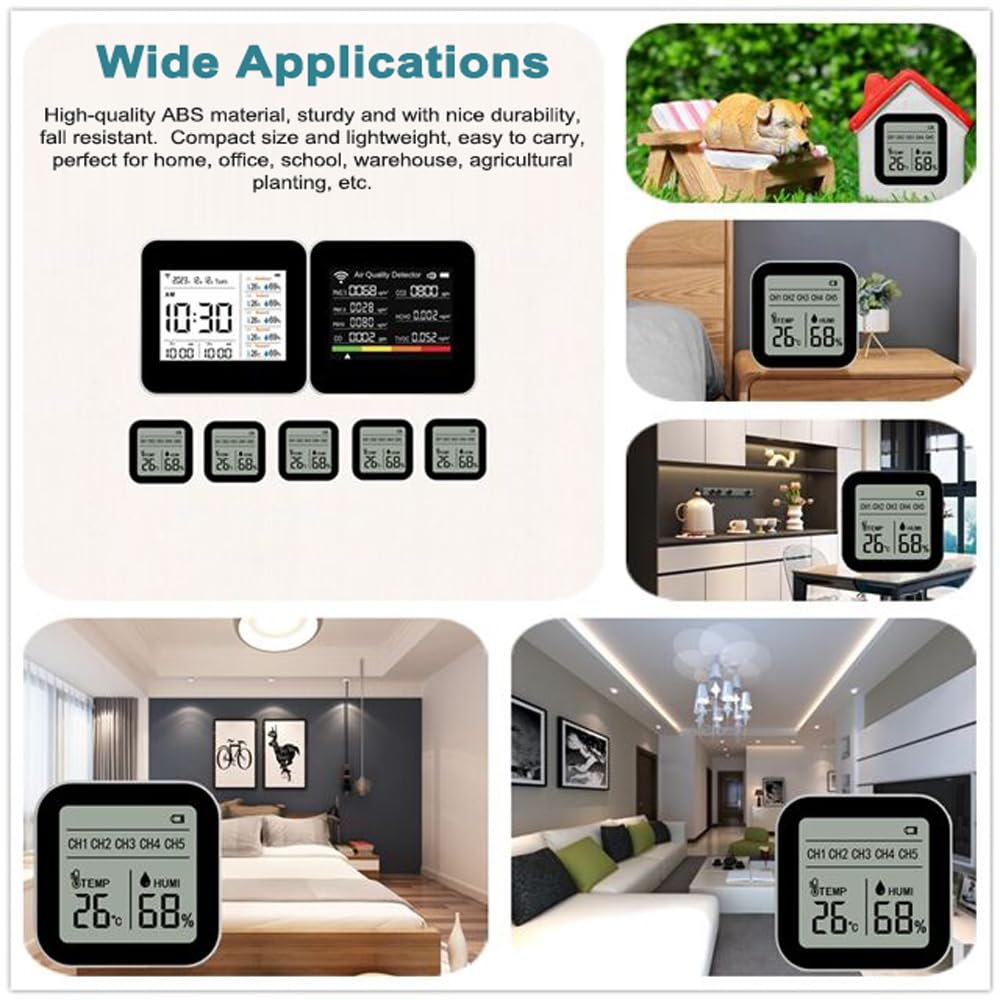
Examples of the Klanata Air Quality Monitor's wide applications in various environments such as homes, offices, and agricultural settings, showcasing the main unit and multiple subunits.
3. Getting Started
3.1 Charging the Device
Before initial use, fully charge the main unit using the provided USB cable. Connect the cable to the charging port on the device and a standard USB power adapter (not included). The battery indicator on the display will show charging status.
3.2 Powering On/Off
- To Power On: Press and hold the power button (usually located on the side or back) for a few seconds until the display illuminates.
- To Power Off: Press and hold the power button again until the display turns off.

The Klanata Air Quality Monitor and its subunits in a room setting, illustrating the built-in battery for portability and the ventilation holes for effective air sampling and heat dissipation.
4. Connecting to Tuya APP
4.1 Download the Tuya APP
Search for "Tuya Smart" or "Smart Life" in your mobile app store (App Store for iOS or Google Play Store for Android) and download the application.
4.2 Register/Log In
Open the app and register for a new account or log in with an existing one.
4.3 Add Device
- Ensure your mobile device is connected to a 2.4GHz WiFi network.
- On the Tuya APP, tap the "+" icon in the top right corner to add a device.
- Select the appropriate device category (e.g., "Sensors" or "Environmental Monitor").
- Follow the on-screen instructions to put the air quality monitor into pairing mode. This usually involves pressing a button on the device until a WiFi indicator blinks rapidly.
- Enter your WiFi network password in the app.
- Wait for the device to connect. Once connected, the app will confirm successful pairing, and the device's time and date will automatically synchronize with your phone.
5. Operating Instructions
5.1 Understanding the Display
The 2.8-inch color display provides various modes to view air quality data, temperature, humidity, time, and date. You can switch between display modes using the navigation buttons on the device.
- Data Display Mode: Shows real-time readings for PM2.5, PM1.0, PM10, CO, HCHO, TVOC, and CO2.
- Clock Display Mode: Displays current time, date, and temperature/humidity readings from connected subunits.
You can also switch between Celsius (°C) and Fahrenheit (°F) temperature units through the device settings or the Tuya APP.

Angled view of the Klanata Air Quality Monitor displaying real-time air quality data including PM2.5, PM1.0, PM10, CO, HCHO, and TVOC levels.

Close-up of the Klanata Air Quality Monitor's 2.8-inch color display, showing detailed readings for PM2.5, PM1.0, PM10, CO, HCHO, and TVOC.
5.2 Monitoring Air Quality
The device continuously monitors air quality. The display will update with current readings. Refer to local or international air quality guidelines to interpret the significance of the displayed values. The color bar at the bottom of the display provides a quick visual indicator of overall air quality status.
5.3 Alarm Function
The monitor includes an alarm function. If any monitored parameter exceeds a pre-set threshold (which can often be adjusted via the Tuya APP), the device will emit an audible alarm to alert you to potentially unhealthy air conditions. Take appropriate action, such as ventilating the area, when an alarm sounds.
5.4 Using Subunits
The Klanata Air Quality Monitor supports connection with up to 5 subunits (3 subunits are included with this model). These subunits can be placed in different rooms or areas to monitor temperature and humidity remotely. The main unit's display will show readings from each connected subunit (e.g., CH1, CH2, CH3).

Angled view of the Klanata Air Quality Monitor displaying the current time and temperature/humidity readings from multiple channels (CH1, CH2, CH3, CH4, CH5), indicating connected subunits.

Angled view of the Klanata Air Quality Monitor showing the clock display with date and time, alongside temperature and humidity readings for multiple channels (Outdoor, Indoor, Room1, Room2, Room3).
6. Care and Maintenance
6.1 Cleaning
Wipe the device with a soft, dry cloth. Do not use abrasive cleaners, solvents, or harsh chemicals, as these can damage the device's surface or internal components. Avoid getting moisture into the ventilation holes or charging port.
6.2 Battery Care
To prolong battery life, avoid fully discharging the device frequently. Charge the device regularly, especially if it will be stored for an extended period. Store the device in a cool, dry place.
6.3 Ventilation
Ensure the ventilation holes on the device are not obstructed. These holes are crucial for accurate air sampling and proper heat dissipation. Blocked vents can lead to inaccurate readings or device overheating.
7. Troubleshooting
- Device not powering on: Ensure the device is fully charged. Connect it to a power source and try again.
- Inaccurate readings: Ensure the device is placed in an area with good air circulation and away from direct drafts, heat sources, or strong chemical fumes. Clean the ventilation holes if necessary.
- WiFi connection issues: Verify your WiFi network is 2.4GHz. Ensure the device is within range of your router. Restart both the device and your router, then attempt to reconnect via the Tuya APP.
- Subunits not displaying data: Ensure subunits are properly paired with the main unit and are within their operational range. Check their batteries if applicable.
- Alarm sounding frequently: Check the current air quality readings. If levels are genuinely high, ventilate the area. If readings appear normal, check the alarm threshold settings in the Tuya APP.
8. Technical Specifications
| Specification | Value |
|---|---|
| Brand | Klanata |
| Model | B0GG53RGJQ |
| Color | White |
| Material | ABS |
| Display | 2.8 Inch Color Screen |
| Battery Capacity | 2000mAh |
| Subunit Quantity | 3 pcs (included) |
| Connectivity | WiFi (2.4GHz) |
| Monitored Parameters | CO2, CO, TVOC, HCHO, PM2.5, PM1.0, PM10, Temperature, Humidity |