
1. Introduction
This manual provides detailed instructions for the setup, operation, and maintenance of your LEFFOT H618 Plus Android 14.0 TV Box. This device transforms your television into a smart entertainment hub, offering access to streaming services, apps, and media content. Please read this manual thoroughly before using the device to ensure proper functionality and safety.
2. Package Contents
Verify that all items listed below are included in your package:
- LEFFOT H618 Plus Android 14.0 TV Box
- Power Adapter
- HD Cable (HDMI Cable)
- Remote Control
- User Manual (this document)
3. Product Overview
The LEFFOT H618 Plus is a 4K UHD streaming device powered by Android 14.0. It features an Allwinner H618 Quad-core ARM Cortex-A53 CPU and Mali G31 GPU, providing smooth performance for streaming and applications. This model includes 2GB RAM and 16GB ROM for system operations and app storage.
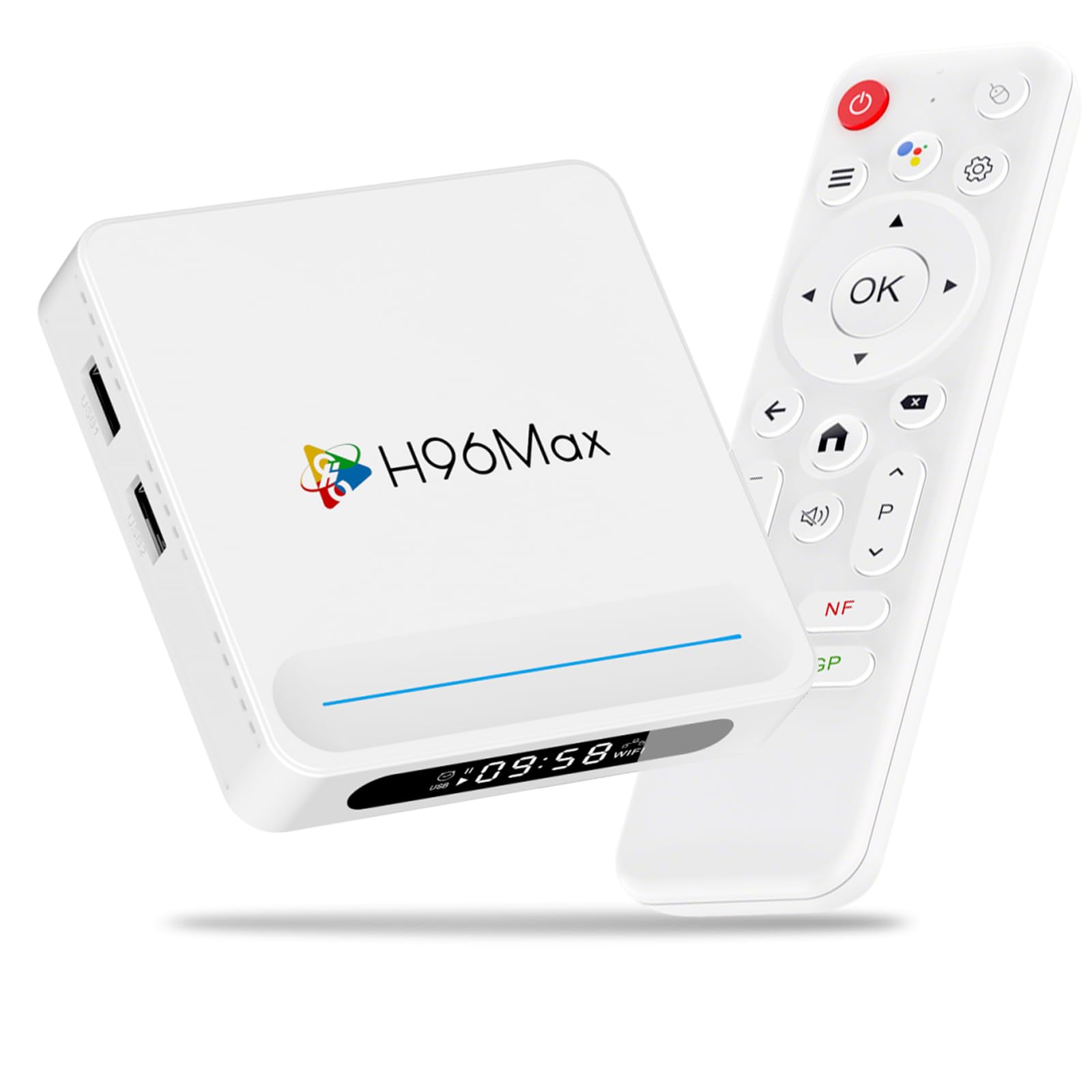
Figure 3.1: Front view of the LEFFOT H618 Plus Android TV Box, showcasing its compact design and various ports for connectivity. The included remote control is also visible.
Ports and Connections
- HDMI 2.0a Output: Connects to your TV or display for 4K video output.
- USB 2.0 Ports (x2): For connecting external storage devices, keyboards, mice, or other USB peripherals.
- AV Output: For connecting to older televisions using an analog cable.
- DC Power Input: Connects the power adapter to the device.
- Ethernet Port (100M): For a stable wired network connection.
4. Setup Guide
Follow these steps to set up your LEFFOT H618 Plus TV Box:
- Connect to TV: Connect one end of the provided HD cable (HDMI) to the HDMI port on the TV Box and the other end to an available HDMI input on your television.
- Connect Power: Plug the power adapter into the DC power input port on the TV Box, then plug the adapter into a wall outlet.
- Power On: The device should power on automatically. If not, press the power button on the remote control.
- Select Input: On your television, select the correct HDMI input source using your TV's remote control.
- Initial Setup: Follow the on-screen instructions to complete the initial setup, which typically includes selecting your language, connecting to a Wi-Fi network (or using Ethernet), and signing in with your Google account.
5. Operating Instructions
Remote Control Navigation
Use the included remote control to navigate the Android interface:
- Directional Pad: Use the up, down, left, and right arrows to move between menu items and options.
- OK Button: Press to select an item or confirm an action.
- Back Button: Returns to the previous screen or menu.
- Home Button: Returns to the main home screen.
- Volume Buttons: Adjusts the audio output volume.
- Power Button: Turns the device on or off (standby mode).
Accessing Applications
From the home screen, you can access pre-installed applications or download new ones from the Google Play Store. Navigate to the 'Apps' section or the Google Play Store icon and select it to browse and install applications.
6. Connectivity
Wi-Fi Connection
The device supports 2.4G/5G Dual-Band Wi-Fi 6 for fast and stable wireless internet access. To connect:
- Go to Settings > Network & Internet.
- Select Wi-Fi and turn it on.
- Choose your desired Wi-Fi network from the list.
- Enter the Wi-Fi password if prompted and select Connect.
Ethernet Connection
For a more stable connection, connect an Ethernet cable from your router to the Ethernet port on the TV Box. The device will automatically detect and use the wired connection.
Bluetooth 5.0
The TV Box features Bluetooth 5.0, allowing you to connect compatible wireless accessories such as headphones, game controllers, or keyboards.
- Go to Settings > Connected Devices > Pair new device.
- Put your Bluetooth accessory into pairing mode.
- Select the accessory from the list on your TV screen to pair.
7. Voice Control
The LEFFOT H618 Plus integrates with Google Assistant for convenient voice control. If your remote control has a dedicated microphone button, press it to activate voice commands.
- Search Content: Say "Find action movies" or "Play [Movie Title]".
- Launch Apps: Say "Open YouTube" or "Launch Netflix".
- Control Playback: Say "Pause", "Play", "Fast forward", or "Rewind".
- Adjust Volume: Say "Volume up" or "Volume down".
8. Screen Mirroring
The device supports AirPlay and Miracast, allowing you to wirelessly cast content from your iOS or Android devices to your television.
Using AirPlay (for iOS devices)
- Ensure your iOS device and the TV Box are connected to the same Wi-Fi network.
- On your iOS device, open the Control Center (swipe down from the top-right corner on newer iPhones/iPads, or swipe up from the bottom on older models).
- Tap Screen Mirroring or AirPlay.
- Select the LEFFOT H618 Plus from the list of available devices.
Using Miracast (for Android devices)
- Ensure your Android device and the TV Box are connected to the same Wi-Fi network.
- On your Android device, look for a feature like Cast, Screen Mirroring, Smart View, or Wireless Display in your quick settings or display settings.
- Activate the feature and select the LEFFOT H618 Plus from the list of available devices.
9. Specifications
Detailed technical specifications for the LEFFOT H618 Plus Android 14.0 TV Box (2GB-16GB model):
| Brand | LEFFOT |
| Model Number | 2GB-16GB |
| Operating System | Android 14.0 |
| CPU | Allwinner H618 Quad-core ARM Cortex-A53 |
| GPU | Mali G31 |
| RAM | 2GB |
| ROM | 16GB |
| Resolution | 4K UHD |
| Wi-Fi | 2.4G/5G Dual-Band Wi-Fi 6 |
| Bluetooth | Bluetooth 5.0 |
| Ethernet | 100M |
| Ports | HDMI 2.0a, 2x USB 2.0, AV Out, DC In, Ethernet |
| Special Features | HDR10, AirPlay, Miracast, Voice Control (Google Assistant) |
| Dimensions | 3.93 x 3.93 x 0.76 inches |
| Weight | 4.1 ounces (115 Grams) |
10. Troubleshooting
If you encounter issues with your LEFFOT H618 Plus TV Box, refer to the following common problems and solutions:
- No Power:
- Ensure the power adapter is securely connected to the device and a working power outlet.
- Try a different power outlet.
- No Signal on TV:
- Verify the HDMI cable is firmly connected to both the TV Box and the TV.
- Ensure your TV is set to the correct HDMI input source.
- Try a different HDMI cable or HDMI port on your TV.
- Wi-Fi Connection Issues / Spotty Wi-Fi:
- Check if your Wi-Fi router is working correctly.
- Ensure the TV Box is within range of your Wi-Fi router.
- Try restarting both the TV Box and your Wi-Fi router.
- Consider using a wired Ethernet connection for better stability.
- Slow Performance / Buffering:
- Close unnecessary background applications.
- Clear the cache of frequently used apps (Settings > Apps > [App Name] > Clear Cache).
- Ensure you have a stable and fast internet connection.
- Restart the device.
- Remote Control Not Responding:
- Check and replace the batteries in the remote control.
- Ensure there are no obstructions between the remote and the TV Box.
- App Compatibility Issues:
- Some applications may not be fully optimized for Android TV Box environments. Check the app's requirements or look for alternative versions.
11. Maintenance
To ensure the longevity and optimal performance of your TV Box:
- Cleaning: Use a soft, dry cloth to clean the device. Do not use liquid cleaners or aerosols.
- Placement: Place the device on a stable, flat surface with adequate ventilation. Avoid placing it near heat sources or in direct sunlight.
- Power Off: If not in use for an extended period, disconnect the power adapter.
- Software Updates: Periodically check for system updates in the device settings to ensure you have the latest features and security patches.
12. Safety Information
Please observe the following safety precautions:
- Do not expose the device to water, moisture, or extreme temperatures.
- Do not attempt to open or repair the device yourself. Refer all servicing to qualified personnel.
- Use only the provided power adapter. Using unauthorized adapters may damage the device and void the warranty.
- Keep the device away from children and pets.
13. Warranty and Support
For warranty information or technical support, please refer to the documentation provided with your purchase or contact LEFFOT customer service through their official website or the retailer where the product was purchased. Please have your model number (2GB-16GB) and purchase details ready when contacting support.


