
Introduction
This manual provides instructions for the Nonbliep Wired Arcade Stick, designed for use with PlayStation 5, PlayStation 4, and PC. It features programmable buttons, turbo functions, and a durable build, optimized for fighting game genres.
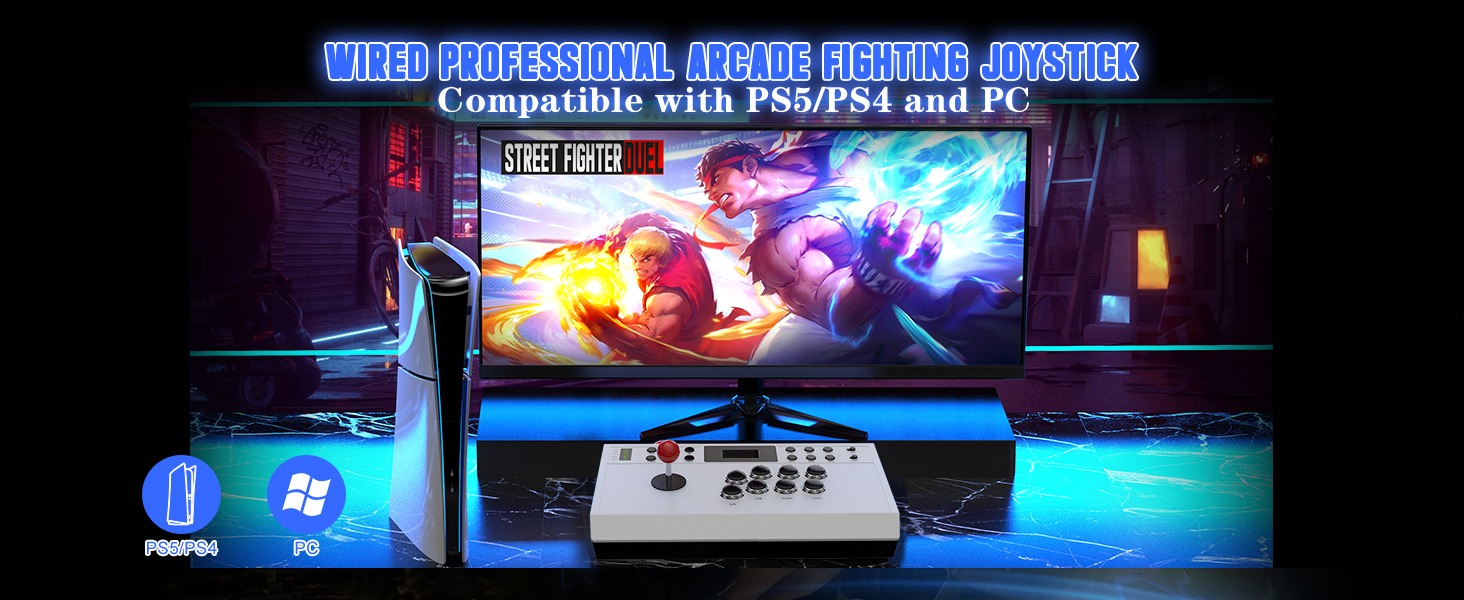
Image: Nonbliep Wired Arcade Stick with PS5 and PC compatibility.
Setup Instructions
Connecting to PlayStation 5
Before connecting to a PlayStation 5 console, ensure the console's communication method is set to 'Use USB Cable'. Follow these steps:
- Go to Settings on your PS5.
- Select Accessories.
- Choose Controller (General).
- Select Communication Method.
- Choose Use USB Cable.
General Connection
Connect the arcade stick to your PlayStation 4, PC, or Android device using the integrated 9.8-foot braided USB cable. Ensure the connection is secure.
Operating Instructions
Turbo Functions
The arcade stick is equipped with both standard Turbo and Auto-Turbo modes. These functions enable rapid-fire inputs for buttons, which can reduce finger fatigue during gameplay and assist with executing quick sequences.
- Standard Turbo: Activates rapid-fire for a button while it is held down.
- Auto-Turbo: Maintains rapid-fire for a button without needing to hold it down.
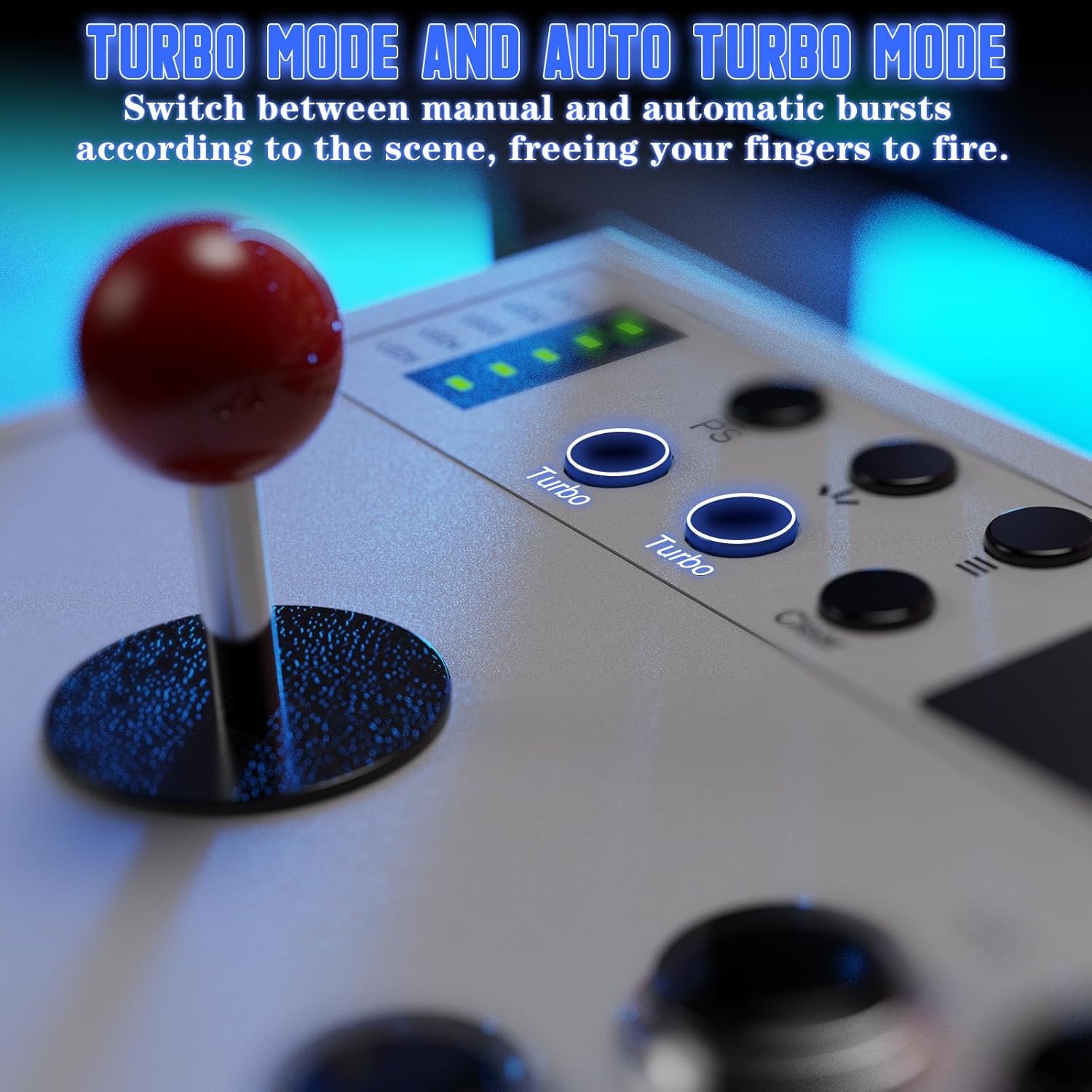
Image: Turbo buttons on the arcade stick.
Macro Programming
The arcade stick features three programmable trigger buttons (M1, M2, M3). Each button can store up to 16 key commands, allowing users to map complex combo sequences to a single press for enhanced precision in gameplay.
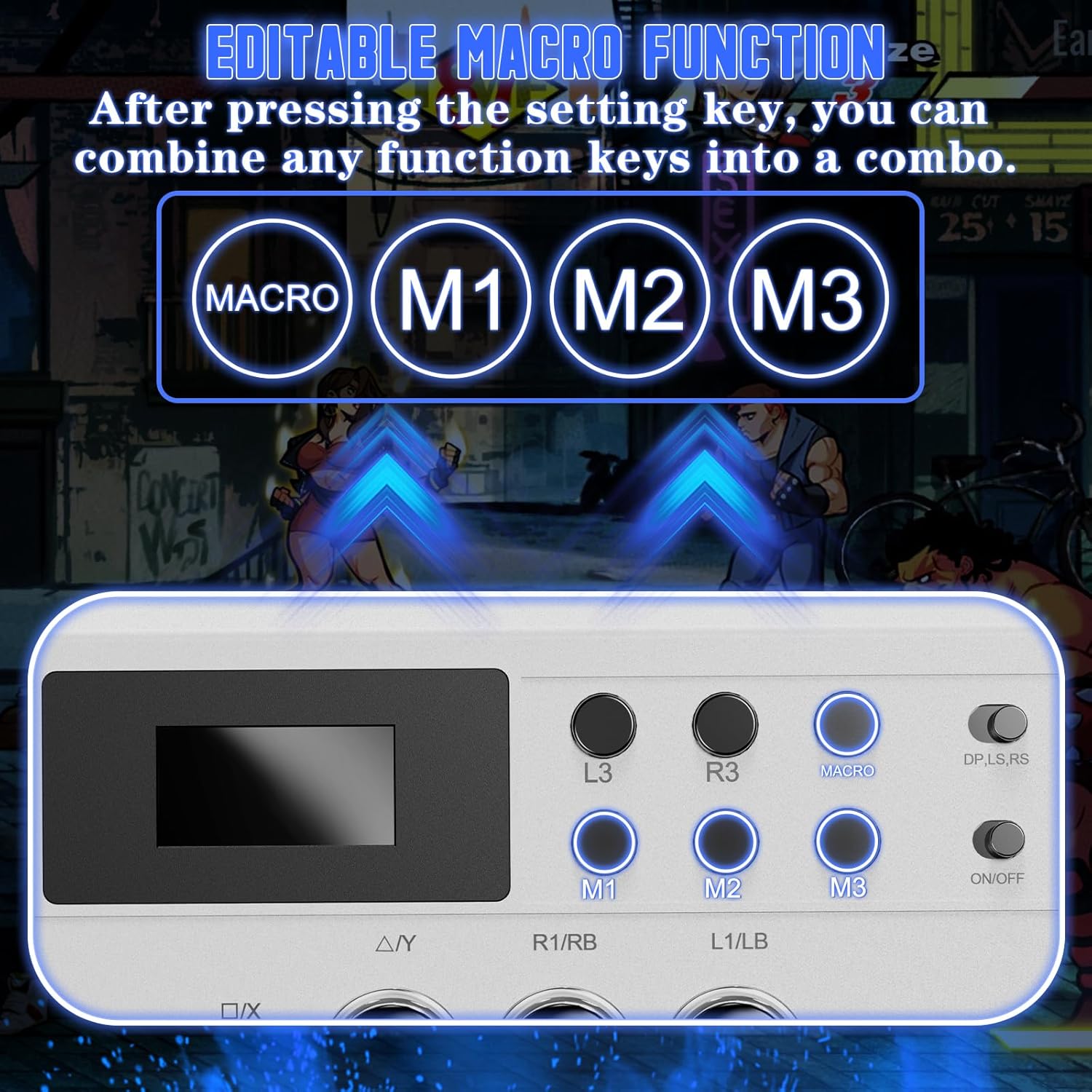
Image: Macro and programmable buttons.
Mode Switching (DP, LS, RS)
A dedicated switch allows users to select between different control modes, adapting the joystick's input interpretation to various game types:
- DP Mode (Directional Pad): Ideal for precise combos in fighting games.
- LS Mode (Left Stick): Suitable for precise control in racing games or other genres requiring analog stick input.
- RS Mode (Right Stick): Provides free movement control, useful in games that utilize the right analog stick for camera or other functions.

Image: Mode selection switch.
Features
- Stable, Heavy-Duty Build: The arcade stick is crafted with a substantial weight to ensure it remains firmly planted during intense battles, preventing unwanted slippage.
- Built-in Cable Management: A dedicated hidden compartment is integrated into the design for neat and clutter-free storage of the braided USB cable. This allows for easy storage and retrieval, maintaining a tidy play space.

Image: Overall view of the arcade stick, demonstrating its build.
Maintenance
Proper maintenance ensures the longevity and optimal performance of your Nonbliep Wired Arcade Stick.
- Cleaning: Use a soft, dry cloth to wipe the surfaces of the arcade stick. Avoid using abrasive cleaners, solvents, or harsh chemicals, as these can damage the finish and internal components.
- Cable Care: When not in use, store the USB cable neatly in its dedicated compartment to prevent tangling, kinking, or damage. Avoid pulling the cable forcefully from the device or the arcade stick.
- Storage: Store the arcade stick in a cool, dry place away from direct sunlight, extreme temperatures, and excessive moisture.
Troubleshooting
If you encounter issues with your arcade stick, refer to the following common solutions:
- Not Responding on PS5: Verify that the PS5's 'Communication Method' setting is correctly set to 'Use USB Cable' (Settings > Accessories > Controller (General) > Communication Method).
- General Connectivity Issues: Ensure the USB cable is securely plugged into both the arcade stick and your console/PC. Try connecting to a different USB port.
- Buttons or Joystick Unresponsive: Check for any physical obstructions or debris around the buttons or joystick. Ensure no buttons are stuck. If the issue persists, it may indicate a hardware problem.
- Incorrect Input Mode: If inputs are not registering as expected, check the DP/LS/RS mode switch and ensure it is set to the appropriate mode for your game.
If these steps do not resolve the issue, please contact customer support for further assistance.
Specifications
| Brand | Nonbliep |
| Model Number | B0GG49T37D |
| Compatible Devices | PlayStation 5, PlayStation 4, PC, Android |
| Connectivity Technology | USB |
| Additional Features | Wired, Turbo Function, Macro Programming |
| Hardware Platform | PlayStation 5 |
| Compatible Video Game Console Models | Sony PlayStation 4, Sony PlayStation 5 |
| Color | White |
| Cable Length | 9.8 feet (braided) |
Warranty and Support
For detailed warranty information, technical support, or customer service inquiries, please refer to the official Nonbliep website or contact the retailer where the product was purchased. Keep your purchase receipt as proof of purchase for any warranty claims.