
1. Introduction
Thank you for choosing the Gvyugke Captain 780 Wireless Gaming Headset. This headset is designed to provide a high-quality audio experience for gaming across multiple platforms. Please read this manual carefully to ensure proper setup, operation, and maintenance of your device.
2. What's in the Box
- 1 x Gvyugke Captain 780 Wireless Gaming Headset
- 1 x 2.4GHz USB Dongle
- 1 x USB-C Charging Cable
- 1 x 3.5mm Audio Cable
- 1 x User Manual
3. Product Overview
The Gvyugke Captain 780 headset offers versatile connectivity and immersive audio for an enhanced gaming experience. Key features include:
- 4-in-1 Connectivity: Supports 2.4GHz wireless (USB dongle), Bluetooth 5.3, and wired (3.5mm audio jack) connections.
- 7.1 Surround Sound: Equipped with 50mm dynamic drivers for precise audio positioning.
- Noise-Canceling Microphone: A rotating microphone ensures clear communication by reducing background noise.
- Long Battery Life: A 1200mAh battery provides up to 70 hours of playtime, with a quick charge feature offering 2 hours of use after 5 minutes of charging.
- Comfortable Design: Features protein leather ear pads with memory foam, an adjustable headband, and rotating earcups for extended comfort.
- Foldable Design: Compact and easy to store, ideal for portability.
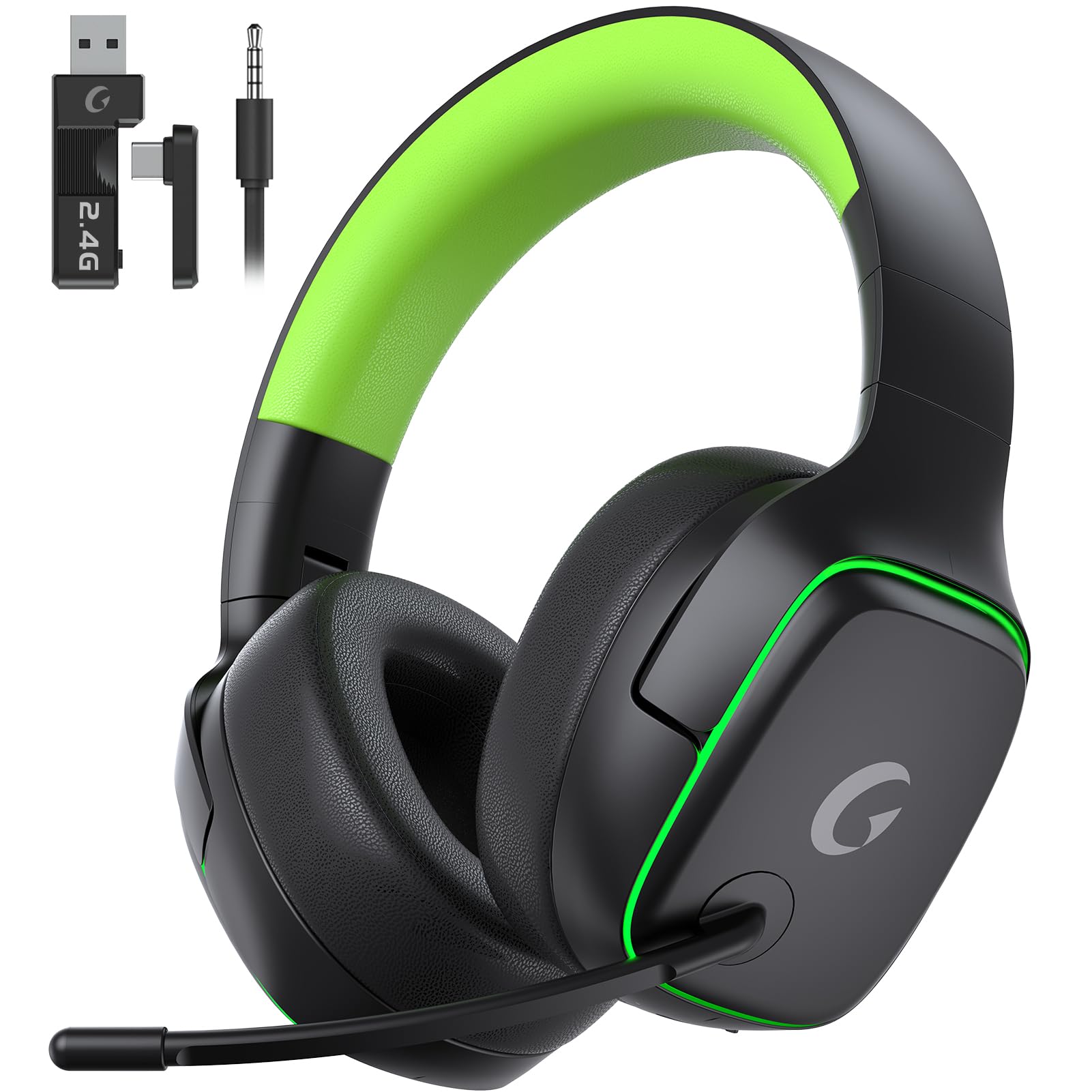
Image: Gvyugke Captain 780 Wireless Gaming Headset in blackgreen color.
Controls and Ports

Image: Diagram showing the headset's controls and ports, including power, volume, mode switch, and charging port.
- Power Status Indicator
- Power/Mute Button
- Volume Wheel
- BT/2.4G Mode Switch Button
- Type-C Charging Port
- Charging Status Indicator
4. Setup
4.1 Charging the Headset
Before first use, fully charge the headset. Connect the supplied USB-C charging cable to the headset's Type-C charging port and the other end to a USB power source (e.g., computer, wall adapter). The charging status indicator will show the charging progress.
4.2 2.4GHz Wireless Connection (for PC, PS5, PS4, Switch)
- Plug the 2.4GHz USB dongle into an available USB port on your device (PC, PS5, PS4, or Switch dock).
- Turn on the headset by pressing and holding the Power button.
- Switch the mode button on the headset to 2.4G mode.
- The headset should automatically connect to the dongle. The power status indicator will show a stable light when connected.

Image: The 2.4GHz USB dongle, used for wireless connection to compatible devices.
4.3 Bluetooth Connection (for PC, Switch, Mobile Devices)
- Turn on the headset by pressing and holding the Power button.
- Switch the mode button on the headset to Bluetooth mode. The power status indicator will blink, indicating pairing mode.
- On your device (PC, Switch, phone, tablet), go to Bluetooth settings and select "Gvyugke Captain 780" to pair.
- The power status indicator will show a stable light when connected.
4.4 Wired Connection (for PS5, PS4, Xbox, PC, Switch)
- Connect the 3.5mm audio cable to the headset's 3.5mm jack.
- Connect the other end of the 3.5mm audio cable to your device's audio output (e.g., controller, PC audio jack).
- The headset will operate in wired mode. Note: The microphone may not be usable on some platforms (e.g., Switch) in wired mode due to platform limitations.

Image: Visual representation of the headset's four connection modes: 2.4GHz Type-C, 2.4GHz USB, Bluetooth, and Wired.
5. Operating Instructions
5.1 Power On/Off
Press and hold the Power button for 3 seconds to turn the headset on or off.
5.2 Adjusting Volume
Use the Volume Wheel on the headset to increase or decrease the audio volume.
5.3 Microphone Use
The microphone is rotatable. To mute or unmute the microphone, use the dedicated Power/Mute button. A red indicator light on the microphone will show when it is muted.

Image: Close-up view of the headset's noise-canceling microphone, highlighting its design.
5.4 Switching Connection Modes
Use the BT/2.4G Mode Switch Button to toggle between 2.4GHz wireless mode and Bluetooth mode. For wired mode, simply connect the 3.5mm audio cable.
6. Maintenance
6.1 Cleaning
Wipe the headset, especially the ear cushions, with a soft, dry cloth. Do not use harsh chemicals or abrasive materials. Ensure no liquid enters the ports.
6.2 Storage
When not in use, store the headset in a cool, dry place. The foldable design allows for compact storage. Avoid exposing the headset to extreme temperatures or direct sunlight.

Image: A person wearing the headset around their neck, illustrating the neck-wear folding design for comfort during breaks.
6.3 Battery Care
To prolong battery life, avoid fully discharging the headset frequently. Charge the headset regularly, even if not in constant use.
7. Troubleshooting
7.1 No Sound / Low Volume
- Ensure the headset is powered on and fully charged.
- Check the volume wheel on the headset and your device's volume settings.
- Verify the correct connection mode (2.4GHz, Bluetooth, or Wired) is selected and properly established.
- For 2.4GHz, ensure the USB dongle is securely plugged in and recognized by your device.
7.2 Microphone Not Working
- Ensure the microphone is not muted (check the mute button and indicator light).
- Check your device's audio input settings to ensure the headset microphone is selected.
- For wired connection, confirm your device supports microphone input via the 3.5mm jack.
7.3 Connection Issues
- If using 2.4GHz, try unplugging and re-plugging the USB dongle.
- For Bluetooth, try unpairing and re-pairing the headset with your device.
- Ensure the headset is within the effective range of your device (10 meters for Bluetooth).
- Restart both the headset and your connected device.
8. Specifications
| Feature | Specification |
|---|---|
| Brand | Gvyugke |
| Model Name | Captain 780 |
| Connectivity Technology | 2.4GHz Wireless, Bluetooth 5.3, 3.5mm Wired |
| Ear Placement | Over Ear |
| Audio Driver Size | 50 Millimeters |
| Impedance | 30 Ohms |
| Frequency Response | 20 KHz |
| Audio Latency | 20 Milliseconds |
| Battery Capacity | 1200mAh |
| Battery Average Life | 70 Hours |
| Battery Charge Time | 2 Hours |
| Bluetooth Version | 5.3 |
| Bluetooth Range | 10 Meters |
| Noise Control | Passive Noise Cancellation |
| Material | Plastic |
| Color | Blackgreen |
9. Warranty & Support
9.1 Warranty Information
The Gvyugke Captain 780 Wireless Gaming Headset comes with a 2-Year Manufacturer Warranty. This warranty covers defects in materials and workmanship under normal use. Please retain your proof of purchase for warranty claims.
9.2 Customer Support
For technical assistance, troubleshooting, or warranty inquiries, please contact Gvyugke customer support through their official website or the retailer where you purchased the product. Refer to the product packaging for specific contact details.
