
1. Introduction
This manual provides detailed instructions for the installation, operation, and maintenance of your Junsun 8 Core Car Radio. Please read this manual thoroughly before installation and use to ensure proper functionality and safety. This unit is designed for Subaru Forester models from 2015 to 2018.
2. Safety Information
- Always ensure the vehicle is parked and the engine is off before performing any installation or wiring.
- Disconnect the vehicle's battery before starting installation to prevent electrical shorts.
- Consult a professional if you are unsure about any installation steps.
- Do not operate the device in a way that distracts you from driving.
- Ensure all connections are secure to prevent malfunctions.
3. Package Contents
Verify that all components are present in the package:
- Head Unit (Junsun 8 Core Car Radio)
- Wire Cables (Vehicle-specific harness)
- Crowbar (for trim removal)
- Frame (for installation)
- Backup Camera (HS19 model)
4. Setup and Installation
The Junsun Car Radio is designed for genuine plug-and-play installation, retaining factory features like steering wheel controls and data displays. No cutting or splicing of factory wiring is typically required.
4.1. Pre-Installation Check
- Ensure your vehicle is a Subaru Forester model year 2015-2018.
- Gather necessary tools, including the provided crowbar and a screwdriver set.
4.2. Removing the Factory Radio
- Carefully use the crowbar to pry off the trim panels surrounding the factory radio.
- Unscrew the mounting bolts holding the factory radio in place.
- Gently pull out the factory radio and disconnect all wiring harnesses.
 Image: Comparison of the car dashboard before and after installing the Junsun Car Radio, showing the integrated appearance.
4.3. Wiring Connections
Connect the provided vehicle-specific harness to the Junsun head unit and the vehicle's factory wiring. Most connectors are unique and will only fit in one direction.
 Image: Detailed diagram illustrating the wiring connections for high-end car systems, supporting original rear camera and steering wheel controls.
 Image: Detailed diagram illustrating the wiring connections for low-end car systems. Note that aftermarket camera is provided and SWC function may require manual programming.
4.3.1. Harman Kardon Sound System Compatibility
If your vehicle has a Harman Kardon sound system, connect the AMP wire in the power cable to the AMP wire in the RCA harness. This wire is typically pink or blue.
 Image: Diagram showing the specific wiring connection for integrating with the Harman Kardon sound system, highlighting the AMP wire connection.
4.4. Backup Camera Installation
The included HS19 1080P AHD backup camera provides clear visuals for safer reversing. Connect the camera to the designated input on the head unit's wiring harness. Route the camera cable carefully to the rear of the vehicle.
 Image: Illustration of a car reversing with the backup camera view displayed on the head unit, showing parking assistance lines.
 Image: A visual representation of the rearview camera in action, providing parking assistance with dynamic guidelines as a car backs into a parking spot.
4.5. Final Installation
- Mount the Junsun head unit into the dashboard opening, securing it with the factory bolts.
- Reattach the trim panels, ensuring they snap securely into place.
- Reconnect the vehicle's battery.
5. Operating Instructions
The Junsun Car Radio features a 9-inch IPS HD touchscreen (1280x720 resolution) and an 8-core CPU with 4GB RAM and 64GB ROM for smooth operation.
 Image: Diagram illustrating the internal components of the Junsun Car Radio, highlighting the 8-Core CPU, 4GB RAM, and 64GB ROM for enhanced performance.
5.1. Basic Functions
- Power On/Off: Press and hold the power button on the unit or use the vehicle's ignition.
- Volume Control: Adjust volume using the physical buttons on the unit or steering wheel controls.
- Home Screen: Tap the Home icon to return to the main interface.
5.2. Wireless CarPlay and Android Auto
The unit supports both wireless and wired connections for Apple CarPlay and Android Auto. This allows seamless integration of your smartphone for navigation, music, messages, and calls.
- Wireless Connection: Enable Bluetooth on your iPhone or Android device and pair it with the car radio. Follow the on-screen prompts to activate CarPlay or Android Auto.
- Wired Connection: Connect your smartphone to the unit via a USB cable.
 Image: Screenshots demonstrating the user interface for CarPlay and Android Auto on the Junsun Car Radio, showing various app icons for navigation, music, and communication.
5.3. Bluetooth 5.0
The upgraded Bluetooth 5.0 system enables hands-free calls, contact syncing, and music playback. An external microphone is included for clear audio during calls.
- Pairing: Go to the Bluetooth settings on the head unit, enable Bluetooth on your phone, and select the head unit from the list of available devices.
- Hands-Free Calling: Once paired, you can make and receive calls directly from the head unit.
- Music Streaming: Play audio from your phone through the car's speakers.
 Image: A visual representation of the Bluetooth 5.0 interface on the car radio, showing options for phone calls, music playback, and accessing the phonebook.
5.4. GPS Navigation
The built-in navigation software provides real-time traffic updates when connected to the internet. The HD screen ensures clear visibility of all navigation details. Offline maps are also supported.
 Image: The car radio display showing a GPS navigation map with route information, alongside icons representing various travel modes.
5.5. FM/AM Radio
Enjoy high-quality FM/AM radio for news and updates. The unit supports RDS (Radio Data System) for enhanced information display.
 Image: The car radio screen displaying the FM radio interface, showing current frequency and preset options, with a classic radio icon in the background.
5.6. Steering Wheel Controls (SWC)
The system supports original steering wheel controls, allowing you to adjust volume, switch songs, and answer calls without taking your hands off the wheel.
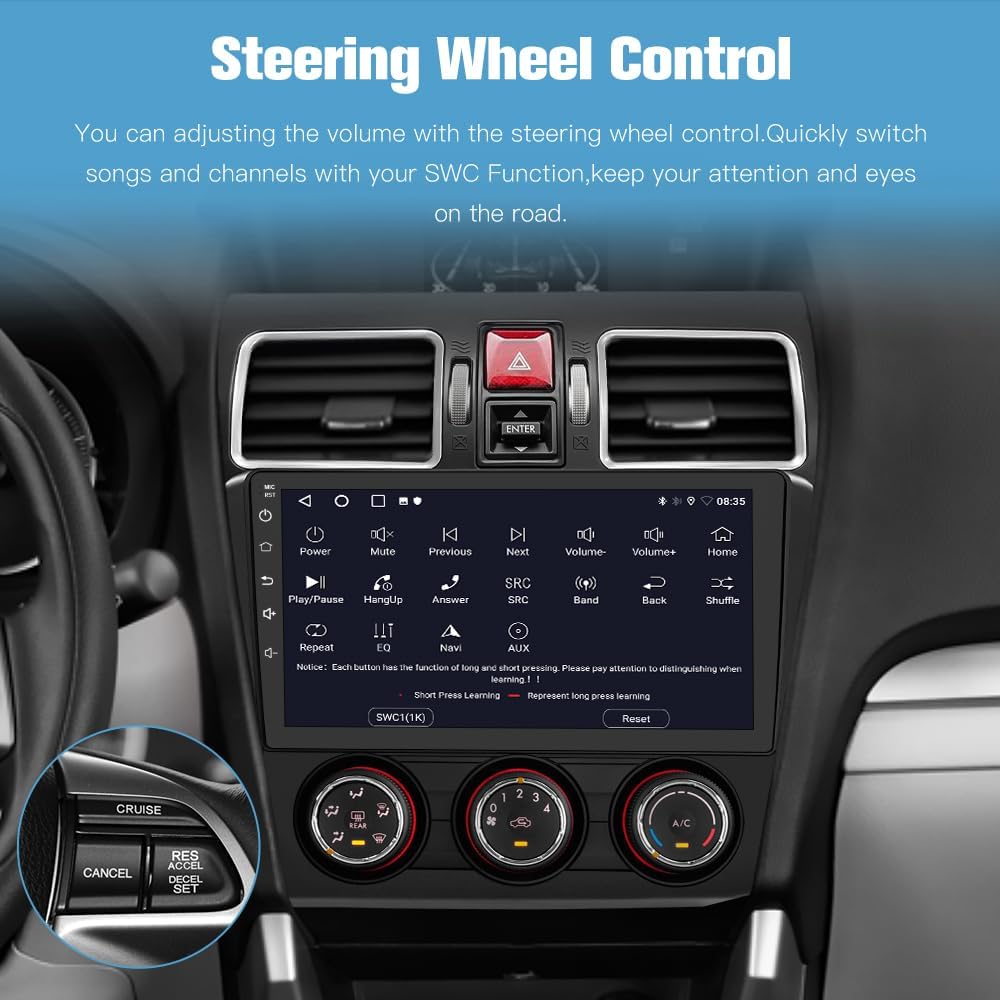 Image: The car radio display showing the steering wheel control settings, with an inset image of a steering wheel highlighting the control buttons.
5.7. Split Screen Function
Utilize the split-screen feature to run two applications simultaneously, such as navigation and music, or a video and maps.
 Image: The car radio screen demonstrating the split-screen feature, showing maps on one side and music playback or video on the other.
5.8. Built-in DSP (Digital Sound Processor)
The integrated DSP allows for advanced audio tuning, providing a customized sound experience within your vehicle.
 Image: The car radio display showing the DSP interface with an equalizer and sound field adjustments, alongside a diagram illustrating sound delay compensation within a car cabin.
5.9. 5GHz WiFi Connectivity
Connect to available Wi-Fi networks for internet access, enabling online navigation, app downloads, and streaming services.
 Image: The car radio display showing various online applications and web browsing, indicating 5GHz WiFi connectivity.
6. Maintenance
6.1. Software Updates
Keep your Android 13 head unit current with wireless updates. These updates enhance software usability, address bugs, and boost security. Access the update feature through the system settings menu.
6.2. Cleaning
Use a soft, dry cloth to clean the touchscreen and unit exterior. Avoid abrasive cleaners or solvents that could damage the display or finish.
7. Troubleshooting
If you encounter issues, refer to the following common solutions:
| Problem | Possible Cause | Solution |
|---|---|---|
| Unit does not power on | Loose power connection, blown fuse, vehicle battery disconnected. | Check all power connections, inspect vehicle fuses, ensure battery is connected. |
| No sound | Volume too low, mute activated, incorrect wiring to speakers/amplifier. | Increase volume, check mute status, verify speaker/amplifier wiring. For Harman Kardon systems, ensure AMP wire is connected. |
| CarPlay/Android Auto not connecting | Bluetooth/USB connection issue, phone settings. | Ensure Bluetooth is on and paired, try a different USB cable, check phone's CarPlay/Android Auto settings. |
| Lagging performance | Too many apps open, system overload. | Close unnecessary applications. Perform a system restart if needed. |
| Backup camera not displaying | Camera wiring issue, incorrect gear selection. | Check camera connections, ensure vehicle is in reverse gear. |
If problems persist, contact Junsun technical support.
8. Specifications
| Feature | Detail |
|---|---|
| Brand | Junsun |
| Screen Size | 9 Inches |
| Display Type | IPS Touch Screen |
| Memory Storage Capacity | 64 GB ROM |
| RAM | 4 GB |
| Connectivity Technology | Bluetooth 5.0, Ethernet, USB, Wi-Fi (5GHz) |
| Special Features | Wireless CarPlay, Android Auto, Built-in DSP, GPS Navigation, Steering Wheel Control Support, Backup Camera Input |
| Supported Satellite Navigation System | GPS (North America Map Type) |
| Human Interface Input | Buttons, Microphone, Touchscreen |
| Included Components | Head unit, Wire cables, Crowbar, Frame, Backup camera |
9. Warranty
This Junsun Car Radio comes with a 1-year manufacturer's warranty. Please retain your proof of purchase for warranty claims.
10. Support
For technical assistance or inquiries, please contact Junsun Car Electronics customer support. Our dedicated team is available to assist you.
 Image: Illustration indicating 24-hour technical support availability, with steps on how to contact the seller for assistance.