
1. Introduction
The ATK N9 Ultra is a versatile tri-mode gaming headset designed for a superior audio experience across multiple platforms. It offers 3.5mm wired, 2.4G wireless, and Bluetooth connectivity, ensuring compatibility with PC, PlayStation (PS5, PS4), Nintendo Switch, Xbox Series X|S, and mobile devices. This manual provides detailed instructions for setting up, operating, and maintaining your headset.

The ATK N9 Ultra Gaming Headset, featuring a sleek white design, detachable microphone, and comfortable earcups.
2. Package Contents
Verify that all items listed below are included in your package:
- ATK N9 Ultra Gaming Headset
- Detachable Noise-Canceling Microphone
- 2.4G USB Wireless Dongle
- USB-C Charging Cable
- 3.5mm Audio Cable
- User Manual

Image displaying the items included in the ATK N9 Ultra headset package: the headset, detachable microphone, USB-C charging cable, 3.5mm audio cable, 2.4G USB dongle, and user manual.
3. Product Overview and Controls
Familiarize yourself with the headset's components and control functions.
Detailed diagram showing the location and function of buttons and controls on the headset.
Headset Controls (2.4GHz Mode / Bluetooth Mode)
- 2.4GHz / Bluetooth Switch: Press 1x to switch between 2.4GHz and Bluetooth modes.
- Play/Pause: Press 1x to play or pause audio.
- Volume Up: Press 1x to increase volume. Press 2x for previous track. Long press for maximum volume.
- Volume Down: Press 1x to decrease volume. Press 2x for next track. Long press for minimum volume.
- Microphone On/Off: Press 1x to toggle microphone.
- Spatial Audio On/Off: Press 2x to toggle spatial audio.
- Mic Monitoring On/Off: Press 3x to toggle microphone monitoring.
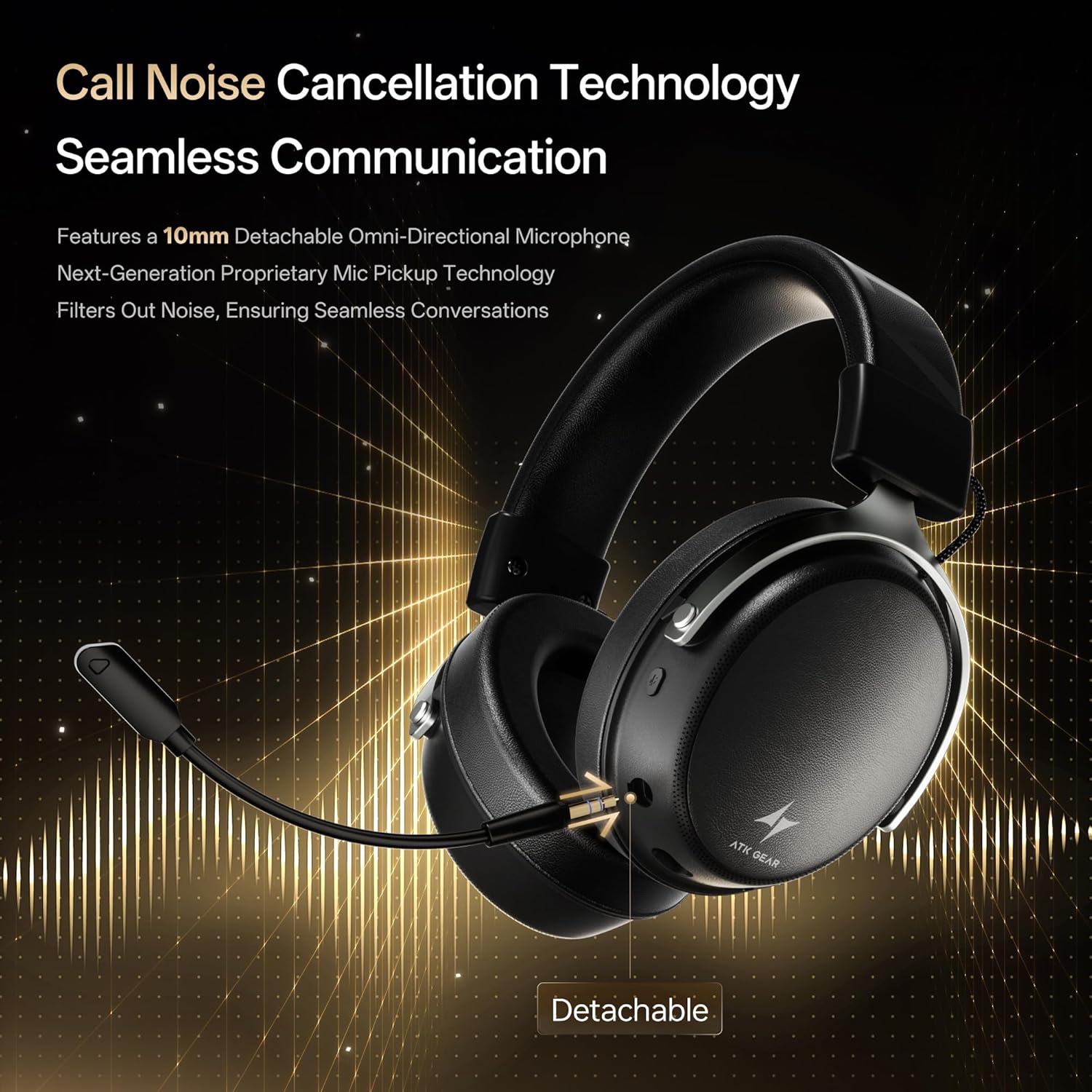
Close-up view of the detachable omni-directional microphone, emphasizing its noise cancellation technology for clear communication.
4. Setup Instructions
4.1 Attaching the Microphone
- Locate the microphone port on the left earcup.
- Align the microphone's connector with the port and gently push until it clicks into place.
- Adjust the flexible boom arm to position the microphone optimally near your mouth.
4.2 Charging the Headset
Before first use, fully charge the headset.
- Connect the USB-C charging cable to the headset's charging port.
- Connect the other end of the cable to a USB power source (e.g., computer USB port, USB wall adapter).
- The LED indicator will show charging status (refer to LED indicator section for details). A full charge provides approximately 130 hours of battery life.
4.3 Connecting the Headset
4.3.1 2.4G Wireless Connection (PC, PS5, PS4, Nintendo Switch Docked)
- Insert the 2.4G USB wireless dongle into an available USB port on your device.
- Power on the headset.
- Press the 2.4GHz / Bluetooth switch button on the headset to select 2.4G mode. The headset will automatically pair with the dongle.
- On your device, ensure the ATK N9 Ultra is selected as the audio input and output device.
4.3.2 Bluetooth Connection (Mobile Devices, Nintendo Switch Handheld)
- Power on the headset.
- Press and hold the 2.4GHz / Bluetooth switch button to enter Bluetooth pairing mode (LED will flash).
- On your mobile device or Nintendo Switch, go to Bluetooth settings and select "ATK N9 Ultra" from the list of available devices.
- Once paired, the LED indicator will show a stable light.
4.3.3 3.5mm Wired Connection (Xbox Series X|S, PC, PS5, PS4, Nintendo Switch, Mobile)
- Connect one end of the 3.5mm audio cable to the headset's 3.5mm port.
- Connect the other end to the 3.5mm audio jack on your controller (Xbox, PS), PC, Nintendo Switch, or mobile device.
- The headset will operate in wired mode. For Xbox Series X|S, both audio and microphone functions are supported via this connection.
5. Operating Instructions
5.1 Powering On/Off
- Power On: Press and hold the Power button until the LED indicator lights up.
- Power Off: Press and hold the Power button until the LED indicator turns off.
5.2 Adjusting Volume
Use the Volume Up and Volume Down buttons on the headset to adjust audio levels. Long press for maximum or minimum volume.
5.3 Microphone Usage
Press the Microphone On/Off button to mute or unmute your microphone. The detachable design allows for removal when not needed.
5.4 Spatial Audio
Double-press the Spatial Audio button to activate or deactivate 3D spatial audio for an immersive sound experience.
5.5 Mic Monitoring
Triple-press the Mic Monitoring button to enable or disable hearing your own voice through the headset.
6. Maintenance
6.1 Cleaning
- Wipe the headset with a soft, dry cloth.
- Do not use harsh chemicals or abrasive materials.
- For ear cushions, gently wipe with a damp cloth and allow to air dry completely.
6.2 Storage
- Store the headset in a cool, dry place away from direct sunlight and extreme temperatures.
- Avoid placing heavy objects on the headset.
6.3 Battery Care
- To prolong battery life, avoid fully discharging the headset frequently.
- Charge the headset regularly, even if not in use for extended periods.
7. Troubleshooting
7.1 No Sound / Low Volume
- Check headset volume controls and device volume settings.
- Ensure the headset is correctly connected (wired, 2.4G dongle, or Bluetooth paired).
- For 2.4G/Bluetooth, confirm the correct mode is selected on the headset.
- Verify the correct audio output device is selected in your system settings.
7.2 Microphone Not Working
- Ensure the microphone is securely attached and not muted (check the Microphone On/Off button).
- Verify the correct audio input device is selected in your system settings.
- For Xbox Series X|S, ensure you are using the 3.5mm wired connection.
7.3 Connection Issues
- 2.4G: Re-insert the USB dongle. Ensure the headset is in 2.4G mode. Try a different USB port.
- Bluetooth: Ensure the headset is in pairing mode. Forget the device on your host system and re-pair. Ensure no other Bluetooth devices are interfering.
- Wired: Ensure the 3.5mm cable is fully inserted into both the headset and the device.
8. Specifications
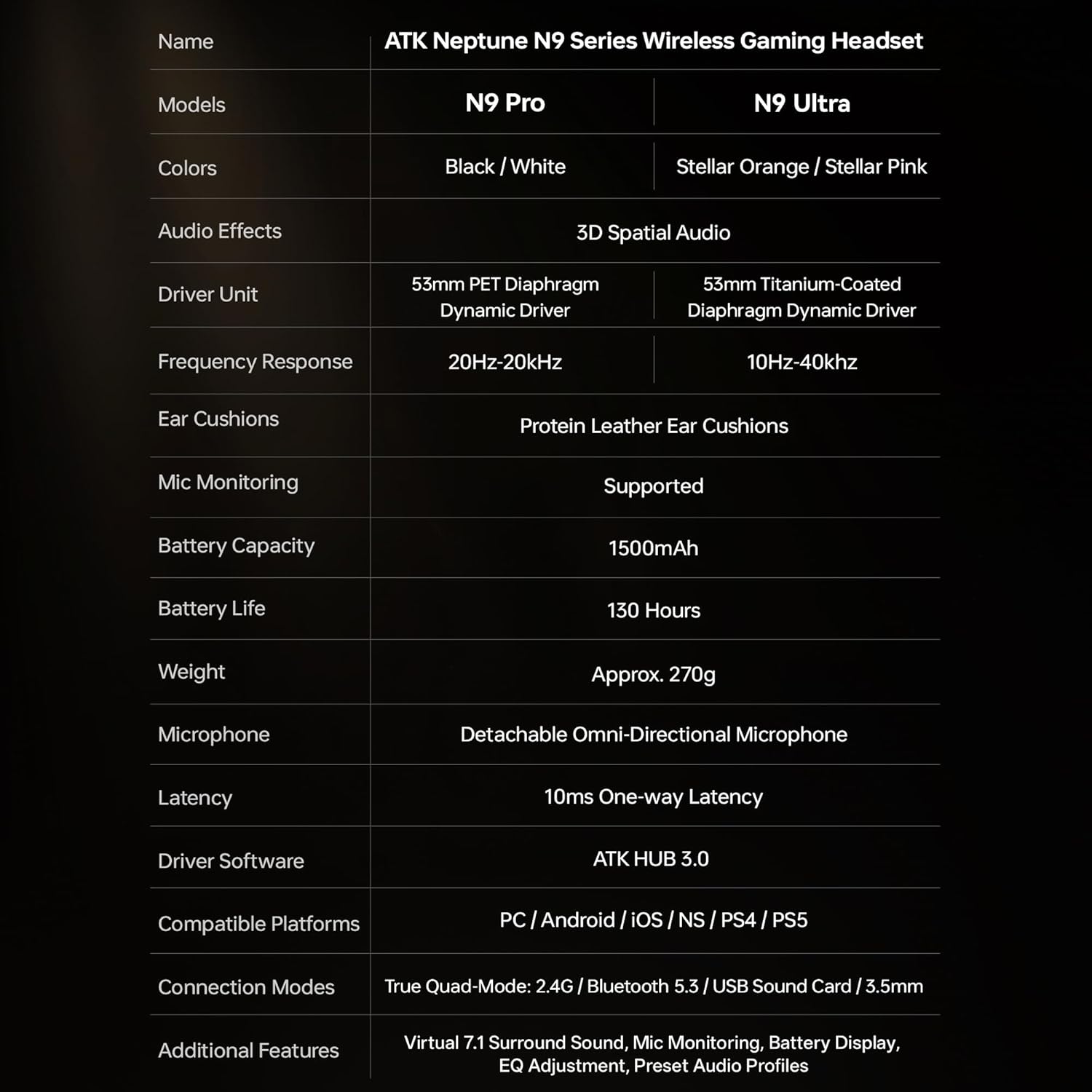
Detailed technical specifications for the ATK N9 Ultra Gaming Headset:
| Brand | ATK |
| Model Name | ATK N9 Ultra |
| Connectivity Technology | Wired (3.5mm), Wireless (2.4G, Bluetooth 5.3) |
| Ear Placement | Over Ear |
| Driver Unit | 53mm Titanium-Coated Dynamic Driver |
| Frequency Range | 20 Hz - 20,000 Hz |
| Impedance | 64 Ohms |
| Battery Capacity | 1500mAh |
| Battery Life | Up to 130 Hours |
| Latency | 10 Milliseconds (one-way) |
| Microphone | Detachable Noise-Canceling Omni-Directional |
| Weight | 270 Grams |
| Compatible Devices | PC, PS5, PS4, Nintendo Switch, Xbox Series X|S (wired), Mobile Devices |

A comparative table outlining specifications for both ATK N9 Pro and N9 Ultra models, including driver unit, frequency response, battery life, and connection modes.
9. Warranty and Support
9.1 Warranty Information
The ATK N9 Ultra Gaming Headset comes with a 6-Month Warranty from the date of purchase. This warranty covers manufacturing defects and workmanship under normal use. It does not cover damage caused by misuse, accidents, unauthorized modifications, or normal wear and tear.
9.2 Customer Support
For technical assistance, warranty claims, or further inquiries, please contact ATK customer support through the official website or your retailer's support channels. Please have your purchase receipt and product model information ready when contacting support.


