
Introduction
Thank you for choosing the iphoenix IP760 Portable Bluetooth Speaker. This manual provides essential information for setting up, operating, and maintaining your speaker to ensure optimal performance and longevity. Please read it thoroughly before use.

Image: The iphoenix IP760 Portable Bluetooth Speaker, showcasing its sleek design and RGB lighting.
Package Contents
Ensure all items are present in the package:
- iphoenix IP760 Portable Bluetooth Speaker
- USB Type-C Charging Cable
- Auxiliary Audio Cable
- User Manual (this document)
Setup
1. Charging the Speaker
Before first use, fully charge the speaker. Connect the provided USB Type-C charging cable to the speaker's charging port and the other end to a USB power adapter (not included) or a computer's USB port. The charging indicator light will show the charging status and turn off when fully charged. A full charge provides up to 12 hours of playtime.

Image: The iphoenix IP760 speaker connected via USB-C, also capable of charging other devices.
2. Powering On/Off
- Power On: Press and hold the Power button for approximately 3 seconds until you hear an audible prompt and the RGB lights illuminate.
- Power Off: Press and hold the Power button for approximately 3 seconds until you hear an audible prompt and the RGB lights turn off.
3. Bluetooth Pairing
The speaker automatically enters Bluetooth pairing mode when powered on for the first time or if no device is connected. The Bluetooth indicator light will flash.
- Ensure your speaker is powered on and in pairing mode.
- On your device (smartphone, tablet, etc.), enable Bluetooth and search for available devices.
- Select "IP760" from the list of devices.
- Once connected, you will hear a confirmation sound, and the Bluetooth indicator light will remain solid.
The speaker will automatically reconnect to the last paired device when powered on, if it is within range.
4. True Wireless Stereo (TWS) Pairing
For an enhanced stereo experience, you can pair two IP760 speakers together.
- Ensure both IP760 speakers are powered on and not connected to any Bluetooth device.
- On one speaker (this will be the primary speaker), press the TWS button (often indicated by a chain link icon). The speaker will enter TWS pairing mode.
- The primary speaker will automatically search for and connect to the secondary speaker.
- Once paired, you will hear a confirmation sound, and the TWS indicator lights on both speakers will remain solid.
- Now, connect your device to the primary speaker via Bluetooth as described in step 3. Both speakers will play audio in stereo.

Image: Two iphoenix IP760 speakers wirelessly connected, illustrating True Wireless Stereo (TWS) pairing.
Operating Instructions
1. Button Functions
| Button | Function (Short Press) | Function (Long Press) |
|---|---|---|
| Power Button | Play/Pause (in Bluetooth mode), Answer/End Call | Power On/Off |
| Volume Up (+) | Increase Volume | Next Track |
| Volume Down (-) | Decrease Volume | Previous Track |
| Mode Button (M) | Switch Playback Mode (Bluetooth, TF Card, USB, AUX, FM Radio) | N/A |
| Light Button | Change RGB Light Mode | Turn RGB Lights On/Off |
| TWS Button | Initiate TWS Pairing (primary speaker) | Disconnect TWS Pairing |
2. Playback Modes
- Bluetooth Mode: Connect wirelessly to your device.
- TF Card Mode: Insert a TF (MicroSD) card with audio files into the TF card slot. The speaker will automatically play music from the card.
- USB Drive Mode: Insert a USB flash drive with audio files into the USB port. The speaker will automatically play music from the drive.
- AUX Mode: Connect an external audio device using the provided 3.5mm auxiliary cable. The speaker will automatically switch to AUX mode.
- FM Radio Mode: In FM mode, short press the Power button to auto-scan and save available radio stations. Use the Volume +/- buttons (long press) to switch between saved stations.
3. Dynamic RGB Lights
The speaker features dynamic RGB lighting with multiple modes. Short press the Light button to cycle through different light effects, including breathing and rhythm-syncing modes. Long press the Light button to turn the RGB lights on or off.

Image: The iphoenix IP760 speaker displaying vibrant RGB lights in an outdoor setting.
4. Hands-Free Calling
When connected via Bluetooth, the speaker's built-in microphone allows for hands-free calls.
- Answer Call: Short press the Power button.
- End Call: Short press the Power button during a call.
- Reject Call: Long press the Power button when an incoming call rings.
Maintenance
1. Cleaning
Wipe the speaker with a soft, damp cloth. Do not use harsh chemicals or abrasive cleaners. Ensure all ports are dry before charging or connecting other devices.
2. Water Resistance (IPX6)
The IP760 speaker is IPX6 water-resistant, meaning it can withstand powerful water jets. It is suitable for use near pools, beaches, or in rainy conditions. However, it is not designed to be submerged in water. Ensure the charging port cover is securely closed to maintain water resistance.

Image: The iphoenix IP760 speaker, wet from splashes, demonstrating its IPX6 water resistance near a body of water.
3. Storage
Store the speaker in a cool, dry place away from direct sunlight and extreme temperatures. If storing for an extended period, charge the battery to approximately 50% every few months to preserve battery life.
Troubleshooting
| Problem | Possible Solution |
|---|---|
| Speaker does not power on. | Ensure the battery is charged. Connect the speaker to a power source using the USB Type-C cable. |
| Cannot pair via Bluetooth. |
|
| No sound or low volume. |
|
| TWS pairing fails. |
|
| RGB lights are not working. | Short press the Light button to cycle through modes, or long press to ensure they are not turned off. |
Specifications
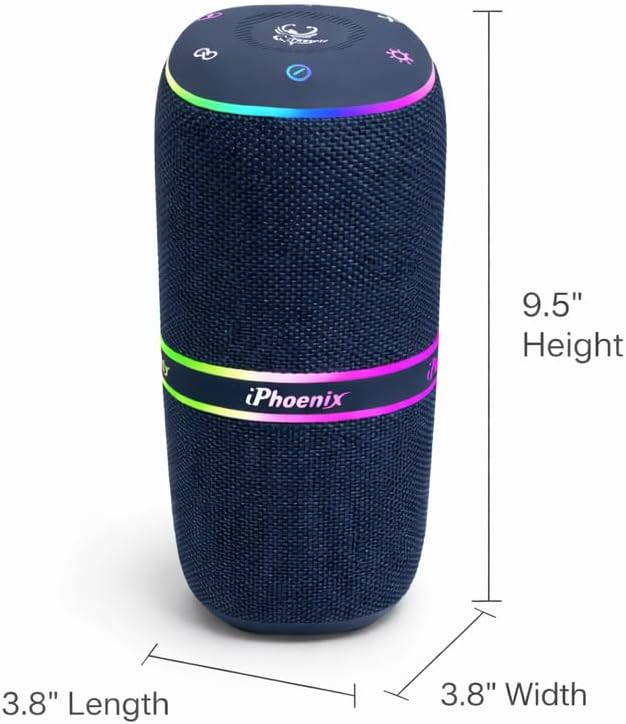
Image: Dimensions of the iphoenix IP760 speaker: 3.8"D x 3.8"W x 9.5"H.
| Feature | Detail |
|---|---|
| Model Number | IP760 |
| Brand | iphoenix |
| Speaker Output Power | 30 watts |
| Frequency Response | 100 hertz |
| Connectivity Technology | Wireless (Bluetooth) |
| Audio Output Mode | Stereo |
| Additional Features | Bass Boost, Built-In Microphone, USB Port, Waterproof, Dynamic RGB Lights, TWS Pairing |
| Waterproof Rating | IPX6 |
| Bluetooth Range | 10 meters (33 feet) |
| Battery Life | Up to 12 hours |
| Item Dimensions (D x W x H) | 3.8"D x 3.8"W x 9.5"H |
| Item Weight | 2.8 pounds |
| Connectivity Protocols | Bluetooth, USB, AUX, FM |
Warranty
iphoenix is committed to your complete satisfaction. We offer comprehensive around-the-clock customer support and back our products with a 90-day money-back guarantee. Please retain your proof of purchase for warranty claims.
Support
For further assistance, troubleshooting, or warranty inquiries, please contact iphoenix customer support. Refer to the packaging or the official iphoenix website for the most current contact information.
You can also visit the iphoenix Store on Amazon for more product information and support resources.