
J-TREK JX03
J-TREK JX03 Motorcycle Intercom Instruction Manual
Model: JX03 | Brand: J-TREK
Introduction
Thank you for choosing the J-TREK JX03 Motorcycle Intercom. This device is designed to enhance your riding experience with advanced communication and audio features. Please read this manual thoroughly before use to ensure proper installation, operation, and maintenance. Keep this manual for future reference.
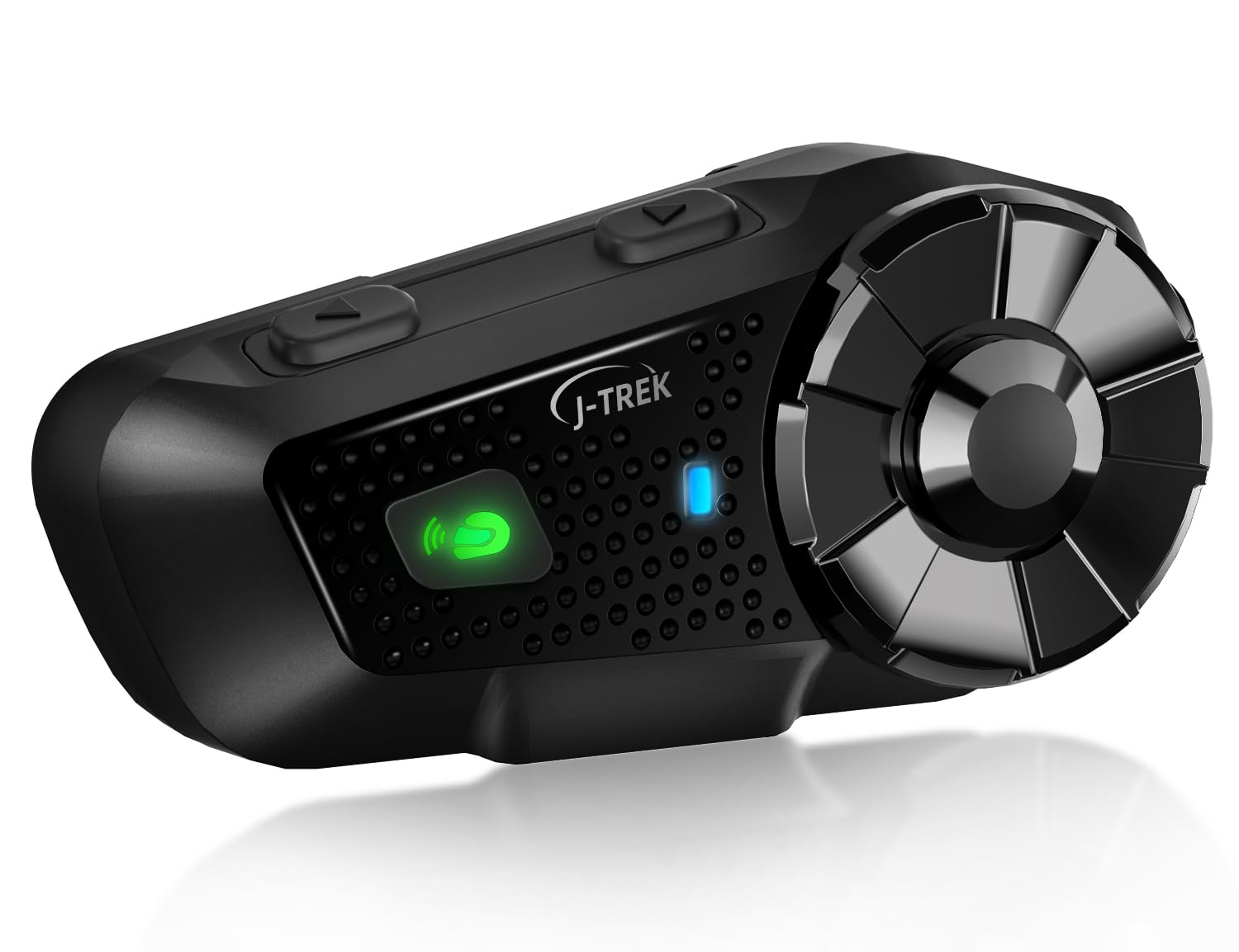
Image: J-TREK JX03 Motorcycle Intercom main unit.
Key Features
- Qualcomm Dual Bluetooth 5.2 Chip: Equipped with two independent chips for simultaneous media audio (music/navigation) and communication audio (intercom calls). The system automatically adjusts audio priority for seamless multitasking.
- JMC1.0 Mesh Network Technology: Proprietary mesh technology supports up to 8 riders over a 1500m range. Features intelligent interference countermeasures, host-free network reconstruction, and superior obstacle avoidance for stable team communication.
- High-Quality Speakers Optimized for Riding: 40mm large speakers, developed through extensive wind tunnel acoustic testing, deliver enhanced bass and clear sound even amidst engine noise. Effective wind noise suppression ensures call clarity up to 80km/h.
- Large Knob & Anti-slip Buttons: Designed for reliable operation even with thick motorcycle gloves, allowing quick and precise volume adjustment and function switching.
- Voice Command & Japanese Voice Guide: Supports voice commands for Siri or Google Assistant for hands-free operation. Features natural Japanese voice guidance for system notifications (e.g., battery level, connection status).
- Multi-Device Compatibility: Connects with other J-TREK models and is compatible with certain intercoms or Bluetooth devices from other brands (e.g., Cardo, Sena) to expand communication range.
Package Contents
Verify that all items listed below are included in your package:

Image: All components included in the J-TREK JX03 intercom package.
- Main Unit (x1)
- Jet Helmet Microphone (x1)
- Full-Face Microphone (x1)
- Mounting Bracket (x1)
- USB Type-C Charging Cable (x1)
- Speaker (x1 pair)
- Audio Conversion Cable (x1)
- Mounting Adhesive Tape (Red) (x1)
- Jet Helmet Microphone Fixing Tape (x1)
- Speaker Position Adjustment Pads (x2)
- Clip-Type Adhesive Tape (White) (x3)
- Instruction Manual (x1)
- Quick Start Guide (x1)
- Mount Clip (x1)
- Full-Face Microphone Adhesive Tape (x1)
Setup
1. Charging the Device
Before first use, fully charge the JX03. Connect the USB Type-C charging cable to the charging port on the unit and to a USB power source. The LED indicator will show charging status. A full charge takes approximately 1.5 hours.
2. Installing on Helmet
Choose between the clip-type mount or adhesive tape mount based on your helmet type and preference. Ensure the unit is securely attached and does not obstruct your vision or helmet functionality.
- Speaker Placement: Position the speakers inside the helmet's ear pockets, ensuring they are aligned with your ears for optimal sound. Use the provided adjustment pads if needed.
- Microphone Attachment: Select the appropriate microphone (jet helmet or full-face) and attach it to the inside of the helmet, ensuring it is close to your mouth for clear voice pickup. Secure the cable neatly within the helmet lining.
3. Initial Pairing (Bluetooth)
To pair with your smartphone or other Bluetooth devices:
- Ensure the JX03 is off.
- Press and hold the Power button until the LED indicator flashes red and blue, indicating pairing mode.
- On your smartphone, enable Bluetooth and search for "J-TREK JX03".
- Select the device to connect. A voice prompt will confirm successful pairing.
Operating Instructions
1. Power On/Off
- Power On: Press and hold the Power button for 3 seconds. A voice prompt will confirm power on.
- Power Off: Press and hold the Power button for 5 seconds. A voice prompt will confirm power off.
2. Volume Control
Rotate the large knob clockwise to increase volume and counter-clockwise to decrease volume.
3. Intercom Communication (Mesh & Bluetooth)

Image: Multiple riders connected via JMC1.0 Mesh Communication.
- Mesh Intercom: To initiate mesh communication, briefly press the Mesh button. The system will automatically search for and connect to other JX03 units within range (up to 8 riders, 1500m).
- Bluetooth Intercom: For one-on-one Bluetooth intercom with another compatible device, follow the pairing instructions for that specific device.
4. Music Playback & FM Radio

Image: Music sharing and FM radio functionality between two riders.
- Music Playback: Once paired with your smartphone, music will play automatically. Use the multi-function button to play/pause.
- Next/Previous Track: Briefly press the forward/backward buttons to skip tracks.
- FM Radio: Press the FM button to activate the FM radio. Briefly press again to scan for stations.
- Music Sharing: The JX03 supports sharing music with another paired JX03 unit. Refer to the quick start guide for specific button combinations.
5. Voice Assistant & Phone Calls
- Activate Voice Assistant: Briefly press the Voice Assistant button to activate Siri or Google Assistant on your paired smartphone.
- Answer/End Call: Briefly press the multi-function button to answer an incoming call or end an ongoing call.
- Reject Call: Press and hold the multi-function button for 2 seconds to reject an incoming call.
Maintenance

Image: JX03 Intercom with IP65 full protection, shown in rainy conditions.
- Cleaning: Wipe the unit with a soft, damp cloth. Do not use harsh chemicals or abrasive cleaners.
- Water Resistance: The JX03 is IP65 rated, meaning it is protected against dust and low-pressure water jets. While it can withstand rain, avoid submerging the device in water. Ensure the USB port cover is securely closed.
- Storage: Store the device in a cool, dry place when not in use. Avoid extreme temperatures.
- Battery Care: To prolong battery life, avoid fully discharging the battery frequently. Charge the device regularly, even if not in use for extended periods.
Troubleshooting
| Problem | Possible Cause | Solution |
|---|---|---|
| Device does not power on. | Low battery. | Charge the device for at least 30 minutes. |
| Cannot pair with smartphone. | Device not in pairing mode; Bluetooth off on phone. | Ensure JX03 is in pairing mode (flashing red/blue LED). Enable Bluetooth on your phone. |
| Intercom connection unstable. | Out of range; environmental interference. | Move closer to other riders. Avoid areas with strong radio interference. Mesh technology will attempt to re-establish connection automatically. |
| No sound from speakers. | Volume too low; speakers disconnected; incorrect audio source. | Increase volume. Check speaker connections. Ensure correct audio source is selected (e.g., music, intercom). |
| Microphone not picking up voice. | Microphone not positioned correctly; microphone disconnected. | Adjust microphone closer to your mouth. Check microphone connection to the unit. |
Specifications

Image: Battery performance details for the JX03 Intercom.
| Feature | Detail |
|---|---|
| Model | JX03 |
| Bluetooth Version | 5.2 (Dual Chip) |
| Intercom Type | Mesh (JMC1.0) & Bluetooth |
| Max Mesh Riders | 8 |
| Max Communication Range | 1500m (Mesh) |
| Speaker Size | 40mm |
| Battery Capacity | 1000mAh |
| Talk Time | Up to 28 hours |
| Music Time | Up to 30 hours |
| Standby Time | Up to 350 hours |
| Charging Time | Approx. 1.5 hours |
| Charging Port | USB Type-C |
| Water Resistance | IP65 |
| Country of Origin | China |
Warranty and Support
The J-TREK JX03 Motorcycle Intercom comes with a 1-year warranty from the date of purchase. This warranty covers manufacturing defects and malfunctions under normal use. It does not cover damage caused by misuse, accidents, unauthorized modifications, or natural disasters.
For technical support, warranty claims, or any questions regarding your JX03 intercom, please contact J-TREK customer service through the retailer where you purchased the product or visit the official J-TREK website for contact information.
Related documentsJX03


Ask a question about this manual
Ask about setup, troubleshooting, compatibility, parts, safety, or missing instructions. Manuals+ will review the question and use this page’s manual context to help answer it.