
Introduction
This manual provides detailed instructions for the installation, operation, and maintenance of your WOLFBOX M40 10'' Mirror Dash Cam. Please read this manual thoroughly before using the device to ensure proper functionality and safety.
Package Contents
Verify that all items listed below are included in your package:
- M40 Mirror Dash Cam (1 unit)
- 1080P Rear Camera (1 unit)
- GPS Module (1 unit)
- 64GB Micro SD Card (1 unit)
- Type-C Power Supply Cable with Car Charger (1 unit)
- 20ft Rear Camera Cable (1 unit)
- Mount Tool (1 unit)
- Straps (4 units)
- User Manual (1 unit)

Image: The complete accessory kit included with the WOLFBOX M40 Mirror Dash Cam.
Setup and Installation
Proper installation is crucial for optimal performance. Follow these steps carefully.
1. Initial Preparation
- Insert the provided 64GB Micro SD card into the dash cam's card slot. Ensure it is inserted correctly until it clicks.
- Clean your vehicle's original rearview mirror and the area where the rear camera will be mounted.
2. Mounting the Mirror Dash Cam
- Attach the M40 Mirror Dash Cam over your vehicle's existing rearview mirror using the provided rubber straps. Ensure it is securely fastened and does not obstruct your view or the sun visor.
- Adjust the front camera lens to capture the desired view of the road ahead.

Image: The WOLFBOX M40 Mirror Dash Cam securely mounted over an existing rearview mirror.
3. Installing the Rear Camera
- Route the 20ft rear camera cable from the front dash cam to the rear of your vehicle. Carefully tuck the cable along the headliner and door seals to conceal it.
- Mount the rear camera in a suitable location at the back of your vehicle, ensuring a clear view.
- Connect the rear camera cable to the dash cam. For reverse trigger functionality, connect the red wire from the rear camera cable to your vehicle's reverse light power source.
Video: Installation guide for a mirror dash cam, demonstrating cable routing and rear camera setup.
Video: Installation video for a WOLFBOX G900 mirror dash cam, showing detailed steps for wiring.
4. Connecting GPS Module
Plug the GPS module into the designated port on the dash cam. Position the module on the dashboard or windshield with a clear view of the sky for accurate signal reception.
5. Power Connection
Connect the Type-C power supply cable to the dash cam and plug the car charger into your vehicle's 12V power outlet (cigarette lighter socket). The dash cam will power on automatically when the vehicle starts.
Operating Instructions
1. Basic Functions
- Power On/Off: The device powers on automatically with vehicle ignition. To manually power off, press and hold the power button.
- Display Modes: Swipe the 10-inch touchscreen to switch between front camera view, rear camera view, or a split-screen display showing both.
- Recording: The dash cam begins recording automatically when powered on. Loop recording ensures continuous recording by overwriting the oldest files when the SD card is full.

Image: The 10-inch touchscreen display of the WOLFBOX M40, illustrating the user interface and camera views.
2. Voice Control
The M40 supports 12 voice commands for hands-free operation. Common commands include:
- "Lock the video"
- "Turn on WiFi"
- "Take picture"
- "Turn on recording"
- "Show front camera"
- "Show rear camera"

Image: A driver interacting with the WOLFBOX M40 using voice commands for various functions.
3. Advanced Driver-Assistance Systems (ADAS) & Blind Spot Detection (BSD)
The M40 includes ADAS and BSD features to enhance driving safety. These include Forward Collision Warning (FCW), Lane Departure Warning (LDW), and Blind Spot Detection (BSD).
- Note: ADAS/BSD functions require 2.5K resolution and only one function can be active at a time.
- Calibration: Ensure proper calibration of ADAS features for accurate alerts. Refer to the on-screen prompts for calibration steps.

Image: Visual representation of the ADAS system, showing various warning functions for safer driving.
4. Wi-Fi & GPS Tracking
- Wi-Fi Connectivity: Connect your smartphone to the dash cam via the built-in Wi-Fi using the WOLFBOX Auto APP. This allows you to view, download, and manage recorded footage directly from your phone.
- GPS Tracking: The GPS module records real-time location, routes, and speed data, which can be viewed alongside your video footage.
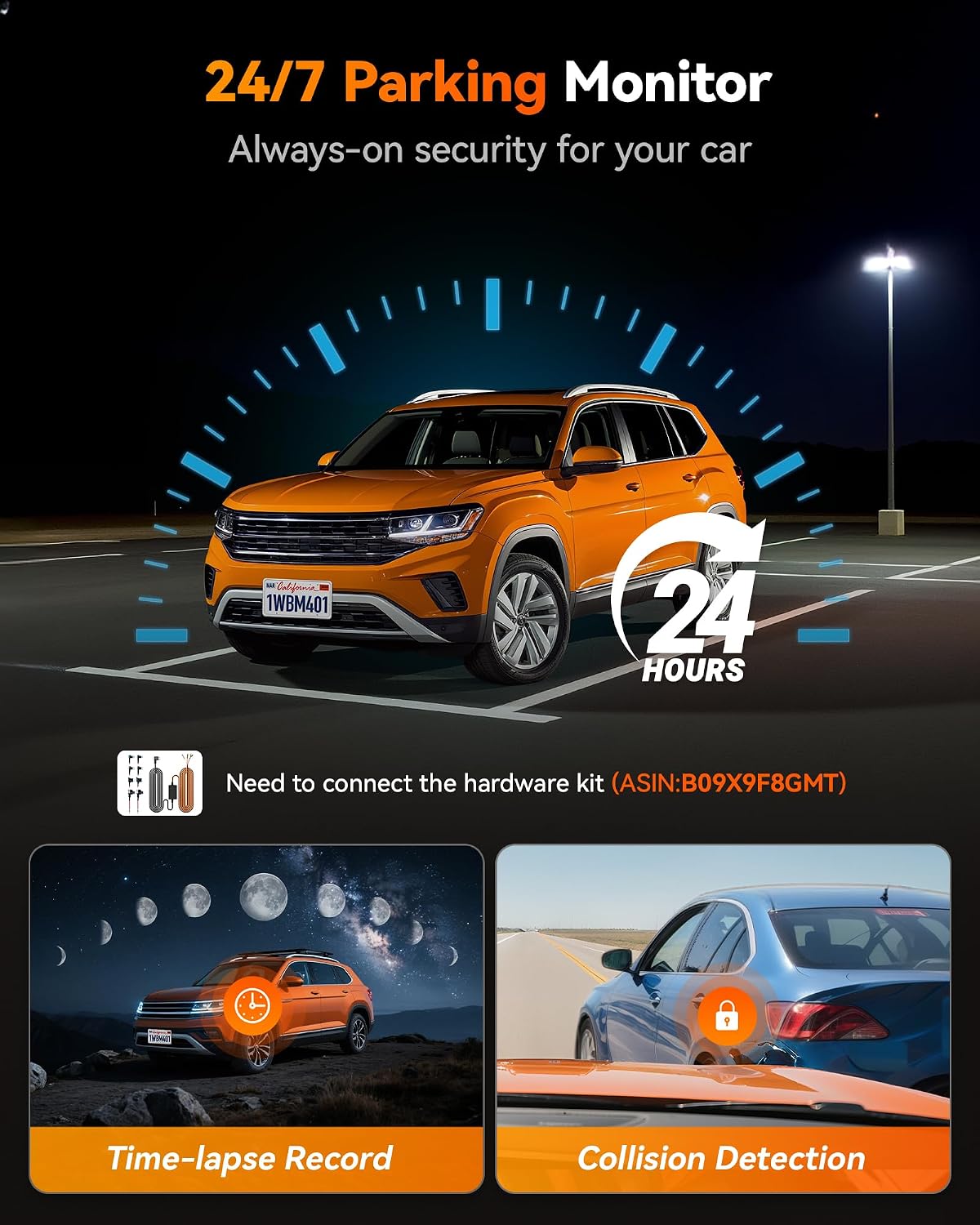
Image: The WOLFBOX Auto APP on a smartphone, showing how to access and manage dash cam footage and GPS data.
5. Super Night Vision
The M40 features advanced night vision technology, providing clear video recording in low-light conditions for both front and rear cameras.
6. 24/7 Parking Monitor
When parked, the dash cam can automatically record upon detecting an impact, providing continuous protection. This feature requires a hardwire kit (sold separately, ASIN: B09X9F8GMT) for continuous power.

Image: Diagram explaining the 24/7 Parking Monitor, including time-lapse recording and collision detection capabilities.
Maintenance
- SD Card Management: Regularly format the Micro SD card (at least once a month) to ensure optimal performance and prevent data corruption. Back up important footage before formatting.
- Cleaning: Use a soft, dry cloth to clean the dash cam screen and lenses. Avoid abrasive cleaners or solvents.
- Temperature: The M40 is designed for reliable performance in extreme temperatures, from -4°F to 158°F. However, prolonged exposure to direct sunlight in very hot climates can affect battery life.
Troubleshooting
- Dash Cam Not Powering On:
- Check the power connection to the vehicle's 12V outlet. Ensure the car charger is firmly seated.
- Verify the vehicle's 12V outlet is functional.
- Recording Issues (e.g., "Card Error"):
- Ensure the Micro SD card is inserted correctly.
- Format the SD card through the dash cam's settings menu.
- If issues persist, try a new high-speed (Class 10 or U3) Micro SD card.
- Poor Video Quality:
- Clean the front and rear camera lenses.
- Ensure the protective film has been removed from the lenses.
- Check video resolution settings in the menu.
- ADAS/BSD Not Functioning Correctly:
- Ensure ADAS/BSD is enabled in the settings.
- Perform ADAS calibration as instructed on the device.
- Verify that only one ADAS/BSD function is active at a time, as required.
- GPS Signal Loss:
- Ensure the GPS module has a clear view of the sky and is not obstructed by metal objects.
- Check the connection of the GPS module to the dash cam.
- Voice Control Not Responding:
- Speak clearly and directly towards the dash cam.
- Reduce background noise (e.g., turn down the radio, close windows).
Specifications
| Feature | Detail |
|---|---|
| Model Number | M40 |
| Brand | WOLFBOX |
| Front Camera Resolution | 4K (2160p) |
| Rear Camera Resolution | 1080P |
| Screen Size | 10 inches (9.66 inches actual) |
| Display Type | Touch Screen |
| Field of View | 130 Degrees |
| Connectivity | Wi-Fi, GPS |
| Special Features | ADAS/BSD, Voice Control, Night Vision, 24/7 Parking Monitor (requires hardwire kit) |
| Included Memory Card | 64GB |
| Operating Temperature | -4°F to 158°F |
| Product Dimensions | 3.7D x 25.5W x 7H Centimetres |
| Item Weight | 0.38 Pounds (172.37 g) |
| Manufacturer | WOLFBOX |
| Country of Origin | China |
Warranty and Support
- Warranty: The WOLFBOX M40 Mirror Dash Cam comes with a 1-year warranty.
- Customer Support: For technical assistance, troubleshooting, or warranty claims, please contact WOLFBOX customer support. Refer to the contact information provided in your product packaging or on the official WOLFBOX website.


