
1. Introduction
Thank you for choosing the Reobiux A20H Dual-Lens Outdoor Security Camera. This manual provides essential information for the proper installation, operation, and maintenance of your device. Please read it thoroughly before use and retain it for future reference.
The Reobiux A20H camera features a unique dual-lens design, offering comprehensive outdoor surveillance with advanced features like 4MP+4MP resolution, color night vision, automatic human tracking, two-way audio, and IP66 weather resistance. It connects via 2.4GHz Wi-Fi and is managed through the iCSee application.
2. Product Overview
Key Features
- Dual-Lens & Dual-Screen Monitoring: Equipped with one fixed lens and one rotating lens, providing a 360° field of view and allowing intuitive monitoring from different angles simultaneously.
- High Resolution & Color Night Vision: Two 4MP lenses deliver clear images. Features infrared, full-color, and alarm night vision modes for visibility in low light or complete darkness.
- Automatic Tracking & Flexible Alarms: Automatically tracks human movement. Customizable detection time, area, and alarm intervals with three sensitivity levels (low/medium/high) to reduce false alarms.
- High-Definition Two-Way Audio & Alexa Compatibility: Enables clear two-way communication and is compatible with Alexa for real-time viewing.
- Fast Connection & Multi-User Access: Utilizes Bluetooth for quick pairing and 2.4GHz Wi-Fi connectivity. The iCSee app supports multiple family accounts for shared access.
- Weatherproof Design: IP66 rated, ensuring normal operation in temperatures from -30°C to +50°C and rainy conditions.
Product Components
The package includes:
- Reobiux A20H Security Camera (x1)
- Power Cable (3m) (x1)
- Installation Package (x1)
- User Manual (x1)

Image: The Reobiux A20H camera showcasing its dual-lens design and the corresponding dual-screen view within the mobile application.

Image: Overview of the camera's main features including dual lens protection, human detection, vehicle recognition, 355-degree pan/tilt, and Bluetooth connectivity.
3. Setup
3.1 Physical Installation
The Reobiux A20H camera is designed for wall mounting. Ensure the installation location provides a clear view of the area you wish to monitor and is within range of your 2.4GHz Wi-Fi network.
- Choose a suitable mounting surface.
- Use the provided installation package (screws and anchors) to securely mount the camera bracket.
- Attach the camera to the mounted bracket.
- Connect the power cable to the camera and plug it into a power outlet.
3.2 App Installation and Connection
The camera operates with the iCSee mobile application. Ensure your smartphone is connected to a 2.4GHz Wi-Fi network before proceeding. Note: This camera does not support 5GHz Wi-Fi networks.
- Download the iCSee App: Search for "iCSee" in your smartphone's app store (Google Play Store for Android or Apple App Store for iOS), or scan the QR code provided in the camera's packaging. You can also download it from http://d.xmeye.net/CSee.
- Register an Account: Open the iCSee app and follow the on-screen instructions to register a new account.
- Activate Bluetooth and 2.4G WiFi: On your smartphone, ensure Bluetooth is enabled and you are connected to a 2.4GHz Wi-Fi network.
- Add Camera: In the iCSee app, tap the "+" icon to add a new device. The app will use Bluetooth to quickly discover the camera. Follow the prompts to connect the camera to your 2.4GHz Wi-Fi network.
- Configuration: Once connected, you can name your camera and adjust initial settings.

Image: Visual guide for connecting the Reobiux A20H camera to the iCSee app, detailing the five steps from activating Bluetooth/Wi-Fi to successful configuration.
4. Operating Instructions
4.1 Live View and Dual-Screen Monitoring
Open the iCSee app to access the live feed from your camera. The dual-lens design allows you to view both the fixed lens perspective and the pan/tilt lens perspective simultaneously on a split screen.
4.2 Pan and Tilt Control
For the rotating lens, use the directional controls within the iCSee app to adjust the camera's viewing angle horizontally (pan) and vertically (tilt). The camera offers a 355-degree rotation capability.
4.3 Night Vision Modes
The camera supports three night vision modes, configurable via the app:
- Infrared Mode: Provides black and white video in complete darkness using infrared LEDs.
- Full-Color Mode: Activates white lights to provide full-color video even at night.
- Alarm Mode: Automatically switches to full-color mode and activates white lights upon detection of motion, acting as a deterrent.
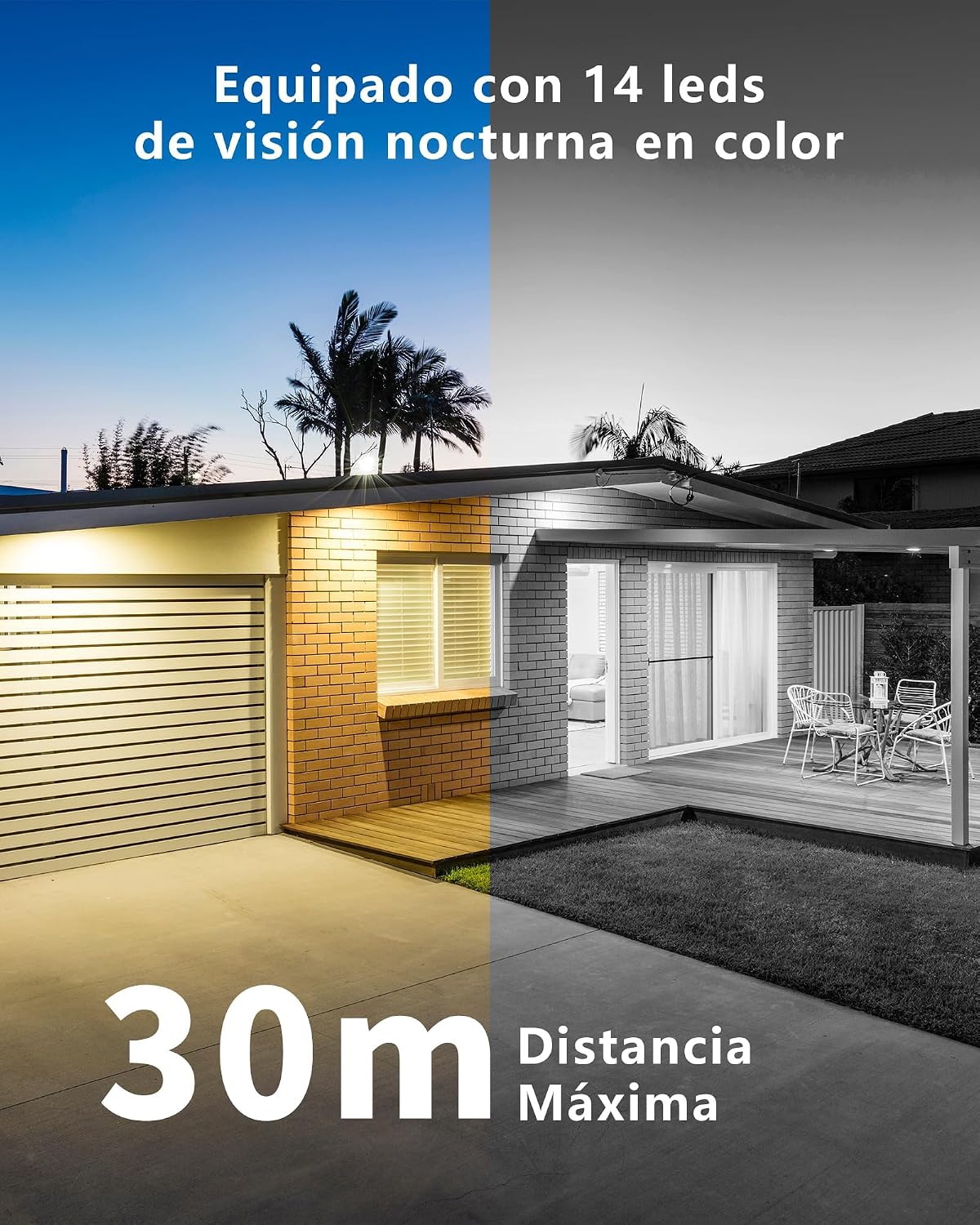
Image: The camera's capability to provide clear color night vision up to 30 meters, illuminated by 14 LEDs.

Image: Illustrates the different night vision options: daytime light, infrared night vision (off), and color night vision (on).
4.4 Motion Detection and Automatic Tracking
The camera features advanced AI for human and vehicle detection. When human motion is detected, the camera can automatically track the subject, keeping it in the center of the frame.
- Enable Detection: Activate human detection and auto-tracking in the iCSee app settings.
- Customize Alarms: Adjust the detection area, time schedule, and alarm interval. Set the sensitivity to low, medium, or high to suit your environment and minimize false alerts.
- Instant Notifications: Receive push notifications on your smartphone when motion is detected.

Image: The camera's AI human detection and automatic tracking feature, highlighting its precision.

Image: Automatic tracking in action, showing the camera following a person detected in its field of view.
4.5 Two-Way Audio
Use the microphone and speaker functions in the iCSee app to communicate with individuals near the camera. This feature allows for real-time conversations or issuing warnings.

Image: Illustration of the two-way audio feature, enabling communication with people in front of the camera.
4.6 Storage and Playback
The camera supports local storage via a Micro SD card (up to 128GB). Insert the Micro SD card into the designated slot on the camera. You can view recorded footage and manage storage settings through the iCSee app.
4.7 Multi-User Sharing
The iCSee app allows you to create multiple family accounts and share camera access with trusted family members or friends. This ensures everyone can monitor the property and receive alerts.

Image: The multi-user sharing function, allowing family members to access the camera feed and notifications.
5. Maintenance
- Cleaning: Regularly clean the camera lenses with a soft, dry cloth to ensure clear image quality. Avoid using harsh chemicals.
- Power Supply: Ensure the power cable is securely connected and free from damage.
- Firmware Updates: Check the iCSee app periodically for available firmware updates to ensure optimal performance and security.
- SD Card Management: If using a Micro SD card, periodically check its status and ensure there is sufficient storage space. Consider formatting the card occasionally to maintain performance.
6. Troubleshooting
| Problem | Possible Cause | Solution |
|---|---|---|
| Camera fails to connect to Wi-Fi. | Incorrect Wi-Fi band (5GHz), weak signal, incorrect password. | Ensure your router is broadcasting a 2.4GHz Wi-Fi signal. Move the camera closer to the router. Double-check the Wi-Fi password. |
| Poor image quality. | Dirty lens, low network bandwidth, app resolution settings. | Clean the camera lens. Ensure stable internet connection. Check and adjust video resolution settings in the iCSee app. |
| Camera is slow to respond to commands. | Network latency, app issues. | Check your internet connection speed. Restart the iCSee app or your smartphone. Restart the camera by unplugging and replugging the power. |
| Motion detection is too sensitive or not sensitive enough. | Incorrect sensitivity settings, detection area not optimized. | Adjust the motion detection sensitivity (low/medium/high) and detection area within the iCSee app settings. |
| No night vision. | Night vision mode disabled, IR LEDs obstructed. | Check night vision settings in the iCSee app and ensure it's set to Infrared, Full-Color, or Alarm mode. Ensure nothing is blocking the IR LEDs. |
| Two-way audio is unclear or not working. | Microphone/speaker obstruction, network issues, app volume settings. | Ensure nothing is covering the camera's microphone or speaker. Check network stability. Adjust volume settings in the iCSee app. |
7. Specifications
| Feature | Detail |
|---|---|
| Model Name | A20H |
| Resolution | 4MP (Effective Still Image), 4MP (Video Recording) |
| Connectivity Technology | Wired, Bluetooth, Wi-Fi (2.4GHz only) |
| Night Vision | Color Night Vision, 30 Meters Range, 4 IR LEDs |
| Storage | Micro SD Card (up to 128GB) |
| Power Source | Cable Electric, 12 Volts, 3 Watts |
| Weather Resistance | IP66 (Water Resistant) |
| Dimensions | 12.7 x 10.2 x 15.2 cm |
| Mounting Type | Wall Mount |
| Special Features | Dual Lens, Humanoid Detection, Automatic Tracking, Two-Way Voice, Alexa Compatibility |
| Video Encoding | H.264 |
| Video Capture Format | MP4 |
| Frame Rate | 30fps |
| Optical Sensor Technology | CMOS |
| Zoom Ratio | 4x Digital Zoom |
8. Warranty and Support
This product typically comes with a standard manufacturer's warranty. Please refer to your purchase documentation for specific warranty terms and duration. In addition, a 30-day free return policy may apply, depending on the retailer.
For technical support, troubleshooting assistance, or warranty claims, please contact Reobiux customer service through the contact information provided with your purchase or via the iCSee app's support section.

