
ddpai Z90 Master
DDPAI Z90 Master 3-Channel 4K Dash Cam Instruction Manual
Model: Z90 Master
Introduction
The DDPAI Z90 Master is a sophisticated 3-channel 4K dash cam designed to provide comprehensive vehicle surveillance. Featuring front, rear, and interior recording capabilities, it utilizes advanced STARVIS 2 sensors, HDR, and AI ISP Night Vision 3.0 for superior image clarity in various lighting conditions. With integrated 4G LTE connectivity, Wi-Fi 6, Bluetooth 5.1, and robust parking protection modes, the Z90 Master offers enhanced security and remote monitoring functionalities for your vehicle.
What's in the Box
- DDPAI Z90 Master Dash Cam (Main Unit)
- Rear Camera
- Interior Camera (integrated with main unit)
- 128GB eMMC (built-in)
- MicroSD Card (expandable up to 512GB)
- Hardwire Kit
- Car Charger Power Cable
- CPL Filter
- 3M Adhesive Mounts
- Electrostatic Stickers
- Crowbar Tool
- SIM Ejector Tool
- User Manual
Setup
1. SIM Card Installation
To enable 4G connectivity, install the SIM card into the 4G-cloud box. Use the included SIM ejector tool to remove the card tray, insert the SIM card, and reinsert the tray into the 4G-cloud box.
2. Dash Cam and 4G Cloud Box Connection
Connect the Type-C connector of the 4G-cloud box to the dash cam's power port. Then, connect the other end of the 4G-cloud box to a USB cable or the hardwire kit for power. For parking monitoring, an intelligent hardwire kit is required.
3. Dash Cam Installation
Install the dash cam on the front windshield using the electrostatic sticker and 3M adhesive mount. Ensure the camera has a clear view of the road.

Image: The DDPAI Z90 Master Dash Cam is shown mounted on the front windshield of a car, providing a clear view of the road ahead.
4. Rear Camera Installation (if applicable)
If you have a rear camera, connect it to the rear extension cable. Then, connect the rear extension cable to the dash cam's rear camera port. Install the rear camera on the rear windshield.
5. Wiring
Run the wires neatly along the edges of the windshield and car interior. Use the included crowbar tool to hide the power cord in the plastic guard plate of the car for a clean installation.
Video: This video demonstrates the installation process for the 4G Cloud Box, including SIM card insertion, connecting the dash cam and cloud box, and routing the power cables within the vehicle's interior.
Operating Instructions
1. 4G Function Introduction
After powering on, the dash cam will announce "4G network connected," indicating that 4G functionality is available. To use 4G features, authorize the device to your current app account. Once the dash cam and app are successfully connected via Wi-Fi, go to "Device Settings" to authorize the account. After authorization, remote viewing and wake-up functions are enabled.
2. Key Features
- Dual Storage (Built-in 128GB eMMC + Expandable MicroSD): The Z90 Master ensures continuous recording with a reliable dual storage system, preventing data loss due to card errors.
- 3-Channel 4K STARVIS 2 Sensors: Simultaneously captures ultra-clear 4K UHD (3840x2160) front, 4K rear, and 3K (2960x1664) interior cabin video. Dual Sony STARVIS 2 IMX678 sensors (front & rear) with wide-aperture lenses (F1.75 front, F1.5 inside, F1.7 rear) and wide-angle views (140° front + 150° inside + 130° rear) ensure superior detail.
- AI ISP Night Vision 3.0 & HDR Performance: Features advanced HDR and AI ISP Black Light Night Vision across all three channels for clear recording in low-light conditions. The front camera offers 4K@30fps HDR and a 3K@60fps high-frame-rate mode.
- Advanced 24/7 Parking Protection: Three intelligent parking modes (Time-Lapse Recording with AI ISP Night Vision, Collision Detection) provide triple-channel monitoring even when the vehicle is off. The dash cam automatically records and locks event videos upon detecting motion or impact. (Hardwire kit required for 24/7 parking monitoring).
- Lightning-Fast 5GHz Wi-Fi & Bluetooth Quick Connect: 5GHz Wi-Fi enables smooth, real-time video preview and fast downloads via the DDPAI app. Bluetooth 5.1 allows one-touch, password-free Wi-Fi connection for quick setup and daily use.

Image: A diagram illustrating the Dual Sony STARVIS2 IMX678 sensors, highlighting their larger sensor size, higher light sensitivity, and improved low-light performance for both front/rear 4K and inside 3K IR recording.

Image: A visual representation of AI ISP NightVis 3.0 for enhanced night vision and 24 Hours Parking Protection, including upgraded Time-Lapse Mode and Collision Detection Mode. A note indicates an additional hardwire kit is required for parking protection.

Image: A close-up of the CPL filter being attached to the dash cam lens, with comparative images showing how the filter reduces reflections and glare from the windshield.
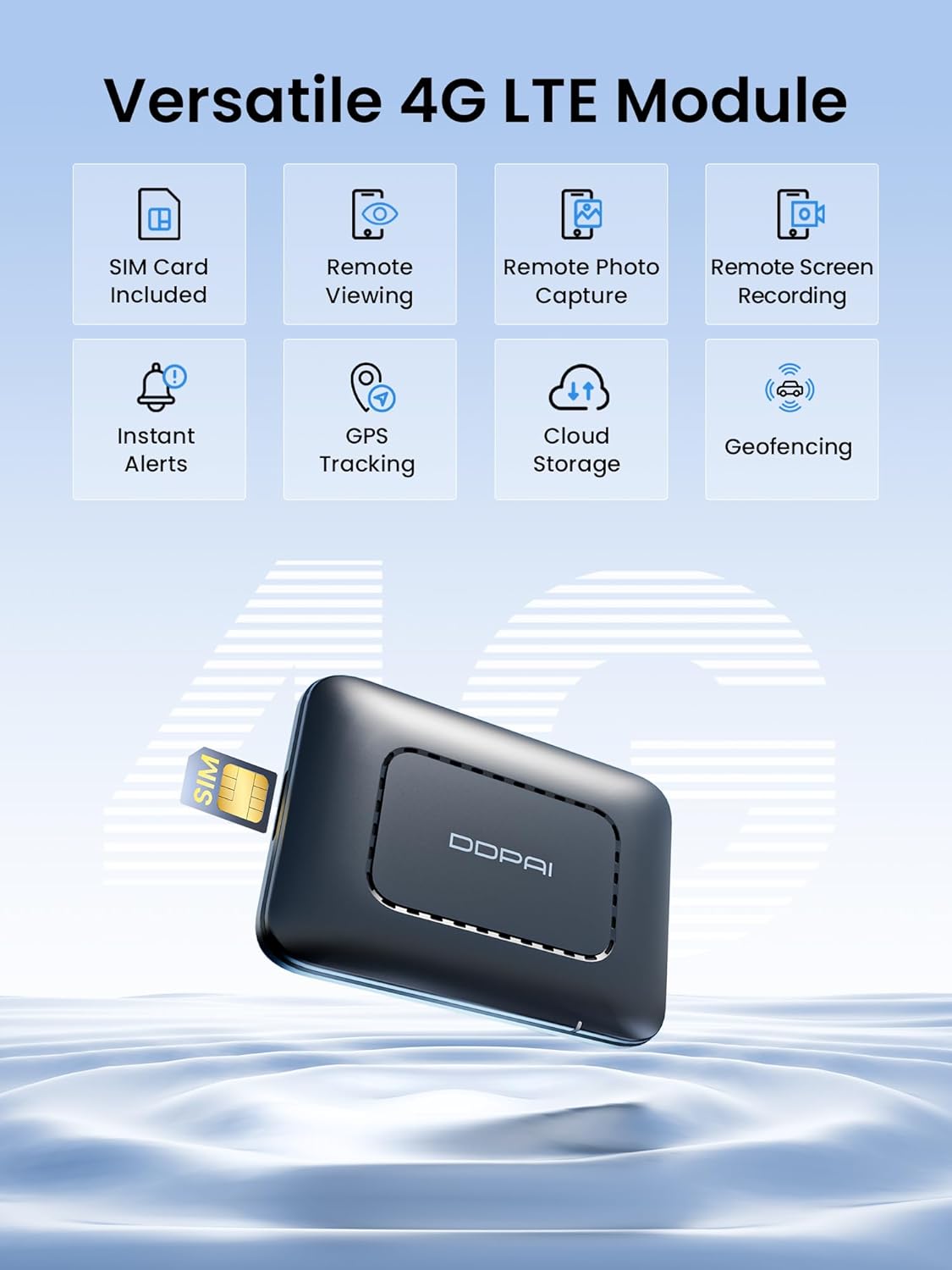
Image: An infographic detailing the versatile features of the 4G LTE Module, including SIM Card Included, Remote Viewing, Remote Photo Capture, Remote Screen Recording, Instant Alerts, GPS Tracking, Cloud Storage, and Geofencing.

Image: Details about the included SIM card, offering 30GB of free data for the first 90 days, and a comparison of upload speeds between DDPAI CAT.4 (50Mbps) and other CAT.1 (5Mbps).

Image: A display of various Cloud Plans, including auto-renew and one-time data plans with different GB allowances and pricing for 1-month, 6-month, and 12-month durations.

Image: A smartphone screen displaying the DDPAI app's Remote Live Preview feature, showing real-time footage from the dash cam and the option to capture images.
Maintenance
- Cleaning Lenses: Regularly clean the front, rear, and interior camera lenses with a soft, dry cloth to ensure clear video quality. Avoid abrasive materials that could scratch the lens.
- Checking Storage: Periodically check the available storage space on the MicroSD card and built-in eMMC. While loop recording overwrites old footage, ensure critical event videos are backed up.
- Firmware Updates: Check the DDPAI app regularly for firmware updates to ensure optimal performance and access to new features.
- Cable Management: Ensure all cables are securely tucked away and not interfering with vehicle operation or safety features.
Troubleshooting
- Dash Cam Not Powering On: Check the power connection to the 4G-cloud box and ensure the hardwire kit or USB cable is properly connected to the vehicle's power source.
- No 4G Connectivity: Verify the SIM card is correctly installed and activated. Ensure the device is authorized in the DDPAI app settings. Check for network coverage in your area.
- Wi-Fi Connection Issues: Ensure the dash cam is powered on and within range of your smartphone. Try restarting both the dash cam and your phone's Wi-Fi.
- Poor Video Quality: Clean the camera lenses. Ensure the protective film has been removed from the lenses. Check the video resolution settings in the app.
- Parking Monitoring Not Working: Confirm that the hardwire kit is correctly installed and providing continuous power. Verify parking monitoring settings are enabled in the DDPAI app.
Specifications
| Model Name | DDPAI Z90 Master |
| Brand | ddpai |
| Video Capture Resolution | 2160p (4K Front & Rear, 3K Interior) |
| Connectivity Technology | Bluetooth, Wi-Fi (5GHz), 4G LTE |
| Special Features | Motion Sensing, Night Vision (AI ISP Black Light Night Vision 3.0, HDR), Wide Dynamic Range, 24/7 Parking Protection |
| Display Type | LCD (3" IPS) |
| Storage | Built-in 128GB eMMC, MicroSD slot (expandable up to 512GB) |
| Sensors | Dual Sony STARVIS 2 IMX678 (Front & Rear) |
| Lens Aperture | F1.75 (Front), F1.5 (Inside), F1.7 (Rear) |
| Wide Angle | 140° (Front), 150° (Inside), 130° (Rear) |
| Color | Black |
Warranty & Support
For warranty information and technical support, please refer to the documentation included in your product packaging or visit the official DDPAI website. Contact information for customer service is typically available in the user manual or on the brand's support page.
Related documentsZ90 Master


Ask a question about this manual
Ask about setup, troubleshooting, compatibility, parts, safety, or missing instructions. Manuals+ will review the question and use this page’s manual context to help answer it.