
1. Introduction
This manual provides detailed instructions for the setup, operation, and maintenance of your Bonvoisin Label Printing Scale QWM-24-NEW. Please read this manual thoroughly before using the device to ensure safe and efficient operation. This scale is designed for accurate weighing and label printing in various retail and commercial settings.

Image: Bonvoisin Label Printing Scale in a retail environment, showcasing its application.
2. Safety Information
- Ensure the scale is placed on a stable, level surface to guarantee accurate readings.
- Do not expose the scale to excessive moisture or extreme temperatures.
- Use only the provided power adapter.
- Avoid dropping or subjecting the scale to strong impacts.
- Keep out of reach of children.
3. Package Contents
Verify that all items are present in the package:
- 1 x Bonvoisin Label Printing Scale
- 1 x AC Adapter
- 1 x Power Cord
- 1 x USB Drive (containing software and video tutorials)
- 1 x Ethernet Cable
- 2 x User Manuals
- 1 x Roll of 60 x 30mm Label Paper (pre-installed)
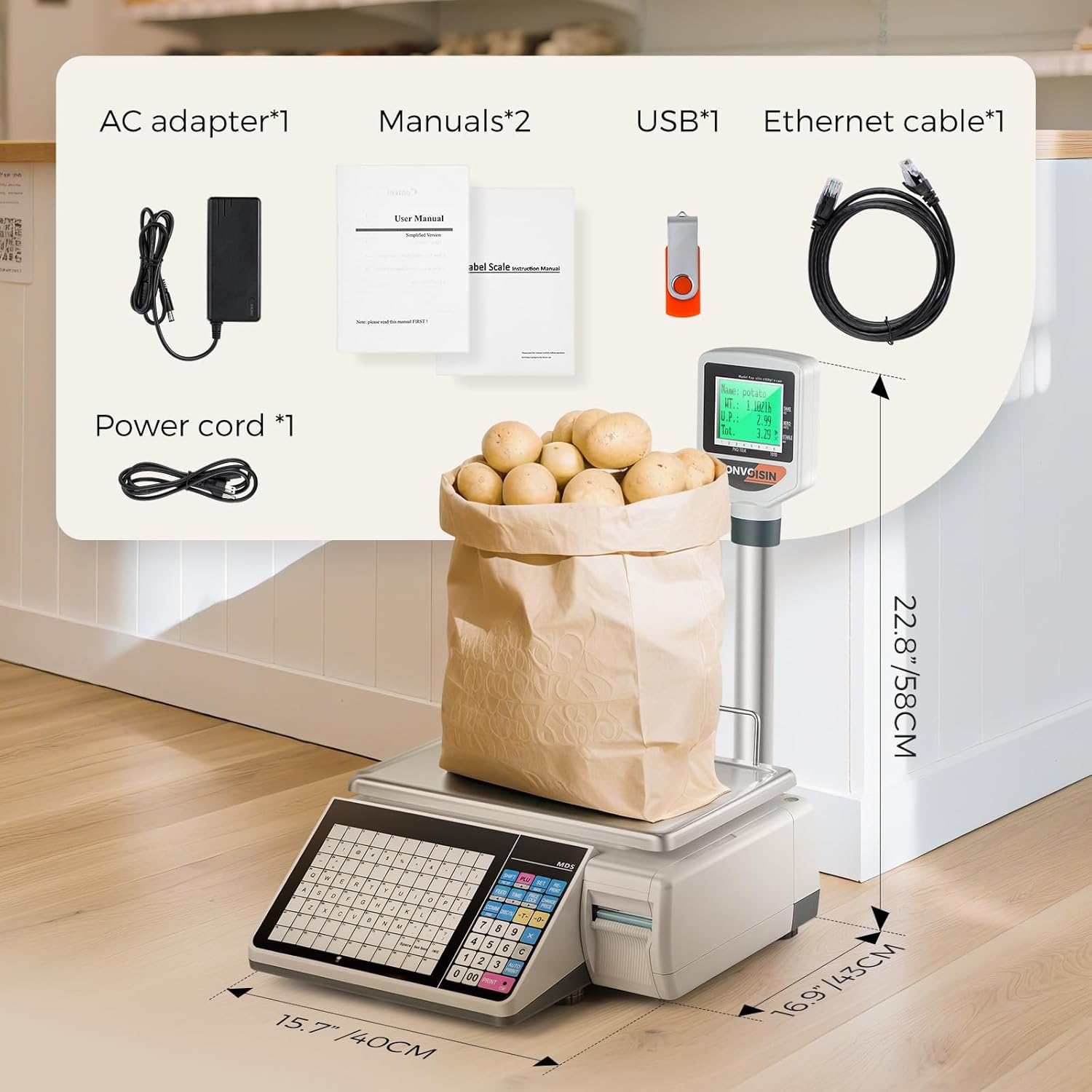
Image: Components included with the Bonvoisin Label Printing Scale, such as the scale unit, power adapter, manuals, USB drive, and Ethernet cable.
4. Setup
Follow these steps to set up your Bonvoisin Label Printing Scale:
- Unpacking: Carefully remove all components from the packaging.
- Assembly: Connect the display unit to the pole, ensuring the cable is securely attached. Then, attach the pole to the main scale unit. Secure the tray's handle with the provided screws.
- Power Connection: Connect the AC adapter to the scale and plug it into a power outlet.
- Initial Power On: Press the power button to turn on the scale.
- Software Installation (Optional): For advanced features like label customization and PLU management, install the provided software from the USB drive onto a Windows-compatible computer.
Video: This video demonstrates the installation process of the Bonvoisin Label Printing Scale, including connecting the display, pole, and securing components.
5. Operating Instructions
5.1. Customized Label Printing
The scale allows for customized label printing. You can edit store names, device names, and fonts using the dedicated software. Once edited, download the customized label templates to the scale.
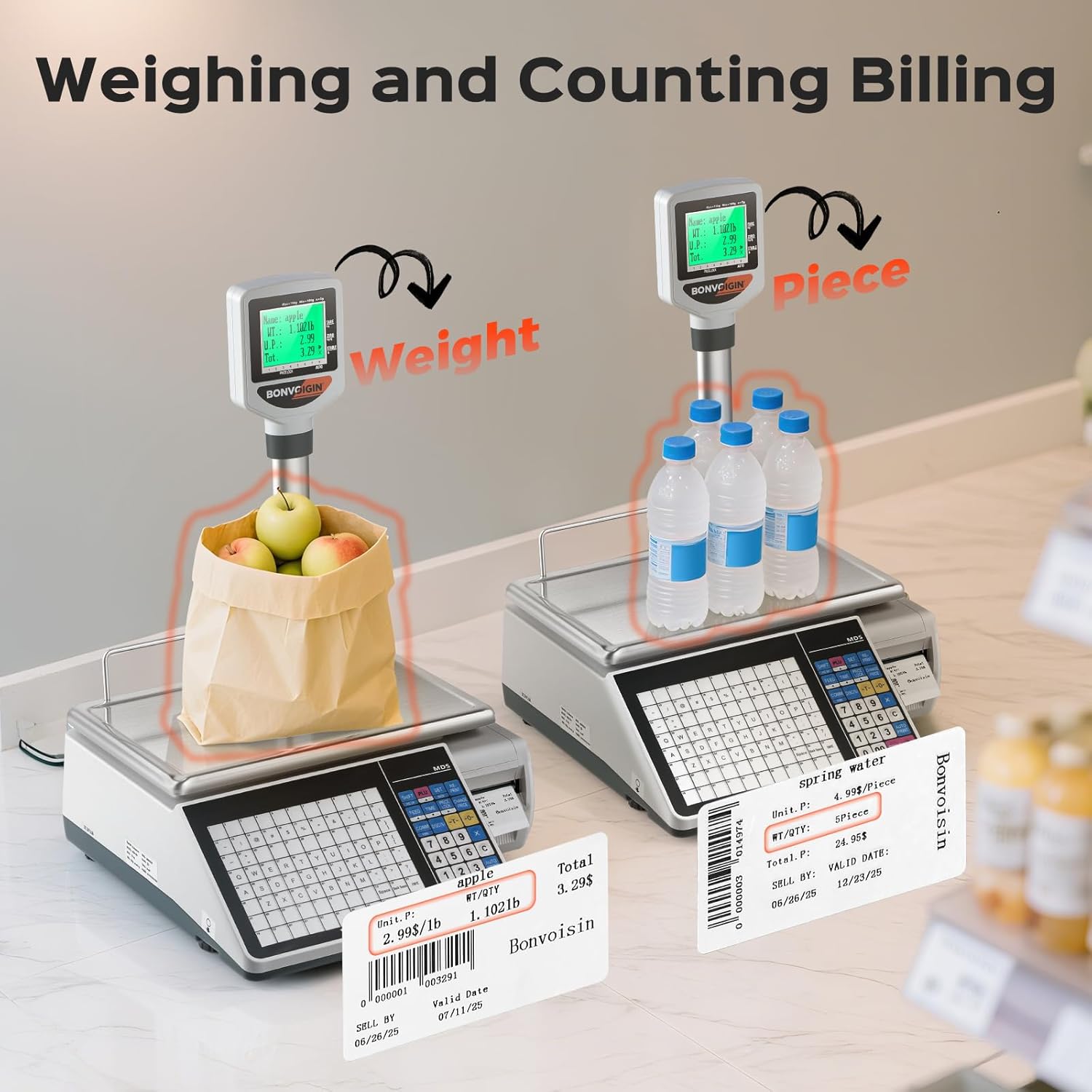
Image: Examples of customized labels generated by the scale, displaying product information, prices, and barcodes.
5.2. Using Shortcut Keys (PLU)
The scale features 88 shortcut keys, enabling storage of up to 6000 Product Look-Up (PLU) items. PLU information can be managed and edited using the computer software (Windows compatible only).
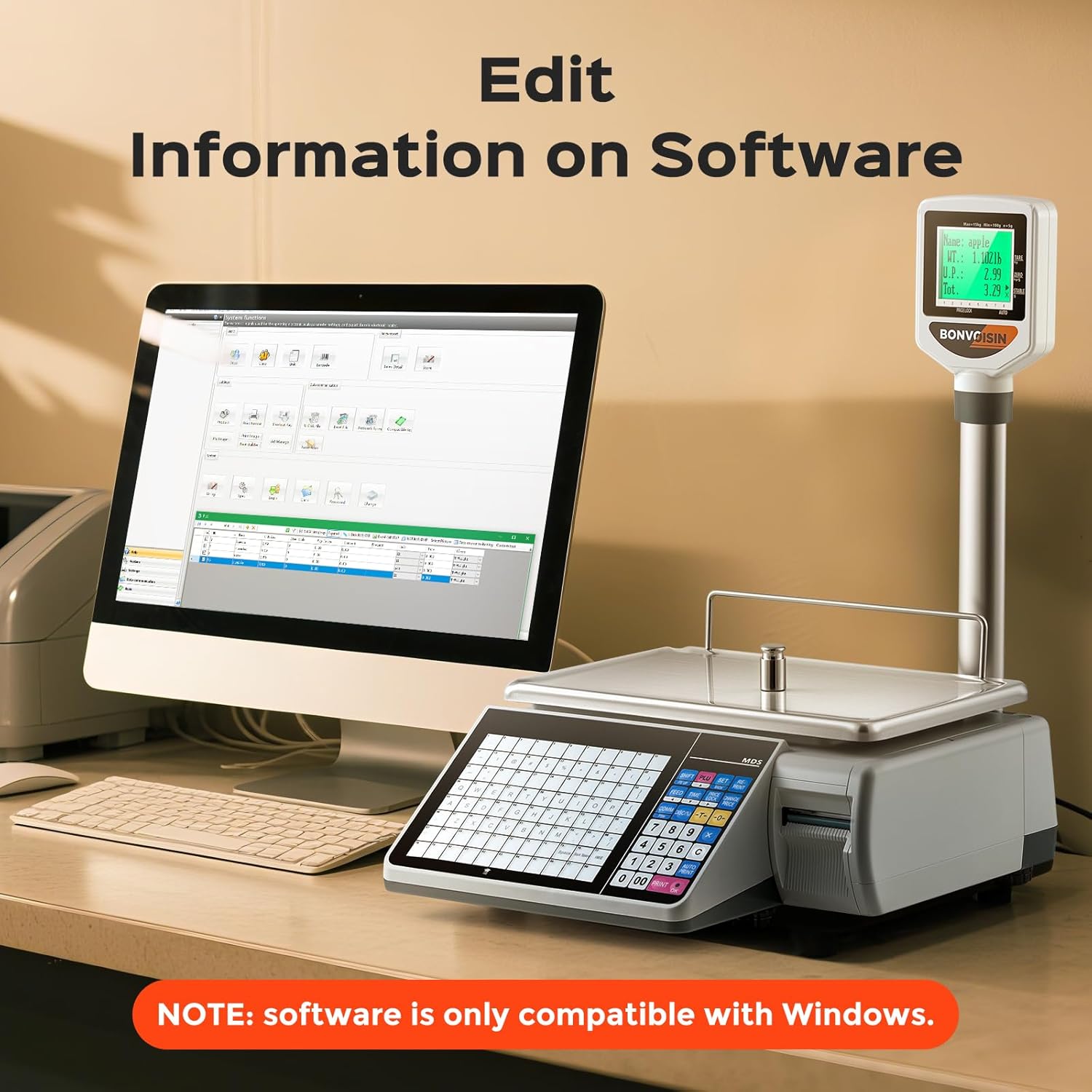
Image: Close-up of the scale's keyboard, emphasizing the 88 shortcut keys for efficient product selection.
5.3. Multiple Weighing Units
The scale supports various weighing units, including pounds (lb) and pieces (pcs). These units can be configured via the software.

Image: The scale displaying both weight-based and piece-based pricing, illustrating its versatility.
5.4. Weighing and Counting Billing
To perform weighing and counting billing:
- Place the item on the weighing pan.
- Press the corresponding shortcut key for the product.
- For counting, enter the quantity after pressing the shortcut key.
- The scale will calculate the price and print a label.
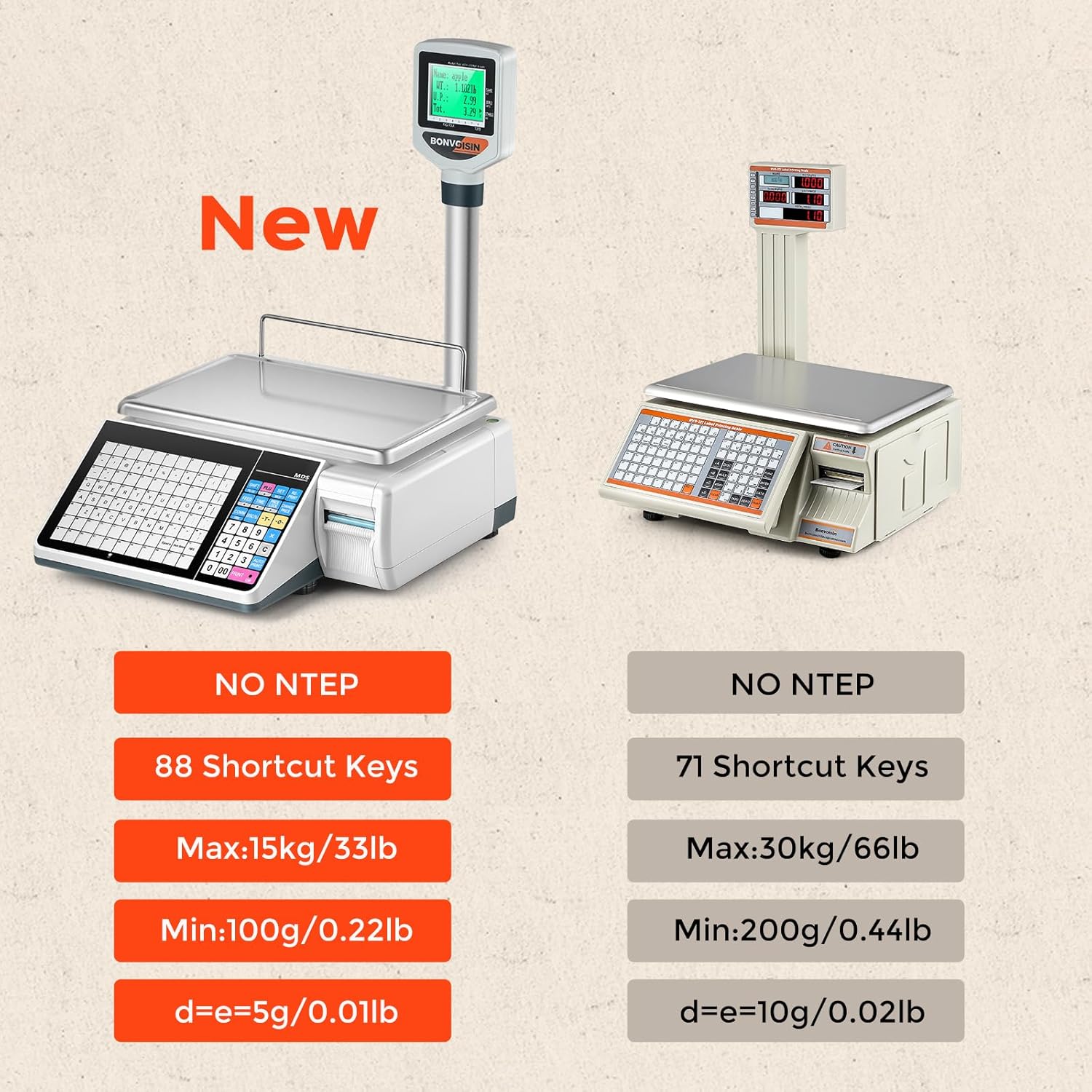
Image: The scale demonstrating its capability to handle both weighing and counting for billing purposes.
Video: This video illustrates the process of weighing and counting items for billing on the Bonvoisin Label Printing Scale.
5.5. Dual-sided Display
The scale is equipped with a dual-sided display, allowing both the seller and the customer to view the weighing information simultaneously, enhancing transparency.

Image: The dual-sided LCD display in action, providing clear visibility for both the operator and the customer.
6. Maintenance
- Cleaning: Wipe the scale surface with a soft, damp cloth. Do not use abrasive cleaners or immerse the scale in water.
- Label Paper: Ensure you use the correct size of label paper (60 x 30mm recommended). If using a different size, update the label size settings in the software and download to the scale.
- Software Updates: Periodically check for software updates to ensure optimal performance and access to new features.
7. Troubleshooting
- Scale Not Turning On: Check power connections and ensure the adapter is securely plugged into both the scale and the power outlet.
- Inaccurate Readings: Ensure the scale is on a level surface and recalibrate if necessary (refer to software instructions for calibration). Remove any objects from the weighing pan before use.
- Label Printing Issues: Verify that label paper is correctly installed and that the label size settings in the software match the physical labels. Check for paper jams.
- Software Connectivity: Ensure the USB or Ethernet cable is properly connected between the scale and the computer. Confirm that the software is running on a Windows operating system.
8. Specifications
| Feature | Specification |
|---|---|
| Brand | Bonvoisin |
| Model Number | QWM-24-NEW |
| Weight Capacity Maximum | 15 kg (33 lbs) |
| Minimum Weighing | 100 g (0.22 lbs) |
| Readout Accuracy (Increment) | 5 g (0.01 lbs) |
| Display Type | Touchscreen, Dual-sided LCD |
| Shortcut Keys | 88 |
| PLU Storage | Up to 6000 items |
| Software Compatibility | Windows only |
| Connectivity | USB, Ethernet |
| Item Weight | 7.73 kg |
| Dimensions (Approx.) | 15.7" (40cm) x 16.9" (43cm) x 22.8" (58cm) |

Image: Visual representation of the scale's key weighing specifications, including maximum and minimum capacities and increment.
9. Warranty and Support
For warranty information and technical support, please refer to the contact details provided in your purchase documentation or visit the official Bonvoisin website. Keep your proof of purchase for warranty claims.
Video: An overview of the Bonvoisin Label Printing Scale, showcasing its features and functionality.