
1. Introduction
Thank you for choosing the Fortdows 10 Inch Car Radio Stereo. This manual provides detailed instructions for the installation, operation, and maintenance of your new car stereo system, specifically designed for the Jeep Compass models from 2017 to 2020. Please read this manual thoroughly before installation and use to ensure proper function and to maximize your driving experience.
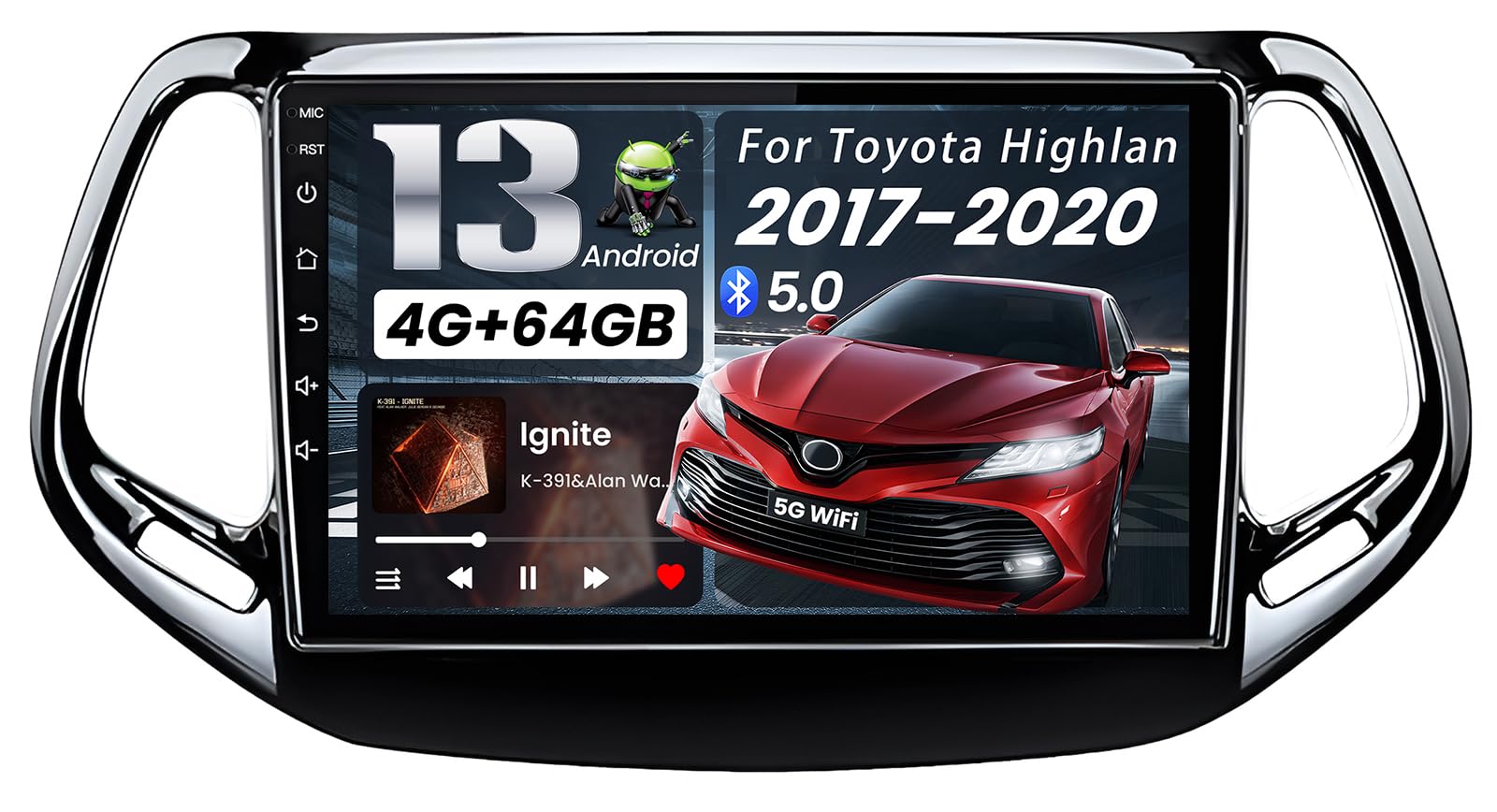
Image 1.1: Fortdows 10 Inch Car Radio Stereo installed in a Jeep Compass.
2. Product Features
The Fortdows Car Radio Stereo offers a range of advanced features to enhance your in-car entertainment and navigation:
- 10.1 Inch 1280*800 HD Touchscreen: Provides a clear and responsive display for all functions.
- Android 13 Operating System: Ensures smooth performance and access to a wide range of applications.
- 4GB RAM + 64GB Internal Storage: Offers ample space for apps, music, and offline maps, with improved multitasking capabilities.
- Wireless CarPlay & Android Auto: Seamless integration with your smartphone for navigation, calls, messages, and music.
- Built-in GPS Navigation: Supports both online and offline maps for reliable route guidance.
- 5G WiFi Connectivity: Faster internet access for streaming, map updates, and app downloads.
- Bluetooth 5.0: Stable wireless connection for hands-free calling and audio streaming.
- FM RDS Radio: Access to local radio stations with clear reception and RDS information display.
- Steering Wheel Control (SWC) Support: Retains original steering wheel button functionality for safe operation.
- Rear View Camera Input: Supports backup cameras for safer parking and reversing.
- Mirror Link Functionality: Display your smartphone screen directly on the car stereo.
3. Package Contents
Verify that all items listed below are included in your package:
- Fortdows 10 Inch Car Radio Stereo Unit
- Power Cable
- RCA Cable
- USB Cables (x2)
- GPS Antenna
- Radio Extension Cable
- Reversing Cable
- CANBUS Decoder
- Microphone
- Backup Camera
- Crowbar (for trim removal)
- User Manual (this document)

Image 3.1: Included components in the Fortdows Car Radio Stereo package.
4. Setup and Installation
This car stereo is designed for direct fitment in Jeep Compass models from 2017 to 2020. Professional installation is recommended to ensure correct wiring and functionality.
4.1 Pre-Installation Checks
- Ensure your vehicle is a Jeep Compass (2017-2020 model year).
- Disconnect the vehicle's battery before starting any electrical work.
- Gather necessary tools (e.g., trim removal tools, screwdrivers, wire cutters/strippers).
4.2 Installation Steps (General Guide)
- Carefully remove the factory radio and dashboard trim using the provided crowbar and other appropriate tools.
- Connect the main power harness, RCA cables, USB cables, GPS antenna, and radio antenna to the new head unit. Ensure all connections are secure.
- If applicable, connect the CANBUS decoder to integrate with vehicle systems like steering wheel controls.
- Install the backup camera (if included and desired) by routing the cable to the rear of the vehicle and connecting it to the reversing cable input on the head unit.
- Test all connections before fully reassembling the dashboard. Reconnect the battery and power on the unit.
- Once confirmed working, carefully reassemble the dashboard trim and secure the new head unit in place.

Image 4.1: Visual comparison of the dashboard before and after installing the Fortdows Car Radio Stereo.
5. Operating Instructions
This section details the primary functions and how to operate your Fortdows Car Radio Stereo.
5.1 Wireless CarPlay & Android Auto
Connect your smartphone wirelessly to access navigation, calls, messages, and music through the car stereo's interface.
- Ensure Bluetooth and Wi-Fi are enabled on your smartphone.
- On the car stereo, navigate to the CarPlay or Android Auto application.
- Search for Bluetooth devices on your phone and select the car stereo's Bluetooth name (e.g., "CAR-BT").
- Confirm the pairing code on both devices.
- Once paired, follow the on-screen prompts to enable CarPlay or Android Auto.

Image 5.1: Wireless CarPlay and Android Auto interfaces.

Image 5.2: Example of customizable UI themes.
5.2 Bluetooth Hands-Free Calling & Audio Streaming
Connect your phone via Bluetooth for hands-free calls and to stream music.
- Turn on Bluetooth on both the car stereo and your phone.
- On your phone, search for Bluetooth devices and select "CAR-BT".
- Confirm the pairing. You can now make/receive calls and play music wirelessly.

Image 5.3: Bluetooth connection and Steering Wheel Control (SWC) functions.
5.3 GPS Navigation & 5G WiFi
Utilize the built-in GPS for navigation and 5G WiFi for internet access.
- GPS Navigation: Open the navigation app on the stereo. You can use pre-installed offline maps or download online maps when connected to WiFi. Enter your destination for turn-by-turn directions.
- 5G WiFi: Go to Settings > Network & Internet > Wi-Fi. Connect to an available Wi-Fi hotspot (e.g., from your phone) to access online services, stream media, and update apps.

Image 5.4: GPS Navigation and 5G WiFi features.
5.4 FM/RDS Radio
Access local radio stations with the integrated FM tuner.
- Open the "Radio" application on the main screen.
- Use the scan function to find available stations or manually tune to a specific frequency.
- RDS (Radio Data System) will display station information, song titles, or traffic announcements where available.

Image 5.5: EQ Audio and FM/RDS Radio interface.
5.5 Steering Wheel Control (SWC)
After proper installation and CANBUS connection, your factory steering wheel controls should function automatically. If not, you may need to configure them in the system settings:
- Go to Settings > Steering Wheel Control.
- Follow the on-screen instructions to map each button on your steering wheel to its corresponding function on the stereo.
5.6 Rear View Camera
When the vehicle is shifted into reverse, the stereo will automatically display the feed from the connected rear view camera.
- Ensure the camera is properly installed and connected to the "Reverse In" input.
- The display will show a wide-angle view behind your vehicle, often with parking guidelines.

Image 5.6: Rear View Camera display and features.
5.7 Audio Equalizer (EQ)
Customize your audio experience using the built-in equalizer.
- Access the "EQ" or "Sound Settings" application.
- Choose from various preset sound modes (e.g., Rock, Pop, Jazz, Classical) or manually adjust frequency bands to fine-tune the bass, midrange, and treble.
- Adjust fader and balance settings to optimize sound distribution within the vehicle.
5.8 Key Features in Action (Video)
Watch these official videos for a visual guide on key features and operation.
Video 5.7: Overview of the Car Radio Stereo for Jeep Compass 2017-2020.
Video 5.8: Detailed look at the Car Radio features for Jeep Compass 2017-2020.
6. Maintenance
To ensure the longevity and optimal performance of your car stereo, follow these maintenance guidelines:
- Cleaning: Use a soft, dry cloth to wipe the screen and unit. For stubborn smudges, a slightly damp cloth with a mild, non-abrasive cleaner can be used, then immediately wipe dry. Avoid harsh chemicals or abrasive materials.
- Software Updates: Periodically check for software updates through the system settings (if available) to ensure you have the latest features and bug fixes. A stable internet connection (via 5G WiFi) is required for updates.
- Avoid Extreme Temperatures: Do not expose the unit to extreme heat or cold for extended periods, as this can affect performance and lifespan.
7. Troubleshooting
If you encounter issues with your car stereo, refer to the following common problems and solutions:
| Problem | Possible Cause | Solution |
|---|---|---|
| No Power | Loose power connection, blown fuse, vehicle battery issue. | Check power cables and connections. Inspect vehicle fuses. Ensure vehicle battery is charged. |
| No Sound | Volume too low, mute activated, incorrect audio settings, loose speaker wires. | Increase volume. Check if mute is active. Verify audio output settings (e.g., EQ, fader/balance). Inspect speaker wire connections. (Refer to EQ settings in section 5.7 if sound quality is poor). |
| Bluetooth/CarPlay/Android Auto not connecting | Bluetooth/Wi-Fi off, incorrect pairing, interference. | Ensure Bluetooth/Wi-Fi is on for both devices. Delete previous pairings and re-pair. Restart both phone and car stereo. |
| GPS Signal Lost/Inaccurate | GPS antenna obstruction, poor satellite reception. | Ensure GPS antenna is properly installed and has a clear view of the sky. Move to an open area. |
| Steering Wheel Controls not working | CANBUS not connected, incorrect SWC settings. | Verify CANBUS connection. Configure SWC settings in the system menu (Section 5.5). |
| Touchscreen Unresponsive | System freeze, dirty screen. | Restart the unit (refer to manual for reset button location if available). Clean the screen. |
If problems persist after attempting these solutions, please contact Fortdows customer support for further assistance.
8. Specifications
| Feature | Detail |
|---|---|
| Brand | Fortdows |
| Model Number | 0754175630127 |
| Screen Size | 10.1 Inches |
| Display Resolution | 1280*800P HD |
| Operating System | Android 13 |
| RAM | 4GB |
| Internal Storage | 64GB |
| Connectivity | Bluetooth 5.0, USB, 5G Wi-Fi |
| Special Features | Wireless CarPlay, Android Auto, GPS Navigation, Mirror Link, FM Radio, Steering Wheel Control, Rear View Camera Input |
| Compatible Devices | Smartphone |
| Audio Output Mode | Stereo |
| Control Method | App, Touch, Voice |
9. Warranty and Support
Your Fortdows Car Radio Stereo comes with a 1-Year Manufacturer Warranty, covering defects in materials and workmanship from the date of purchase.
For technical support, warranty claims, or any questions regarding your product, please contact Fortdows customer service through the retailer where you purchased the product or visit the official Fortdows website for contact information.
Optional extended protection plans may be available for purchase separately:
- 2-Year Protection Plan
- 3-Year Protection Plan
- Complete Protect (monthly renewal)
Please retain your proof of purchase for warranty purposes.


