
1. Introduction
The THINKCAR THINKDIAG BD6 is a wireless OBD2 scanner designed for comprehensive vehicle diagnostics. This tool connects via Bluetooth to iOS and Android devices, enabling users to perform full system diagnostics, read and clear fault codes, and access various maintenance reset functions. It is suitable for both DIY enthusiasts and professional automotive technicians.

Figure 1: THINKCAR THINKDIAG BD6 OBD2 Scanner highlighting features like Free Lifetime Update, 5+ Reset Functions, All System Diagnostic, Wireless Bluetooth, Exclusive App, and Auto VIN.
2. What's in the Box
Upon opening the package, ensure all items are present:
- 1x THINKDIAG BD6 OBD2 Scanner
- 1x Quick Start Guide

Figure 2: The THINKCAR BD6 OBD2 Scanner and its Quick Start Guide as included in the package.
3. Setup Guide
Follow these steps to set up your THINKDIAG BD6 scanner:
- Download the App: Download the "Dollarfix" or "ThinkDiag+" app from your device's app store (App Store for iOS or Google Play Store for Android).
- Sign Up/Sign In: Open the app and create a new account or sign in with an existing one.
- Enter SN to Activate: Locate the serial number (SN) on the scanner or in the Quick Start Guide and enter it into the app for activation.
- Plug into OBD2 Port: Locate your vehicle's OBD2 port (usually under the dashboard) and firmly plug in the THINKDIAG BD6 scanner. The device will power on automatically.
- Bluetooth Connection: Ensure Bluetooth is enabled on your smartphone or tablet. The app will automatically scan for and connect to the BD6 device.
- Download and Update Software: Once connected, the app may prompt you to download or update vehicle-specific software. Follow the on-screen instructions to complete this process.

Figure 3: Visual guide for the six diagnostic steps to connect the THINKDIAG BD6 to the app via Bluetooth.
Video: THINKCAR THINKDIAG BD6 OBD2 Scanner Bluetooth Setup
Video 1: This video demonstrates the process of connecting the THINKCAR THINKDIAG BD6 OBD2 Scanner via Bluetooth to a smartphone and initiating the diagnostic process within the app.
4. Operating Instructions
The THINKDIAG BD6 offers a range of diagnostic functions accessible through the app:
4.1 Full System Diagnostics
This function allows the scanner to intelligently scan all available vehicle systems. It reads vehicle information, identifies and clears fault codes, and can turn off warning lights. Diagnostic results can be recorded, replayed, and shared via email or printed.
- Auto VIN: Automatically identifies the vehicle's brand, model, and year for quick access to diagnostic systems.
- Read/Clear Fault Codes: Access and clear Diagnostic Trouble Codes (DTCs) from various vehicle modules such as Engine, ABS, Airbags, Transmission, Steering, EPB, BCM, and TPMS.
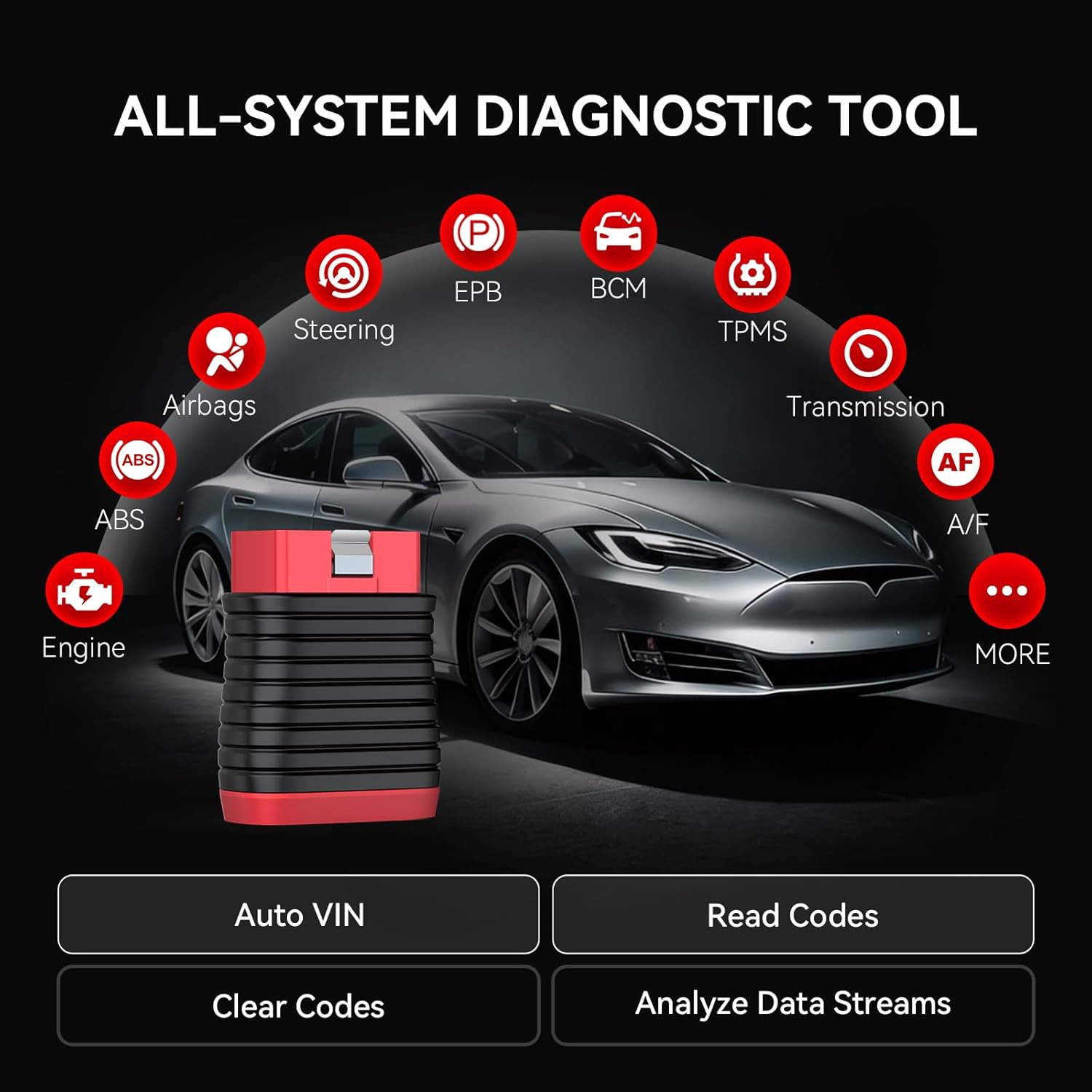
Figure 4: An illustration of the THINKDIAG BD6's capability to diagnose all vehicle systems, including Engine, ABS, Airbags, Steering, EPB, BCM, TPMS, and Transmission.

Figure 5: The Auto VIN function automatically identifying a vehicle's make, model, and year for diagnostic purposes.
4.2 Live Data Stream
Monitor real-time data from various sensors and components within your vehicle. This feature allows you to view multiple data streams simultaneously, presented in graphical format for easier analysis. This is crucial for diagnosing intermittent issues or verifying repairs.

Figure 6: A smartphone screen displaying 4-in-1 live data functionality, showing real-time sensor readings and waveform charts for in-depth analysis.

Figure 7: The multi-functional capabilities of the OBD2 scanner, including Auto VIN, online service, history & report generation, DTC lookup, and real-time data display, with options to share, print, or email reports.
Video: THINKCAR THINKDIAG BD6 OBD2 Scanner Bluetooth Diagnostic Overview
Video 2: This video provides an overview of the THINKCAR THINKDIAG BD6 OBD2 Scanner's diagnostic capabilities, demonstrating how to read and clear codes, and view live data streams.
5. Maintenance Functions
The THINKDIAG BD6 includes several essential maintenance and reset functions to keep your vehicle in optimal condition:
- BLEED RESET: For ABS brake bleeding procedures.
- BRAKE RESET: For electronic parking brake (EPB) reset after brake pad replacement.
- ETS RESET: For electronic throttle system (ETS) adaptation or relearning.
- IMMO: For immobilizer and key programming functions.
- OIL RESET: For resetting the oil maintenance light after an oil change.
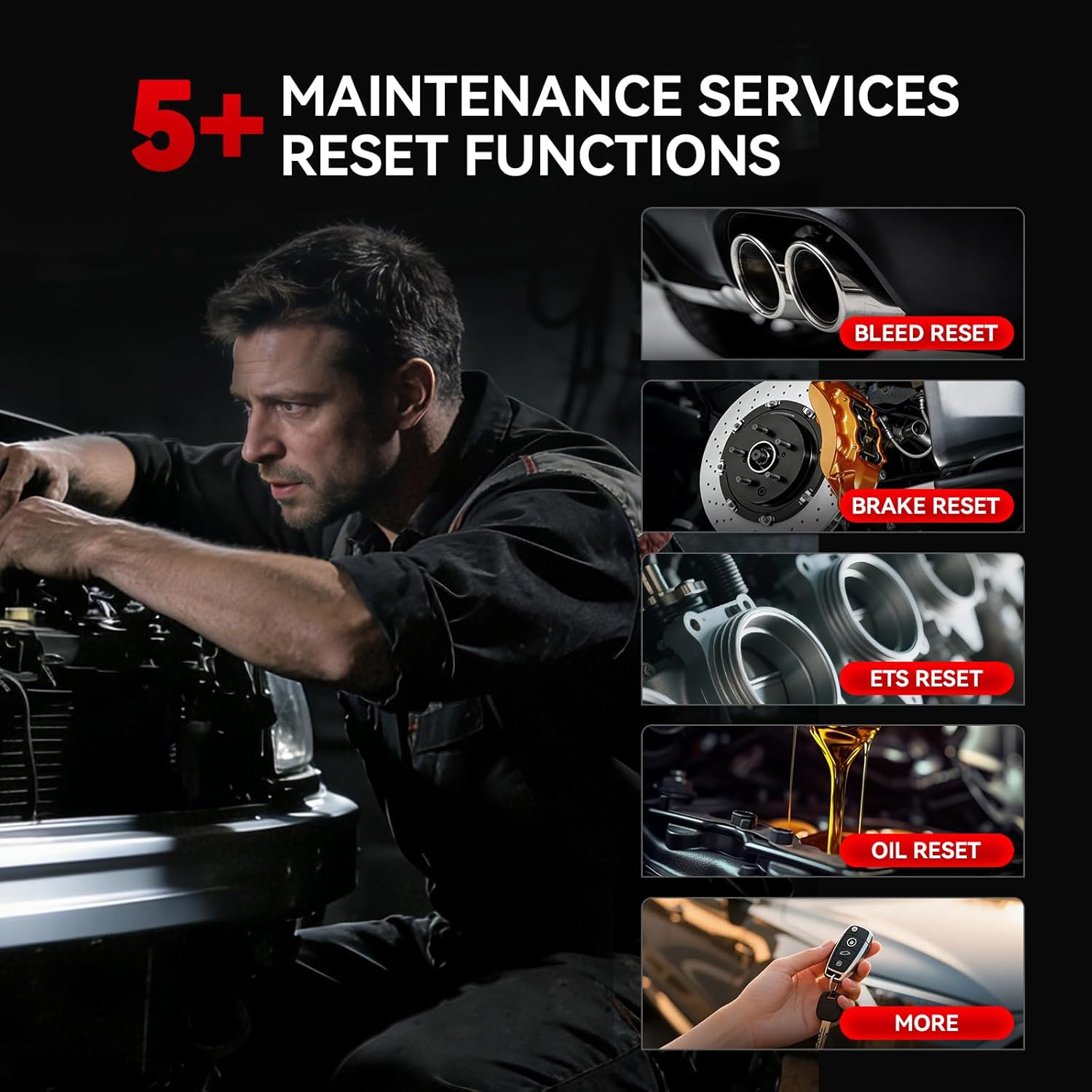
Figure 8: A visual representation of the 5+ maintenance reset functions available with the THINKDIAG BD6, including Bleed, Brake, ETS, IMMO, and Oil resets.
6. Troubleshooting
If you encounter issues while using the THINKDIAG BD6, consider the following:
- Fault Codes Not Clearing: If fault codes cannot be cleared, it indicates a hardware issue with the vehicle that requires physical repair. The code reader cannot clear codes if the underlying problem persists.
- Connectivity Issues: Ensure the scanner is firmly plugged into the OBD2 port and your device's Bluetooth is active. Restarting the app or your device may resolve temporary connection problems.
- App Functionality: Ensure your app is updated to the latest version. Outdated software can lead to compatibility or performance issues.

Figure 9: An illustration emphasizing the importance of diagnosing all engine issues, understanding problems before repairs, reading fault codes, and accessing live data beyond warning lights.
7. Specifications
| Brand | thinkcar |
| Model | BD6 |
| Power Source | Plug&Play |
| Operating System (App) | iOS & Android |
| Connectivity | Bluetooth |
| Supported Languages | 22 languages (including English, Deutsch, Español, Français, Italiano, Polski, Português, Русский, Türkçe, Magyar, 한국어, 繁體中文, 日本語) |
| Supported Vehicle Brands | Over 126 global automotive brands, 10,000+ models |
| Supported Protocols | SAE J1850 PWM & VPW, ISO9141-2, ISO14230-4 KWP, ISO15765-4 CAN |
| Updates | Lifetime Free Update |
| Manufacturer | thinkcar |
| UPC | 768297281600 |
| ASIN | B0GF75CYGT |

Figure 10: The THINKDIAG BD6 offers worldwide compatibility, supporting 22 languages and over 150 vehicle brands across USA, Europe, and Asian markets, adhering to various OBD2 protocols.
8. Warranty & Support
Manufacturer Warranty: The THINKCAR THINKDIAG BD6 comes with a 12-month manufacturer warranty.
Technical Support: THINKCAR provides 24/7 professional technical support. For any questions regarding the car diagnostic scanner, please contact us via Amazon or through the official app. We welcome any suggestions for improving our products or services. If you encounter issues with device activation, a new activation code can be provided for product safety reasons.

Figure 11: THINKCAR's 24/7 Professional Technical Team is available for online service and consultation to assist users with any product-related inquiries.


