
1. Introduction
The Y&H GES-WIFI Solar Inverter Wi-Fi Monitoring Module serves as a communication interface, enabling remote monitoring and control of compatible Y&H solar inverters. This module facilitates data exchange between your inverter and external systems, allowing users to manage their solar power system through a dedicated mobile application. It is specifically designed for use with Y&H GES-12KW-UP and GES-7.2KW-U inverters.
This manual provides detailed instructions for the installation, operation, and maintenance of your Wi-Fi monitoring module to ensure optimal performance and reliable connectivity.
2. Safety Information
Please read all safety instructions carefully before installing or operating the Wi-Fi monitoring module. Failure to follow these instructions may result in electric shock, fire, or serious injury.
- Ensure the inverter is powered off and disconnected from all power sources before installation.
- Only qualified personnel should perform installation and maintenance.
- Do not expose the module to water, moisture, or extreme temperatures.
- Do not attempt to open or repair the module. Contact support if service is required.
- Verify compatibility: This module is only suitable for Y&H GES-12KW-UP and GES-7.2KW-U inverters. Using it with incompatible models may cause malfunction.
3. Package Contents
Upon opening the package, please verify that all items are present and undamaged:
- Y&H GES-WIFI Monitoring Module
- Wi-Fi Antenna
- User Manual (this document)
4. Installation Procedure
Follow these steps to install the Wi-Fi monitoring module:
- Attach the Antenna: Carefully screw the provided antenna onto the designated port on the Wi-Fi module. Ensure it is securely fastened but do not overtighten.
- Connect to Host Device: Interface the host device cable terminal with the module. This connection typically involves a data cable from your compatible Y&H inverter.
- Establish Inverter Connection: Securely connect the other end of the cable to the communication port on your Y&H GES-12KW-UP or GES-7.2KW-U inverter.
- Verify LED Indicators: Once connected and the inverter is powered on, observe the LED indicators on the Wi-Fi module. Stable LED lights indicate a successful connection and system readiness. Refer to the inverter's manual for specific LED status meanings.
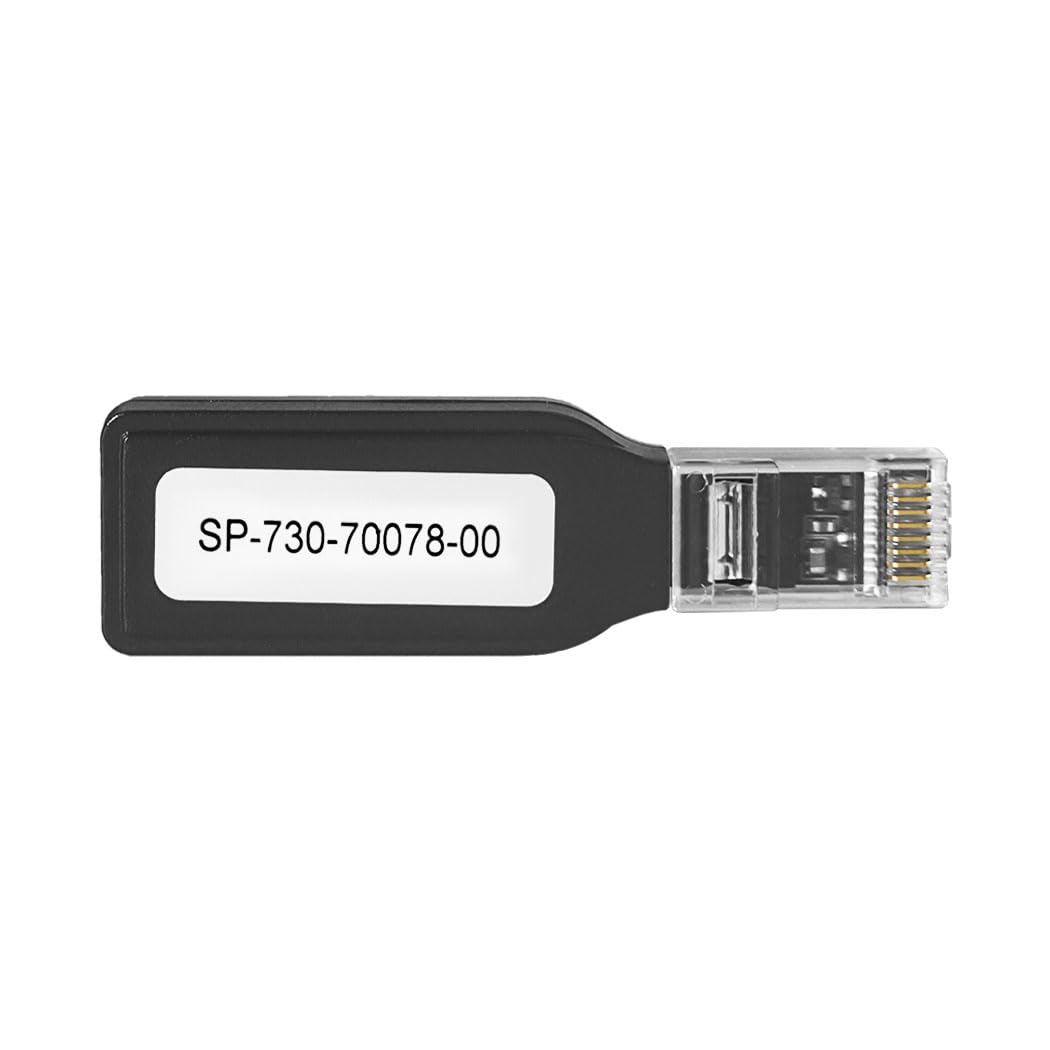
Figure 1: Y&H GES-WIFI Solar Inverter Wi-Fi Monitoring Module. This image shows the compact module with its antenna, ready for connection to a compatible inverter.
5. Operating Instructions
The Y&H GES-WIFI module enables remote monitoring and control of your solar inverter via a dedicated mobile application. Follow these general steps to begin operation:
- Download the Mobile Application: Search for the official Y&H solar monitoring application on your smartphone's app store (e.g., Apple App Store or Google Play Store).
- Register and Log In: Create an account or log in if you already have one.
- Add Your Device: Follow the in-app instructions to add your Y&H GES-WIFI module and connected inverter. This typically involves scanning a QR code on the module or entering its serial number.
- Monitor and Control: Once connected, you can view real-time data, historical performance, and adjust settings of your inverter remotely through the application. Features include power output, energy generation, system status, and fault alerts.
Refer to the mobile application's help section or user guide for detailed instructions on specific features and functionalities.
6. Maintenance
The Y&H GES-WIFI monitoring module requires minimal maintenance to ensure continuous and reliable operation.
- Cleaning: Keep the module clean and free from dust. Use a soft, dry cloth for cleaning. Do not use liquid cleaners or solvents.
- Environmental Conditions: Ensure the module is installed in a dry, well-ventilated area, away from direct sunlight, excessive heat, and moisture.
- Firmware Updates: Periodically check the mobile application for any available firmware updates for the module. Keeping the firmware updated ensures optimal performance and security.
- Connection Check: Occasionally verify that the antenna and cable connections are secure.
7. Troubleshooting
If you encounter issues with your Y&H GES-WIFI monitoring module, refer to the following common problems and solutions:
- No Connection/Offline Status:
- Check if the inverter is powered on.
- Ensure the Wi-Fi antenna is securely attached.
- Verify all cables are properly connected between the module and the inverter.
- Confirm your home Wi-Fi network is active and within range.
- Restart the inverter and the Wi-Fi module.
- Incorrect Data Display:
- Ensure the module firmware and mobile application are up to date.
- Verify the module is correctly configured in the mobile application.
- Module LED Indicators Not Stable:
- Refer to your inverter's manual for specific LED error codes.
- Recheck all physical connections.
If the problem persists, contact Y&H customer support for further assistance.
8. Specifications
| Feature | Description |
|---|---|
| Brand | Y&H |
| Model Name | GES-WIFI |
| Model Number | GES-WIFI |
| Compatible Inverters | Y&H GES-12KW-UP, Y&H GES-7.2KW-U |
| Communication Interface | Wi-Fi |
| Power Source | Solar Powered (via inverter) |
| UPC | 704334442016 |
| Unit Count | 1 Count |
9. Warranty Information
The Y&H GES-WIFI Solar Inverter Wi-Fi Monitoring Module comes with a 1-Year Warranty from the date of purchase. This warranty covers defects in materials and workmanship under normal use. It does not cover damage caused by misuse, accident, unauthorized modification, or improper installation.
Please retain your proof of purchase for warranty claims. For detailed warranty terms and conditions, please contact Y&H customer support.
10. Customer Support
For technical assistance, troubleshooting, or warranty inquiries, please contact Y&H customer support through the following channels:
- Website: Visit the official Y&H website for support resources and contact information.
- Email: Refer to your product packaging or the Y&H website for the customer support email address.
- Mobile Application: The dedicated mobile application may also offer in-app support or FAQs.
When contacting support, please have your product model number (GES-WIFI) and proof of purchase readily available.