
1. Introduction
Thank you for choosing the Smart Tech 43QH02V QLED 4K UHD 43-inch Smart TV. This manual provides essential information for setting up, operating, and maintaining your television. Please read it thoroughly before use and retain it for future reference.
This Smart TV features a QLED 4K UHD display, Whale OS for smart functionality, and integrated applications like Netflix, YouTube, and Prime Video. Enjoy vibrant visuals, immersive sound with Dolby Digital+, and comprehensive connectivity options.
2. Safety Information
Before operating the TV, please read and understand all safety instructions. Failure to do so may result in injury or damage to the product.
- Do not expose the TV to rain or moisture.
- Ensure proper ventilation around the TV. Do not block ventilation openings.
- Use only the power cord supplied with the TV.
- Do not open the TV casing; refer all servicing to qualified personnel.
- Keep the TV away from direct sunlight, heat sources, and strong magnetic fields.
- Clean the screen and cabinet with a soft, dry cloth. Avoid abrasive cleaners.
3. Setup
3.1 Unpacking
Carefully remove the TV and all accessories from the packaging. Retain the packaging for future transport or service needs.
3.2 Attaching the Stand
Place the TV screen-down on a soft, flat surface. Align the stand bases with the screw holes on the bottom of the TV and secure them with the provided screws.

Image: Smart Tech 43-inch TV with its stand, ready for placement.
3.3 Connecting External Devices
Connect your external devices such as set-top boxes, gaming consoles, or USB drives to the appropriate ports on the TV. Refer to the image below for port locations.

Image: Rear panel connectors of the Smart Tech TV.
- HDMI: Connect Blu-ray players, game consoles, or other HDMI-enabled devices. This TV has 3 HDMI ports.
- USB: Insert USB drives for media playback. This TV has 2 USB ports.
- ANT/CABLE IN: Connect an antenna or cable for broadcast TV.
- ETHERNET (RJ45): Connect an Ethernet cable for a wired internet connection.
- OPTICAL: Connect to an external audio system for digital audio output.
- AV INPUT: Connect older devices using composite video and stereo audio cables.
- EARPHONE: Connect headphones for private listening.
- CI SLOT: For Conditional Access Modules (CAM) to decrypt encrypted channels.
3.4 Power On and First-Time Setup
- Connect the power cord to the TV and then to a power outlet.
- Press the Power button on the remote control or on the TV.
- Follow the on-screen instructions to select your language, country, and connect to your Wi-Fi network.
- Perform a channel scan for broadcast TV if applicable.
4. Operating
4.1 Remote Control Functions
The remote control provides access to all TV functions. Familiarize yourself with the buttons:

Image: Smart Tech TV remote control.
- Power Button: Turns the TV on or off.
- Number Buttons (0-9): Select channels directly.
- Volume Up/Down: Adjusts the volume level.
- Channel Up/Down: Changes TV channels.
- Navigation Buttons (Up/Down/Left/Right) & OK: Navigate menus and confirm selections.
- Back: Returns to the previous screen or menu.
- Home (House icon): Accesses the Whale OS home screen.
- Dedicated App Buttons: One-click access to Netflix, YouTube, Prime Video, and Disney+.
- Info: Displays information about the current program or input.
- Source: Selects input sources (HDMI, AV, etc.).
4.2 Whale OS Smart TV Interface
The Whale OS provides a fluid and intuitive interface for accessing your content. From the home screen, you can launch applications, manage settings, and switch inputs.
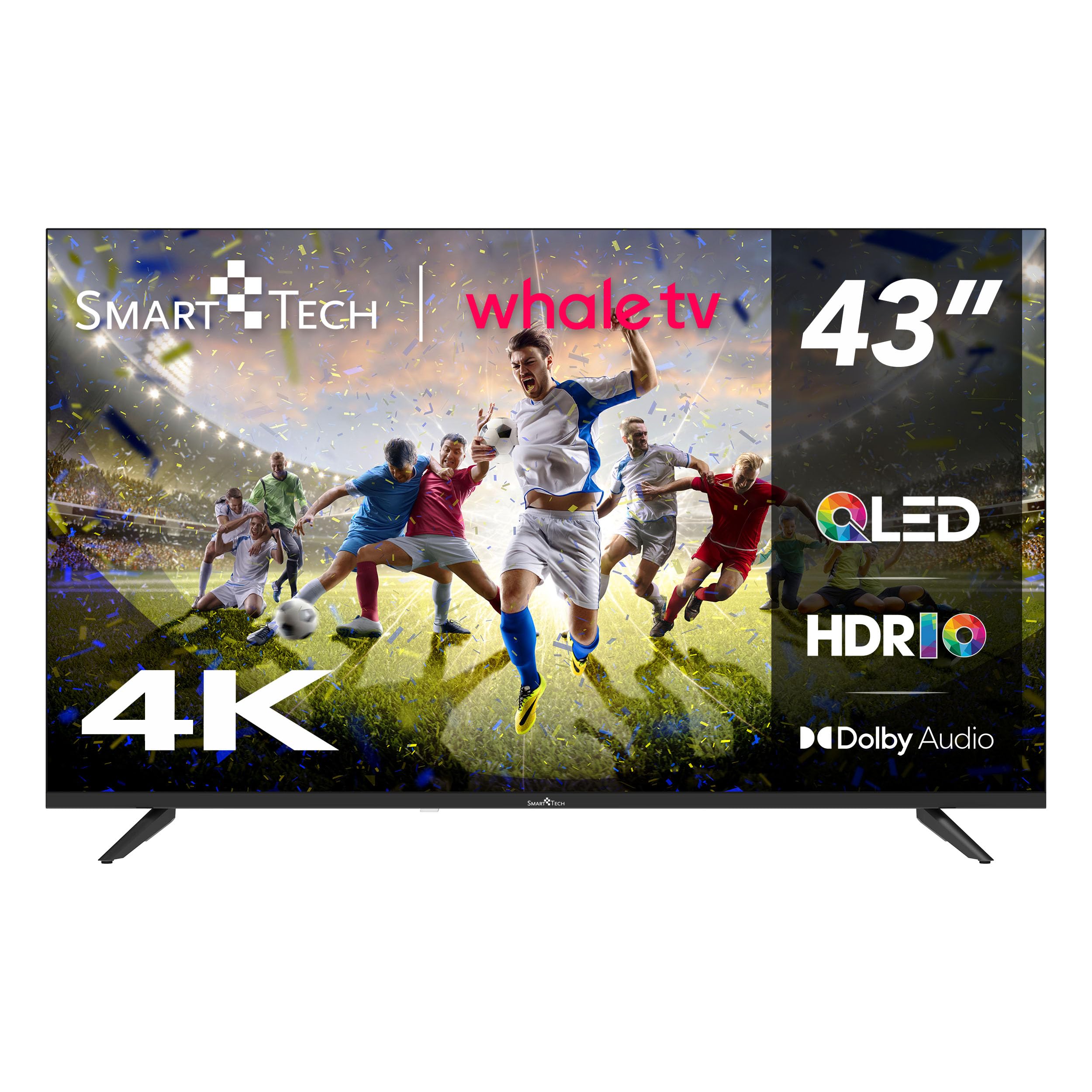
Image: Whale OS home screen interface.
- Accessing Apps: Use the navigation buttons to select and launch pre-installed apps like Netflix, YouTube, Prime Video, and Disney+.
- Chromecast Integration: Cast content from your compatible mobile devices directly to the TV.
- Voice Control: Use the voice control feature on your remote to search for content or control TV functions.
4.3 Picture and Sound Settings
Customize your viewing and listening experience through the TV's settings menu.
- Picture Modes: Select from various preset picture modes (e.g., Standard, Dynamic, Movie) or customize settings like brightness, contrast, color, and sharpness. The QLED panel and 4K UHD resolution provide vibrant colors and sharp details.
- HDR10: This TV supports HDR10 for enhanced contrast and color depth with compatible content.
- Sound Modes: Choose from sound presets (e.g., Standard, Music, Movie) or adjust bass and treble. The TV features 2x 8W speakers with Dolby Digital+ for clear and immersive audio.
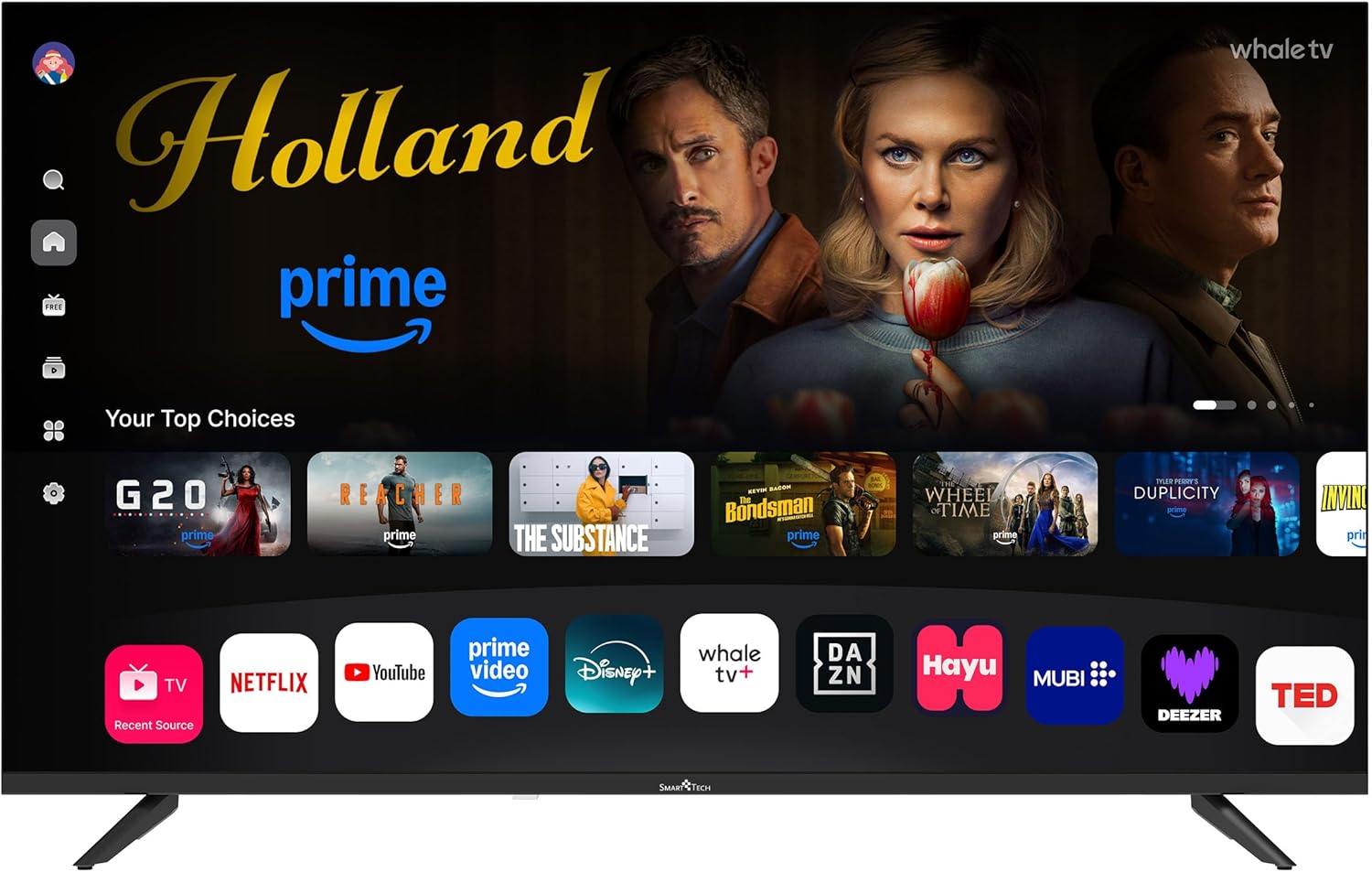
Image: Key features of the Smart Tech TV, including QLED, HDR10, and Hotel Mode.
4.4 Hotel Mode
The TV includes a Hotel Mode feature, which allows for customization of settings for public or hospitality environments. This mode can restrict certain functions, set default volumes, or specify a startup channel. Consult the advanced settings menu for Hotel Mode configuration.
5. Maintenance
5.1 Cleaning the TV
- Screen: Gently wipe the screen with a soft, lint-free cloth. For stubborn marks, slightly dampen the cloth with water or a specialized screen cleaner. Do not spray liquid directly onto the screen.
- Cabinet: Wipe the TV cabinet with a soft, dry cloth. Avoid using harsh chemicals or abrasive materials.
5.2 Software Updates
Your Smart TV may receive software updates to improve performance and add new features. Ensure your TV is connected to the internet to receive these updates. You can usually check for updates manually in the TV's settings menu.
6. Troubleshooting
If you encounter issues with your TV, refer to the following common problems and solutions:
- No Power:
- Check if the power cord is securely plugged into the TV and the wall outlet.
- Ensure the power outlet is working by plugging in another device.
- Try pressing the power button on the TV itself, not just the remote.
- No Picture, But Sound:
- Check the input source. Ensure it matches the device connected (e.g., HDMI 1).
- Verify that the external device is powered on and functioning correctly.
- No Sound, But Picture:
- Check the volume level and ensure the TV is not muted.
- If using external speakers, ensure they are properly connected and powered on.
- If sound cuts out intermittently, try restarting the TV by unplugging it from the power outlet for a few minutes, then plugging it back in.
- Remote Control Not Working:
- Replace the batteries in the remote control.
- Ensure there are no obstructions between the remote and the TV's IR sensor.
- Network Connection Issues:
- Check your Wi-Fi router or Ethernet cable connection.
- Restart your router and the TV.
- Verify your Wi-Fi password if connecting wirelessly.
- App Not Loading/Crashing:
- Ensure the TV's software is up to date.
- Try restarting the TV.
- Check your internet connection speed.
7. Specifications
| Feature | Specification |
|---|---|
| Model Number | 43QH02V |
| Screen Size | 43 inches (108 cm) |
| Display Technology | QLED |
| Resolution | 4K UHD (3840 x 2160 px) |
| Refresh Rate | 60 Hz |
| Operating System | Whale OS |
| Audio Output | 2 x 8W Speakers, Dolby Digital+ |
| HDMI Ports | 3 |
| USB Ports | 2 |
| Connectivity | Wi-Fi, Ethernet (RJ45), DVB-T2, DVB-S2 |
| Special Features | Miracast, Chromecast, Voice Control, Hotel Mode |
| Dimensions (with stand) | 956.5 mm (W) x 600.6 mm (H) x 237.2 mm (D) |
| Dimensions (without stand) | 956.5 mm (W) x 555.8 mm (H) x 83.8 mm (D) |
| Energy Efficiency Class | F |
| Power Consumption (1000h) | 50 kWh (SDR), 51 kWh (HDR) |

Image: Smart Tech 43-inch TV dimensions.

Image: EU Energy Label for Smart Tech 43QH02V. For more details, visit https://eprel.ec.europa.eu/qr/2366723.
8. Warranty and Support
8.1 Warranty Information
Your Smart Tech TV is covered by a manufacturer's warranty. Please refer to the warranty card included with your product for specific terms and conditions, including the warranty period and coverage details. Keep your proof of purchase for warranty claims.
8.2 Spare Parts Availability
Spare parts for this model are guaranteed to be available for up to 11 years from the date of purchase.
8.3 Customer Support
For technical assistance, troubleshooting beyond this manual, or warranty inquiries, please contact Smart Tech customer support. Contact details can typically be found on the Smart Tech official website or on the warranty card.
Online Support: Visit the official Smart Tech website for FAQs, support articles, and contact forms.
Phone Support: Refer to your product documentation for regional support telephone numbers.


