
1. Introduction
This manual provides detailed instructions for the installation, operation, and maintenance of your ATOTOEXCEL V10 10-inch QLED Android Double DIN Car Stereo. Please read this manual thoroughly before using the product to ensure proper function and safety. Keep this manual for future reference.
The ATOTOEXCEL V10 is an advanced car stereo system featuring a 10-inch QLED display, Android 14 operating system, Car Karaoke, Pro DSP, 4G LTE connectivity, Wireless CarPlay & Android Auto, and integrated dual cameras for front dash and backup recording.
2. Safety Information
- Professional Installation Recommended: Due to the complexity of car audio systems, professional installation is highly recommended to prevent damage to the unit or your vehicle.
- Power Supply: Ensure the unit is connected to a 12V DC power supply with a negative ground.
- Wiring: Incorrect wiring can cause damage or fire. Follow the wiring diagram precisely.
- Driving Safety: Do not operate the unit in a way that distracts you from driving. Always prioritize road safety.
- Temperature: Avoid exposing the unit to extreme temperatures or direct sunlight for prolonged periods.
- Moisture: Keep the unit away from water and moisture.
- Cleaning: Use a soft, dry cloth for cleaning. Do not use abrasive cleaners or solvents.
3. What's in the Box
Verify that all items are present in the package:
- V10 Car Stereo (10.1")
- 16P Male Power Cable (16-Pin Wire Harness)
- Male GPS Antenna
- Male 4G Antenna
- Male 4G Antenna S
- 6P Male Dual USB Cable
- 4-Pin Male USB Cable
- HN9-SIM Card Cable
- HN9-Male KTV Function Cable
- HN9-RCA Cable
- Mounting Screws
- Double-DIN Brackets
- Universal Mounting Bracket
- SIM Data Card
- Online Resources Quick Guide
- Guide Product Care Online Support
- AC-HN9FR Front Dash Camera
- Extension Cable for AC-HN9FR (3.5m/11.5ft)
- Cable Frame
- AC-HN9RRV3 Rear Dash Camera
- Extension Cable for AC-HN9RRV3 (8m/26.3ft)

Image: All components included in the ATOTOEXCEL V10 package.
4. Setup and Installation
4.1. Physical Installation
The V10 is designed for standard Double-DIN dashboard openings. Confirm your vehicle's dashboard contours before purchase. Professional installation is recommended.
- Mounting: Use the provided Double-DIN brackets and universal mounting bracket to secure the head unit.
- Wiring: Connect the 16-pin power cable, USB cables, GPS antenna, and 4G antennas according to the wiring diagram.
- Camera Connection: Connect the Front Dash Cam (AC-HN9FR) and Rear Dash Camera (AC-HN9RRV3) using their respective extension cables.
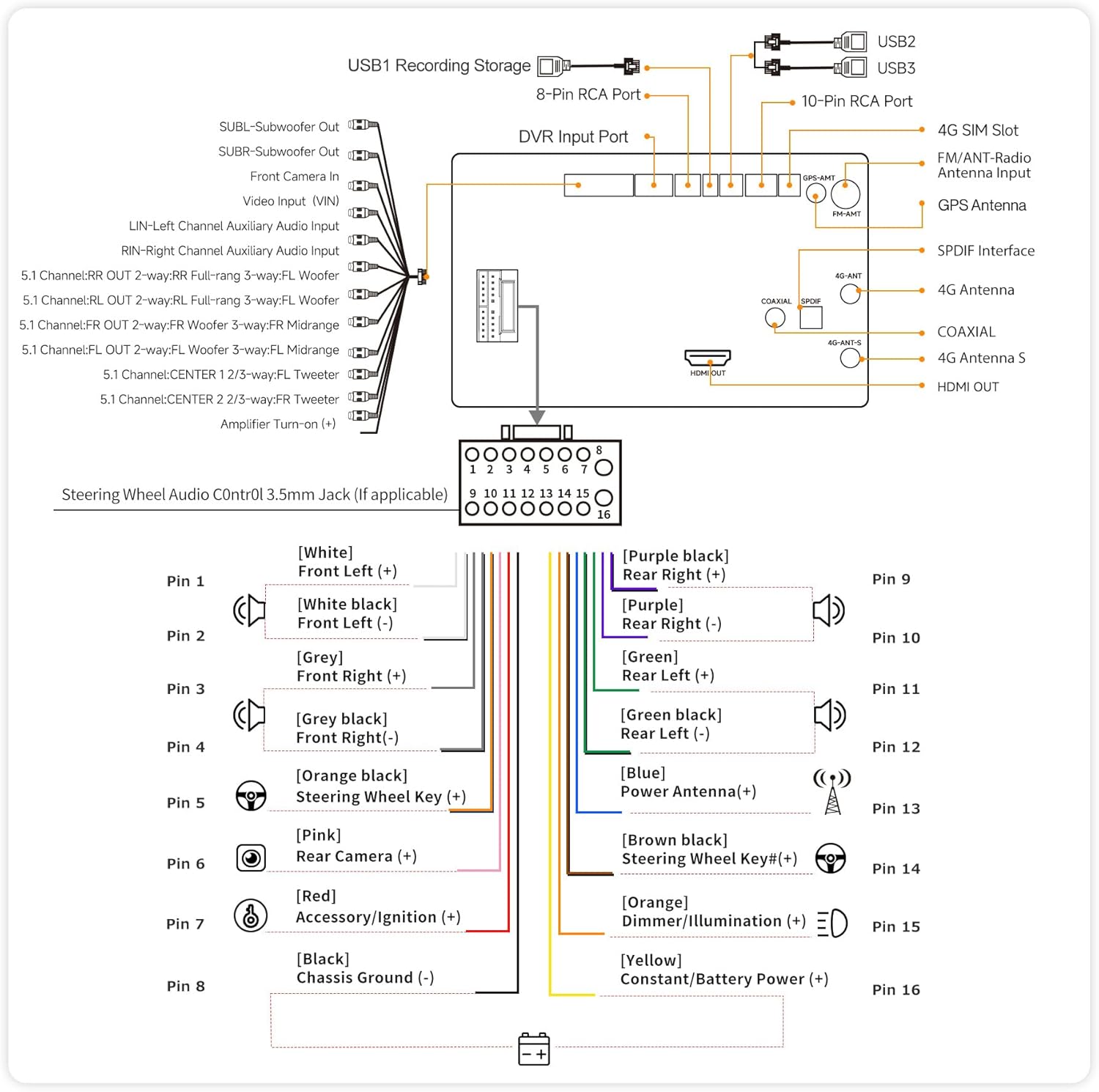
Image: Wiring diagram for the V10 unit.

Image: EdgeFit 10.1 Flush-Mount Installation Diagram.
4.2. Initial Power-On and Network Setup
After installation, power on the unit. The Android 14 system will boot up. You will need to set up network connectivity for full functionality.
- 4G LTE: Insert the provided SIM data card or your own compatible SIM into the HN9-SIM Card Cable. The unit will automatically connect to the 4G network.
- Wi-Fi: Navigate to Settings > Network & Internet > Wi-Fi to connect to an available Wi-Fi network.
- Hotspot & Tethering: The V10 can act as a rolling hotspot to share its LTE connection with other devices.
Video: This video demonstrates the V10's features including Quad-Cam Recording and Car Karaoke.
5. Operating Instructions
5.1. Touchscreen and Basic Navigation
The 10.1-inch QLED touchscreen provides a responsive interface. Swipe left/right to navigate between app screens, tap icons to open applications, and use the top bar for quick settings and notifications.

Image: The V10 QLED display in a vehicle.
5.2. Wireless CarPlay & Android Auto
Connect your smartphone wirelessly for seamless integration with Apple CarPlay or Android Auto. This allows access to navigation, music, calls, and messages directly from the stereo display.
- Ensure Bluetooth and Wi-Fi are enabled on your smartphone.
- On the V10, select the CarPlay or Android Auto icon.
- Follow the on-screen prompts to pair your device.

Image: Wireless CarPlay and Android Auto interfaces.
5.3. Car Karaoke (DriveKaraoke)
Transform your car into a KTV space with the built-in DriveKaraoke system. It uses vocal removal algorithms and DSP effects for studio-grade sound.
- Access the DriveKaraoke app from the main menu.
- Connect compatible wireless microphones (sold separately).
- Select a song; the system will remove lead vocals.
- Adjust DSP settings for your voice.

Image: DriveKaraoke System features.
5.4. Quad-Cam Recording
The V10 supports simultaneous recording from up to four 1080P cameras, providing comprehensive coverage for front, rear, and cabin views. This package includes the Front Dash Cam (AC-HN9FR) and Rear Camera (AC-HN9RRV3).
- Access the Q-DVR app to view live feeds and recorded footage.
- Emergency video lock automatically saves footage during collisions.
- Review recorded videos with geo-tagged playback.

Image: Quad-Cam Recording Input overview.
5.5. Pro DSP Audio Tuning
Fine-tune your audio experience with the robust DSP, featuring a 32-band EQ, time alignment, and 3-way crossover. This allows for custom sound profiles and optimal audio delivery.
- Access the DSP app from the main menu.
- Adjust the 32-band equalizer to match your audio preferences.
- Utilize time alignment to synchronize sound from all speakers.
- Configure the 3-way crossover for precise audio distribution to tweeters, midranges, and subwoofers.

Image: Advanced DSP Audio Tuning interface.
5.6. HDMI Output
The HDMI output allows you to connect the V10 to external screens, such as rear-seat monitors or passenger displays, for extended entertainment options.
- Connect an HDMI cable from the V10 to your external display.
- Configure the display settings within the V10's system menu to mirror or extend the screen.

Image: HDMI Output for multi-screen entertainment.
5.7. Smart Features
- DriveChat AI Voice Assistant: Use voice commands for navigation, music, and other functions.
- TrackHU GPS Tracking: Monitor your vehicle's real-time location and receive alerts.
- BLE-enabled IoT Hub: Connect and control various IoT devices.

Image: DriveChat AI and IoT Hub features.
6. Maintenance
- Cleaning the Screen: Use a soft, lint-free cloth to clean the QLED screen. For stubborn smudges, lightly dampen the cloth with water or a screen-safe cleaner.
- Software Updates (OTA): The V10 supports Over-The-Air (OTA) firmware upgrades. Regularly check for updates in the system settings to ensure optimal performance and access new features.
- General Care: Avoid placing heavy objects on the unit. Protect it from extreme temperatures and direct sunlight.
7. Troubleshooting
| Problem | Possible Cause | Solution |
|---|---|---|
| Unit does not power on. | Incorrect wiring, blown fuse, power supply issue. | Check power connections and fuses. Ensure proper 12V DC supply. |
| No sound output. | Volume too low, mute activated, incorrect speaker wiring, DSP settings. | Increase volume, check mute status, verify speaker connections, adjust DSP settings. |
| CarPlay/Android Auto not connecting. | Bluetooth/Wi-Fi off, incompatible phone, software glitch. | Ensure phone's Bluetooth/Wi-Fi is on. Restart both devices. Check phone compatibility. |
| Camera feed not displayed. | Incorrect camera connection, camera malfunction. | Verify camera wiring. Check camera settings in Q-DVR app. |
| Poor 4G LTE signal. | Weak network coverage, incorrect SIM card installation. | Check SIM card insertion. Move to an area with better network coverage. |
If problems persist, refer to the online manual or contact ATOTOEXCEL support.
8. Specifications
| Feature | Detail |
|---|---|
| Brand | ATOTOEXCEL |
| Model | V10 |
| Display | 10.1" QLED, 1280 x 800, 550 nits brightness |
| Operating System | Android 14 |
| Processor | 8 nm octa-core 2.3 GHz Cortex-A72 + dual-core NPU |
| Memory & Storage | 6GB RAM, 128GB Storage |
| Connectivity | 4G LTE, Wi-Fi (2.4 GHz & 5 GHz), Bluetooth (aptX HD), USB, Auxiliary, HDMI |
| Audio Features | Pro DSP, 32-band EQ, Time Alignment, 3-way Crossover, HD 24-bit DAC, Coaxial/SPDIF Out, 8 assignable channels, 4V 4 RCA Preamp Outputs, 4 × 29 W RMS amplifier |
| Camera Support | 4-Channel Dash Cam Recording (1080P), Front Dash Cam (AC-HN9FR), Rear Camera (AC-HN9RRV3) included |
| Special Features | Car Karaoke, Wireless CarPlay & Android Auto, DriveChat AI Voice Assistant, TrackHU GPS Tracking, BLE-enabled IoT Hub, HDMI Output |
| Item Weight | 5.86 Pounds |
9. Warranty & Support
9.1. Manufacturer's Warranty
The ATOTOEXCEL V10 comes with a 1-year manufacturer's warranty. Additionally, ATOTOEXCEL offers 12 plus 6 months extended coverage options. Please refer to the product care guide or online resources for specific terms and conditions.
9.2. Customer Support
For technical assistance, troubleshooting, or warranty claims, please contact ATOTOEXCEL customer support. You can find contact information in the online manual or on the product care quick guide included in the box.
- Online Manual: Scan the QR code on the product box or quick guide to access the eproductcare platform for help.
- Firmware Upgrades: Benefit from frequent OTA firmware upgrades that add new functions over time.