
1. Product Overview
This manual provides detailed instructions for the installation, operation, and maintenance of your new Ftoghe Android 15 Car Stereo Head Unit. Please read this manual thoroughly before installation and use to ensure proper function and safety.
1.1 Included Components
The package includes the following items:
- 1 x Car MP5 Player (Main Unit)
- 2 x Power Cables
- 1 x GPS Antenna
- 1 x RCA Input and Output Cable
- 2 x USB Cables
- 1 x Camera Input Cable
- 1 x Canbus Box
- 1 x AHD Backup Camera
- 1 x Instruction Manual
- 1 x Frame Removal Tool
- 1 x External Microphone
- 1 x Rearview Camera Extension Cable

This image displays the main unit, various cables (power, USB, RCA, camera input), GPS antenna, Canbus box, AHD backup camera, external microphone, rearview camera extension cable, frame removal tool, and the user manual.

The rear view of the head unit shows the various ports for connecting the power cables, GPS antenna, RCA cables, and camera input, ensuring proper wiring during installation.
2. Setup and Installation
Before beginning installation, ensure your vehicle is turned off and the battery is disconnected. Refer to your vehicle's service manual for specific dashboard removal instructions.
2.1 Pre-Installation Check
Verify all components are present and undamaged. Familiarize yourself with the wiring harness and connections.
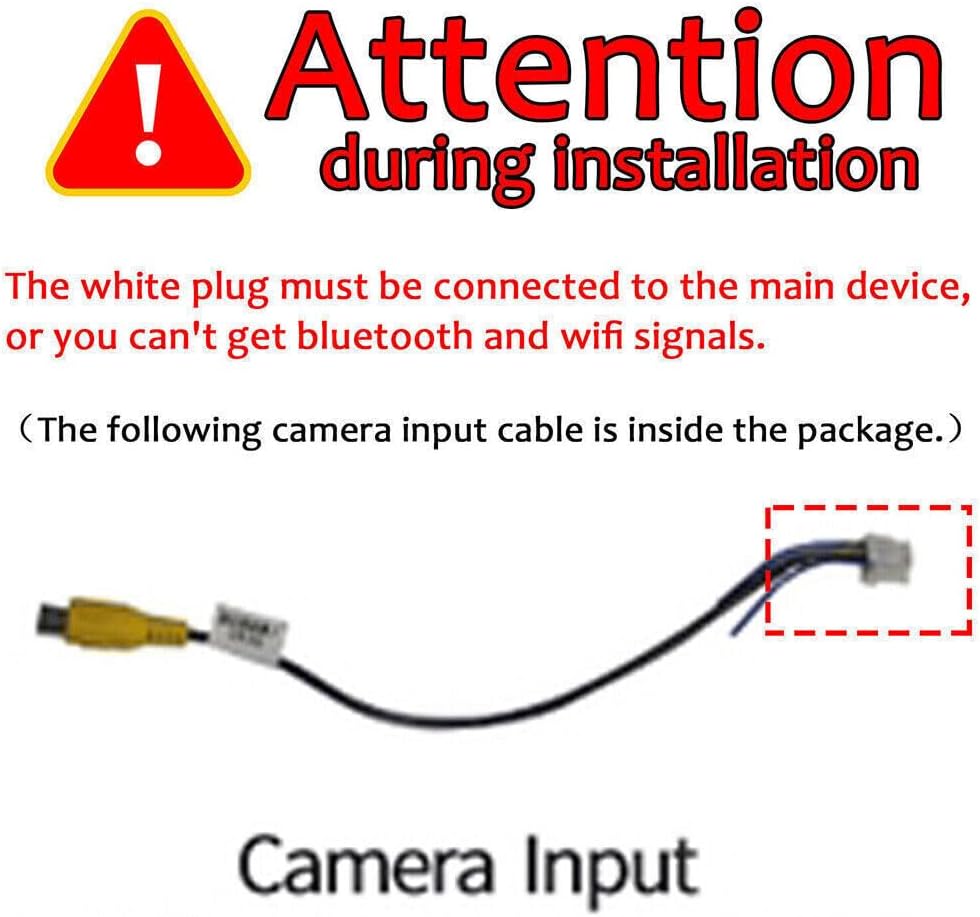
Important: The white plug (typically for Wi-Fi/Bluetooth antenna) must be connected to the main device. Failure to do so will result in no Bluetooth or Wi-Fi signals. The camera input cable is also included in the package.
2.2 Unboxing and Component Identification
This video demonstrates the unboxing process and identifies the various components included with the car stereo unit.
The video provides a visual guide to help you identify each part of your new car stereo system, including the main unit, wiring harnesses, and accessories.
3. Operating Instructions
3.1 Wireless CarPlay and Android Auto
The Android 15 Car Radio Stereo supports wireless CarPlay and Android Auto. Simply pair your phone via Bluetooth and Wi-Fi to connect to the car radio. Use the smart voice assistant or touch screen to access your favorite apps, make calls, navigate, and play music. This provides a safer way to drive.

This image illustrates the user interface for both Apple CarPlay and Android Auto, demonstrating how phone applications are mirrored and controlled on the car stereo's touchscreen.
3.2 GPS Navigation & WiFi Connect
The Android car stereo features built-in offline maps and supports online GPS maps when connected to Wi-Fi. You can install or remove apps from the app store, such as YouTube, Facebook, and Maps, just like a smartphone.

The image shows the navigation screen with route information and icons for various applications accessible via Wi-Fi, highlighting the unit's smart capabilities.
3.3 Bluetooth Hands-free & FM Radio
The double din car stereo supports Bluetooth voice control, allowing you to issue commands like "play music," "GPS navigation," or "make a call" without distraction. The FM radio is preset with 18 stations for your listening convenience.

This image demonstrates the Bluetooth call screen with contact information and the FM radio interface showing preset stations and frequency display.
3.4 Steering Wheel Control & Split Screen Function
The radio's Steering Wheel Control (SWC) interfaces allow you to retain and customize controls for safe driving. The split-screen function enables running two apps side-by-side, such as navigation with Google Maps while controlling music.
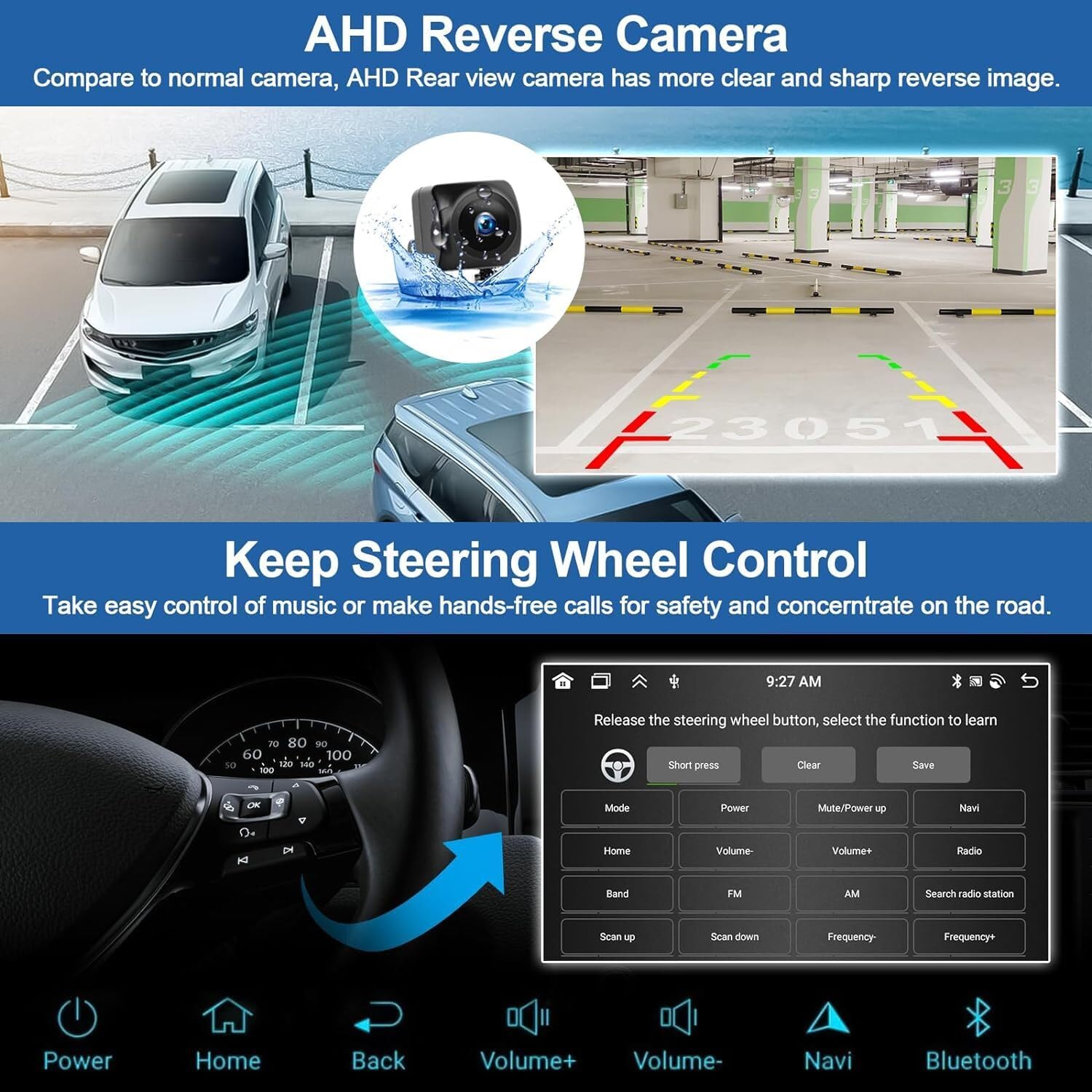
The image shows the menu for programming steering wheel controls and a clear view from the AHD reverse camera, illustrating key operational features.
3.4.1 Side Keys Programming
This video guides you through the process of programming the side keys on your car radio for various functions.
Learn how to assign functions to the physical buttons on the side of your car stereo for quick access to common features like volume, home, and back.
3.4.2 Screen Calibration
This video demonstrates how to calibrate the touchscreen for optimal responsiveness and accuracy.
Follow these steps to ensure your touchscreen responds accurately to your touches, improving the overall user experience.
4. Maintenance
To ensure the longevity and optimal performance of your car stereo, follow these maintenance guidelines:
- Cleaning: Use a soft, dry cloth to clean the screen and exterior. Avoid abrasive cleaners or solvents.
- Software Updates: Periodically check for software updates to enhance features and improve stability. Refer to the manufacturer's website or contact support for update procedures.
- Environmental Conditions: Avoid exposing the unit to extreme temperatures, direct sunlight for prolonged periods, or excessive moisture.
- Cable Connections: Ensure all cables are securely connected to prevent intermittent issues.
5. Troubleshooting
If you encounter any issues with your car stereo, please refer to the following common troubleshooting steps or consult the dedicated troubleshooting guide video.
5.1 Common Issues and Solutions
- No Power: Check all power cable connections. Ensure the vehicle's ignition is on.
- No Sound: Verify speaker connections, volume levels, and audio source selection.
- Poor GPS Signal: Ensure the GPS antenna is installed in a clear line of sight to the sky.
- Bluetooth/Wi-Fi Issues: Confirm the white plug antenna is securely connected. Re-pair devices if necessary.
- Touchscreen Unresponsive: Attempt a screen calibration as described in Section 3.4.2.
5.2 Troubleshooting Guide Video
This video provides an essential troubleshooting guide to fix 90% of common issues you might encounter.
Watch this video for step-by-step solutions to frequently asked questions and problems with your car stereo.
6. Specifications
| Feature | Description |
|---|---|
| Brand | Ftoghe |
| Operating System | Android 15 |
| RAM | 2GB |
| ROM | 32GB |
| Screen Size | 7 inch 2.5D Capacitive Touch Screen |
| Resolution | 1024x600 Pixel (Supports 1080P video) |
| Bluetooth Version | 5.2 |
| USB Ports | Dual USB 3.0 |
| Radio Band | FM (18 preset stations) |
| Audio Output | 4x50W |
| Connectivity Technology | Bluetooth, USB, Wi-Fi |
| Compatible Devices | Toyota Solara 2004-2008 (Supports JBL) |
| Special Features | Android 15, 7" Touchscreen, 2GB RAM + 32GB ROM, GPS navigation & WiFi, Touchscreen & Microphone, Bluetooth FM RDS Radio EQ, Wireless Carplay & Android Auto & Mirror Link |
7. Warranty and Support
This product comes with a standard manufacturer's warranty. Please retain your proof of purchase for any warranty claims. For detailed warranty information, refer to the documentation included in your package or contact the seller directly.
For technical support, installation assistance, or any other inquiries, please contact our customer service team. Contact details can be found in the included user manual or on the product's purchase page.