
1. Introduction
This manual provides comprehensive instructions for the installation, operation, and maintenance of your Jingelsye 10.1-inch Android 13 Car Radio. Please read this manual thoroughly before using the product to ensure proper function and safety. Keep this manual for future reference.

Figure 1.1: Jingelsye 10.1-inch Android 13 Car Radio main unit.
The Jingelsye car radio is an advanced multimedia system designed to upgrade your vehicle's infotainment experience. It features an 8-core processor, Android 13 operating system, 4GB RAM, 64GB ROM, a 10.1-inch QLED IPS touchscreen, wireless CarPlay, Android Auto, built-in GPS, DSP audio processing, and support for a 1080P AHD rear camera.
2. Setup and Installation
2.1 Unpacking and Inspection
Carefully unpack all components and verify that all items listed in the "What's in the Box" section are present and undamaged. If any items are missing or damaged, contact customer support immediately.
2.2 Compatible Vehicle Models
This unit is designed for specific vehicle models. Ensure your vehicle is listed below:
- Chevrolet Silverado (2007-2013)
- Chevrolet Express Van (2008-2019)
- Chevrolet Impala (2006-2013)
- Chevrolet Traverse (2008-2012)
- Chevrolet Suburban (2007-2012)
- Chevrolet Tahoe (2007-2014)
- GMC Acadia (2007-2012)
- GMC Yukon (2007-2014)
- GMC Sierra (2007-2013)
- GMC Savana (2008-2019)
- Buick Enclave (2008-2012)

Figure 2.1: Comparison of vehicle dashboard before and after car radio installation.
2.3 Wiring and Connections
Refer to the included wiring diagram for detailed connection instructions. The system is designed for plug-and-play installation for compatible models. Connect the main power harness, USB cables, GPS antenna, and the included 1080P AHD rear-view camera cable. Ensure all connections are secure to prevent intermittent issues.

Figure 2.2: Components included for installation.
2.4 Initial Power-On and Configuration
After installation, turn on your vehicle's ignition. The unit should power on automatically. Follow the on-screen prompts for initial setup, including language selection and time zone. Connect to a Wi-Fi network to ensure the system is up-to-date and to access online features.
3. Operating Instructions
3.1 System Overview
The unit runs on Android 13, providing a familiar smartphone-like interface. Navigate using the 10.1-inch QLED IPS touchscreen. The 8-core CPU with 4GB RAM and 64GB ROM ensures smooth performance for multitasking and app usage.

Figure 3.1: System specifications: Android 13, 8-Core CPU, 4GB RAM, 64GB ROM.
3.2 Wireless CarPlay and Android Auto
Connect your iPhone or Android smartphone wirelessly via Bluetooth and Wi-Fi for Apple CarPlay or Android Auto functionality. This allows access to navigation, music, calls, and messages directly on the car radio screen. Voice control via Siri or Google Assistant is supported.
- Wireless Connection: Pair your phone via Bluetooth, then follow on-screen prompts to establish a Wi-Fi connection for CarPlay/Android Auto.
- Wired Connection: Connect your phone using a USB cable to activate CarPlay/Android Auto.

Figure 3.2: Wireless and wired connectivity for CarPlay and Android Auto.
3.3 Mirror Link Function
The Mirror Link feature allows you to project your phone's screen onto the car radio display, expanding app compatibility. This can be useful for apps not natively supported by CarPlay or Android Auto.
3.4 GPS Navigation
The unit includes built-in GPS with pre-loaded North America maps. It supports 2D/3D map views, intelligent route planning, and voice-guided navigation. Offline maps can be downloaded for use without an internet connection. When connected to Wi-Fi or a hotspot, real-time traffic updates are available.

Figure 3.3: GPS Navigation with online and offline map support.
3.5 DSP Audio and Equalizer
Equipped with a built-in 7851 amplifier chip and DSP (Digital Sound Processor), the unit offers a 36-band equalizer. This allows for detailed sound customization, including balanced sound, clear vocals, and enhanced bass, to create an immersive in-car audio experience.

Figure 3.4: DSP Audio and 36-Band EQ settings.
3.6 Dual-Band Wi-Fi and Bluetooth 5.0
The unit supports 2.4G/5G dual-band Wi-Fi for fast and stable internet connectivity, enabling app downloads, streaming, and online map updates. Bluetooth 5.0 provides quick pairing, clear hands-free calls, and smooth music streaming from your devices.

Figure 3.5: Bluetooth 5.0 connectivity for calls and music.
3.7 FM/AM Radio
The integrated FM/AM radio includes 18 presets for easy access to your favorite stations. It supports RDS (Radio Data System) for displaying station information where available.
3.8 1080P AHD Rear Camera
The included 1080P AHD rear-view camera features a 170° wide-angle lens, night vision capabilities, and an IP69 waterproof rating. The display automatically switches to the camera view when the vehicle is in reverse, providing clear visibility and assisting with parking safety.

Figure 3.6: 1080P AHD Rear Camera view.
3.9 Steering Wheel Controls (SWC)
The unit retains your vehicle's factory steering wheel controls, allowing for safe and convenient management of volume, track changes, and call functions without taking your hands off the wheel.

Figure 3.7: Steering Wheel Control functionality.
3.10 Voice Control
Utilize Siri or Google Assistant for hands-free operation. Simply activate the voice assistant to get directions, play music, make calls, or send messages, enhancing driving safety and convenience.
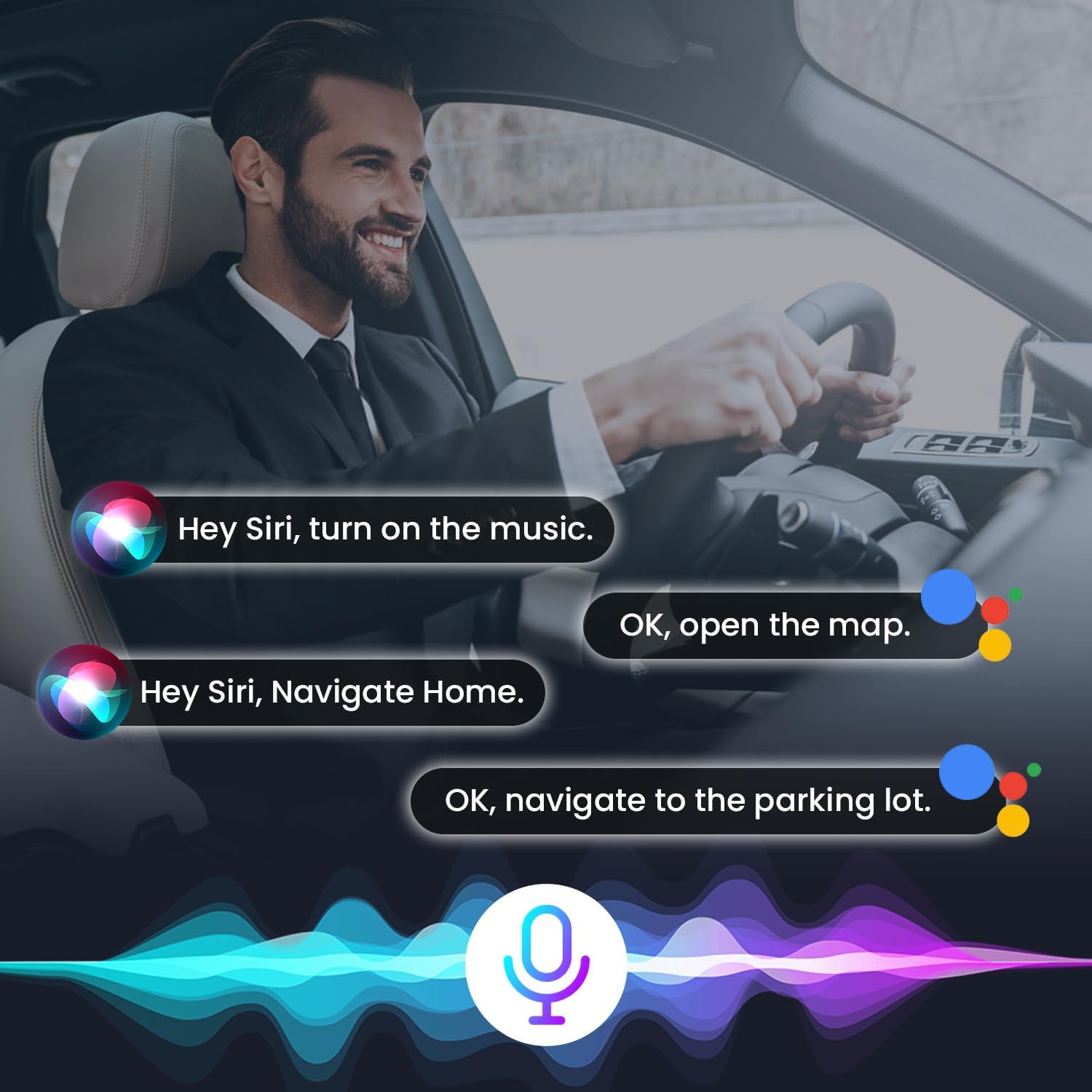
Figure 3.8: Voice control via Siri and Google Assistant.
3.11 Split Screen Function
The split-screen feature allows you to run two applications simultaneously, such as navigation on one side and music playback on the other, improving multitasking efficiency.

Figure 3.9: Split Screen Functionality.
4. Maintenance
4.1 Screen Care
The 10.1-inch QLED IPS touchscreen is built with 2.5D anti-shatter glass. To clean the screen, use a soft, lint-free cloth. For stubborn smudges, lightly dampen the cloth with water or a screen-safe cleaner. Avoid harsh chemicals or abrasive materials.
4.2 Software Updates
Periodically check for software updates via the system settings when connected to Wi-Fi. Keeping the software updated ensures optimal performance, security, and access to new features.
4.3 General Cleaning
Wipe the unit's exterior with a soft, dry cloth. Do not use liquid cleaners directly on the unit. Ensure all ports are free from dust and debris.
5. Troubleshooting
- Unit does not power on: Check all power connections. Ensure the vehicle's ignition is on. Verify the vehicle's fuse for the radio is intact.
- No sound: Check volume levels on the unit and your phone (if connected via Bluetooth/CarPlay). Verify speaker connections. Ensure the correct audio source is selected.
- CarPlay/Android Auto not connecting: Ensure Bluetooth and Wi-Fi are enabled on your phone and the car radio. Try restarting both devices. For wired connections, ensure the USB cable is functional and properly connected.
- GPS signal loss: Ensure the GPS antenna is properly installed and has a clear view of the sky. Check for obstructions.
- Steering wheel controls not working: Verify the CANBUS connection (if applicable) and ensure SWC settings are correctly configured in the unit's menu.
- Rear camera not displaying: Check the camera's power and video signal connections. Ensure the vehicle is in reverse gear.
- Slow performance or glitches: Close unnecessary background applications. Clear cache from time to time. If issues persist, a factory reset (found in system settings) may resolve them, but this will erase all user data.
For persistent issues, contact Jingelsye customer support.
6. Specifications
| Feature | Description |
|---|---|
| Brand | Jingelsye |
| Model Name | Jingelsye (B0GDXRFTYM) |
| Operating System | Android 13 |
| CPU | 8-Core Processor |
| RAM | 4GB |
| ROM | 64GB |
| Screen Size | 10.1 Inches |
| Display Type | QLED IPS Touchscreen |
| Resolution | 1280x800 HD |
| Connectivity | Bluetooth 5.0, USB, 2.4G/5G Wi-Fi |
| Special Features | Wireless CarPlay, Android Auto, Mirror Link, Built-in GPS, DSP Audio, 36-Band EQ, FM/AM Radio, Steering Wheel Control (SWC) |
| Rear Camera Support | 1080P AHD (Included) |
| Audio Output Mode | Stereo |
| Map Type | North America (Supports online/offline maps) |
7. What's in the Box
The package includes the following components:
- Jingelsye 10.1-inch Android 13 Car Radio Unit
- Power Cable
- Wiring Harness
- 1080P AHD Rear-View Camera
- Camera Cable
- GPS Module
- 2x USB Cables
- RCA Cable
- Microphone (MIC)
- Crowbar (for installation)
- CANBUS Decoder (if applicable for your vehicle)
- Original Vehicle's USB Cable (if applicable)
- Mounting Hardware
Figure 7.1: All included components.
8. Warranty and Support
Jingelsye products typically come with a manufacturer's warranty. Please refer to the warranty card included with your product or contact Jingelsye customer service for specific warranty terms and conditions.
For technical support, troubleshooting assistance, or any questions regarding your Jingelsye car radio, please contact Jingelsye customer support through the retailer where you purchased the product or visit the official Jingelsye website for contact information.
When contacting support, please have your product model number (B0GDXRFTYM) and purchase details ready.