
Introduction
This manual provides essential information for setting up, operating, maintaining, and troubleshooting your Lenovo Tab K11 Gen 2 TB336FU Tablet. Please read this guide thoroughly to ensure proper use and to maximize the performance and longevity of your device.
Device Overview
Familiarize yourself with the physical components of your tablet.
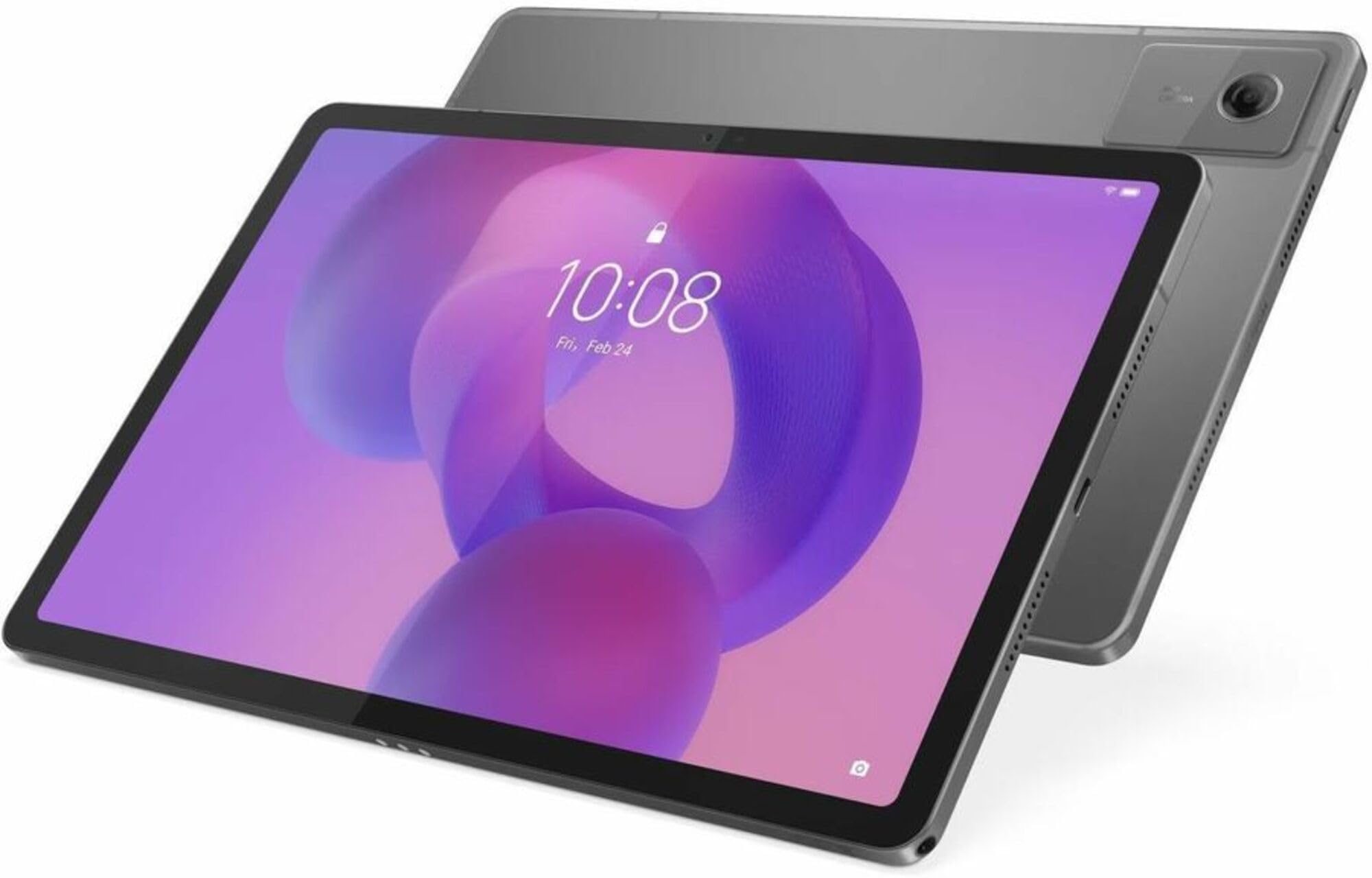
Image: Front view of the Lenovo Tab K11 Gen 2 Tablet, showcasing the 11-inch display and front camera.
Key Components
- Display: 11-inch 2.5K (2560x1600) LCD with optional matte finish.
- Front Camera: 8.0MP, located on the bezel above the display.
- Rear Camera: 13.0MP with flashlight, located on the back panel.
- Power Button: Typically on the side, used to power on/off and wake/sleep the device.
- Volume Buttons: Located near the power button, for adjusting audio levels.
- USB Type-C Port: For charging and data transfer.
- MicroSD Card Slot: For expandable storage.
- Speakers: Quad Dolby Atmos-tuned speakers for enhanced audio.
Setup
1. Initial Charging
Before first use, fully charge your tablet using the provided USB Type-C cable and power adapter. The battery indicator on the screen will show charging progress.
2. Powering On/Off
- To Power On: Press and hold the Power button until the Lenovo logo appears.
- To Power Off: Press and hold the Power button, then select 'Power off' from the options that appear on the screen.
3. Initial Setup Wizard
Upon first power-on, the tablet will guide you through the initial setup process. Follow the on-screen prompts to:
- Select your language.
- Connect to a Wi-Fi network.
- Sign in with your Google account or create a new one.
- Set up security features (PIN, pattern, password, or fingerprint).
4. Inserting a MicroSD Card (Optional)
To expand storage, locate the microSD card slot on the side of the tablet. Use the provided SIM ejector tool (if applicable) to open the tray, insert the microSD card with the gold contacts facing down, and close the tray securely.
Operating Instructions
1. Touchscreen Navigation
The tablet features a responsive touchscreen. Use the following gestures:
- Tap: Select an item or open an app.
- Touch and Hold: Access contextual menus or move items.
- Swipe: Navigate through screens or scroll content.
- Pinch-to-Zoom: Enlarge or reduce content size.
Image: A hand demonstrating a swipe gesture on the Lenovo Tab K11 Gen 2 Tablet screen.
2. Key Features
- Circle to Search with Google: Long press the home button and draw a circle on any content (image, text, video) to instantly search for information or translate text without switching apps.
- Lenovo Tab Pen Support: Utilize the Lenovo Tab Pen (sold separately) for natural writing and annotation on the Matte Edition Display. Compatible with apps like Lenovo Notepad, Nebo, Squid, and MyScript Calculator.
- TurboSystem: Optimizes performance for faster app launches and smoother multitasking.
- Dolby Atmos Audio: Enjoy immersive sound through the quad speakers.
3. Connectivity
- Wi-Fi: Connect to wireless networks via 802.11ac for internet access.
- Bluetooth: Pair with wireless accessories like headphones or keyboards.
- 5G Cellular: For models with 5G capability, insert a compatible SIM card to access mobile data.
4. Camera Usage
Open the Camera app to capture photos and videos. The tablet features an 8MP front camera and a 13MP rear camera with a flashlight. Tap to focus, pinch to zoom, and use on-screen controls for various modes and settings.
Maintenance
1. Cleaning Your Tablet
Use a soft, lint-free cloth to clean the screen and body of the tablet. For stubborn smudges, slightly dampen the cloth with water or a screen-cleaning solution. Avoid harsh chemicals or abrasive materials.
2. Software Updates
Your tablet runs on Android 15 with Lenovo's ZUI 17 OS. Ensure your device is updated to the latest software version for optimal performance and security. Lenovo guarantees 2 OS upgrades (up to Android 17) and 4 years of security patches until 2029. To check for updates, go to Settings > System > System update.
3. Storage Management
Regularly manage your tablet's 128 GB internal storage. Delete unnecessary files, uninstall unused apps, and move large media files to a microSD card or cloud storage to maintain performance.
Troubleshooting
If you encounter issues with your tablet, try the following solutions:
- Device Not Powering On: Ensure the tablet is charged. Connect it to the charger for at least 30 minutes, then try powering it on again.
- Apps Crashing or Freezing: Close and restart the app. If the issue persists, clear the app's cache (Settings > Apps > [App Name] > Storage > Clear cache) or uninstall and reinstall the app.
- Wi-Fi Connectivity Issues: Restart your tablet and your Wi-Fi router. Forget the network in your tablet's Wi-Fi settings and reconnect.
- Slow Performance: Close background apps, clear cache, free up storage space, and restart the tablet.
- Factory Reset: As a last resort, if software issues persist, you may perform a factory reset. This will erase all data on your tablet. Back up important data before proceeding. Go to Settings > System > Reset options > Erase all data (factory reset).
Specifications
| Feature | Detail |
|---|---|
| Brand | Lenovo |
| Model Name | Tab K11 Gen 2 |
| Model Number | TB336FU |
| Operating System | Android 15 (with 2 OS upgrades until Android 17) |
| Processor | MediaTek Dimensity 6300 Octa-core (2.4 GHz) |
| RAM Memory | 8 GB |
| Storage Capacity | 128 GB (expandable via microSD card slot) |
| Screen Size | 11 Inches |
| Display Resolution | 2560 x 1600 Pixels (2.5K) |
| Display Type | LCD, Optional Matte Display |
| Refresh Rate | 90 Hz |
| Maximum Brightness | 500 Nit |
| Rear Camera | 13.0 MP with Flashlight |
| Front Camera | 8.0 MP |
| Battery Capacity | 7040 mAh (Lithium Polymer) |
| Battery Life (Average) | 10 Hours |
| Connectivity | Wi-Fi (802.11ac), Bluetooth, 5G Cellular (optional) |
| Ports | USB Type-C |
| Audio | Quad Speakers with Dolby Atmos |
| Dimensions (L x W x Th) | 10" x 6.5" x 0.3" |
| Weight | 1.9 Pounds |
| Special Features | Anti-fingerprint, Dust Resistant, GLONASS, Galileo, Low Blue Light, Media Card Reader, Pogo Pin, Slate, Volume Control Button, Water Resistant, Wi-Fi 5, Touchscreen with Stylus Support |
Warranty Information
Your Lenovo Tab K11 Gen 2 TB336FU Tablet comes with a 1-year Manufacturer's Warranty. This warranty covers defects in materials and workmanship under normal use. For specific terms and conditions, please refer to the warranty card included with your product or visit the official Lenovo support website.
Support
For further assistance, technical support, or to download the latest drivers and software, please visit the official Lenovo support website:
You can also find additional resources and community forums on the Lenovo website.