
1. Introduction
Thank you for purchasing the FreeWolf G6 Wireless Gaming Mouse. This manual provides detailed instructions for setting up, operating, and maintaining your device. Please read this manual carefully before use to ensure optimal performance and longevity of your mouse.
2. Safety Information
- Keep the device away from water and other liquids to prevent electric shock or damage.
- Do not attempt to disassemble or repair the mouse yourself. Refer all servicing to qualified personnel.
- Avoid exposing the mouse to extreme temperatures or direct sunlight.
- Dispose of the battery according to local regulations. Do not incinerate.
3. Package Contents
- FreeWolf G6 Wireless Gaming Mouse
- USB Charging Cable
- 2.4G USB Receiver (stored in the mouse)
- User Manual
4. Product Overview
Familiarize yourself with the various components and buttons of your FreeWolf G6 mouse:

Image: Diagram illustrating the button layout and features of the FreeWolf G6 Wireless Gaming Mouse. Key components include the Left Button, Right Button, Middle Button (scroll wheel), CPI Cycle button, Light Switch, Webpage Button, Backward button, Forward button, Desktop Button, Fire Button, Receiver Storage Compartment, BT Connection Button, and Power Switch Button (2.4G-OFF-BT).
- Left Button: Standard left-click function.
- Right Button: Standard right-click function.
- Middle Button (Scroll Wheel): Scroll and middle-click function.
- CPI Cycle Button: Adjusts the mouse's DPI sensitivity.
- Light Switch: Controls the mouse's LED lighting.
- Webpage Button: Navigates to a webpage (functionality may vary by software).
- Backward Button: Navigates back in web browsers or file explorers.
- Forward Button: Navigates forward in web browsers or file explorers.
- Desktop Button: One-click return to desktop.
- Fire Button: Programmable button, often used for rapid-fire actions in games.
- Receiver Storage Compartment: Stores the 2.4G USB receiver when not in use.
- BT Connection Button: Initiates Bluetooth pairing mode.
- Power Switch Button (2.4G-OFF-BT): Selects connection mode or turns off the mouse.
5. Setup
5.1 Charging the Mouse
The FreeWolf G6 mouse features a built-in rechargeable lithium battery. Before first use, or when the battery is low, connect the mouse to a power source using the provided USB charging cable.

Image: The FreeWolf G6 mouse connected via its USB cable to a laptop, indicating the charging process. The mouse features a built-in rechargeable battery for extended use.
- Connect the small end of the USB charging cable to the charging port on the front of the mouse.
- Connect the larger end of the USB cable to a USB port on your computer or a USB wall adapter.
- The mouse's indicator light will show charging status (e.g., breathing light, solid light, or off when fully charged).
5.2 2.4G Wireless Connection
- Locate the 2.4G USB receiver stored in the compartment on the bottom of the mouse.
- Plug the USB receiver into an available USB port on your computer.
- Slide the Power Switch Button on the bottom of the mouse to the '2.4G' position.
- Your computer should automatically detect and install the necessary drivers. The mouse is ready for use.
5.3 Bluetooth Connection
- Slide the Power Switch Button on the bottom of the mouse to the 'BT' position.
- Press and hold the BT Connection Button on the bottom of the mouse for 3-5 seconds until the indicator light starts flashing, indicating pairing mode.
- On your computer or device, go to Bluetooth settings and search for new devices.
- Select 'FreeWolf G6' (or similar name) from the list of available devices to pair.
- Once paired, the indicator light on the mouse will stop flashing and remain solid or turn off. The mouse is now connected via Bluetooth.
6. Operating Instructions
6.1 Power On/Off
Use the Power Switch Button on the bottom of the mouse to turn it on or off, or to select the desired connection mode (2.4G or BT).
6.2 DPI Adjustment
The mouse features 5 adjustable DPI levels, allowing you to customize cursor sensitivity for different tasks or games. Press the CPI Cycle Button (refer to Product Overview, item 4) to cycle through the available DPI settings.
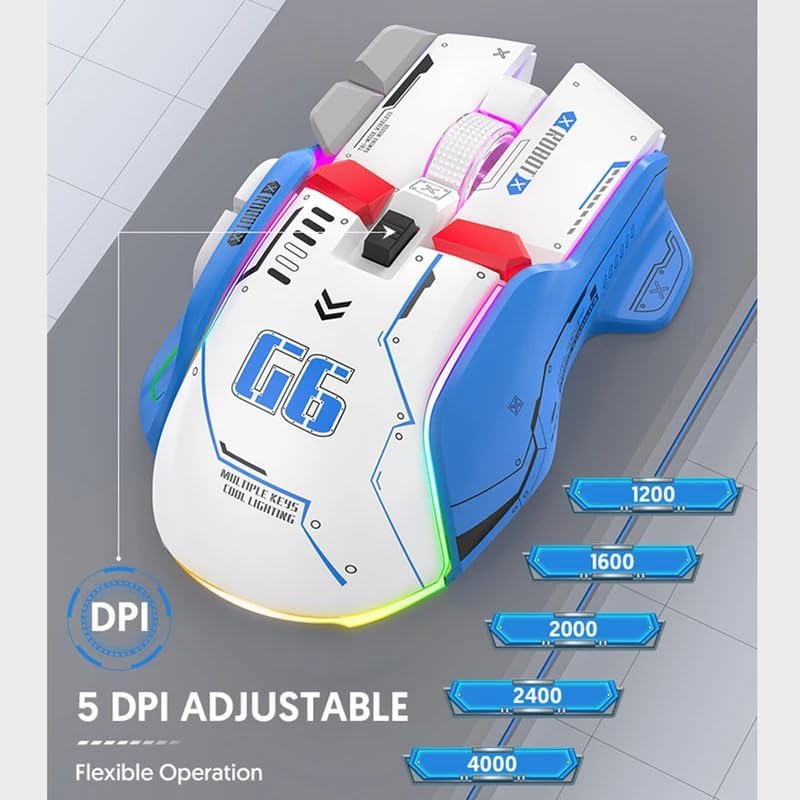
Image: The FreeWolf G6 mouse displaying its 5 adjustable DPI settings: 1200, 1600, 2000, 2400, and 4000 DPI. This allows for flexible operation and sensitivity control.
- Available DPI levels: 1200, 1600, 2000, 2400, 4000.
- Each press of the CPI Cycle Button will switch to the next DPI level.
6.3 Button Functions
Beyond the standard left, right, and middle clicks, the FreeWolf G6 offers several additional buttons for enhanced functionality. Refer to the Product Overview section (Section 4) for the location of each button.
- Webpage Button: Typically used for specific browser functions or can be customized.
- Backward/Forward Buttons: Navigate web pages or folders.
- Desktop Button: Instantly minimizes all open windows to show the desktop.
- Fire Button: Often used in gaming for rapid, repeated clicks.
6.4 Ergonomic Design
The FreeWolf G6 features a symmetrical design with a high curve back, engineered to provide a comfortable grip for various hand positions and reduce strain during extended use.

Image: A hand gripping the FreeWolf G6 mouse, illustrating its symmetrical design, high curve back, and slip-resistant surface for comfortable and secure handling.
6.5 Silent Operation
The FreeWolf G6 is designed for silent clicking, minimizing noise during use, which is beneficial in quiet environments or during late-night gaming sessions.
7. Maintenance
- Cleaning: Use a soft, dry cloth to wipe the surface of the mouse. For stubborn dirt, a slightly damp cloth can be used, but ensure no moisture enters the device.
- Storage: When not in use for extended periods, turn off the mouse and store it in a cool, dry place.
- Battery Care: Avoid fully discharging the battery frequently. Charge the mouse regularly to maintain battery health.
8. Troubleshooting
- Mouse not responding:
- Ensure the mouse is powered on and the correct connection mode (2.4G or BT) is selected.
- Check battery level and charge if necessary.
- For 2.4G connection, ensure the USB receiver is securely plugged into a working USB port.
- For Bluetooth connection, ensure Bluetooth is enabled on your device and the mouse is properly paired. Try re-pairing if necessary.
- Cursor movement is erratic or slow:
- Clean the optical sensor on the bottom of the mouse.
- Adjust the DPI setting using the CPI Cycle Button.
- Ensure you are using the mouse on a suitable surface (not highly reflective or transparent).
- Connection drops frequently:
- Move the mouse closer to the receiver/device to reduce interference.
- Avoid using the mouse near other wireless devices that may cause interference.
- Ensure the battery is sufficiently charged.
9. Specifications
| Feature | Detail |
|---|---|
| Model | G6 |
| Connectivity Technology | Bluetooth, 2.4G Wireless (Tri-Mode) |
| Power Type | Rechargeable (Built-in Lithium Battery) |
| Number of Buttons | 9 |
| Number of Rollers | 1 (Scroll Wheel) |
| DPI Levels | 1200, 1600, 2000, 2400, 4000 (Adjustable) |
| Operation Mode | Opto-electronic |
| Special Features | Silent Operation, One-Click Return Desktop, Backlight, Portable |
| Hand Orientation | Right |
| Compatible Devices | Personal Computer |
| Gross Weight | 195g |
10. Warranty and Support
This product comes with a standard manufacturer's warranty. For detailed warranty information or technical support, please refer to the documentation included with your purchase or contact the retailer. Keep your proof of purchase for warranty claims.


