
Introduction
The JCALLY JM7 MAX is a high-fidelity USB-C to 3.5mm Digital-to-Analog Converter (DAC) and headphone amplifier. It is designed to bypass your device's internal audio processing, providing superior sound quality for a wide range of compatible devices. This manual provides instructions for setup, operation, and maintenance of your JM7 MAX.

Image: The JCALLY JM7 MAX DAC amplifier, featuring a silver USB-C connector and a braided silver-copper cable leading to a 3.5mm jack.
Key Features
- Hi-Res Audio Support: Equipped with CX31993 + SGM8262 DAC chips, supporting up to 32-bit/384kHz PCM and DSD256 for studio-grade audio.
- Dual-Chip Architecture: Utilizes a Conexant CX31993 DAC chip and an SGM8262 amplifier chip for exceptional signal-to-noise ratio and ultra-low total harmonic distortion (<0.0009%).
- Universal USB-C Compatibility: Plug-and-play functionality with iPhone (iOS 17+), Samsung Galaxy S24/S23, Google Pixel, iPad Pro/Air (USB-C models), MacBook, Steam Deck, and most USB-C Android devices.
- External Audio Processing: Bypasses the phone's internal audio chip, acting as an external sound card to enhance clarity, bass depth, and soundstage.
- Premium Build Quality: CNC-machined aluminum alloy housing for durability and heat dissipation.
- Integrated Functions: Supports inline microphone control (on compatible devices), music playback, voice calling, and live broadcasting.
- High-Quality Cable: Features a premium 8-strand 448-core silver-copper hybrid cable for near-zero signal loss and enhanced resolution.

Image: Diagram illustrating the dual-chip architecture of the JM7 MAX, highlighting the Conexant CX31993 DAC chip and the SGM8262 OPAMP chip for high-fidelity audio performance.

Image: A block diagram showing the internal circuit synergy of the JM7 MAX, detailing the signal path from the CX31993 DAC code through the SGM8262 OPAMP amplifier to the 3.5mm headphone output, including power supply components.

Image: A close-up view of the internal components of the JM7 MAX, clearly showing the CX31993 DAC chip and the SGM8262 OPAMP chip, emphasizing the dual-chip design.

Image: A collage highlighting various aspects of the JM7 MAX, including its patent appearance design, enthusiast-grade high-resolution audio setup, wide compatibility with Type-C devices, premium precision-machined aluminum alloy materials, and luxurious 8-core 448-coil silver-copper wire.

Image: A detailed view of the JM7 MAX's premium 8-strand 448-core silver-copper hybrid cable, designed for enhanced resolution and near-zero signal loss.
Package Contents
Upon opening the package, verify that all items are present:
- 1 x JCALLY JM7 MAX DAC Amplifier
- 1 x USB Adapter (Type-C to USB-A, for computer connection)
- 1 x Warranty Card
- 1 x Dust-proof Liner Paper
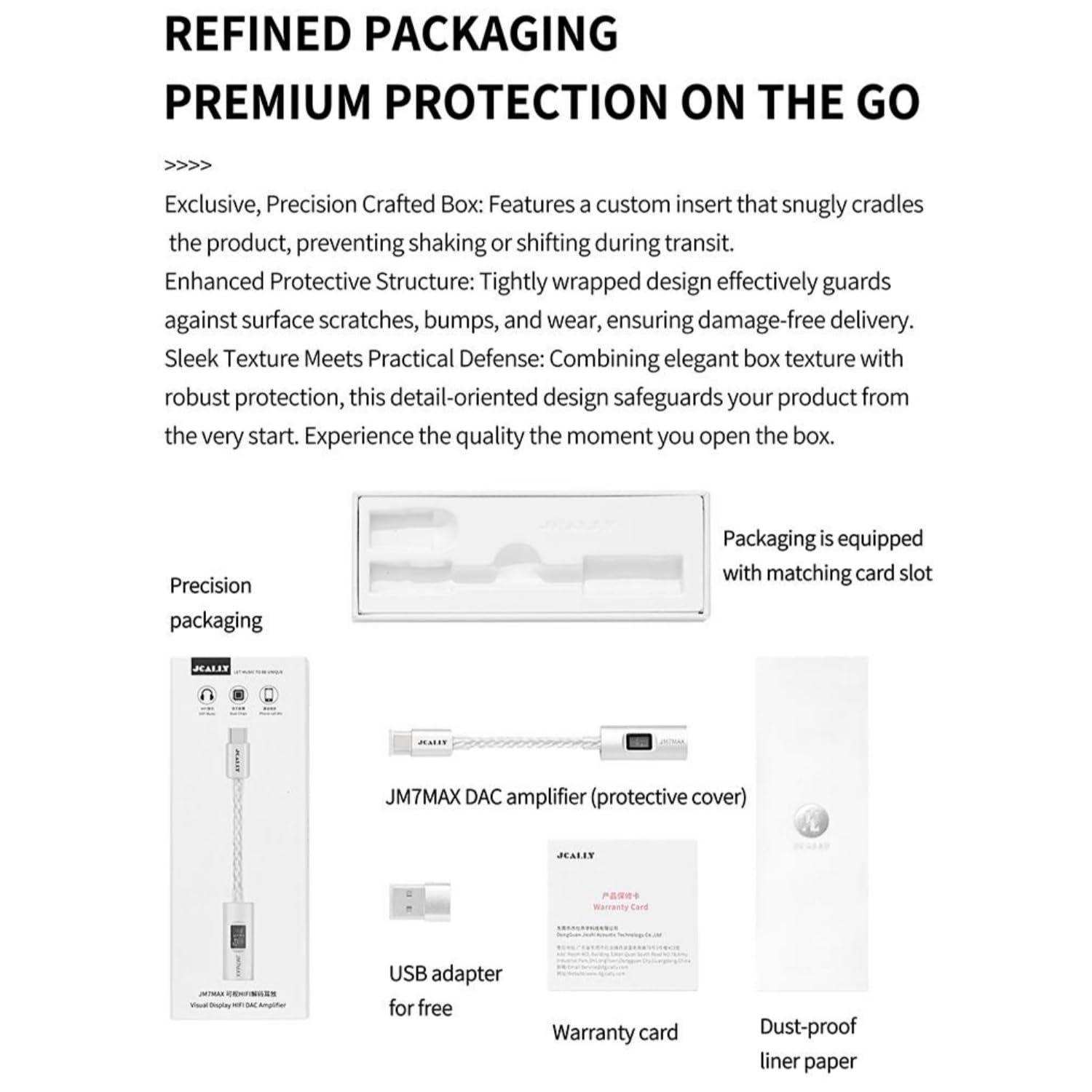
Image: The JM7 MAX packaging, showing the DAC amplifier, a USB adapter, warranty card, and dust-proof liner paper neatly arranged within a precision-crafted box.
Setup Instructions
The JM7 MAX is designed for plug-and-play operation, requiring no additional drivers for most compatible devices.
- Connect Headphones: Plug your 3.5mm headphones or earphones into the 3.5mm audio jack of the JM7 MAX.
- Connect to Device:
- For USB-C devices (phones, tablets, laptops): Insert the USB-C connector of the JM7 MAX directly into your device's USB-C port.
- For computers with USB-A ports: Use the provided USB adapter. Connect the JM7 MAX's USB-C end to the adapter, then plug the adapter's USB-A end into your computer's USB-A port.
- Device Recognition: Your device should automatically recognize the JM7 MAX as an external audio output device. You may need to select it as the default audio output in your device's sound settings.
- iOS Specific Note: For iPhone users, ensure your device is running iOS 17 or newer for full audio output support.

Image: The JM7 MAX connected to a smartphone via its USB-C port, demonstrating its plug-and-play functionality for various audio tasks including music, gaming, and calls.
Operating Instructions
Once connected, the JM7 MAX functions as your device's primary audio output. Volume control and playback are typically managed directly from your connected device or through inline controls on your headphones, if supported.
- Audio Playback: Start playing audio (music, videos, games) on your connected device. Sound will be routed through the JM7 MAX to your headphones.
- Volume Control: Adjust the volume using your device's physical volume buttons or software volume controls.
- Microphone Functionality: If your headphones have an inline microphone, it will function through the JM7 MAX for calls, voice recording, or live streaming on compatible devices.
- Call Management: Answer, end, or reject calls using your device's interface or compatible inline headphone controls.
Maintenance and Care
To ensure the longevity and optimal performance of your JM7 MAX, follow these care guidelines:
- Cleaning: Wipe the device with a soft, dry cloth. Avoid using liquid cleaners or abrasive materials.
- Storage: Store the JM7 MAX in a cool, dry place away from direct sunlight and extreme temperatures.
- Handling: Avoid bending or twisting the cable excessively. Do not drop the device or subject it to strong impacts.
- Connector Protection: Use the provided dust-proof liner paper or a cap (if available) to protect the connectors when not in use.
Troubleshooting
If you encounter issues with your JM7 MAX, refer to the following common solutions:
| Problem | Possible Solution |
|---|---|
| No sound output. |
|
| Sound quality is poor or distorted. |
|
| Microphone not working. |
|
| Device not recognized. |
|
Specifications
| Feature | Detail |
|---|---|
| Model | JM7 MAX |
| DAC Chip | Conexant CX31993 |
| Amplifier Chip | SGM8262 |
| Audio Resolution | Up to 32-bit/384kHz PCM, DSD256 |
| Total Harmonic Distortion (THD+N) | <0.0009% |
| Output Interface | 3.5mm Single-Ended |
| Input Interface | USB-C |
| Cable Material | 8-strand 448-core Silver-Copper Hybrid |
| Housing Material | CNC-machined Aluminum Alloy |
| Item Weight | 1.06 ounces (approx. 30g) |
| Dimensions (Package) | 5.91 x 3.94 x 0.39 inches |
Compatibility
The JM7 MAX is broadly compatible with devices featuring a USB-C port for audio output. Specific compatibility includes:
- Apple Devices: iPhone (iOS 17 or later), iPad Pro/Air (USB-C models), MacBook.
- Android Devices: Samsung Galaxy S24/S23/Note series, Google Pixel, OnePlus, Xiaomi, Huawei, and most other USB-C Android phones.
- Gaming Consoles: Steam Deck.
- Computers: Windows laptops and desktops (with USB-C or USB-A via adapter).
Note: For optimal performance and full feature support, ensure your device's operating system is up to date.
Warranty and Support
The JCALLY JM7 MAX comes with a warranty as specified by the manufacturer. Please refer to the included warranty card for details regarding coverage period and terms. For technical support, troubleshooting assistance, or warranty claims, please contact the retailer or manufacturer directly using the contact information provided with your purchase or on the official Girftu website.
Keep your proof of purchase for warranty validation.