1. Introduction
This manual provides detailed instructions for the setup, operation, maintenance, and troubleshooting of your Suicoey P30 10-inch Android 15 Tablet. Please read this manual thoroughly before using your device to ensure optimal performance and longevity.

Image 1.1: Overview of the Suicoey P30 Tablet highlighting its 10-inch display, Gemini AI, Android 15, 8000mAh battery, and storage capacity.
2. Setup
2.1 Unboxing and Package Contents
Carefully unpack your Suicoey P30 tablet and verify that all items are present:
- 1 x 10-inch Tablet
- 1 x Keyboard
- 1 x Mouse
- 1 x Stylus
- 1 x Black Protective Case
- 1 x User Manual
- 1 x USB Charger
- 1 x Type-C Cable

Image 2.1: All accessories included with the Suicoey P30 Tablet.
2.2 Initial Power On and Charging
- Connect the Type-C cable to the tablet's charging port and the USB charger.
- Plug the charger into a power outlet. The tablet is equipped with an 8000mAh battery.
- Press and hold the Power button until the screen lights up.
- Follow the on-screen prompts to complete the initial setup, including language selection and Wi-Fi connection.
2.3 Connecting Accessories
Your tablet supports Bluetooth 5.0 for connecting the included keyboard, mouse, and stylus.
- Go to Settings > Connected devices > Bluetooth.
- Turn on Bluetooth.
- Put your keyboard, mouse, or stylus into pairing mode (refer to their individual manuals if needed).
- Select the accessory from the list of available devices on your tablet to pair.

Image 2.2: The tablet with its wireless keyboard and mouse accessories.
3. Operating Your Tablet
3.1 Android 15 & Gemini AI Features
Your tablet runs on the Android 15 operating system, offering enhanced privacy protection and refined permission controls. It also supports Gemini AI, which can summarize articles, provide real-time language translation, and assist in composing messages.
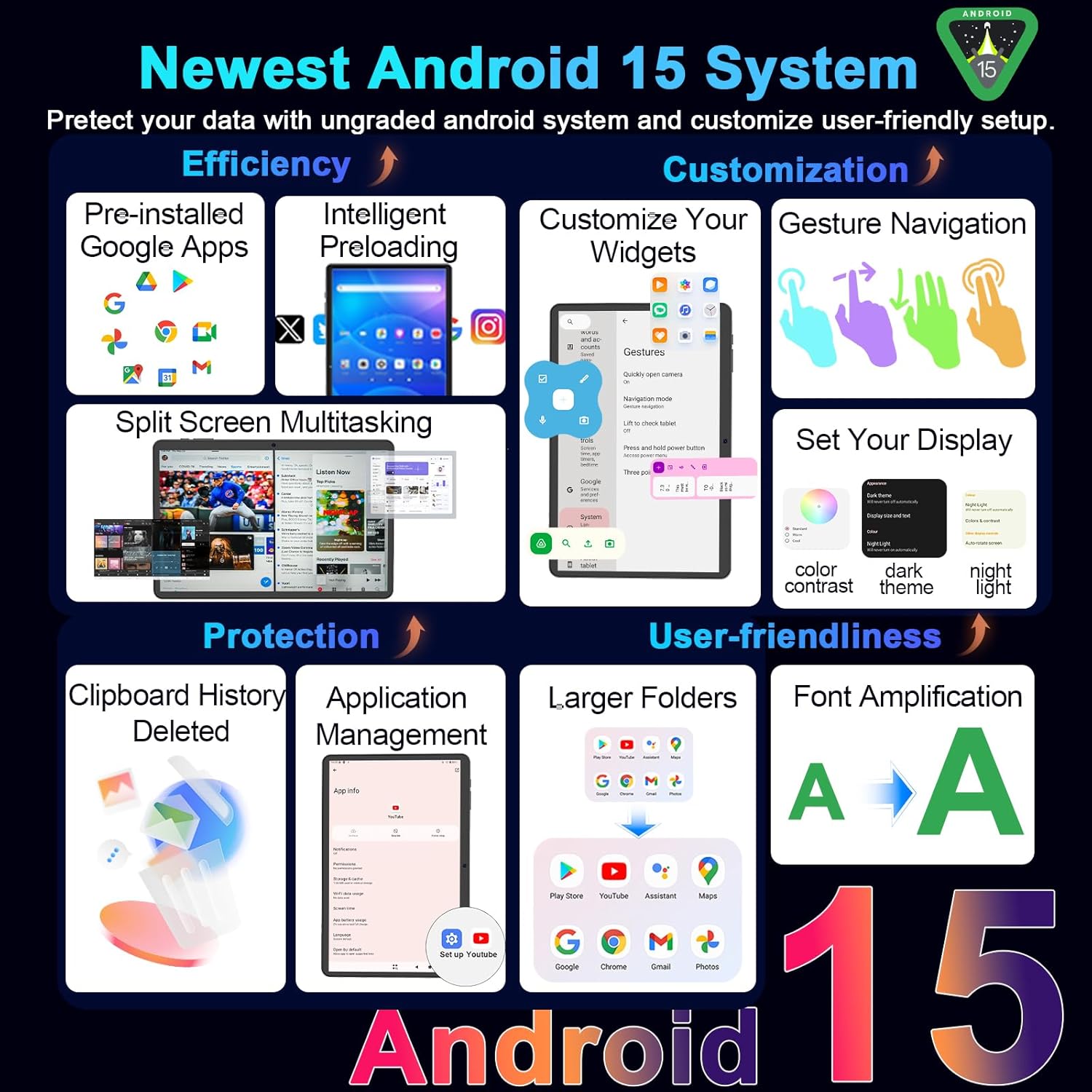
Image 3.1: Android 15 system interface showing various features.

Image 3.2: Gemini AI as an intelligent partner for tasks like summarization and content generation.
3.2 Display and Media Playback
The 10-inch IPS FHD display with a 1280x800 resolution and 60Hz refresh rate provides clear and fluid visuals. With Widevine L1 support, you can enjoy high-definition content from streaming services.
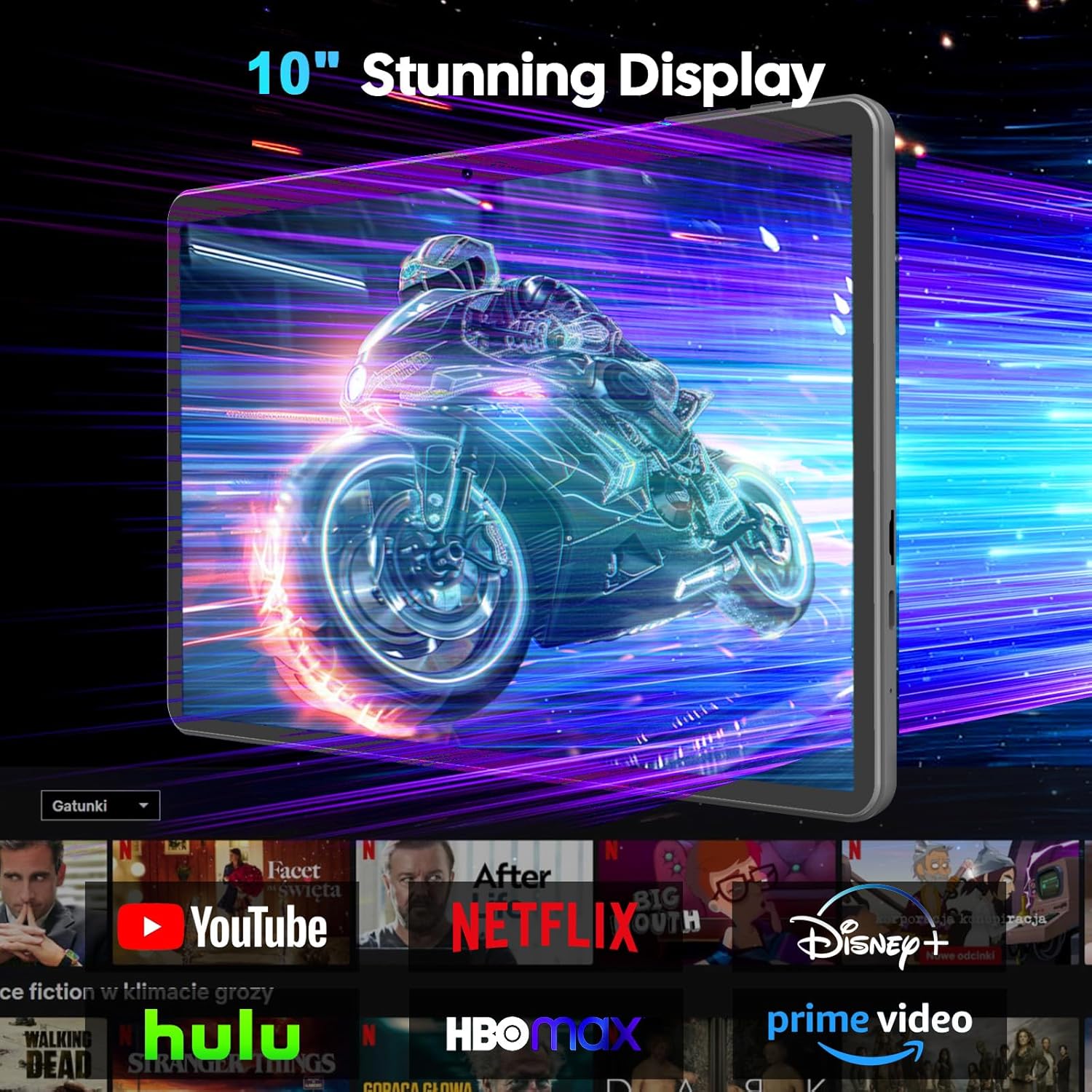
Image 3.3: The tablet's display showing vibrant media content.
3.3 Storage and Performance
The tablet features 26GB RAM (4GB physical + 22GB virtual) and 256GB of internal storage. Storage can be expanded up to 2TB using a TF card, providing ample space for applications, documents, videos, and images.

Image 3.4: Visual representation of the tablet's memory and storage capabilities.
3.4 Cameras and Smart Lens
Equipped with a 13MP rear camera and a 5MP front camera, the tablet allows you to capture moments in detail. The Smart Lens feature acts as an intelligent assistant for text translation, object identification, and more.

Image 3.5: Camera features and other connectivity options.

Image 3.6: Face Unlock feature for secure and convenient access.
3.5 Split-Screen Multitasking
The tablet supports split-screen functionality, allowing you to use two applications simultaneously for enhanced productivity.
Video 3.1: Demonstrates how to use the app split-screen feature on your device.
3.6 Changing System Language
You can easily change the system language of your tablet through the settings menu.
Video 3.2: Guide on changing the system language on your tablet.
4. Maintenance
4.1 Battery Care
The 8000mAh battery provides extended usage. To maximize battery life, avoid extreme temperatures, use the provided charger, and avoid fully discharging the battery frequently.
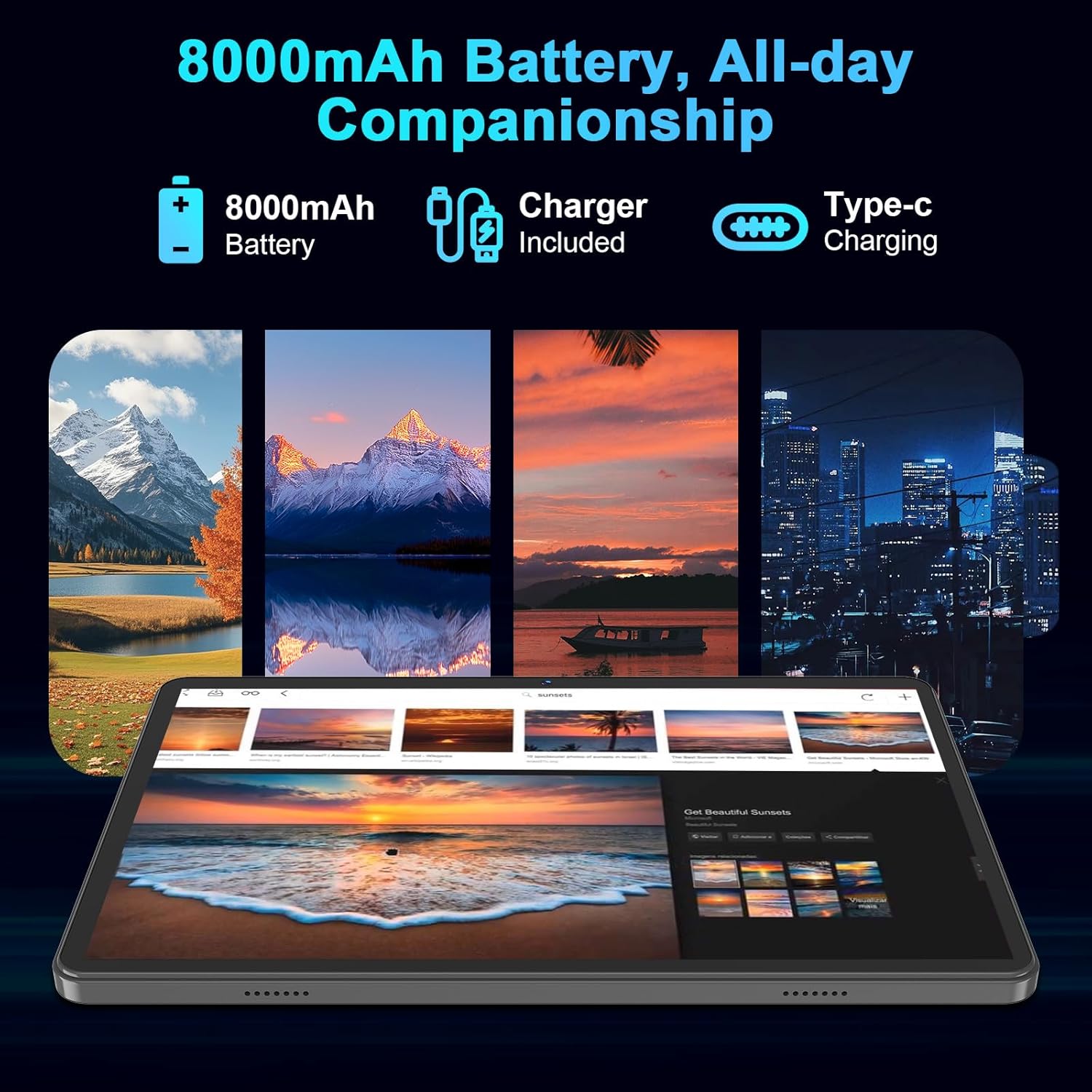
Image 4.1: Tablet battery information, emphasizing the 8000mAh capacity.
4.2 Storage Management
Regularly manage your 256GB internal storage and any inserted 2TB TF card. Delete unnecessary files and applications to maintain optimal performance.
4.3 System Updates
Keep your tablet's operating system updated to ensure you have the latest features, security patches, and performance improvements.
- Go to Settings > System > System updates.
- Check for available updates and follow the on-screen instructions to install them.
Video 4.2: Instructions on how to upgrade your tablet's system version.
5. Troubleshooting
5.1 Wi-Fi Connectivity Issues
If your Wi-Fi is not connecting or keeps dropping, try the following steps:
- Restart your tablet and Wi-Fi router.
- Go to Settings > Network & internet > Internet.
- Forget the problematic Wi-Fi network and reconnect.
- If issues persist, consider resetting network settings: Settings > System > Reset options > Reset Bluetooth & Wi-Fi.
Video 5.1: Steps to fix Wi-Fi not connecting or keeps dropping on your P30 tablet.
5.2 Camera Permissions
If you encounter issues with the camera, ensure that camera permissions are enabled and clear the camera app's cache.
- Go to Settings > Apps > Camera > Permissions and ensure camera access is allowed.
- To clear cache: Settings > Apps > Camera > Storage & cache > Clear cache.
Video 5.2: Steps to resolve camera permission issues by enabling permissions in system settings.
5.3 General Reset Options
For persistent issues, you may consider using the reset options. Be aware that a factory reset will erase all data on your device.
- Navigate to Settings > System > Reset options.
- Options include: Reset Mobile Network Settings, Reset Bluetooth & Wi-Fi, Reset app preferences, Delete private space, Erase all data (factory reset), and Recovery mode.
6. Specifications
| Feature | Specification |
|---|---|
| Brand | Suicoey |
| Model Name | P30 |
| Model Number | T901 |
| Operating System | Android 15 |
| Screen Size | 10 Inches |
| Display Resolution Maximum | 1280x800 Pixels |
| RAM Memory Installed | 26 GB |
| Memory Storage Capacity | 256 GB |
| Flash Memory Supported Size Maximum | 2 TB |
| Processor Brand | Unisoc |
| CPU Model Number | T606 |
| Battery Cell Type | Lithium Polymer |
| Lithium-Battery Energy Content | 8000 Milliampere Hour (mAh) |
| Rear Facing Camera Photo Sensor Resolution | 13 MP |
| Front Photo Sensor Resolution | 5 MP |
| Wireless Technology | Bluetooth, Wi-Fi (2.4G/5G) |
| Hardware Interface | 3.5mm Audio, Type-C port |
| Other Special Features | Expandable Storage, Stereo Speakers, Stylus Support, Supports USB OTG |
7. Warranty and Support
7.1 Warranty Information
Your Suicoey P30 tablet comes with a 1-year manufacturer's warranty. Please retain your proof of purchase for warranty claims.
7.2 Customer Support
For further assistance, technical support, or warranty inquiries, please contact Suicoey customer service through their official channels or visit the Suicoey Store on Amazon.