
1. Introduction
This manual provides essential information for setting up, operating, maintaining, and troubleshooting your Relndoo T901 Android 15 Tablet. Please read this manual thoroughly to ensure proper use and to maximize the performance and lifespan of your device.
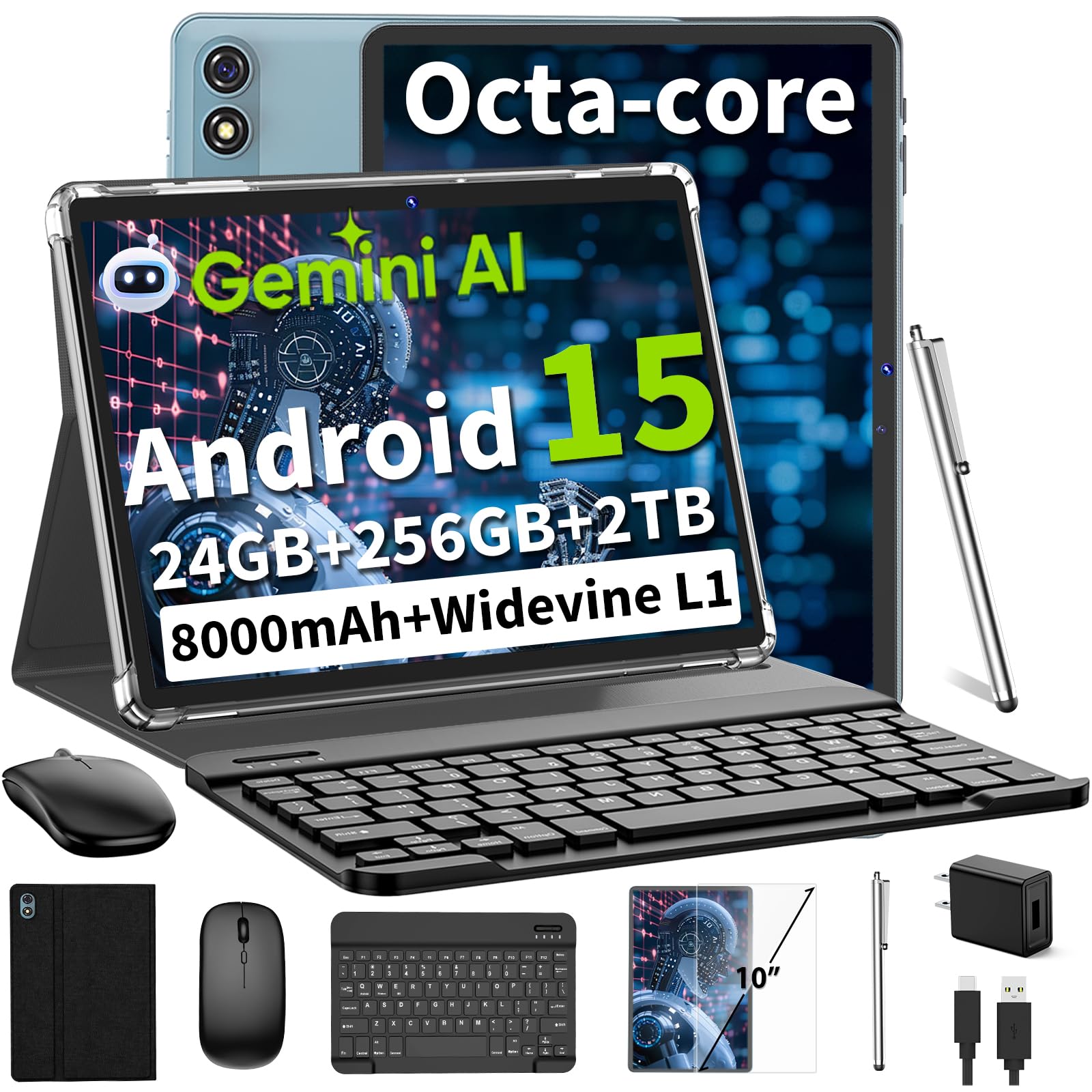
Image: Relndoo T901 Android 15 Tablet, showcasing its sleek design.
2. Package Contents
Verify that all items listed below are included in your package. If any items are missing or damaged, please contact customer support.
- 1 x 10.1 inch Relndoo Android Tablet
- 1 x Keyboard
- 1 x Mouse
- 1 x Stylus Pen
- 1 x Black Foldable Protective Case
- 1 x Screen Protector
- 1 x Charging Head
- 1 x USB-C Charger Cable
- 1 x User Manual (this document)
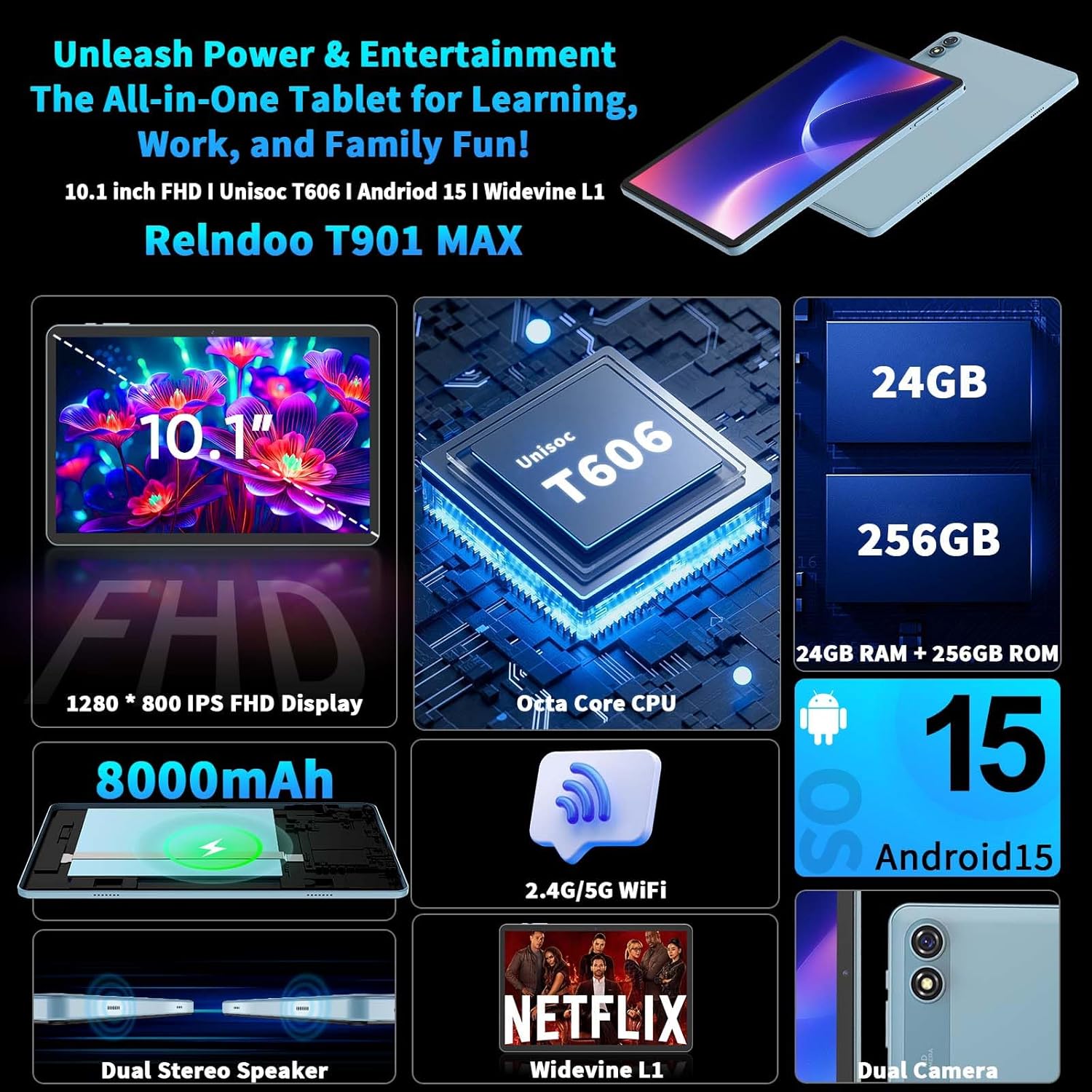
Image: The Relndoo T901 Tablet with its complete accessory bundle.
3. Device Overview
The Relndoo T901 tablet features a 10-inch IPS display, dual cameras, and various ports for connectivity. Familiarize yourself with the physical layout of your device.
3.1 Physical Features
- Display: 10-inch IPS screen with 1280x800 resolution.
- Cameras: 13MP rear camera and 5MP front camera.
- Ports: USB-C charging port, microSD card slot (supports up to 2TB), 3.5mm headphone jack.
- Speakers: Dual box speakers for enhanced audio.

Image: Rear view of the Relndoo T901 tablet, highlighting the camera module.
4. Setup
4.1 Initial Charging
Before first use, fully charge your tablet using the provided USB-C charger cable and charging head. The tablet supports 9V/2A fast charging. Ensure you use a compatible charger to prevent damage.
4.2 Power On/Off
- To Power On: Press and hold the power button until the Relndoo logo appears.
- To Power Off: Press and hold the power button, then select "Power off" from the options.
4.3 First-Time Setup
Upon first power-on, follow the on-screen prompts to complete the initial setup, including selecting your language, connecting to a Wi-Fi network, and setting up your Google account.
Video: This video demonstrates the steps to change the system language on your Relndoo T901 tablet.
Video: An overview of the Relndoo T901 Android 15 Tablet, including its key features and accessories.
4.4 Connecting Accessories
The included keyboard and mouse connect via Bluetooth. The stylus is a passive input device.
- Bluetooth Pairing: Go to Settings > Connected devices > Bluetooth, turn on Bluetooth, and select your keyboard or mouse from the available devices to pair.
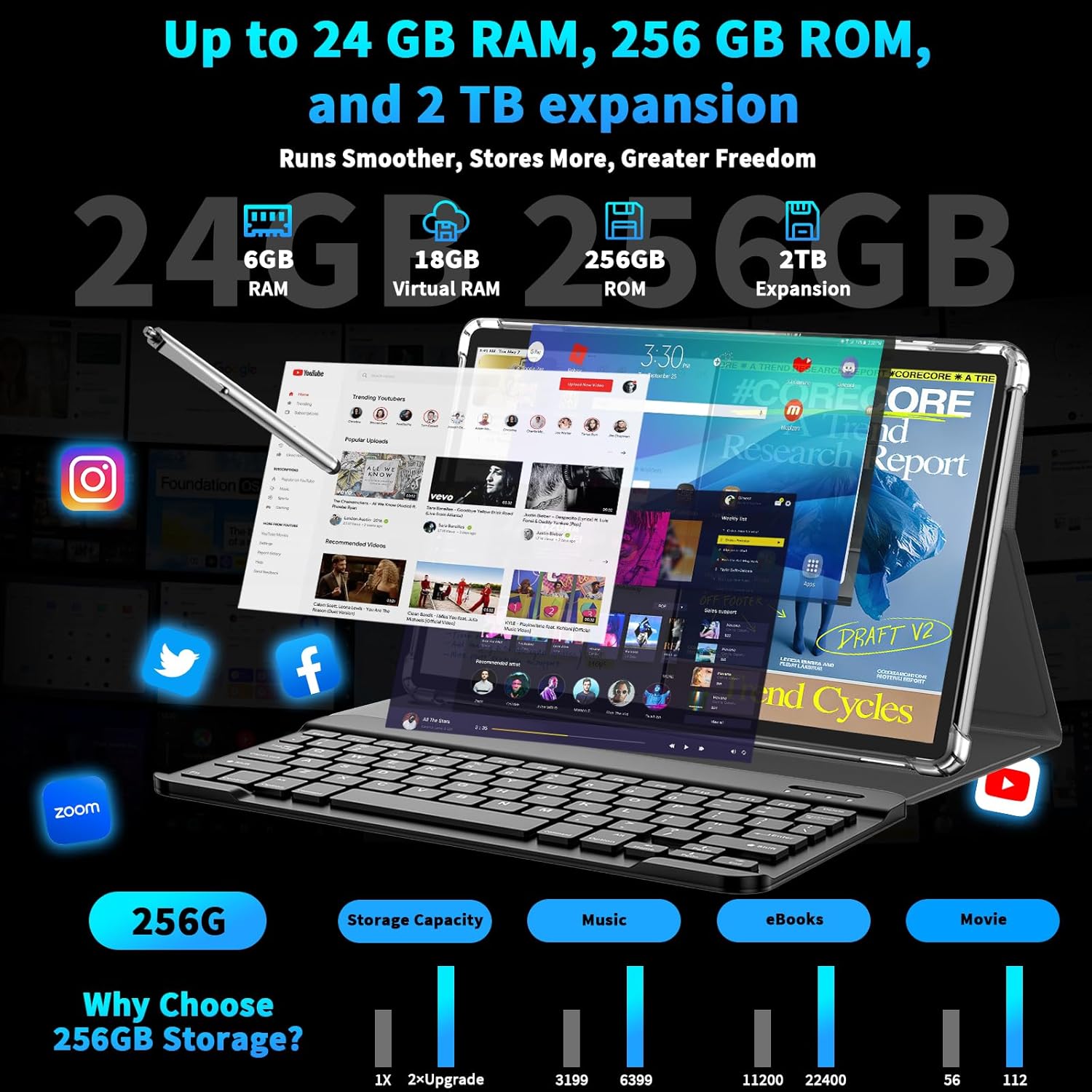
Image: The Relndoo T901 tablet configured with its keyboard and mouse accessories.
5. Operation
5.1 Basic Navigation
Navigate the Android 15 interface using touch gestures. Swipe, tap, pinch, and spread to interact with apps and content.
5.2 Split-Screen Functionality
Android 15 supports split-screen mode for multitasking. To activate:
- Open an application.
- Swipe up from the bottom of the screen to view recent apps.
- Tap the app icon at the top of the app's card and select "Split screen."
- Choose a second application to use in the other half of the screen.
Video: A guide on how to use the app split-screen feature on your Relndoo T901 tablet for enhanced multitasking.
5.3 Camera Usage
The tablet features a 13MP rear camera and a 5MP front camera. Open the Camera app to capture photos and videos.
Video: Instructions on how to enable camera permissions through system settings.

Image: The Relndoo T901 tablet's camera in action, demonstrating its photo capabilities.
5.4 Gemini AI Integration
The tablet integrates Gemini AI for enhanced productivity and smart features. Utilize AI voice wake-up, smart control, and intelligent assistance for a personalized experience.

Image: The Gemini AI interface on the Relndoo T901 tablet.
6. Connectivity
6.1 Wi-Fi Connection
Connect to 2.4G/5G Wi-Fi networks for internet access. Go to Settings > Network & internet > Wi-Fi, turn on Wi-Fi, and select your desired network.
Video: This video provides steps to troubleshoot Wi-Fi connectivity issues, such as not connecting or frequent disconnections.
6.2 Bluetooth Pairing
Pair Bluetooth devices like headphones, speakers, or other accessories. Go to Settings > Connected devices > Bluetooth, turn on Bluetooth, and select the device to pair.
6.3 Wireless Screen Projection
Project your tablet's screen to a larger display. This feature allows you to mirror your content for presentations or enhanced viewing experiences. Consult your display device's manual for specific connection instructions.
7. Maintenance
7.1 Battery Management
The 8000mAh battery provides extended usage. To prolong battery life:
- Use the provided charger (9V/2A) and cable.
- Avoid extreme temperatures.
- Do not leave the tablet charging for extended periods after it reaches 100%.
- Adjust screen brightness and close unused apps to conserve power.

Image: The Relndoo T901 tablet being charged, highlighting its long-lasting battery.
7.2 Storage Management
The tablet comes with 256GB of internal storage, expandable up to 2TB via a microSD card. Regularly manage your files and applications to optimize performance.
- To insert a microSD card, locate the card slot on the side of the tablet and gently push the card in until it clicks.
- To remove, push the card in again to release it.
7.3 Cleaning
Use a soft, lint-free cloth to clean the screen and body of the tablet. Avoid using harsh chemicals or abrasive materials.
8. System Updates
Keep your tablet's operating system up to date to ensure optimal performance, security, and access to the latest features of Android 15.
- To check for updates: Go to Settings > System > System updates.
- Follow the on-screen instructions to download and install any available updates.
Video: A demonstration of how to upgrade your system version on the tablet.

Image: The Android 15 operating system interface, highlighting new features and improvements.
9. Troubleshooting
If you encounter issues with your tablet, refer to the solutions below. If the problem persists, contact customer support.
9.1 Common Issues
- Tablet not turning on: Ensure the battery is charged. Connect the charger and wait a few minutes before attempting to power on again.
- Wi-Fi connectivity issues: Restart your tablet and Wi-Fi router. Ensure you are within range of the Wi-Fi signal.
- Slow performance: Close unused applications, clear cache, or free up storage space.
9.2 Factory Reset
A factory reset will erase all data from your tablet and restore it to its original factory settings. Back up important data before proceeding.
- Go to Settings > System > Reset options.
- Select "Erase all data (factory reset)" and confirm.
10. Specifications
Detailed technical specifications for the Relndoo T901 Android 15 Tablet.
| Feature | Specification |
|---|---|
| Brand | Relndoo |
| Model Name | T901 |
| Operating System | Android 15 |
| Processor | Unisoc T606 Octa-Core (2.4 GHz) |
| RAM Memory | 24 GB (6GB physical + 18GB virtual) |
| Internal Storage | 256 GB |
| Expandable Storage | Up to 2 TB (microSDXC) |
| Screen Size | 10 Inches |
| Display Resolution | 1280*800 Pixels (IPS) |
| Battery Capacity | 8000 mAh (12 hours average life) |
| Rear Camera | 13 MP |
| Front Camera | 5 MP |
| Wi-Fi Connectivity | 2.4G/5G (802.11 ac/b/g/n/ax) |
| Bluetooth | BT5.0 |
| Dimensions (L x W x Th) | 10.7"L x 7.6"W x 1.7"Th |
| Human-Interface Input | Touchscreen with Stylus Support |
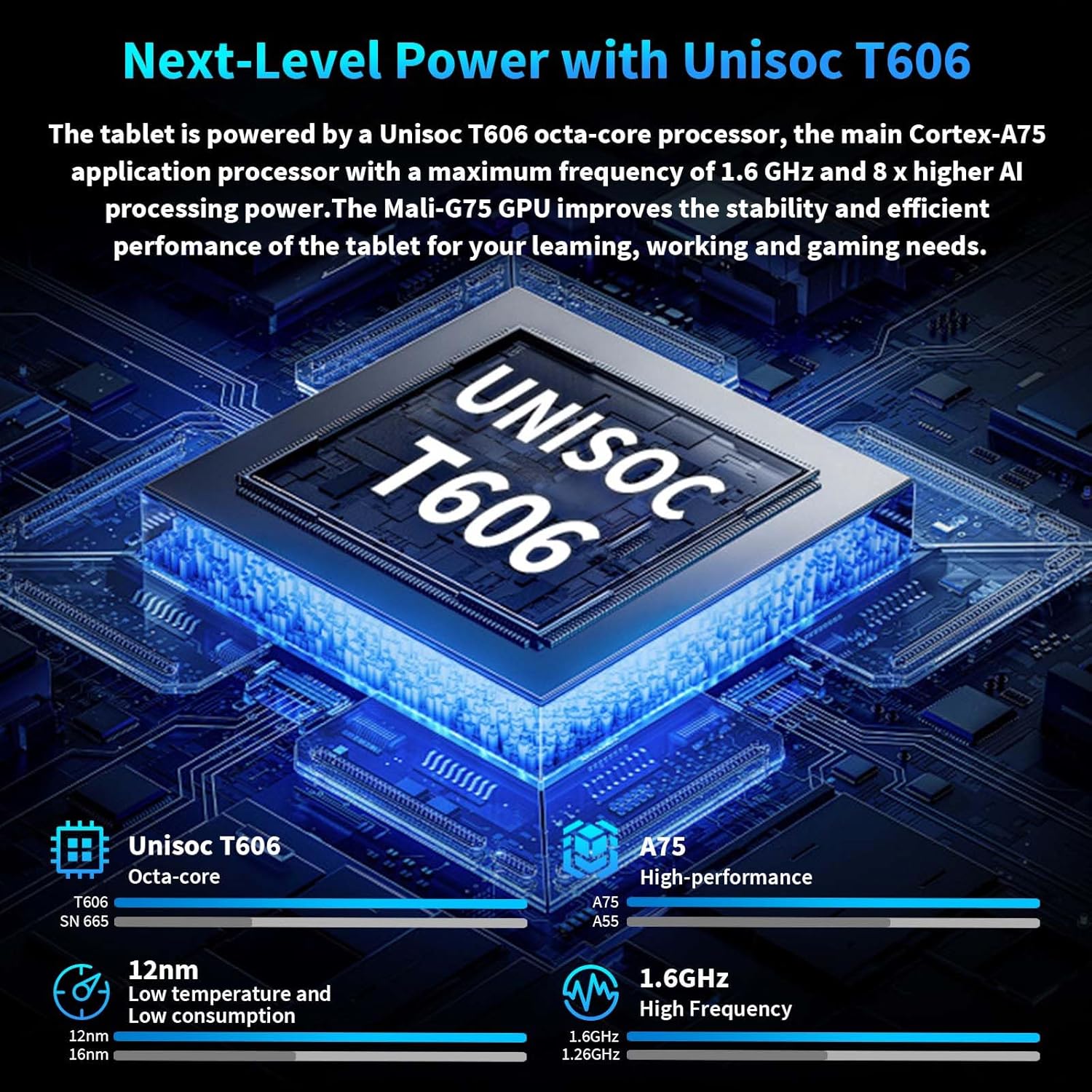
Image: Visual representation of the Unisoc T606 Octa-core processor, a key component of the tablet.
11. Warranty and Support
11.1 Warranty Information
Your Relndoo T901 tablet is covered by a Two-year warranty from the date of purchase. This warranty covers manufacturing defects and ensures product quality.
11.2 Customer Support
For any questions, technical assistance, or warranty claims, please contact our customer support team:
- Via Amazon: Go to your Amazon Account > Order History > Locate your order > Contact Seller.
- Via Email: Refer to the official email address listed in the user manual provided in your package.
Our service team aims to respond to all inquiries within 24 hours, including weekends.