
1. Introduction
Thank you for choosing the Wisoqu 4K UHD 64MP Digital Camera. This compact camera is designed for vlogging and photography, offering advanced features such as 4K video recording, 64-megapixel photos, a 3-inch touch screen, and 16x digital zoom. This manual provides essential information for setting up, operating, and maintaining your camera to ensure optimal performance.
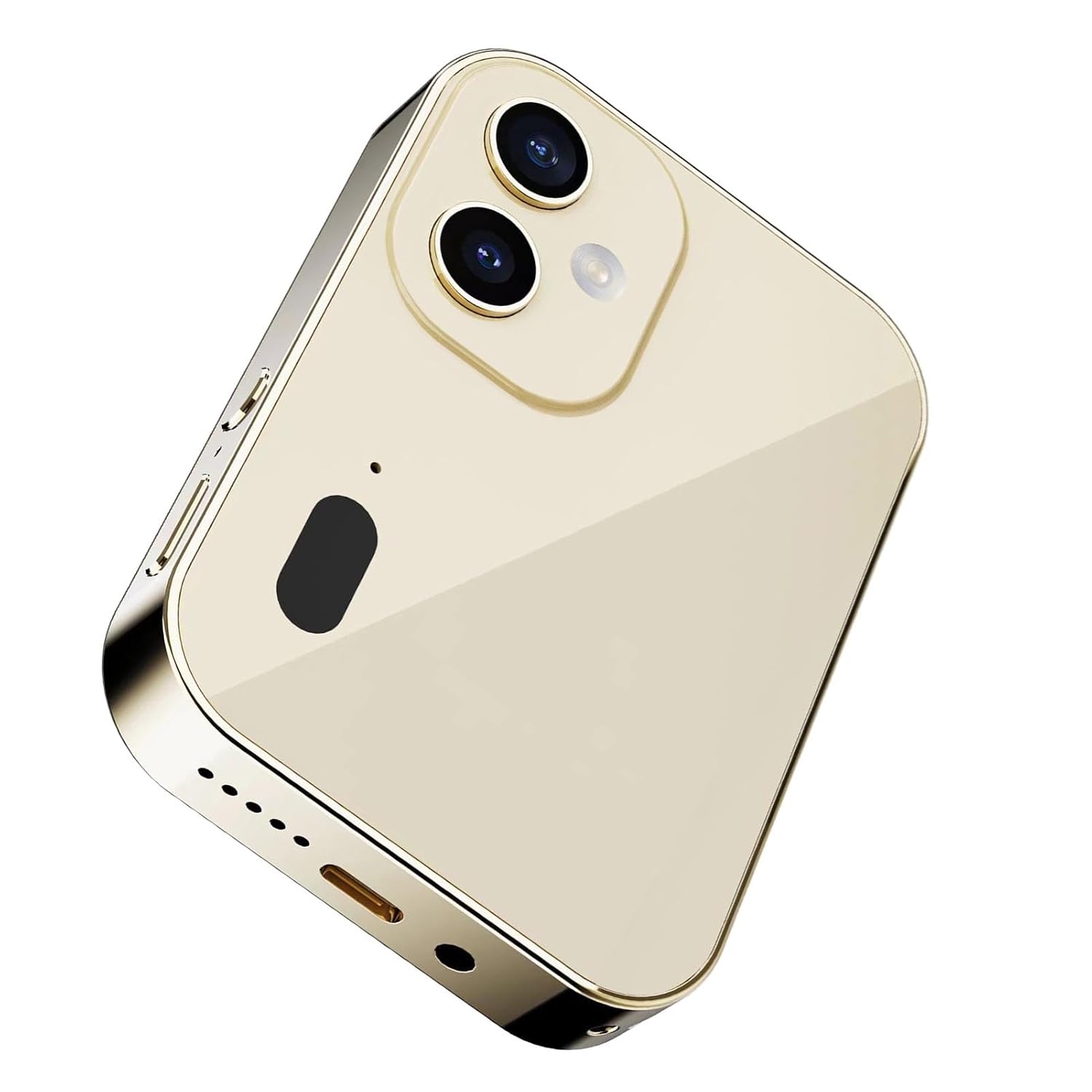
Image 1.1: Front view of the Wisoqu 4K UHD 64MP Digital Camera, showcasing its compact design and large display.
2. What's in the Box
Please check the contents of your package. If any items are missing or damaged, contact customer support.
- 1 x Wisoqu 4K UHD 64MP Digital Camera
- 1 x USB Cable (Type-C)
- 1 x Lanyard
- 1 x Adapter
- 1 x Cleaning Cloth
- 1 x Screwdriver
- 2 x Screws
- 1 x Metal Plate
- 1 x User Manual
- 1 x 32GB Small Memory Card (pre-installed or included separately)

Image 2.1: All items included in the Wisoqu Digital Camera package, laid out for inspection.
3. Setup
3.1. Charging the Battery
- Locate the Type-C port on the camera.
- Connect the provided USB cable to the camera and the adapter.
- Plug the adapter into a power outlet. The charging indicator will illuminate.
- Allow the camera to charge fully before first use.
3.2. Inserting the Memory Card
The camera supports a small memory card (microSD) up to 128GB. A 32GB card is included.
- Locate the memory card slot on the camera.
- Gently insert the microSD card into the slot with the gold contacts facing down until it clicks into place.
- To remove, press the card gently until it pops out.
3.3. Attaching the Lanyard
Thread the lanyard through the designated loop on the camera body to prevent accidental drops.
4. Operating Instructions
4.1. Power On/Off
Press and hold the power button (usually located on the side or top) to turn the camera on or off.
4.2. Basic Photography and Video Recording
- Taking Photos: In photo mode, frame your shot using the 3-inch touch screen. Press the shutter button to capture an image.
- Recording Videos: Switch to video mode. Press the record button to start and stop recording. The camera supports 4K 30fps, 1080P 60fps, 1080P 30fps, 720P 60fps, and 720P video resolutions.
4.3. Using the 3-inch Touch Screen
The 3-inch touch screen (resolution 480x854) allows for intuitive navigation and control. Tap icons to select modes, adjust settings, and review media.
4.4. Shooting Modes and Filters
The camera offers various shooting modes including Auto, Portrait, Night, and Landscape. You can also apply fun filters to your photos and videos.

Image 4.1: The camera display showing various color filters that can be applied by swiping the screen.
4.5. Digital Zoom
Utilize the 16x digital zoom to get closer to your subject. Adjust zoom levels using the on-screen controls or dedicated buttons.
4.6. Webcam Functionality
Connect the camera to a computer via the USB Type-C cable to use it as a webcam for live streaming or video calls.
4.7. Movie Mode and Media Playback
The camera supports local playback of movies and music without an internet connection.

Image 4.2: The camera screen showing content in 'Movie Mode', indicating local playback capability.
4.8. Other Functions
The camera also includes features such as setting alarms, changing wallpapers, and recording audio.
5. Maintenance
5.1. Cleaning the Camera
Use the provided cleaning cloth to gently wipe the screen and lens. Avoid using harsh chemicals or abrasive materials.
5.2. Battery Care
- Avoid exposing the battery to extreme temperatures.
- Charge the battery regularly, even if the camera is not in use, to maintain its lifespan.
- Battery life is approximately 2 hours at low brightness and 1-2 days with normal use.
5.3. Storage
Store the camera in a cool, dry place away from direct sunlight and moisture when not in use.
6. Troubleshooting
- Camera not turning on: Ensure the battery is charged.
- Memory card error: Reinsert the memory card or try a different compatible card. Ensure it is formatted correctly.
- Poor image quality: Check lighting conditions, clean the lens, and ensure appropriate shooting mode is selected.
- Camera unresponsive: Try restarting the camera. If the issue persists, contact customer support.
7. Specifications
| Feature | Specification |
|---|---|
| Brand | Wisoqu |
| Model Number | Wisoqu7fdse02z3c-14 |
| Effective Still Resolution | 64 MP |
| Video Capture Resolution | 4K (2160p) |
| Optical Zoom | 16x |
| Image Stabilization | Digital |
| Display Screen Size | 3 Inches |
| Display Resolution | 480 x 854 |
| Supported File Formats | JPG (Photos), AVI (Videos) |
| Memory Storage Capacity | Supports up to 128GB microSD (32GB included) |
| Ports | Type-C, 3.5 mm |
| Shutter Speed | 1/10 second to 1/2650 second |
| Focus Type | Auto Focus (AF-A) |
| Special Features | Webcam function, Audio Recording, Built-in Flash |
| Shooting Modes | Auto, Portrait, Night, Landscape |
8. Warranty and Support
For warranty information or technical assistance, please refer to the warranty card included with your product or contact Wisoqu customer support through the retailer where the product was purchased. Keep your purchase receipt as proof of purchase.