1. Introduction
The aosu T2 Ultra 4K Security Camera is a wireless outdoor surveillance system designed for comprehensive home security. It features advanced imaging capabilities, intelligent detection, and flexible power options to provide reliable monitoring day and night. This manual provides detailed instructions for setting up, operating, and maintaining your camera system.
2. What's Included
Please verify that all components are present in your package:
- 1 × 4K Security Camera
- 1 × Removable Solar Panel
- Mounting Screws
- Charging Cable
- Positioning Stickers
3. Product Overview
The aosu T2 Ultra camera combines a high-resolution lens with a solar panel for continuous operation. Key features include:
- 4K Ultra HD Video: Captures clear and detailed footage.
- TrueColor Night Vision: Provides full-color video even in low-light conditions without a spotlight.
- AI Triple Detection: Utilizes PIR heat sensing, radar, and on-device AI to accurately identify people, vehicles, and pets, reducing false alarms.
- 360° Auto Tracking: Offers 355° pan and 90° tilt for comprehensive coverage and intelligent tracking of moving objects.
- Solar Powered: Detachable solar panel ensures continuous power with minimal direct sunlight.
- Two-Way Talk: Allows real-time communication through the camera.
- IP65 Weatherproof: Designed to withstand various outdoor weather conditions.
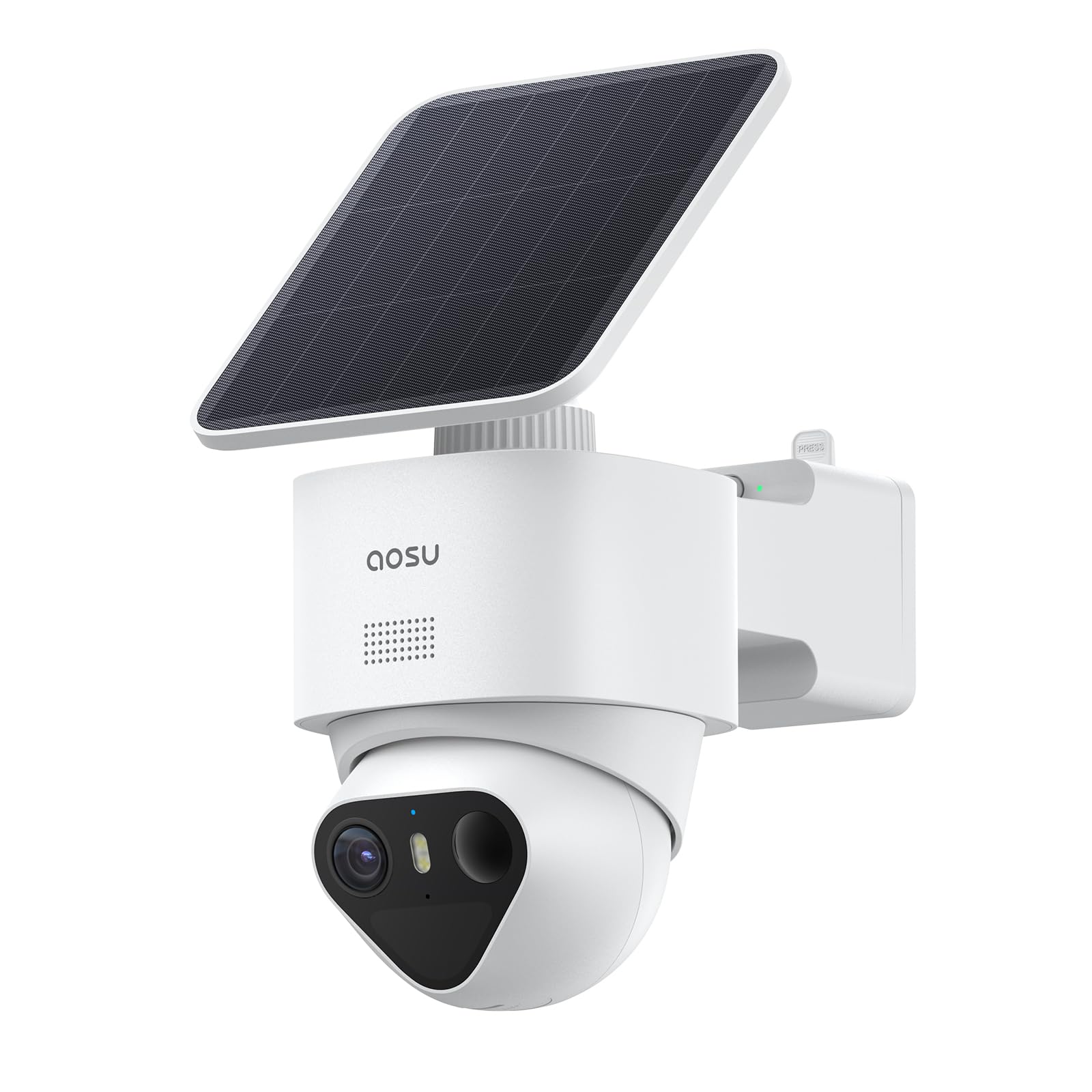
Figure 3.1: aosu T2 Ultra 4K Security Camera with attached solar panel.
4. Setup
4.1 Initial Charging
Before installation, fully charge the camera using the provided charging cable. This ensures optimal performance from the start.
4.2 App Installation & Account Creation
Download the 'aosu' app from your smartphone's app store (available for Android and iOS). Follow the on-screen instructions to create an account and log in.
4.3 HomeBase Connection (Optional)
For enhanced security features, cross-camera tracking, and expanded local storage, connect your camera to an aosu HomeBase (sold separately or included in kits). The HomeBase connects to your router via an Ethernet cable.
4.4 Camera Pairing
In the aosu app, select 'Add Device' and follow the prompts to scan the QR code on the camera. The app will guide you through the pairing process. You can choose to use the camera independently or connect it to a HomeBase.
4.5 Firmware Update
After successful pairing, the app may prompt you to update the camera's firmware. It is recommended to perform this update to ensure you have the latest features and security enhancements.
5. Installation
The aosu T2 Ultra camera offers flexible installation options, including integrated and detached solar panel setups.
5.1 Mounting Options
- Integrated Installation: The solar panel is directly attached to the camera. Recommended for open areas without obstructions to sunlight.
- Detached Installation: The solar panel is mounted separately from the camera using an extension cable. Ideal for locations under eaves or other shaded areas where the camera needs to be placed but direct sunlight is not available.

Figure 5.1: Illustration of integrated and detached solar panel installation options.
5.2 Physical Installation Steps
- Choose a suitable mounting location that provides optimal sunlight exposure for the solar panel and a clear view for the camera.
- Use the provided positioning stickers to mark the drill holes.
- Drill holes and insert wall anchors if necessary.
- Attach the mounting bracket to the wall using the screws.
- Secure the camera to the mounting bracket.
- Connect the solar panel to the camera. If using detached installation, connect the extension cable between the solar panel and the camera.

Figure 5.2: The detachable solar panel allows for flexible placement to maximize sun exposure.
6. Operation
6.1 Live View & Recording
Access live 4K video streams through the aosu app. You can view multiple cameras simultaneously and review recorded footage.

Figure 6.1: The camera offers 360° pan and tilt for full coverage.
6.2 Two-Way Talk
Use the two-way talk feature in the app to communicate with visitors or deter intruders. The camera's microphone and speaker enable clear audio.
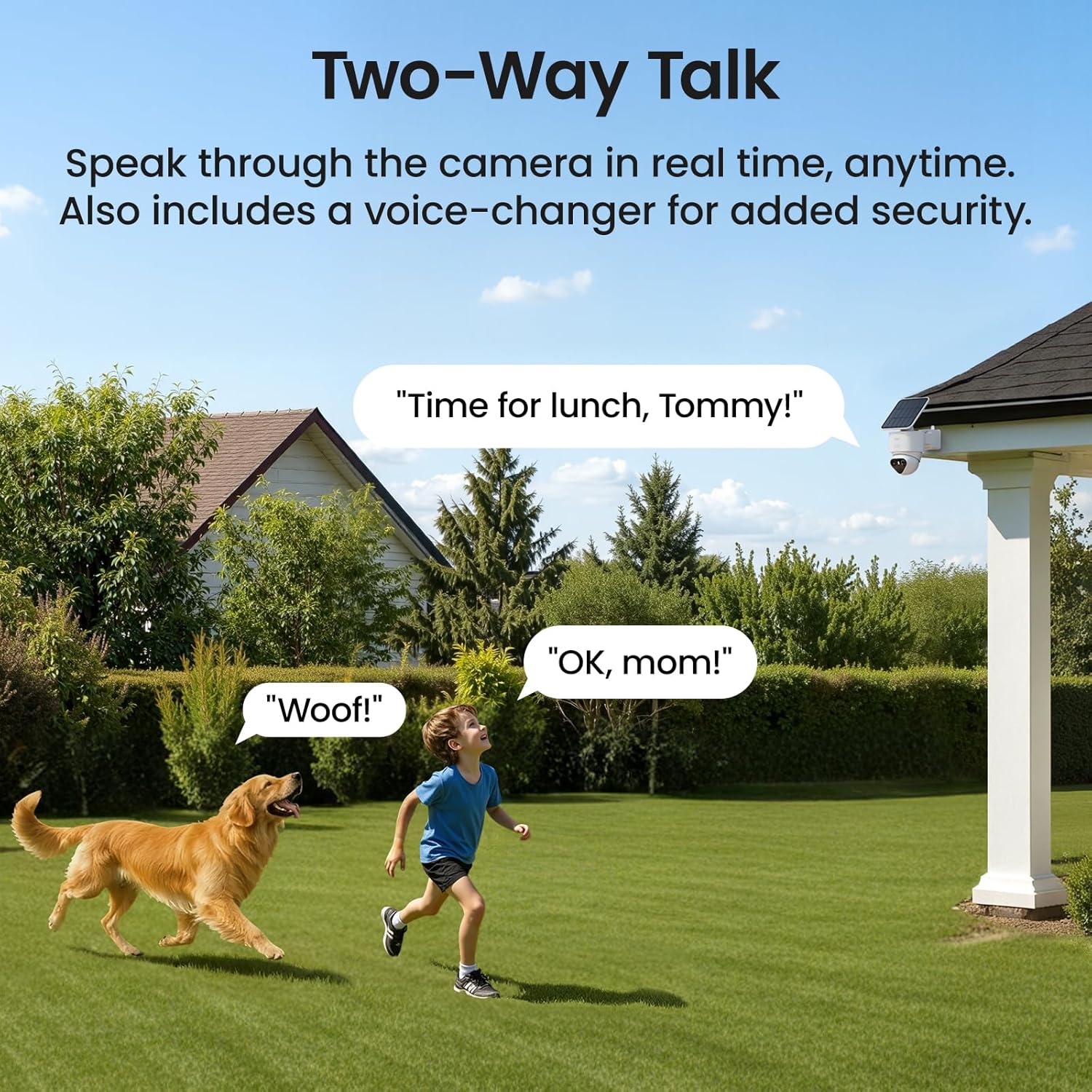
Figure 6.2: Engage in real-time two-way conversations through the camera.
6.3 Smart Motion Alerts
The AI Triple Detection system (PIR, radar, and AI) provides precise alerts for people, vehicles, and pets, minimizing false alarms. The 360° auto-tracking feature follows detected movement.

Figure 6.3: AI Triple Detection accurately identifies movement and reduces false alarms.
6.4 TrueColor Night Vision
Experience vivid, natural color video even in total darkness, thanks to the F/1.0 ultra-wide aperture and 1/1.8'' starlight sensor.

Figure 6.4: TrueColor Night Vision captures clear, colorful details at night.
6.5 Official Product Video
Video 6.1: Official product overview of the aosu T2 Ultra 4K Solar Security Camera, highlighting its features and capabilities.
7. Storage Options
The camera supports encrypted MicroSD card storage (up to 256GB) for local recordings, providing up to 90 days of footage without subscription fees. If connected to an aosu HomeBase, it supports HDD or SSD storage (2.5" SATA, unlimited capacity) for expanded local storage.
8. Weather Resistance
The aosu T2 Ultra camera is designed with an IP65 weatherproof rating, ensuring its durability and functionality in various outdoor conditions, including rain, snow, and dust.
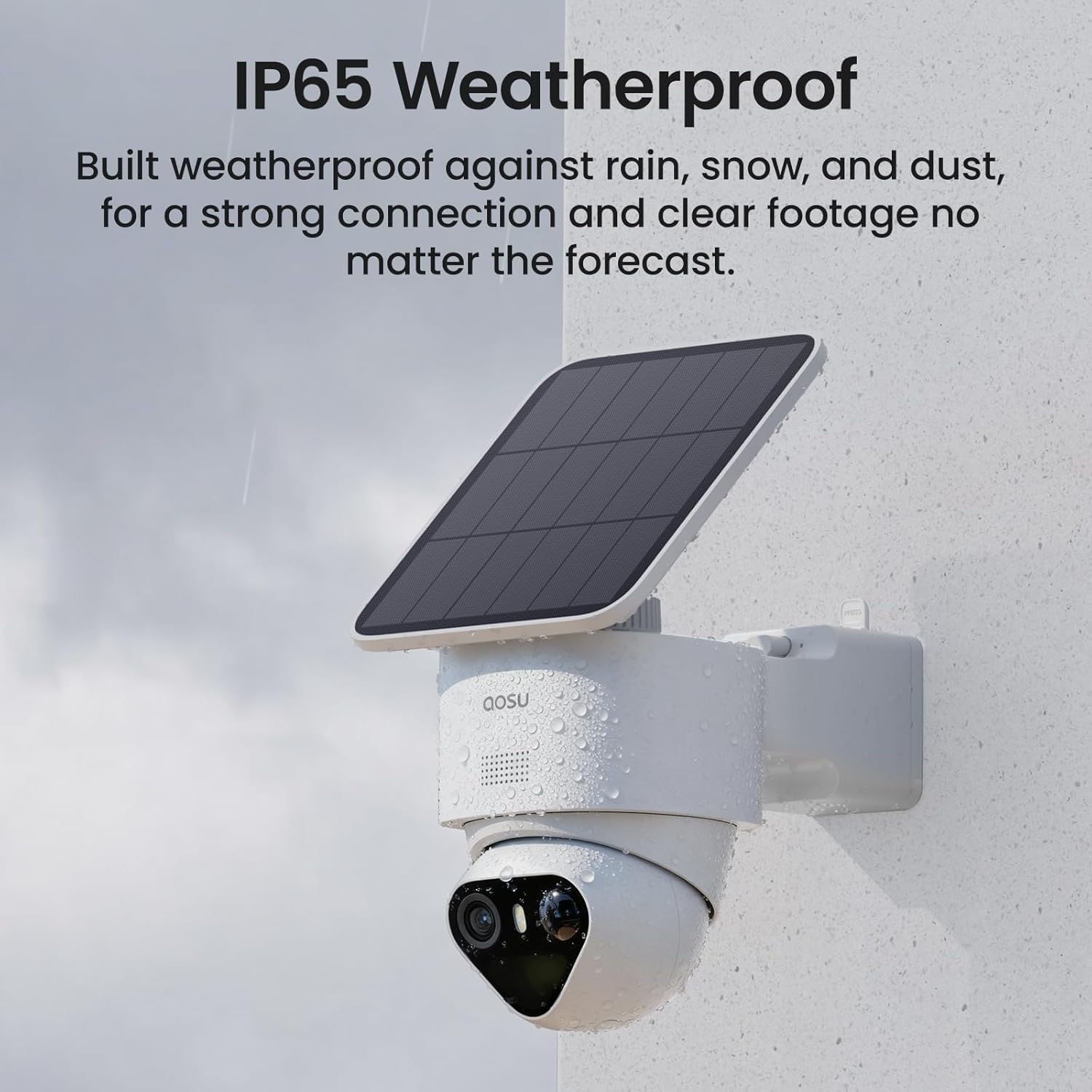
Figure 8.1: The camera's IP65 rating ensures protection against outdoor elements.
9. Specifications
| Feature | Detail |
|---|---|
| Indoor/Outdoor Usage | Outdoor |
| Compatible Devices | Smartphone (Android, iOS), Amazon Alexa, Google Assistant |
| Power Source | Solar Powered |
| Connectivity Protocol | Bluetooth, Wi-Fi |
| Mounting Type | Wall Mount |
| Video Capture Resolution | 4K |
| Color | White |
| Item Dimensions (L x W x H) | 8.5 x 6.22 x 5.3 inches |
| Item Weight | 2.42 pounds |
| Video Capture Format | MP4 |
| Special Feature | 4K, TrueColor Night Vision, Triple Detection, Automatic Tracking |
10. Maintenance
- Cleaning: Regularly wipe the camera lens and solar panel with a soft, damp cloth to ensure clear vision and efficient charging. Avoid abrasive cleaners.
- Battery Care: Ensure the solar panel receives adequate direct sunlight daily (at least 90 minutes recommended) to maintain battery charge. In prolonged cloudy periods, manual charging via the USB port may be necessary.
- Firmware Updates: Periodically check the aosu app for available firmware updates to benefit from performance improvements and new features.
11. Troubleshooting
- Camera Not Connecting: Ensure your Wi-Fi network is stable and the camera is within range. Restart the camera and your router. Verify correct Wi-Fi credentials in the app.
- Poor Video Quality: Check for obstructions on the camera lens and clean it if necessary. Ensure adequate lighting for optimal image capture. Verify your internet connection speed.
- Solar Panel Not Charging: Confirm the solar panel is positioned to receive direct sunlight for several hours a day. Clean any dirt or debris from the panel surface. Check the connection cable for damage.
- False Motion Alerts: Adjust the sensitivity settings for motion detection in the aosu app. Ensure the AI Triple Detection is enabled to filter out non-human/vehicle movements.
- Two-Way Talk Issues: Check your device's microphone and speaker settings. Ensure the camera's microphone and speaker are not obstructed.
12. Warranty and Support
For warranty information, technical support, or further assistance, please refer to the official aosu website or contact their customer service directly. Keep your purchase receipt for warranty claims.


