
1. Introduction
This manual provides detailed instructions for the installation, operation, and maintenance of your LEXXSON RM-KPL089B Android 13 Wireless CarPlay AI Box. Please read this manual thoroughly before use to ensure proper functionality and to maximize your device's potential.
2. Product Overview
The LEXXSON RM-KPL089B is an advanced car video box designed to enhance your in-car entertainment and connectivity. It features Android 13.0, wireless CarPlay, and Android Auto, powered by a Qualcomm 6125 Octa-core processor with 8GB RAM and 128GB storage. Key features include HDMI output, SIM card support for 4G/5G network access, split-screen functionality, and customizable ambient lighting.

Image: Front, back, and side views of the LEXXSON RM-KPL089B AI Box, highlighting the SIM card slot, Type-C port, and HDMI port.
3. Specifications
| Feature | Detail |
|---|---|
| Brand | LEXXSON |
| Model Number | RM-KPL089B |
| Operating System | Android 13.0 |
| Processor | Qualcomm 6125 Octa-core |
| Memory (RAM) | 8GB LPDDR4 |
| Storage (ROM) | 128GB EMMC Flash |
| Connectivity | Dual WiFi (2.4GHz+5GHz), Bluetooth (Dual BT 5.0), 4G/5G SIM Card Support |
| Special Features | Wireless CarPlay, Wireless Android Auto, Split Screen, HDMI Output, Ambient Light, GMS Service Framework, Google Play Store |
| Product Dimensions | 3.31"L x 3.31"W x 3.31"H |
| Working Environment | 20-70°C |
| Power Input | USB 5V~1A |
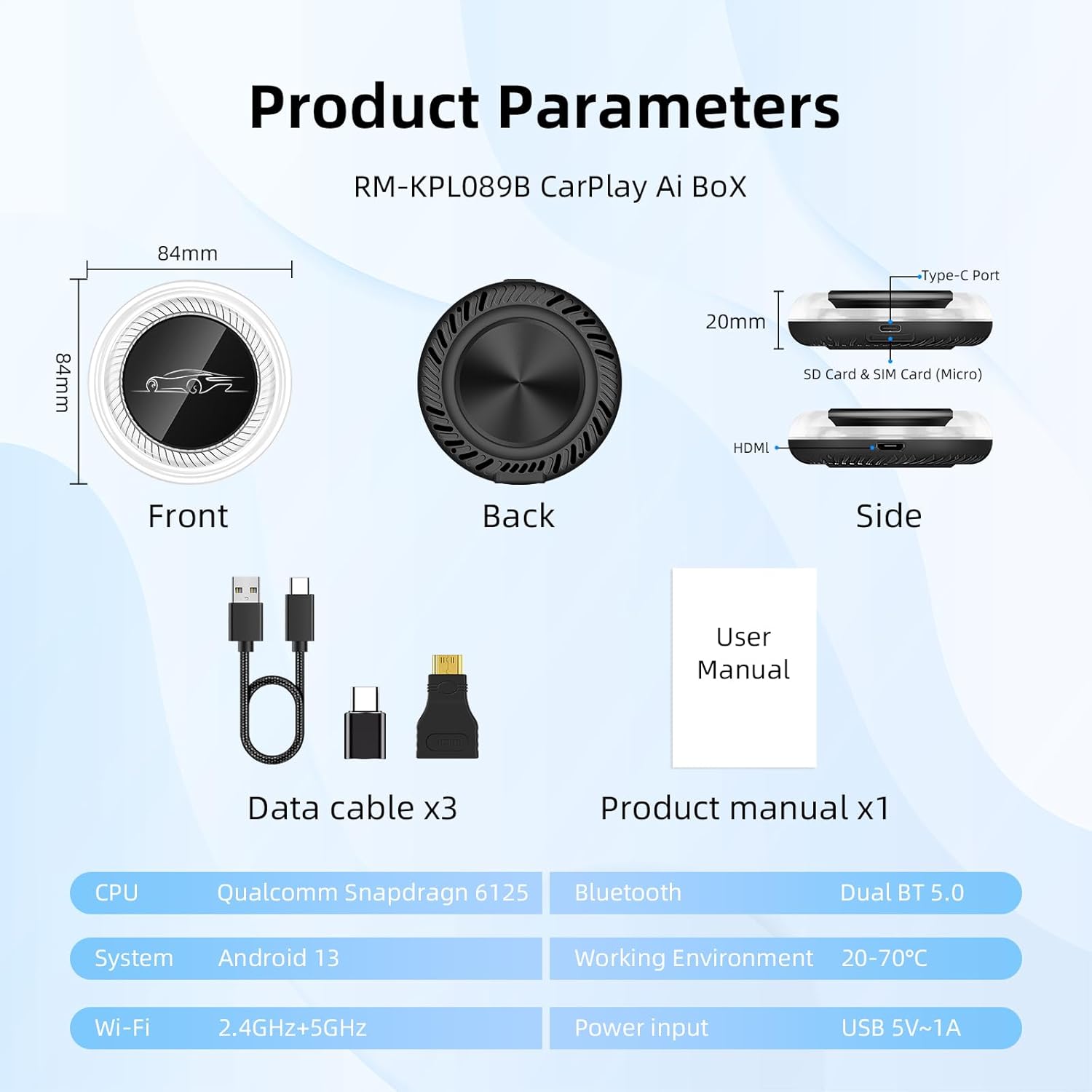
Image: Diagram illustrating the dimensions and key product parameters of the RM-KPL089B AI Box.
4. What's in the Box
- LEXXSON RM-KPL089B AI Box
- Data Cable (x3)
- Product Manual (x1)
Image: Visual representation of the items included in the product package: the AI Box, three data cables, and the user manual.
5. Compatibility
The LEXXSON RM-KPL089B AI Box is compatible with a wide range of vehicles that support factory wired CarPlay. Please verify your vehicle's compatibility before installation.
Compatible BMW Models:
- BMW 4 Series (2018-2024)
- BMW 5 Series (2018-2024)
- BMW 7 Series (2018-2024)
- BMW 8 Series (2018-2024)
- BMW X3 (2018-2024)
- BMW X4 (2018-2024)
- BMW X5 (2018-2024)
- BMW X6 (2018-2024)
- BMW X7 (2018-2024)
- BMW 3 Series (2018-2024)
- BMW X1 (2018-2024)
- BMW X21 (2018-2024)
- BMW i3 (2018-2023)
- BMW i8 (2019-2020)
- BMW Z4 (2019-2024)
Compatible Other Car Models:
- BYD Seal/Sealion/Denza (2023-2025)
- Audi A6 (2024)
- Ford Sync 4 (2024)
- MG4 Changan Deepal (2025)
- Panamera (2024)
- Cayenne (2023)
- Macan (2024)
- Hyundai Elantra/lX35 (2024)
- Lexus NX (2024)
- Zeekr
- Honda Acura (2025)
- Rolls Royce Cullinan Supercar (2024)
- Volvo EX30/EX40 (2024)

Image: A visual guide to compatible BMW and other car models for the LEXXSON AI Box.
6. Setup
6.1 Initial Connection
- Ensure your vehicle's engine is running or in accessory mode.
- Connect the LEXXSON AI Box to your car's USB port that supports wired CarPlay using the provided data cable.
- The device will power on and display the LEXXSON interface on your car's screen.
6.2 SIM Card Installation (Optional)
- Locate the SIM card slot on the side of the AI Box.
- Insert a compatible 4G/5G SIM card into the slot. Ensure it is correctly oriented.
- The device will automatically detect the SIM card and establish network connectivity.
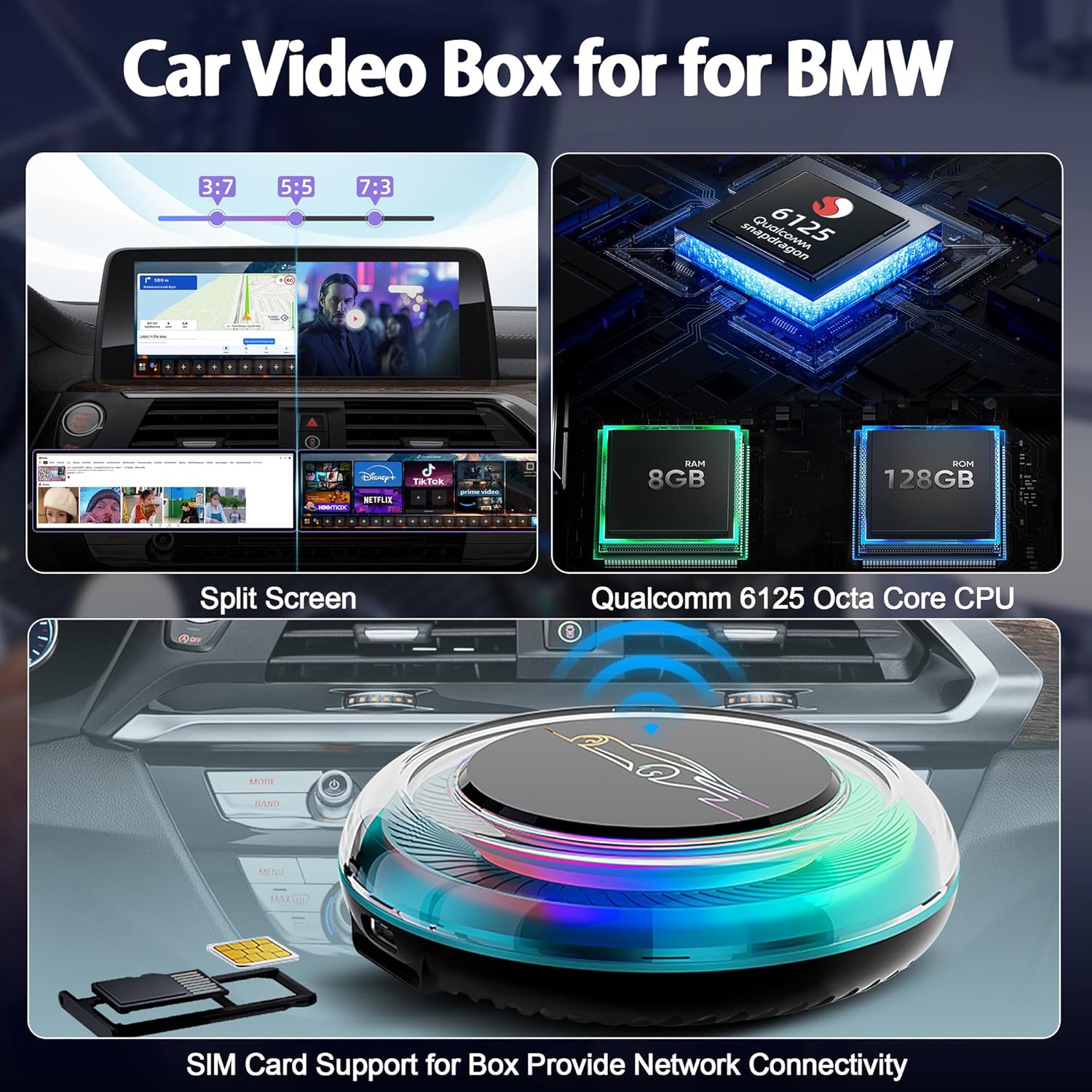
Image: The LEXXSON AI Box showing the SIM card slot and a SIM card being inserted for network connectivity.
7. Operating Instructions
7.1 Wireless CarPlay Connection
- On your car's screen, navigate to Settings > Communication > Mobile Devices > Connect New Device.
- On your iPhone, go to Settings > Bluetooth and search for the device named "ApplePie".
- Pair your iPhone with "ApplePie" via Bluetooth. Ensure to delete any previous iPhone records to avoid interference.
- Once paired, wireless CarPlay will activate automatically.
Video: Demonstrates the process of connecting an iPhone to the LEXXSON AI Box for wireless CarPlay functionality.

Image: Step-by-step guide on how to connect your iPhone for wireless CarPlay using the AI Box.
7.2 Wireless Android Auto Connection
- Ensure you have the latest version of the Android Auto app downloaded on your phone.
- Turn on your smartphone's Wi-Fi and Bluetooth.
- Within the Android Auto app on your phone, you should see an option to select a car connection. Select the device name "ApplePie" shown on the car screen.
- Confirm pairing on both your phone and the car screen.
Video: Illustrates the connection process for Android Auto, similar to CarPlay, using the LEXXSON AI Box.
7.3 Split Screen Functionality
- The split-screen feature allows you to run two applications simultaneously on your car's display.
- To activate, select the "Split Screen" option from the control center or long-press an app icon and drag it to one side of the screen.
- Adjust the screen ratio (e.g., 3:7, 5:5, 7:3) as desired for optimal viewing.
Video: Shows how to use the split-screen feature to display multiple applications concurrently on the car's display.

Image: An example of the split-screen feature in use, displaying navigation on one side and video content on the other.
7.4 Multimedia Playback and Apps
- The device comes with a full Android 13 system, providing access to the Google Play Store.
- Download and install your favorite streaming video applications (e.g., YouTube, Netflix, TikTok, Disney+, Hulu, Prime Video) and music apps.
- Utilize the HDMI output to mirror your main dashboard display to rear headrest monitors for passenger entertainment.

Image: The car's display showing multiple supported applications and an illustration of HDMI output to a rear entertainment screen.
7.5 Ambient Light Customization
- The AI Box features an ambient light ring that can be customized.
- Access the "LED" settings within the device interface to choose from various colors and lighting modes (e.g., Rainbow, Follow, Pulse, Custom).
Image: The LEXXSON AI Box showcasing its customizable ambient light feature.
8. Maintenance
8.1 Software Updates
- System updates improve stability, optimize running speed, and fix potential software issues.
- When a new version is released, ensure a stable network connection (Wi-Fi or SIM card) and download the update file.
- During the update process, park the car in a safe place and avoid operating the device. Ensure the device remains powered on.
- After the update, the device will automatically restart and connect. If abnormalities occur, restart the device or check the network connection.
Video: Guide on how to perform online software updates for the AI Box.
8.2 Cleaning
- Use a soft, dry cloth to clean the exterior of the device.
- Avoid using harsh chemicals or abrasive materials that could damage the surface.
9. Troubleshooting
| Problem | Possible Cause | Solution |
|---|---|---|
| Device does not power on. | Incorrect USB connection, insufficient power, or vehicle not in accessory mode. | Ensure the USB cable is securely connected to a powered USB port. Verify the car is on or in accessory mode. |
| Wireless CarPlay/Android Auto not connecting. | Bluetooth pairing issue, Wi-Fi interference, or outdated app version. | Re-pair Bluetooth, ensure Wi-Fi is enabled on your phone, update CarPlay/Android Auto app, or delete previous phone records. |
| No network connectivity with SIM card. | SIM card not properly inserted, no active data plan, or network coverage issue. | Check SIM card insertion, confirm active data plan, or try in an area with better network coverage. |
| Screen flickering or freezing. | Software glitch, overheating, or insufficient power. | Restart the device. Ensure proper ventilation. Check power supply. Perform a software update. |
10. Warranty & Support
The LEXXSON RM-KPL089B AI Box comes with a 1-year manufacturer's warranty from the date of purchase. This warranty covers defects in materials and workmanship under normal use.
For technical support, troubleshooting assistance, or warranty claims, please contact LEXXSON customer service through the retailer where the product was purchased or visit the official LEXXSON website.
Please retain your proof of purchase for warranty validation.


