
1. Introduction
This manual provides detailed instructions for setting up, operating, maintaining, and troubleshooting your GMKtec M6 Ultra Mini PC. This compact and powerful desktop computer is equipped with an AMD Ryzen 5 7640HS processor, designed for a wide range of tasks from office productivity to 4K video editing and gaming.

Image: The GMKtec M6 Ultra Mini PC, showcasing its compact design.
2. Package Contents
Please check that all items listed below are included in your package:
- GMKtec M6 Ultra Mini PC Unit
- Power Adapter
- HDMI Cable
- VESA Mount Bracket
- Screw Set for VESA Mount
- Instruction Manual

Image: All items included in the GMKtec M6 Ultra Mini PC package.
3. Product Overview
3.1. Processor and Graphics
The M6 Ultra is powered by the AMD Ryzen 5 7640HS processor, built on TSMC's 4nm FinFET process with Zen4 architecture. It integrates Radeon 760M graphics, utilizing the latest RDNA 3 architecture, providing performance comparable to a dedicated GTX 1650 Ti GPU.

Image: Diagram illustrating the AMD Ryzen 5 7640HS processor.
3.2. Ports and Interfaces
The Mini PC offers a comprehensive set of ports for connectivity:
- Video Output: 1x HDMI 2.0 (4K@60Hz), 1x DisplayPort (up to 8K@60Hz), 1x USB4.0 Type-C (full-featured, PD/DP/40Gbps)
- USB Ports: 2x USB-A 3.2 Gen2 (front, 10Gbps), 2x USB-A 3.2 Gen2 (rear), 2x USB-A 2.0 (rear)
- Network: 2x 2.5GbE LAN ports (Intel i226V)
- Wireless: Wi-Fi 6E, Bluetooth 5.2
- Audio: 1x 3.5mm Headphone Jack
- Power: DC IN
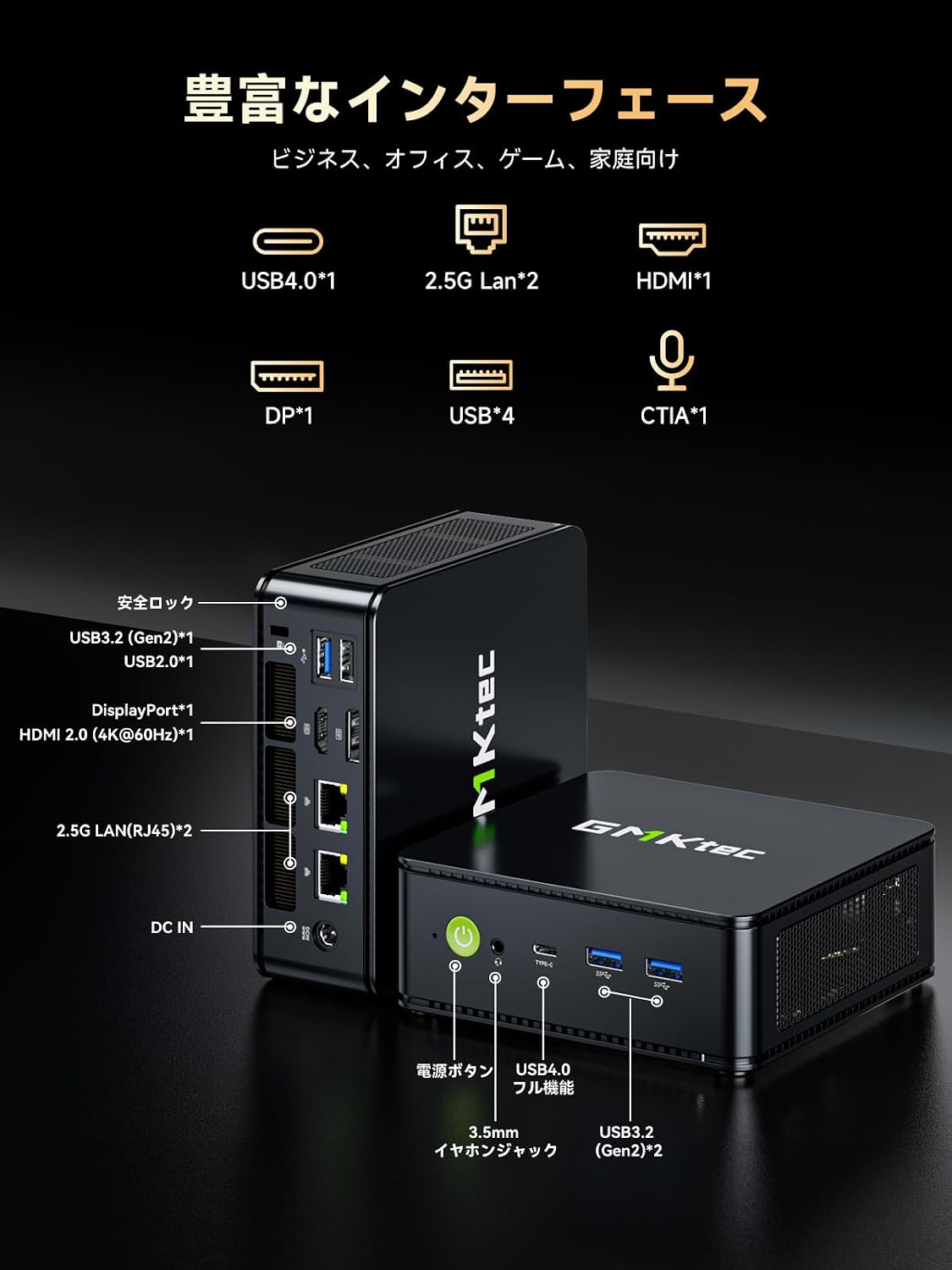
Image: Detailed view of the GMKtec M6 Ultra Mini PC's front and rear ports.
4. Setup Guide
4.1. Initial Connection
- Connect to Display: Use the provided HDMI cable to connect the Mini PC to your monitor or TV. Alternatively, use a DisplayPort or USB4 Type-C cable for compatible displays.
- Connect Peripherals: Plug in your keyboard, mouse, and other USB devices into the available USB ports.
- Connect to Power: Connect the power adapter to the DC IN port on the Mini PC, then plug the adapter into a power outlet.
- Power On: Press the power button located on the front of the Mini PC. The power indicator light will illuminate.
4.2. VESA Mount Installation
The included VESA mount allows you to attach the Mini PC to the back of a compatible monitor, saving desk space.
- Attach the VESA mount bracket to the back of your monitor using the provided screws. Ensure it is securely fastened.
- Slide the Mini PC onto the VESA mount bracket until it clicks into place.

Image: The Mini PC shown mounted on a monitor and its compact size for portability.
5. Operating Instructions
5.1. Power On/Off
- Power On: Press the power button once.
- Shut Down: From the operating system, select "Shut down." Alternatively, press and hold the power button for 5 seconds to force a shutdown (not recommended for regular use).
5.2. Performance Modes
The Mini PC offers three TDP (Thermal Design Power) modes to optimize performance and noise levels:
- Silent Mode (35W): Prioritizes quiet operation and energy efficiency for light tasks.
- Balanced Mode (45W): Offers a good balance between performance and noise for everyday use.
- Performance Mode (50W): Maximizes processing power for demanding applications like gaming or video editing.
These modes can typically be switched via the BIOS settings or a dedicated utility provided by GMKtec (refer to the operating system's documentation for specific instructions).

Image: Visual representation of the three performance modes and their TDPs.
5.3. Multi-Display Setup
The M6 Ultra supports up to three simultaneous displays, enhancing productivity for various tasks.
- Connect your monitors to the HDMI 2.0, DisplayPort, and USB4 Type-C ports.
- Configure display settings within your operating system (e.g., Extend, Duplicate) to suit your workflow.

Image: The Mini PC connected to three external displays, demonstrating multi-screen capability.
5.4. Network Connectivity
The Mini PC offers both wired and wireless high-speed network options.
- Wired: Connect Ethernet cables to the dual 2.5GbE LAN ports for ultra-fast and stable wired connections, ideal for NAS or large file transfers.
- Wireless: Utilize Wi-Fi 6E for stable wireless connectivity, especially on the less congested 6GHz band, suitable for online gaming and streaming.

Image: Illustration of the dual 2.5GbE LAN ports and their high-speed capabilities.
6. Memory and Storage Expansion
The GMKtec M6 Ultra Mini PC provides flexible options for upgrading its memory and storage.
- Memory: The device comes with 32GB DDR5 memory and can be expanded up to a maximum of 128GB. It features dual-channel SO-DIMM slots, with each slot supporting up to 64GB.
- Storage: It includes a 512GB NVMe SSD. There are two PCIe 4.0 compatible M.2 2280 slots, allowing for expansion or replacement up to a total of 8TB (4TB x 2).
To access the memory and storage slots, carefully open the Mini PC casing. Refer to the detailed instructions in the full user manual for safe component installation.

Image: Internal view of the Mini PC, highlighting the DDR5 RAM and M.2 SSD slots for expansion.
7. Cooling System
The M6 Ultra features an advanced dual-fan cooling system with an all-around airflow design. This ensures efficient heat dissipation and stable operation even under high loads, while maintaining a quiet environment (as low as 38dB).

Image: Illustration of the Mini PC's advanced dual-fan cooling system and 360-degree airflow.
8. Maintenance
Regular maintenance helps ensure the longevity and optimal performance of your Mini PC.
- Cleaning: Periodically clean the exterior of the Mini PC with a soft, dry cloth. Use compressed air to gently clear dust from ventilation openings. Do not use liquid cleaners directly on the device.
- Software Updates: Keep your operating system and drivers updated to ensure security and performance.
- Ventilation: Ensure the Mini PC is placed in a well-ventilated area and that its air vents are not obstructed.
9. Troubleshooting
If you encounter issues with your Mini PC, refer to the following common solutions:
| Problem | Possible Cause | Solution |
|---|---|---|
| No power | Power cable not connected, faulty adapter, power outlet issue. | Check power connections, try a different outlet, ensure adapter is working. |
| No display | Monitor off, incorrect input, faulty cable, weak signal. | Ensure monitor is on and set to correct input. Check/replace display cable. If using an HDMI switch, ensure it is powered. |
| System slow/unresponsive | Too many applications, low memory, overheating. | Close unnecessary programs. Check task manager for resource usage. Ensure proper ventilation. Consider upgrading RAM if frequently experiencing slowdowns. |
| Network connectivity issues | Cable disconnected, Wi-Fi signal weak, driver issues. | Check Ethernet cable. Restart router/modem. Update network drivers. Ensure Wi-Fi signal is strong. |
If the problem persists after attempting these solutions, please contact customer support.
10. Specifications
| Feature | Detail |
|---|---|
| Brand | GMKtec |
| Model | M6 Ultra-7640HS |
| Operating System | Windows (Pre-installed) |
| CPU Model | AMD Ryzen 5 7640HS |
| CPU Speed | Up to 5 GHz |
| Graphics Processor | Radeon 760M (Integrated) |
| Installed RAM | 32 GB DDR5 (Expandable up to 128 GB) |
| Storage Capacity | 512 GB NVMe SSD (Expandable up to 8 TB via 2x PCIe 4.0 M.2 slots) |
| Video Output Interfaces | HDMI 2.0, DisplayPort, USB4 Type-C |
| Max Display Resolution | 8K (7680x4320 pixels) @60Hz |
| USB Ports | 2x USB-A 3.2 Gen2 (front), 2x USB-A 3.2 Gen2 (rear), 2x USB-A 2.0 (rear), 1x USB4.0 Type-C |
| LAN | Dual 2.5GbE (Intel i226V) |
| Wireless Connectivity | Wi-Fi 6E, Bluetooth 5.2 |
| Product Dimensions | 128.8 x 127 x 47.8 mm |
| Weight | Approx. 523g |
| Included Accessories | Power Adapter, HDMI Cable, VESA Mount, Screws, Manual |
11. Warranty and Support
Your GMKtec M6 Ultra Mini PC comes with a 1-year manufacturer's warranty from the date of purchase. This warranty covers defects in materials and workmanship under normal use.
For technical assistance, troubleshooting, or warranty claims, please contact GMKtec customer support. Our support team is available to provide assistance within 24 hours.
Please retain your proof of purchase for warranty validation.


