
Introduction
Thank you for choosing the MEETION C9990 Wireless Bluetooth Keyboard and Mouse combo. This product offers versatile connectivity options (2.4GHz USB and dual Bluetooth channels), an ergonomic design for comfort, and rechargeable batteries for extended use. This manual will guide you through the setup, operation, and maintenance of your new device.
Package Contents
- MEETION C9990 Wireless Keyboard
- MEETION Wireless Mouse
- USB Receiver (stored in the mouse battery compartment)
- USB-C Charging Cable
- User Manual
Product Overview
Keyboard Features
- Full-Size Layout: Includes a numeric pad for comprehensive data entry.
- Low-Noise Scissor-Switch Keys: Provides a quiet and comfortable typing experience.
- Multimedia Keys: Dedicated function keys for quick access to media controls and system functions.
- Fixed Anti-Slip Stand: Ensures stability and an ergonomic typing angle.
- Ultra-Slim Design: Aesthetically pleasing and space-efficient.

Image: Close-up of the keyboard keys, illustrating the low-noise scissor-switch design for quiet and comfortable typing.

Image: The keyboard features a fixed-angle anti-slip stand for enhanced stability and typing comfort.
Mouse Features
- Ergonomic Sculpted Design: Contoured shape supports natural wrist and hand posture.
- Adjustable DPI: Four DPI settings (800-2400) for precise cursor control.
- Tilt-Scroll Wheel: Allows for horizontal and vertical scrolling.
- Mode Switch: Easily switch between 2.4GHz and Bluetooth modes.

Image: The mouse features an ergonomic sculpted design to provide comfort during extended use.

Image: Detailed diagram of the mouse highlighting its various components and functions, including buttons, scroll wheel, and switches.
Setup Instructions
1. Charging the Devices
Both the keyboard and mouse are equipped with built-in rechargeable batteries. Before first use, or when the battery indicator shows low power, charge both devices using the provided USB-C cable.
- Connect the USB-C end of the charging cable to the charging port on the keyboard and mouse.
- Connect the USB-A end of the charging cable to a USB power source (e.g., computer USB port, USB wall adapter).
- The charging indicator light will illuminate during charging and turn off when fully charged.
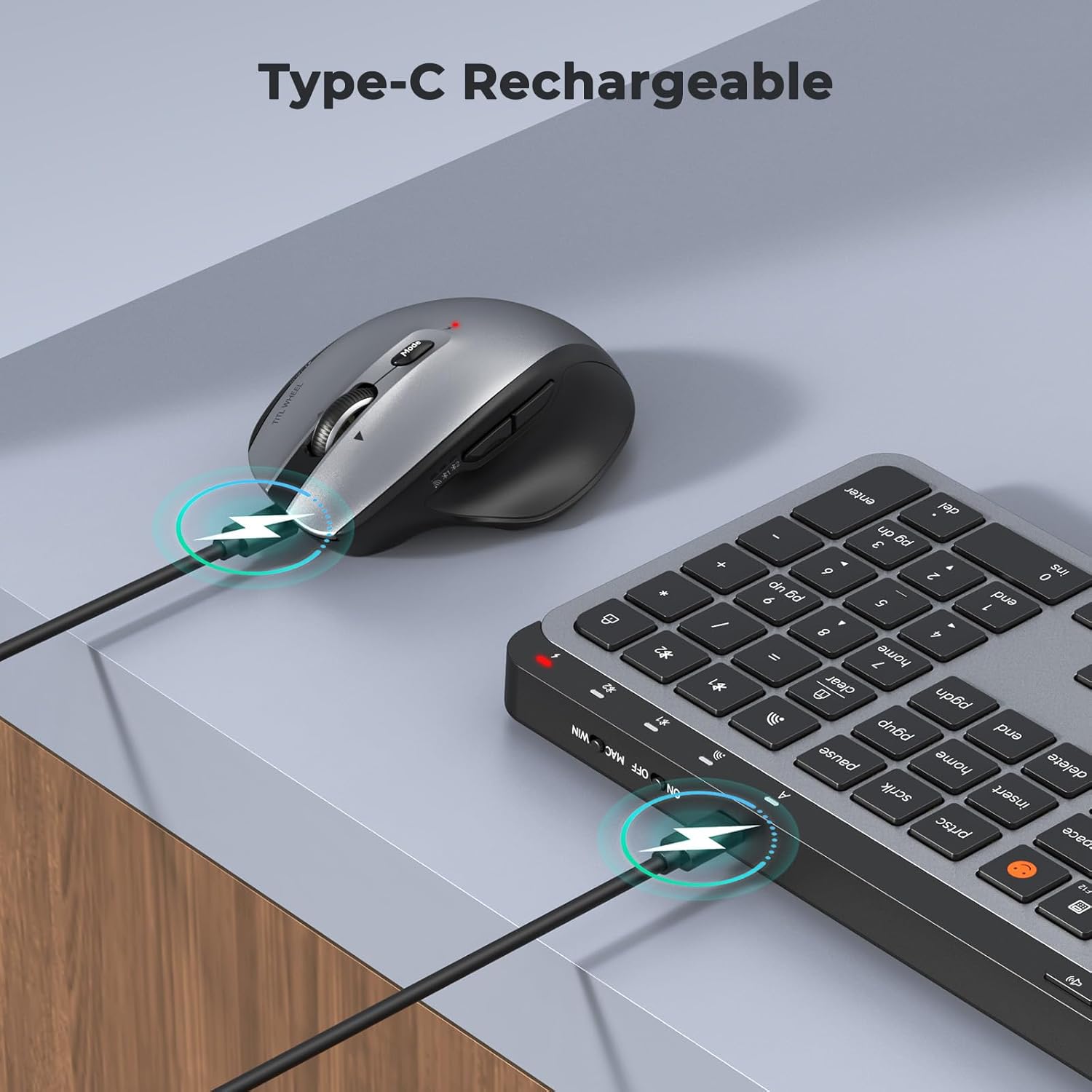
Image: Both the keyboard and mouse are rechargeable via USB-C, ensuring convenience and eliminating the need for disposable batteries.
2. Connecting to Devices
The C9990 combo supports three connection modes: 2.4GHz wireless (via USB receiver) and two Bluetooth channels (BT1, BT2).
2.1. 2.4GHz Wireless Connection
- Locate the USB receiver, typically stored in the mouse's battery compartment.
- Plug the USB receiver into an available USB port on your computer.
- Turn on the keyboard and mouse using their respective power switches.
- For the keyboard, press the 2.4G button (usually indicated by a USB icon) to switch to 2.4GHz mode.
- For the mouse, switch the mode selector to the 2.4G position.
- The devices should connect automatically.
2.2. Bluetooth Connection (BT1 / BT2)
- Turn on the keyboard and mouse.
- For Keyboard: Press and hold the BT1 or BT2 button for 3-5 seconds until the indicator light flashes rapidly, indicating pairing mode.
- For Mouse: Switch the mode selector to the BT1 or BT2 position, then press and hold the Bluetooth pairing button (often located on the underside) until the indicator light flashes.
- On your device (laptop, tablet, smartphone), go to Bluetooth settings and search for new devices.
- Select "MEETION Keyboard" and "MEETION Mouse" from the list to pair.
- Repeat for the second Bluetooth channel (BT2) if connecting to another device.
3. Switching Between Devices
The C9990 allows seamless switching between up to three connected devices (one 2.4GHz and two Bluetooth).
- For Keyboard: Press the dedicated 2.4G, BT1, or BT2 button to switch to the desired connected device.
- For Mouse: Use the mode switch on the underside of the mouse to select 2.4G, BT1, or BT2.

Image: The keyboard and mouse can switch between three devices (PC, tablet, phone) with a single click, indicated by the Bluetooth and 2.4G icons.
Operating Instructions
Keyboard Functions
- Multimedia Keys (F1-F12): These keys provide quick access to functions like brightness control, display window, home, dictation, sleep, app switcher, screen mirroring, screen capture, music player, email, and calculator. Functions may vary slightly depending on the operating system.
- Emoji Key: The dedicated emoji key supports Windows, macOS, iPad (iPadOS), and Android Samsung devices. It does not support iPhone (iOS).

Image: The keyboard features a row of multimedia keys (F1-F12) for quick access to various system functions.
Mouse Functions
- DPI Adjustment: Press the DPI switch button (usually located near the scroll wheel) to cycle through the available DPI settings (800, 1200, 1600, 2400). Adjust to your preference for cursor speed and precision.
- Tilt-Scroll Wheel: In addition to vertical scrolling, tilt the scroll wheel left or right for horizontal scrolling in applications that support it (e.g., spreadsheets).
- Forward/Backward Buttons: Use the side buttons for quick navigation in web browsers and file explorers.
Maintenance
- Cleaning: Use a soft, dry cloth to clean the surfaces of the keyboard and mouse. For stubborn dirt, slightly dampen the cloth with water or a mild cleaning solution. Avoid harsh chemicals or abrasive materials.
- Battery Care: To prolong battery life, avoid fully discharging the devices frequently. Charge them when the low battery indicator appears. If storing for an extended period, charge them to about 50% and recharge every few months.
- Storage: Store the devices in a cool, dry place away from direct sunlight and extreme temperatures.
Troubleshooting
Connection Issues
- Device not connecting: Ensure both the keyboard and mouse are powered on and fully charged. Check that the correct connection mode (2.4G, BT1, or BT2) is selected on both devices. For Bluetooth, ensure your host device's Bluetooth is enabled and the devices are in pairing mode.
- Intermittent connection: Move the devices closer to your computer. Avoid using them near strong electromagnetic interference sources (e.g., Wi-Fi routers, other wireless devices).
- 2.4GHz receiver not recognized: Try plugging the USB receiver into a different USB port. Ensure the receiver is fully inserted.
Functionality Issues
- Keys or mouse unresponsive: Recharge the devices. Restart your computer or device. Re-pair the devices if using Bluetooth or re-insert the USB receiver for 2.4GHz.
- Mouse cursor erratic: Clean the mouse sensor. Ensure you are using the mouse on a suitable surface (not highly reflective or transparent). Adjust DPI settings.
Specifications
| Model Number | C9990 |
| Connectivity Technology | Bluetooth, USB (2.4GHz Wireless) |
| Keyboard Layout | QWERTY, Full Size |
| Mouse Movement Detection | Optical |
| Mouse DPI Settings | 800, 1200, 1600, 2400 |
| Power Source | Battery Powered (Rechargeable via USB-C) |
| Compatible Operating Systems | Windows, macOS, Linux, Chrome OS, Android |
| Item Weight | 1.16 Kilograms (combined) |
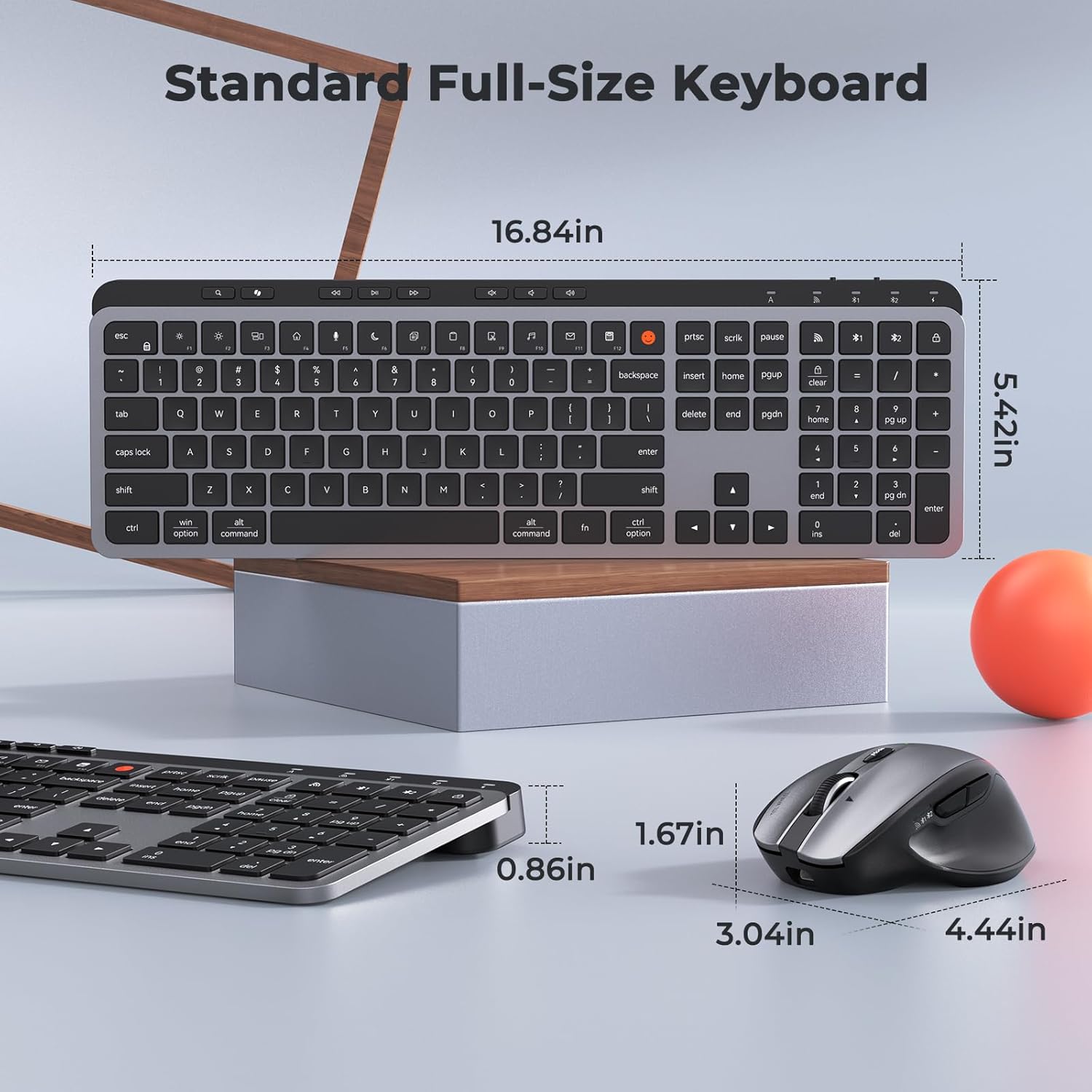
Image: Dimensions of the MEETION C9990 keyboard and mouse for reference.
Warranty and Support
The MEETION C9990 Wireless Bluetooth Keyboard and Mouse comes with a 1-Year Warranty from the date of purchase. This warranty covers manufacturing defects under normal use.
For technical support, troubleshooting assistance, or warranty claims, please contact MEETION customer service through the retailer where you purchased the product or visit the official MEETION website for contact information.
Safety Information
- Do not expose the devices to water, moisture, or extreme temperatures.
- Avoid dropping or subjecting the devices to strong impacts.
- Do not attempt to disassemble or repair the devices yourself. Refer to qualified service personnel.
- Keep out of reach of children.
- Dispose of batteries and electronic components responsibly according to local regulations.


