
1. Introduction
Thank you for choosing the VSTARCAM CB554-2K Wireless Outdoor Security Camera. This manual provides detailed instructions for the setup, operation, and maintenance of your new security camera. Please read this manual thoroughly before use to ensure proper installation and functionality. Keep this manual for future reference.
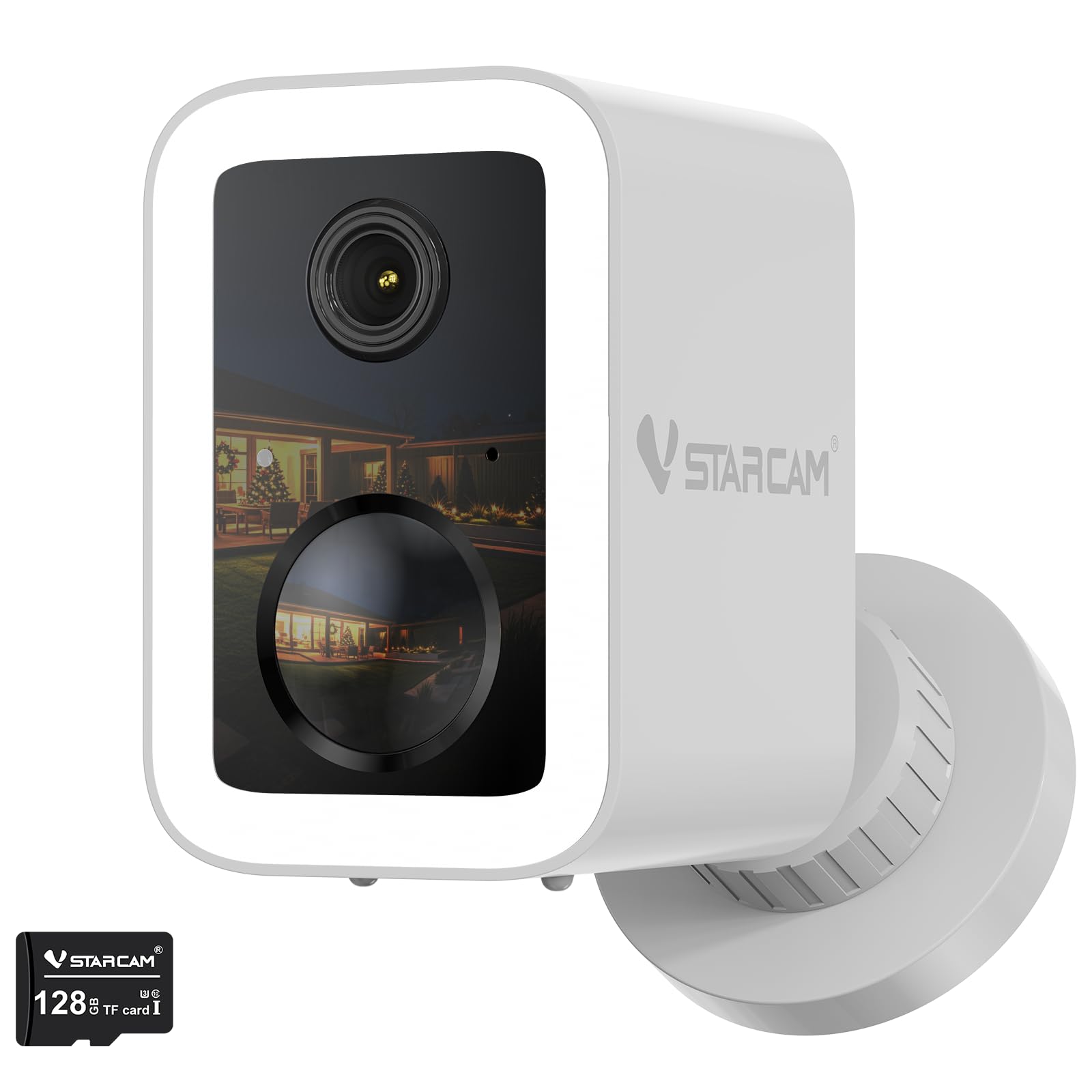
Image 1.1: VSTARCAM CB554-2K Wireless Outdoor Security Camera. This image shows the compact design of the camera, highlighting its suitability for outdoor use.
2. Product Overview
2.1 Key Features
- 2K Video Resolution: Provides clear and detailed video footage.
- Dual-Band Wi-Fi (2.4/5 GHz): Offers flexible connectivity options for stable streaming.
- AI Motion Detection: Intelligently identifies people, pets, and vehicles to reduce false alerts.
- Color Night Vision: Integrated spotlight and starlight sensor enable full-color video in low-light conditions.
- Battery Powered: Up to 6 months of battery life, depending on usage.
- Magnetic and Adhesive Mounting: Easy, drill-free installation on various surfaces.
- 128GB MicroSD Card Included: Ready for local video storage.
- 3-Day Free Cloud Storage: Rolling cloud storage for event clips without a monthly subscription.
- IP66 Weatherproof: Designed for reliable indoor and outdoor use, resistant to rain and dust.
- Two-Way Audio: Communicate with visitors or deter intruders remotely.
- Integrated Spotlight and Siren: Additional security features for active deterrence.
3. Setup
3.1 Charging the Camera
Before initial use, fully charge the camera using the provided USB cable and a compatible power adapter (not included). The charging indicator light will show the charging status.
3.2 Installing the MicroSD Card
The camera comes with a 128GB MicroSD card pre-installed. If you need to access or replace it, locate the MicroSD card slot, usually protected by a rubber cover. Gently insert or remove the card as needed, ensuring the camera is powered off first.
3.3 Mounting the Camera
The VSTARCAM CB554-2K offers flexible, drill-free installation options:
- Magnetic Mount: Attach the camera directly to any suitable metallic surface. The strong magnetic base provides a secure hold.
- Adhesive Mount: For non-metallic or smooth surfaces, use the included adhesive mounting base. Ensure the surface is clean and dry before applying the adhesive for maximum adhesion.
Position the camera to cover the desired monitoring area, such as an entryway, garage, or garden. Adjust the camera angle for optimal viewing.

Image 3.1: Magnetic Mount Installation. This image illustrates the ease of attaching the camera to a metallic surface using its magnetic base, requiring no tools or drilling.
3.4 Connecting to Wi-Fi
Download the VSTARCAM mobile application from your device's app store. Follow the in-app instructions to add your camera. The camera supports both 2.4 GHz and 5 GHz Wi-Fi networks, providing flexibility and a stable connection for live viewing and event alerts.

Image 3.2: Dual-Band WiFi Connection. This image highlights the camera's capability to connect to both 2.4 GHz and 5 GHz Wi-Fi networks for a robust and flexible connection.
4. Operating Instructions
4.1 Live View and Playback
Open the VSTARCAM app to access the live feed from your camera. You can view real-time video, take snapshots, and record manually. Use the playback feature to review recorded footage stored on the MicroSD card or in the cloud.
4.2 AI Motion Detection and Alerts
The camera's AI detection system is designed to differentiate between people, pets, and vehicles, minimizing irrelevant notifications. Customize alert settings within the app to receive notifications for specific types of motion. When an event is detected, the camera will record a clip and send an alert to your mobile device.
4.3 2K Video and Color Night Vision
The camera captures video in 2K resolution, providing clear images day and night. In low-light conditions, the integrated spotlight and starlight sensor activate to deliver full-color night vision, offering enhanced detail compared to traditional black and white infrared night vision.

Image 4.1: 2K Clarity Day or Night with Color Night Vision. This image demonstrates the camera's ability to provide clear 2K video and color night vision, showing a comparison between the CB554 camera's output and other cameras in low light.
4.4 Two-Way Audio, Spotlight, and Siren
Utilize the two-way audio feature to speak through the camera's built-in speaker and listen via its microphone. This is useful for communicating with delivery personnel or family members. The integrated spotlight can be manually activated or set to trigger upon motion detection to illuminate an area or deter unwanted visitors. The siren can also be activated remotely or automatically as an additional deterrent.
5. Maintenance
5.1 Battery Management
The camera is powered by a high-capacity battery designed for extended use (up to 6 months, depending on activity). The app will provide low battery alerts, prompting you to recharge the camera. For continuous power without frequent recharging, an optional solar panel (sold separately) can be connected.
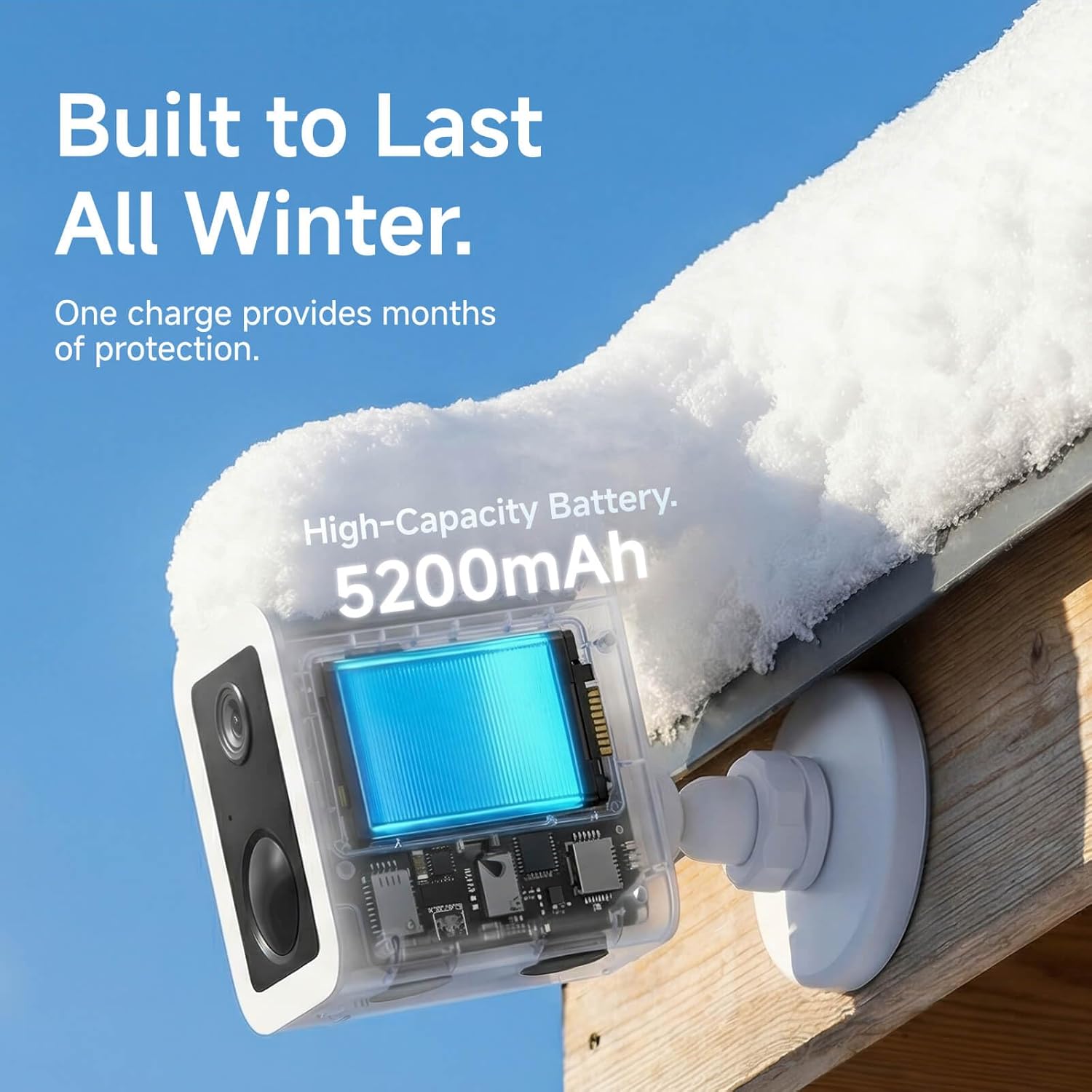
Image 5.1: High-Capacity Battery for Extended Use. This image illustrates the camera's internal battery, emphasizing its long-lasting power, even in cold weather conditions.
5.2 Storage Management
The camera records to the included 128GB MicroSD card. Once the card is full, older footage will be overwritten. Additionally, event clips are stored in the cloud for 3 days on a rolling basis, providing a backup without subscription fees. You can manage and download footage through the VSTARCAM app.

Image 5.2: Cloud Storage and MicroSD Card. This image shows a smartphone screen displaying the camera's app interface, highlighting the availability of free 3-day loop cloud storage and an included 128GB MicroSD card.
5.3 Cleaning the Camera
Periodically clean the camera lens and housing with a soft, damp cloth to remove dust and dirt. Avoid using harsh chemicals or abrasive materials that could damage the camera's finish or lens. Ensure the rubber cover for the MicroSD card slot and charging port is securely closed to maintain IP66 weather resistance.

Image 5.3: IP66 Weatherproof Design. This image depicts the camera in an outdoor setting, being exposed to water, illustrating its IP66 rating for protection against dust and water.
6. Troubleshooting
- Camera not connecting to Wi-Fi: Ensure your Wi-Fi network is active and you are entering the correct password. Try moving the camera closer to your router during setup. Verify that your router supports 2.4 GHz or 5 GHz bands and that the camera is attempting to connect to a compatible band.
- Poor video quality: Check your Wi-Fi signal strength in the camera's location. A weak signal can affect video streaming quality. Ensure the camera lens is clean and free from obstructions.
- No motion detection alerts: Verify that motion detection is enabled in the app settings. Adjust the sensitivity levels if necessary. Ensure the camera's field of view is clear.
- Battery draining quickly: Frequent motion detection, live viewing, and use of the spotlight/siren can reduce battery life. Consider reducing detection sensitivity or event recording duration. An optional solar panel can help maintain charge.
- Cannot access recorded footage: Ensure the MicroSD card is properly inserted and formatted. Check your cloud storage status in the app.
7. Specifications
| Feature | Detail |
|---|---|
| Model Number | CB554 |
| Video Resolution | 2K |
| Connectivity | Wi-Fi 2.4 GHz / 5 GHz |
| Special Features | NO-DRILL installation, AI Detection, Color Night Vision, 128GB MicroSD card included, Free 3-day cloud storage, Battery powered |
| Battery Life | Up to 6 months (usage dependent) |
| Weather Resistance | IP66 |
| Storage | 128GB MicroSD (included), 3-day rolling cloud storage |
| Material | Plastic |
| Dimensions (L x W x H) | 6 x 5.9 x 8.8 cm |
| Recommended Use | Outdoor Security |
8. Warranty and Support
For warranty information and technical support, please refer to the official VSTARCAM website or contact their customer service directly. Details can typically be found on the product packaging or within the VSTARCAM mobile application's help section.
Please retain your proof of purchase for any warranty claims.


