
1. Introduction
This manual provides essential information for the safe and efficient use of your Lenovo Tab K11 Gen 2 TB336ZA Tablet. Please read this manual thoroughly before using your device to ensure proper operation and to prevent damage. Keep this manual for future reference.
2. Product Overview
Familiarize yourself with the physical components of your Lenovo Tab K11 Gen 2 TB336ZA Tablet.
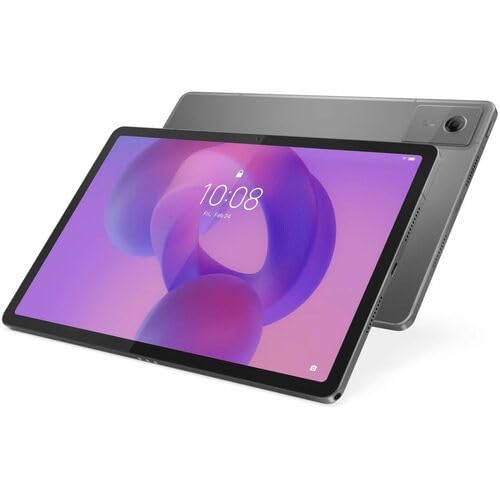
Figure 2.1: Front view of the Lenovo Tab K11 Gen 2 TB336ZA Tablet, showing the 11-inch display and front camera.

Figure 2.2: Side view of the tablet, highlighting the power button and volume control buttons.

Figure 2.3: Bottom side view of the tablet, featuring the USB Type-C port for charging and data transfer, along with speaker grilles.

Figure 2.4: Top side view of the tablet, indicating the location of the SIM/microSD card tray.
2.1. Components and Controls
- Power Button: Located on the side, used to turn the tablet on/off or wake/sleep the screen.
- Volume Buttons: Adjust the audio volume.
- USB Type-C Port: For charging the tablet and connecting to a computer for data transfer.
- Front Camera: 8 Megapixel camera for video calls and selfies.
- Rear Camera: 13 Megapixel camera for photos and videos.
- MicroSD/SIM Card Tray: Insert a Nano SIM card for cellular connectivity and a microSD card for expandable storage.
- Speakers: Provide audio output.
- Microphones: For voice input during calls or recordings.
3. Setup
3.1. Charging the Tablet
Before first use, fully charge your tablet using the provided USB Type-C cable and power adapter. Connect the USB-C cable to the tablet's USB-C port and the adapter to a power outlet. The charging indicator will show the charging status.
3.2. Powering On/Off
- To Power On: Press and hold the Power button until the Lenovo logo appears.
- To Power Off: Press and hold the Power button until the power options menu appears, then select "Power off."
- To Restart: Press and hold the Power button until the power options menu appears, then select "Restart."
3.3. Initial Configuration
Upon first power-on, the tablet will guide you through the initial setup process. This includes selecting your language, connecting to a Wi-Fi network, setting up your Google account, and configuring security options.
3.4. Installing SIM and MicroSD Cards
To install a Nano SIM card for 5G cellular connectivity or a microSD card for additional storage (up to 2 TB):
- Locate the SIM/microSD card tray on the side of the tablet.
- Insert the SIM ejector tool (not included, typically a paperclip) into the small hole on the tray to eject it.
- Place the Nano SIM card and/or microSD card into the designated slots on the tray, ensuring correct orientation.
- Carefully push the tray back into the tablet until it clicks into place.
4. Operating the Tablet
4.1. Basic Navigation
The Lenovo Tab K11 Gen 2 TB336ZA features an 11-inch touchscreen display. Navigate the Android 15 operating system using touch gestures:
- Tap: Select an item or open an app.
- Swipe: Scroll through screens or lists.
- Pinch: Zoom in or out on images and web pages.
- Long Press: Access contextual menus or move icons.
4.2. Connectivity
- Wi-Fi: Connect to wireless networks via IEEE 802.11ac (Wi-Fi 5). Go to Settings > Network & internet > Wi-Fi to manage connections.
- Bluetooth: Pair with Bluetooth 5.2 devices such as headphones or speakers. Go to Settings > Connected devices > Connection preferences > Bluetooth.
- 5G Cellular: If a Nano SIM card is installed and activated, the tablet supports 5G, 4G, GPRS, and EDGE cellular data. Manage cellular settings in Settings > Network & internet > Mobile network.
- GPS: The tablet includes GPS functionality for location services.
4.3. Camera Usage
The tablet is equipped with an 8 Megapixel front camera and a 13 Megapixel rear camera. Open the Camera app to capture photos and videos. The app provides various modes and settings for different shooting conditions.
4.4. Display Settings
Customize your viewing experience:
- Brightness: Adjust screen brightness in Settings > Display or via the quick settings panel.
- Refresh Rate: The 90 Hz standard refresh rate provides smooth visuals.
- Screen Resolution: The 2.5K (2560 x 1600) IPS display offers crisp images.
5. Maintenance
5.1. Cleaning the Tablet
Use a soft, lint-free cloth to clean the screen and body of the tablet. For stubborn smudges, slightly dampen the cloth with water or a screen cleaner designed for electronics. Avoid harsh chemicals or abrasive materials.
5.2. Software Updates
Keep your tablet's software up to date to ensure optimal performance and security. The tablet runs on Android 15. Check for updates in Settings > System > System update.
5.3. Storage Management
Regularly manage your 128 GB internal storage. Delete unnecessary files, uninstall unused apps, or move large files to a microSD card to free up space. You can check storage usage in Settings > Storage.
6. Troubleshooting
This section addresses common issues you might encounter with your tablet.
6.1. Tablet Does Not Power On
- Ensure the tablet is sufficiently charged. Connect it to the charger for at least 30 minutes.
- Press and hold the Power button for 10-15 seconds to perform a forced restart.
6.2. Wi-Fi Connectivity Issues
- Toggle Wi-Fi off and on in Settings > Network & internet > Wi-Fi.
- Restart your Wi-Fi router.
- Forget the network and reconnect.
6.3. Slow Performance
- Close unused applications running in the background.
- Clear cache data for apps.
- Ensure sufficient free storage space.
- Restart the tablet.
6.4. Apps Crashing
- Clear the app's cache and data in Settings > Apps > [App Name] > Storage & cache.
- Update the app to its latest version from the Google Play Store.
- Uninstall and reinstall the app.
7. Specifications
| Feature | Specification |
|---|---|
| Brand | Lenovo |
| Model Name | ZAGX0007US |
| Product Model | TB336ZA |
| Operating System | Android 15 |
| Processor | MediaTek Dimensity 6300 Octa-core (Cortex A76 Dual-core 2.40 GHz + Cortex A55 Hexa-core 2 GHz) |
| RAM | 8 GB LPDDR4X |
| Internal Storage | 128 GB Flash Memory |
| Expandable Storage | microSD up to 2 TB |
| Screen Size | 11 Inches |
| Display Type | In-plane Switching (IPS) Technology |
| Screen Resolution | 2560 x 1600 (2.5K) |
| Brightness | 500 Nit |
| Refresh Rate | 90 Hz |
| Front Camera | 8 Megapixel |
| Rear Camera | 13 Megapixel |
| Wireless Connectivity | Wi-Fi 5 (IEEE 802.11ac), Bluetooth 5.2 |
| Cellular Connectivity | 5G, 4G, GPRS, EDGE (Nano SIM supported) |
| Ports | 1 x USB-C (Hi-Speed USB / USB 2.0, with charging) |
| Sensors | Accelerometer, Ambient Light Sensor, Hall Effect Sensor |
| Battery Average Life | 8 Hours |
| Color | Luna Gray |
| Item Dimensions (L x W x Thickness) | 10.7"L x 7.2"W x 1.8"Th |
| Item Weight | 4 Pounds |
8. Warranty and Support
According to product information, this device comes with No Warranty. For technical support, software updates, and additional resources, please visit the official Lenovo support website or contact Lenovo customer service. You can find more information and support at www.lenovo.com/support.