
1. Introduction
The QGOO AX1800 WiFi 6 USB 3.0 Dual Band Adapter provides high-speed wireless connectivity for your desktop or laptop computer. Utilizing the latest WiFi 6 (802.11ax) technology, this adapter supports dual-band operation (2.4GHz and 5GHz) and features dual 5dBi high-gain antennas for enhanced signal reception. It is designed to improve your computer's wireless performance for activities such as 4K streaming, online gaming, and video conferencing.
2. Package Contents
- QGOO AX1800 WiFi 6 USB 3.0 Dual Band Adapter
- Instruction Manual
- Driver CD (for systems without internet access)
3. System Requirements
- Operating System: Windows 11, Windows 10, Windows 8.1, Windows 8, Windows 7
- USB Port: Available USB 3.0 port (compatible with USB 2.0/1.1, but USB 3.0 is recommended for optimal performance)
Note: This adapter is not recommended for Linux or Mac systems.

Image: Supported Operating Systems for the QGOO AX1800 WiFi Adapter.
4. Setup and Installation
Follow these steps to install your QGOO AX1800 WiFi Adapter:
- Install Drivers:
Before plugging in the adapter, install the necessary drivers. You can do this by:
- Using the provided Driver CD: Insert the CD into your computer's optical drive and follow the on-screen instructions to run the setup program.
- Downloading drivers: If your computer does not have an optical drive or you prefer the latest drivers, visit the official QGOO support website (refer to the packaging or included documentation for the URL) and download the drivers for the AX1800 model. Run the downloaded setup file.
Note: Some Windows 10/11 systems may automatically install a basic driver upon connection, but installing the official driver is recommended for full functionality and performance.
- Plug in the Adapter:
Once the drivers are installed, plug the QGOO AX1800 WiFi Adapter into an available USB 3.0 port on your desktop or laptop. Ensure it is securely inserted.
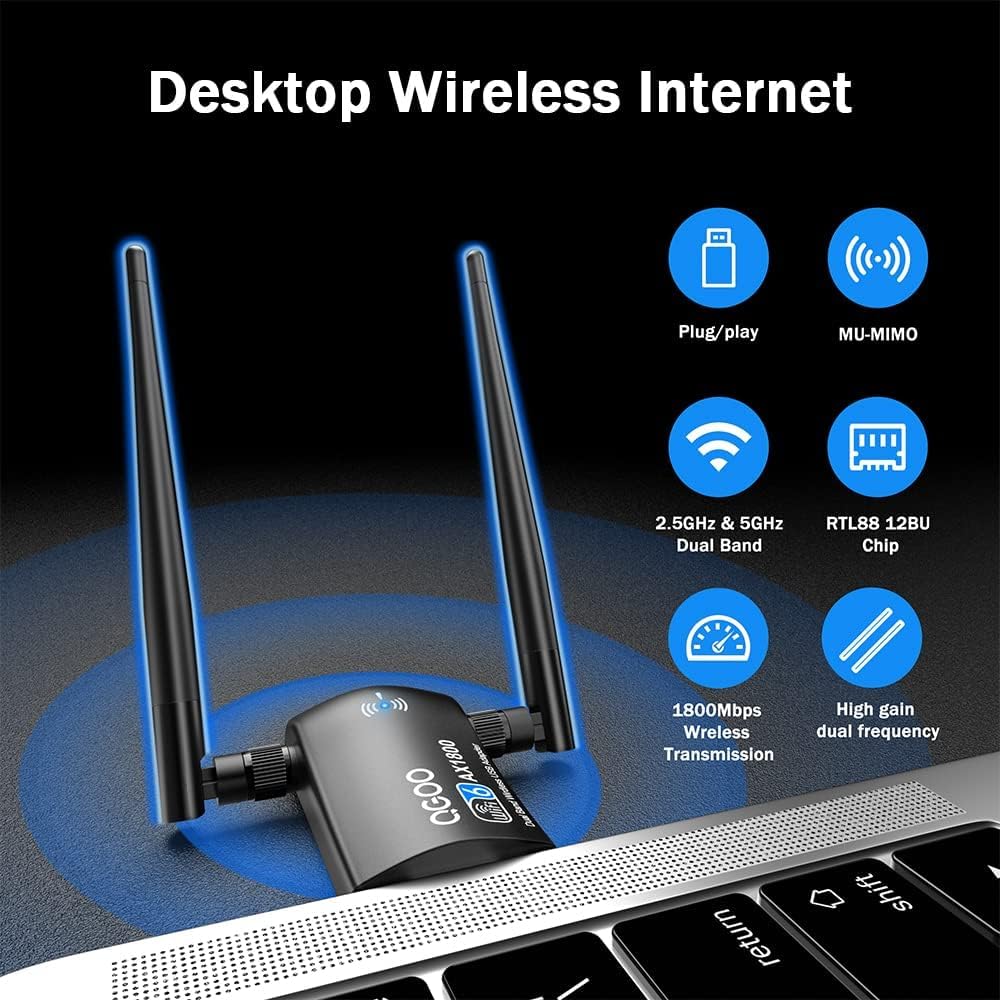
Image: The QGOO AX1800 WiFi Adapter connected to a computer.
- Adjust Antennas:
Adjust the dual 5dBi antennas to an upright position or angle them for optimal signal reception. The antennas are multi-directional and can be rotated 360 degrees and tilted 90 degrees.

Image: Adjustable multi-directional antennas for the QGOO AX1800 WiFi Adapter.
- Connect to a Wi-Fi Network:
After the adapter is recognized by your system, an icon should appear in your system tray (usually in the bottom-right corner of your screen). Click on this icon to view available Wi-Fi networks. Select your desired network, enter the password if prompted, and click "Connect."
5. Operating Instructions
5.1 Connecting to a Wireless Network
Once the adapter is installed, your computer will detect available wireless networks. To connect:
- Click the Wi-Fi icon in your system tray.
- A list of available networks will appear. Select your network's name (SSID).
- If the network is secured, enter the network security key (password).
- Click "Connect."
5.2 Dual Band Operation (2.4GHz and 5GHz)
The AX1800 adapter supports both 2.4GHz and 5GHz frequency bands. The 2.4GHz band offers wider coverage and better penetration through obstacles, while the 5GHz band provides faster speeds and less interference over shorter distances. Your computer will typically connect to the most suitable band automatically. If your router broadcasts separate SSIDs for each band, you can manually select which band to connect to.

Image: Dual-band capability (5GHz and 2.4GHz) of the QGOO AX1800 WiFi Adapter.
5.3 Creating a Wi-Fi Hotspot
The adapter can also be used to create a Wi-Fi hotspot from your computer, allowing other devices to connect to your computer's internet connection. This feature is typically managed through your Windows operating system's Mobile Hotspot settings.
- Go to Settings > Network & Internet > Mobile hotspot.
- Toggle the "Share my Internet connection with other devices" switch to On.
- You can customize the network name and password in the Mobile Hotspot settings.
6. Key Features
- High Gain & Beamforming: Equipped with dual 5dBi antennas for improved signal reception. Beamforming technology directs Wi-Fi signals towards connected devices, enhancing range and stability.
- Dual Band WiFi 6 High Speed: Supports the latest 802.11ax (WiFi 6) standard, offering speeds up to 1200 Mbps on the 5GHz band and 574 Mbps on the 2.4GHz band. Ideal for high-bandwidth applications.
- USB 3.0 & WPA3 Security: Utilizes a USB 3.0 interface for higher data throughput and a more stable connection. Backward compatible with USB 2.0/1.1. Supports WPA3/WPA2/WPA/WEP security protocols to protect your network.
- Lower Latency: Incorporates OFDMA, MU-MIMO, 1024-QAM, and Target Wake Time technologies for efficient connectivity, reduced latency, and lower power consumption, especially in busy network environments.

Image: USB 3.0 connectivity benefits for the QGOO AX1800 WiFi Adapter.

Image: Ultra-fast speed capabilities of the QGOO AX1800 WiFi Adapter.
7. Specifications
| Brand | QGOO |
| Model Number | AX1800 |
| Hardware Interface | USB 3.0 (compatible with USB 2.0/1.1) |
| Wireless Standard | IEEE 802.11ax/ac/a/b/g/n |
| Data Transfer Rate | Up to 1200 Mbps (5GHz), 574 Mbps (2.4GHz) |
| Frequency Bands | 2.4GHz and 5GHz Dual Band |
| Antennas | Dual 5dBi High Gain Antennas |
| Security Protocols | WPA3/WPA2/WPA/WEP |
| Compatible Operating Systems | Windows 11/10/8.1/8/7 |
| Compatible Devices | Desktop, Laptop |
| Color | Black |
8. Troubleshooting
- No Wi-Fi Connection:
- Ensure the adapter is securely plugged into a USB port.
- Verify that the drivers are correctly installed. Check Device Manager for any error symbols next to the adapter.
- Restart your computer.
- Try plugging the adapter into a different USB port, preferably a USB 3.0 port.
- Ensure your router is powered on and broadcasting a Wi-Fi signal.
- Slow Connection Speed:
- Ensure you are connected to the 5GHz band if available and within close range of your router.
- Adjust the antennas for optimal signal reception.
- Check for interference from other electronic devices (e.g., microwaves, cordless phones).
- Update your adapter drivers to the latest version.
- Ensure your router's firmware is up to date.
- Intermittent Connection / Disconnections:
- Check the physical connection of the adapter to the USB port.
- In Windows Device Manager, locate the adapter, right-click, go to "Properties," then "Power Management," and uncheck "Allow the computer to turn off this device to save power." Do this for the USB Root Hubs as well.
- Ensure the antennas are not loose or damaged.
- Move the computer closer to the router or adjust antenna orientation.
- Driver Installation Issues:
- Temporarily disable antivirus software during driver installation.
- If using the CD, ensure your optical drive is functioning correctly.
- If downloading, ensure the download is complete and not corrupted. Try downloading from a different browser or computer if possible.
9. Maintenance
- Keep Clean: Regularly clean the adapter and USB port with a soft, dry cloth to prevent dust buildup.
- Avoid Physical Damage: Handle the adapter carefully. Avoid bending the antennas excessively or applying undue force to the USB connector.
- Driver Updates: Periodically check the QGOO official website for updated drivers to ensure optimal performance and compatibility.
- Storage: When not in use for extended periods, store the adapter in a cool, dry place away from direct sunlight and extreme temperatures.
10. Warranty and Support
For warranty information or technical support, please refer to the documentation included with your product or visit the official QGOO website. Contact information for customer service can typically be found there.
Online Resources: For additional support, driver downloads, and FAQs, please visit the QGOO official support page.
