
1. Introduction
The ThinkRider VS200 Cycling BLE Controller is designed to enhance your indoor cycling experience by providing virtual shifting capabilities for compatible bike trainers. This manual provides essential information for setting up, operating, maintaining, and troubleshooting your VS200 controller.
2. Product Overview
The VS200 controller features patented smooth shifting technology, ultra-easy setup, and precise resistance adjustment. It is lightweight and equipped with a long-lasting battery.
Key Features:
- Patented Smooth Shifting: Unique core shifting technology achieves seamless gear changes and instant response.
- Ultra-Easy Setup: Initial setup is simple using the ThinkRiderTools app; subsequently, direct connection to the bike trainer is possible.
- 60-Stage Precise Resistance Adjustment: Adapts to various training scenarios, matching diverse training needs.
- 8g Ultra-Lightweight Design: Ensures minimal added weight to your setup.
- Reliable Long-Lasting Battery: Equipped with a smart standby function (automatic sleep after 30 minutes), offering excellent durability and sustainability.
Product Contents:

Description: A visual representation of the product contents, including the VS200 unit, a virtual cassette, and three straps of different lengths.
- VS200 Virtual Shifter Unit ×1
- Virtual Cassette ×1
- Straps (S/M/L sizes) ×3
3. Setup
Follow these steps for initial setup and installation of your ThinkRider VS200 controller.
3.1 Initial Pairing and Configuration
- Download the ThinkRiderTools application to your smartphone.
- Open the app and follow the on-screen instructions to pair the VS200 controller with your bike trainer.
- From the settings screen in the app, select the desired gear ratio. Options typically include:
- 5% Low Gear: Ideal for hill climbs and long-distance riding.
- 8% Mid-Range Gear: Optimal for daily training and simulating real riding scenarios.
- 12% High-Range Gear: Best for high-intensity training and sprints.
- Once paired, the VS200 will automatically connect to your trainer for subsequent uses.

Description: A visual guide demonstrating how to open the virtual cassette and its internal components for installation.
3.2 Mounting the VS200 Controller
Use the provided straps to securely attach the VS200 controller to your bicycle handlebar. Ensure it is positioned for easy access to the +/- buttons during your ride.

Description: A user's hand pressing the buttons on the VS200 controller, which is mounted on a bicycle handlebar.
4. Operating Instructions
The VS200 offers intuitive control over your virtual shifting experience.
4.1 Virtual Shifting
- Press the + button to shift to a harder (higher) gear.
- Press the - button to shift to an easier (lower) gear.
- The resistance change is immediate and smooth, providing a realistic riding feel.

Description: The VS200 controller on a handlebar, illustrating its one-touch activation and automatic standby feature.
4.2 Automatic Standby
The VS200 features a switch-less design. If there is no operation for 30 minutes, the trainer will automatically enter standby mode to conserve battery. Simply press any button to instantly reactivate the device.
4.3 Compatibility
The VS200 is compatible with both virtual and physical cassette setups on bike trainers.

Description: An illustration showing the VS200 controller communicating via BLE with both a virtual cassette setup and a traditional physical cassette setup on bike trainers.
4.4 Important Notes
- For optimal performance and experience, always use a combination of a large chainring and a mid-range cassette sprocket.
- The VS200 cannot be used in ERG mode (constant power output mode). The virtual shift function is temporarily disabled in ERG mode.
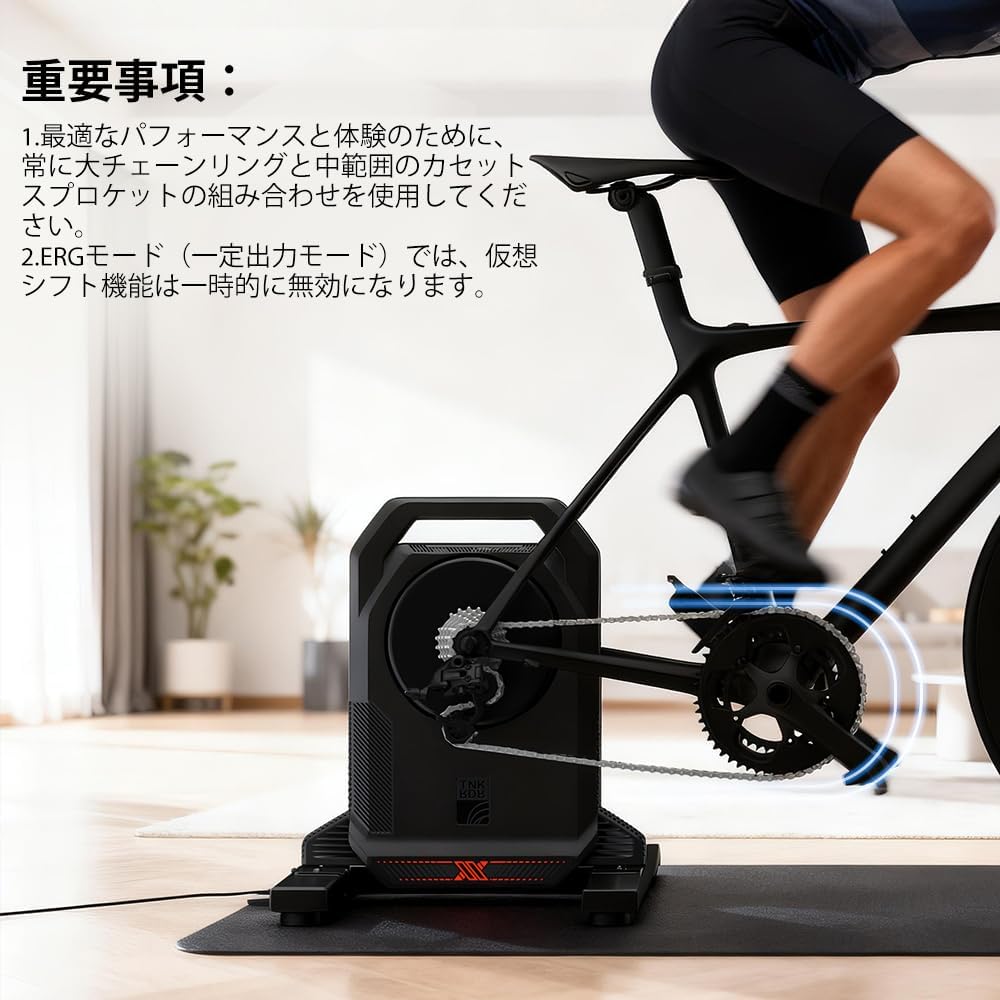
Description: An image displaying important usage instructions, including recommendations for chainring and cassette combinations, and a note about ERG mode.
5. Maintenance
Proper maintenance ensures the longevity and optimal performance of your VS200 controller.
5.1 Charging
- The VS200 uses Type-C fast charging.
- A full charge takes approximately 2 hours.
- The battery provides approximately 400 hours of continuous use or 6 months of standby time.

Description: The VS200 controller connected to a power adapter via a USB-C cable for charging, highlighting its durability and long battery life.
5.2 Cleaning
Wipe the device with a soft, dry cloth. Avoid using harsh chemicals or abrasive materials.
6. Troubleshooting
If you encounter issues with your VS200 controller, refer to the following common solutions.
6.1 Connectivity Issues
- Ensure Bluetooth (BLE) is enabled on your smartphone or bike trainer.
- Verify that the VS200 is within range of your bike trainer.
- Restart the ThinkRiderTools app and attempt to re-pair the device.
- Check the battery level of the VS200.
6.2 Shifting Not Responding
- Confirm that the VS200 is not in ERG mode, as virtual shifting is disabled in this mode.
- Ensure the device is properly paired and connected to your trainer.
- If using with MyWhoosh or similar apps, ensure the app settings are correctly configured for virtual shifting.
6.3 Unknown Current Gear Position
The VS200 operates by adjusting resistance levels rather than simulating physical gear positions. Therefore, the exact 'current gear' may not be explicitly displayed. This does not affect the functionality or performance of the virtual shifting.
7. Specifications
| Brand | ThinkRider |
| Model | VS200 |
| Color | Black |
| Material | Plastic |
| Resistance Mechanism | Electronic |
| Manufacturer | THINKRIDER |
| Country of Origin | China |
| Included Components | Virtual Shifter ×1 |
8. Warranty and Support
8.1 Warranty Information
The ThinkRider VS200 Cycling BLE Controller comes with a 1-year manufacturer's warranty from the date of purchase. This warranty covers defects in materials and workmanship under normal use. Please retain your proof of purchase for warranty claims.
8.2 Customer Support
For technical assistance, troubleshooting, or warranty inquiries, please contact ThinkRider customer support through their official website or the retailer where the product was purchased. You may also refer to the ThinkRiderTools app for additional resources and FAQs.


