
1. Introduction
Thank you for choosing the Fabater Head-Mounted 2.7K 30FPS WiFi Video Camera. This device is designed for hands-free video recording, capturing your experiences with clarity and stability. Please read this manual carefully to understand the camera's features, operation, and maintenance, ensuring optimal performance and longevity.
2. Product Overview
Key Features
- 2.7K HD Video Recording: Capture vivid 2.7K 30fps video and 12MP photos.
- Intelligent Image Stabilization: Reduces shake for smoother footage during movement.
- 110-Degree Wide-Angle Lens: Expansive field of view for capturing broad scenes.
- Lightweight & Ergonomic Design: Weighs only 21g, with an adjustable ear-hook style mount for comfortable, prolonged use.
- WiFi Connectivity & App Control: Easily transfer photos and videos to your smartphone via the dedicated app.
- Simple Operation: Features 3 dedicated buttons for straightforward control.
- Noise Cancellation: Intelligent noise cancellation for clear audio recording.

Image 2.1: The Fabater Head-Mounted Camera in various real-life scenarios, demonstrating its versatility for capturing daily activities, sports, and special moments hands-free.
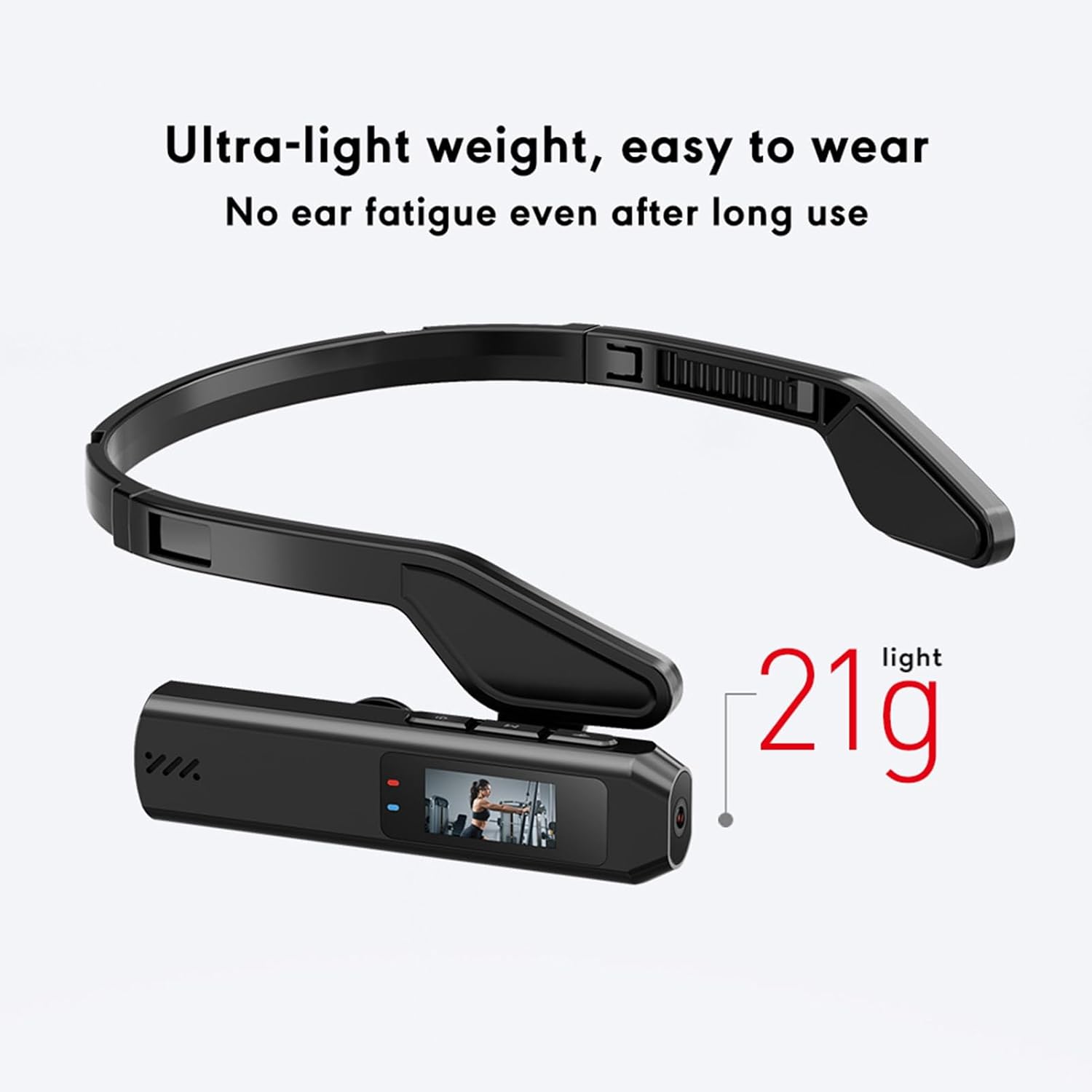
Image 2.2: The camera's ultra-lightweight design, weighing only 21 grams, ensures comfort even during extended wear, preventing ear fatigue.

Image 2.3: Detailed view of the camera's ergonomic design, including upgraded materials, a bidirectionally adjustable headband, non-slip and breathable components, and easily accessible physical buttons for intuitive control.
3. Setup
3.1 Charging the Battery
Before first use, fully charge the camera's built-in battery. Connect the camera to a USB power source using the provided Type-C cable. The charging indicator light will show the charging status.

Image 3.1: The camera offers approximately 60 minutes of continuous recording on a full charge, providing ample time for capturing your activities.
3.2 Inserting a Memory Card
The camera supports memory cards up to 128GB (not included). Locate the memory card slot, typically protected by a cover. Insert the memory card with the contacts facing the correct direction until it clicks into place. Ensure the camera is powered off before inserting or removing the card.
3.3 Wearing the Camera
The camera features an adjustable ear-hook style mount. Adjust the length of the headband to comfortably fit your head size. Position the camera so the lens is facing forward and has an unobstructed view. The lightweight design minimizes fatigue during extended use.
3.4 Powering On/Off
- To Power On: Press and hold the Power button for a few seconds until the screen illuminates.
- To Power Off: Press and hold the Power button again until the screen turns off.
4. Operating Instructions
4.1 Recording Video
Once the camera is powered on, press the dedicated Record button to start video recording. The recording indicator (e.g., a red dot or flashing light) will activate. Press the Record button again to stop recording. Videos are saved to the inserted memory card.

Image 4.1: The camera's ultra-transparent optical lens is designed for high-quality 2.7K video recording, ensuring clear and detailed footage.

Image 4.2: The 110-degree wide-angle lens captures a broad perspective, ideal for immersive recordings of landscapes, sports, and dynamic scenes.
4.2 Taking Photos
To take a photo, press the dedicated Photo button. The camera will capture a 12MP image and save it to the memory card.
4.3 Connecting to Wi-Fi and App
The camera supports Wi-Fi connectivity for easy file transfer and remote control via a smartphone app (e.g., Viidure). Follow these steps:
- Download the recommended app (e.g., Viidure) from your smartphone's app store.
- Turn on the camera's Wi-Fi function (refer to the camera's small screen or specific button for Wi-Fi activation).
- On your smartphone, go to Wi-Fi settings and connect to the camera's Wi-Fi network (SSID and password usually found on the camera screen or manual).
- Open the app. You should now be able to view live footage, browse recorded files, and transfer them to your phone.
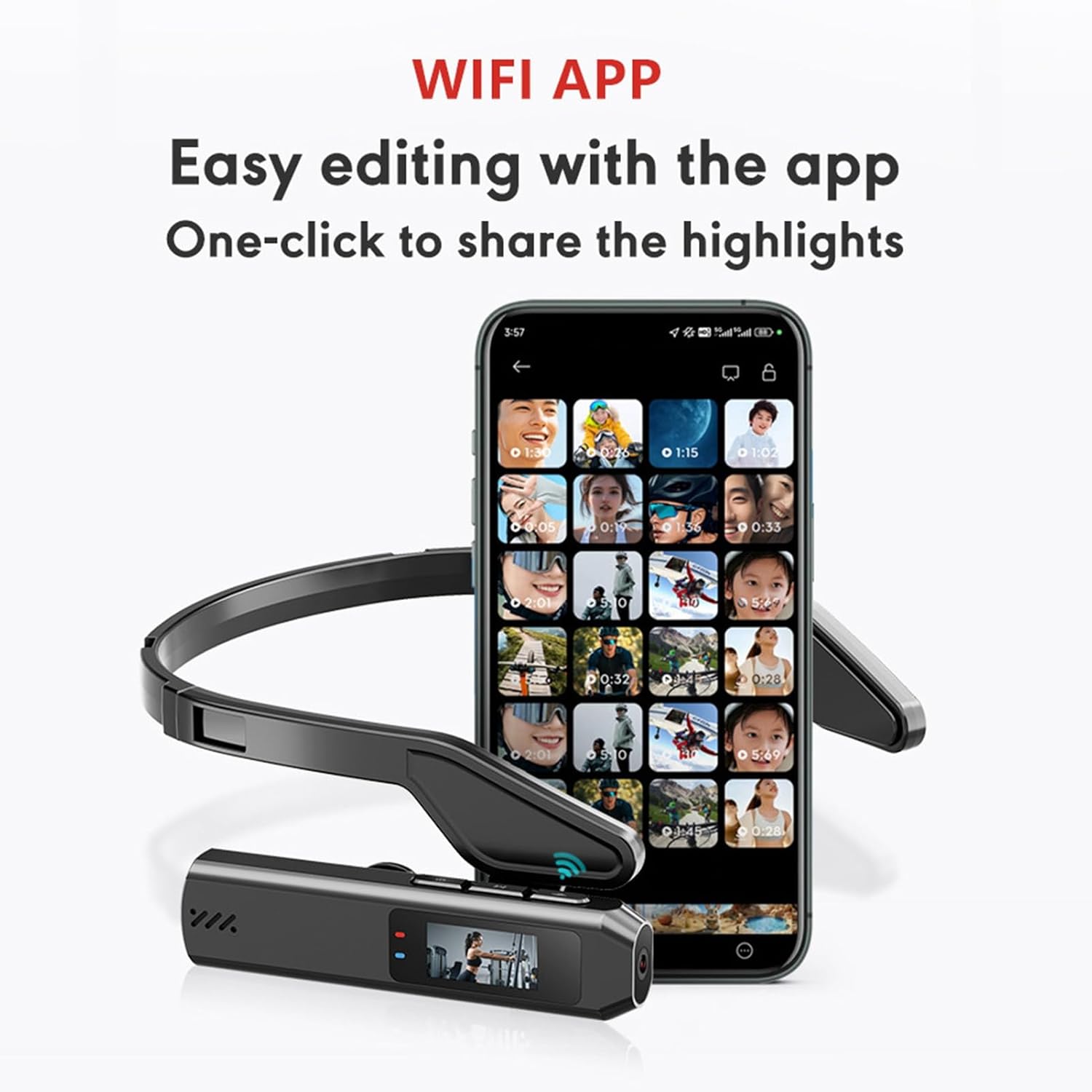
Image 4.3: The dedicated WiFi app allows for quick transfer of photos and videos to your smartphone, enabling easy editing and sharing of your captured moments.
4.4 Intelligent Noise Cancellation
The camera features intelligent noise cancellation to enhance audio quality during recording, ensuring clearer sound capture by reducing ambient noise.

Image 4.4: The intelligent noise cancellation feature actively reduces background noise, providing clearer audio for your video recordings.
5. Maintenance
5.1 Cleaning the Camera
- Use a soft, dry cloth to clean the camera body.
- For the lens, use a specialized lens cleaning cloth and solution to avoid scratches.
- Do not use harsh chemicals or abrasive materials.
5.2 Storage
- Store the camera in a cool, dry place away from direct sunlight and extreme temperatures.
- If storing for an extended period, ensure the battery is partially charged (around 50%) to prolong its lifespan.
5.3 Battery Care
- Avoid fully discharging the battery frequently.
- Charge the battery regularly, even if not in use, to maintain its health.
6. Troubleshooting
| Problem | Possible Cause | Solution |
|---|---|---|
| Camera does not power on. | Low battery; faulty battery; power button issue. | Charge the battery. If problem persists, contact support. |
| Cannot record video/take photos. | No memory card; memory card full; memory card error. | Insert a memory card. Delete old files or replace card. Format card if necessary. |
| Video footage is shaky. | Excessive movement; stabilization not active. | Ensure camera is securely mounted. Intelligent image stabilization is automatic. |
| Cannot connect to Wi-Fi/App. | Wi-Fi not enabled on camera; incorrect password; app issue. | Enable camera Wi-Fi. Verify password. Restart camera and phone. Reinstall app. |
| Poor audio quality. | High ambient noise; microphone obstructed. | Ensure microphone is clear. Intelligent noise cancellation is active. |
7. Specifications
| Feature | Detail |
|---|---|
| Model Number | Fabatertj74smf2ln |
| Material | ABS |
| Languages | Multi-language support |
| Anti-vibration Type | Electronic Image Stabilization |
| Screen Size | 0.96 inches |
| Video Resolution | Up to 2.7K 30fps |
| Lens Angle | 110 degrees (Wide-Angle) |
| Aspect Ratio | 16:9 |
| Image Format | JPG |
| Video Format | MOV |
| Battery Type | Built-in high-capacity polymer lithium-ion battery |
| Battery Capacity | 200mAh |
| Storage Support | Supports memory card up to 128GB (not included) |
| Interface Type | Type C |
| Recommended Playback Software | Viidure (App) |
| Manufacturer | Fabater |
| Country of Origin | China |
8. Warranty Information
All purchased Fabater products come with a standard 120-day warranty. The warranty period commences on the original shipping date of the product. This warranty covers all products and conditions as identified in the manufacturer's original warranty documentation. Please note that some specific products or conditions may not be covered by this warranty. For detailed warranty terms and conditions, please refer to the documentation provided at the time of purchase or contact customer support.
9. Support
If you encounter any issues not covered in this manual or require further assistance, please contact Fabater customer support. You can typically find contact information on the product packaging, the official Fabater website, or through your retailer.