
1. Introduction
Thank you for purchasing the iFFALCON 40S55 FHD Google TV. This manual provides essential information for setting up, operating, and maintaining your television. Please read it thoroughly before use and keep it for future reference.
The iFFALCON 40S55 offers a rich entertainment experience with features such as HDR10, Dolby Audio, Google TV, Google Cast, Google Assistant, Kid's Profile, W-Tuner with recording capabilities, and Game Mode.
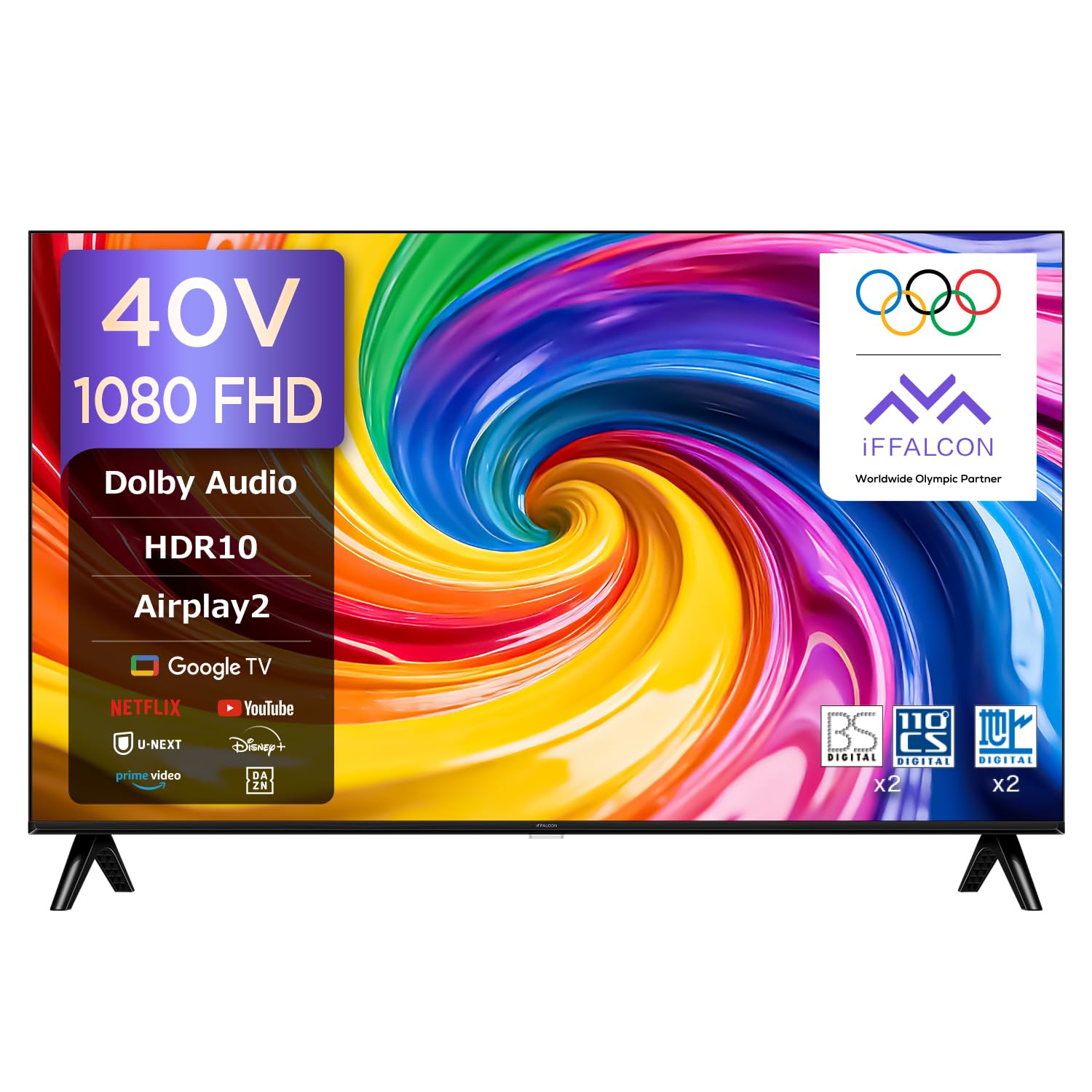
Figure 1.1: iFFALCON 40S55 FHD Google TV. This image shows the front view of the iFFALCON 40S55 television, highlighting its sleek design and display.
2. Safety Information
To ensure safe and proper operation of your TV, please observe the following precautions:
- Power Supply: Use only the specified power voltage. Do not overload power outlets.
- Ventilation: Ensure adequate ventilation around the TV. Do not block ventilation openings.
- Water and Moisture: Do not expose the TV to rain, moisture, or place objects filled with liquids on it.
- Heat Sources: Keep the TV away from heat sources such as radiators, heat registers, stoves, or other heat-producing appliances.
- Cleaning: Unplug the TV before cleaning. Use a soft, dry cloth. Do not use liquid cleaners or aerosol cleaners.
- Servicing: Do not attempt to service this product yourself. Refer all servicing to qualified service personnel.
3. Package Contents
Verify that all the following items are included in your package:
- iFFALCON 40S55 FHD Google TV Unit
- Remote Control
- Power Cable
- User Manual (this document)
- Warranty Card
- TV Stand (if applicable)
- Screws for TV Stand (if applicable)
4. Setup
4.1. Physical Installation
You can install your TV using the included stand or mount it on a wall.
4.1.1. Stand Installation
- Carefully place the TV face-down on a soft, flat surface to prevent screen damage.
- Attach the stand bases to the bottom of the TV using the provided screws. Ensure they are securely fastened.
- Place the TV on a stable, level surface.
4.1.2. Wall Mounting
For wall mounting, use a VESA-compatible wall mount kit (sold separately) that supports 100x100mm VESA standards. Follow the instructions provided with your wall mount kit.
4.2. Connecting Peripherals
Connect your external devices to the TV using the appropriate ports.
- HDMI: Connect Blu-ray players, game consoles, or set-top boxes to the HDMI ports. This TV has 2 HDMI ports.
- USB: Connect USB storage devices for media playback or recording to the USB 2.0 port. This TV has 1 USB port.
- Antenna: Connect your antenna cable to the antenna input for broadcast TV channels.
- Network: Connect an Ethernet cable to the LAN port for a wired internet connection, or use Wi-Fi.

Figure 4.1: High-Speed Connectivity. This image illustrates the various connectivity options available on the iFFALCON TV, including HDMI, Bluetooth, Wi-Fi, and USB.
4.3. Power Connection and Initial Setup
- Connect the power cable to the TV and then to a power outlet.
- Press the power button on the remote control or TV to turn it on.
- Follow the on-screen instructions to complete the initial setup, including language selection, network connection (Wi-Fi or Ethernet), and Google TV account login.
5. Operating Your TV
5.1. Remote Control Functions
The remote control allows you to navigate the TV's features. Familiarize yourself with its buttons for optimal use.

Figure 5.1: Remote Control. This image displays the TV remote control, highlighting its voice search button, one-button direct access to streaming services, and easy-to-select program guide buttons.
5.2. Google TV Interface and Apps
Your iFFALCON 40S55 runs on Google TV, providing access to a wide range of streaming services and applications.
- Home Screen: Access personalized recommendations, installed apps, and content libraries.
- App Access: Easily find and launch apps like YouTube, Amazon Prime Video, Netflix, Hulu, Disney+, Apple TV+, U-NEXT, and more.

Figure 5.2: Google TV Interface. This image shows the Google TV home screen with various streaming service apps and content recommendations.
5.3. Voice Control with "Hey Google"
Use your voice to control your TV, search for content, and get information with Google Assistant.
- Press the Google Assistant button on your remote or say "Hey Google" when the TV is listening.
- Speak clearly into the remote's microphone.

Figure 5.3: Hey Google Voice Search. This image shows a user interacting with the TV using voice commands via the remote control, demonstrating the "Hey Google" feature.
5.4. Screen Mirroring (Airplay2 & Chromecast)
Share content from your mobile devices directly to your TV screen.
- Airplay2: For Apple devices (iPhone, iPad, Mac), use Airplay2 to cast videos, photos, and music.
- Chromecast built-in: For Android devices and Chrome browser, use Chromecast to cast content.
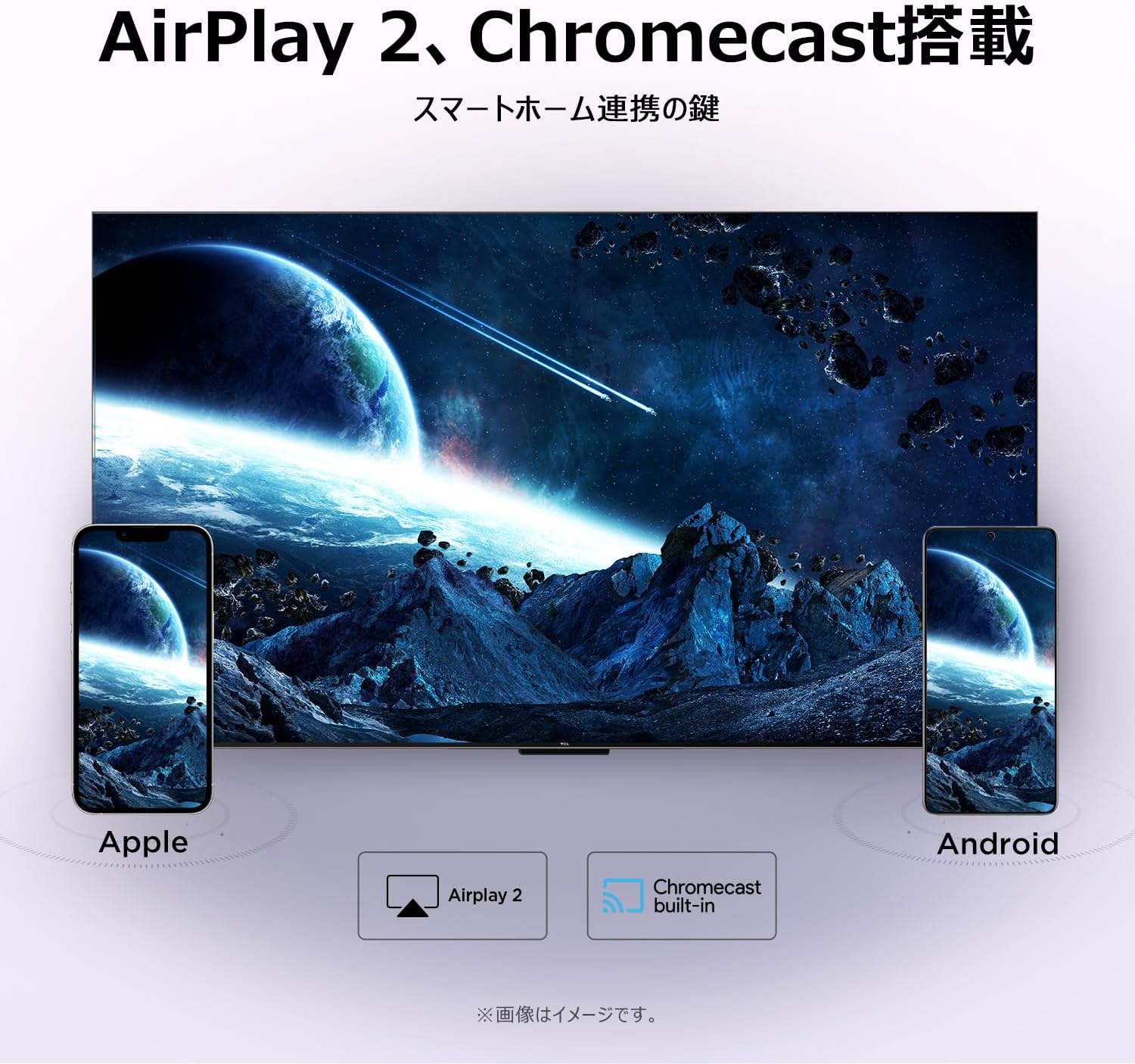
Figure 5.4: Airplay2 and Chromecast. This image illustrates the TV's compatibility with Airplay2 for Apple devices and Chromecast for Android devices, enabling seamless screen mirroring.
5.5. Picture Settings
Enhance your viewing experience with advanced picture technologies.
- HDR10: Experience a wider range of colors and contrasts, making bright areas brighter and dark areas darker with more detail.
- Micro Dimming: Dynamically adjusts brightness in specific areas of the screen to improve contrast and deliver a more vivid picture.
- FHD (Full High Definition): Enjoy crisp, clear images with 1920x1080 resolution, offering 200% more detail than standard HD screens.

Figure 5.5: HDR10. This image demonstrates the enhanced contrast and detail provided by HDR10 technology, showing a vibrant scene with improved bright and dark areas.

Figure 5.6: Micro Dimming. This image visually explains Micro Dimming, showing how specific areas of the screen have their brightness adjusted for improved contrast and a more realistic picture.

Figure 5.7: FHD Resolution. This image compares a standard HD image with an FHD image, demonstrating the significantly higher detail and realism offered by Full High Definition.
5.6. Sound Settings (Dolby Audio)
Immerse yourself in rich, clear sound with Dolby Audio technology.
- Dolby Audio delivers ultra-realistic, immersive sound with clear dialogue and subtle audio details.
- Adjust sound modes in the TV settings to optimize audio for different content types.

Figure 5.8: Dolby Audio. This image visually represents the immersive sound experience provided by Dolby Audio, with sound waves emanating from the TV screen.
5.7. Special Viewing Modes
Optimize your viewing experience for different types of content.
- Game Mode: Reduces input lag for a more responsive gaming experience.
- Sports Mode: Enhances motion clarity and sound for live sports broadcasts.
- Movie Mode: Optimizes picture and sound for cinematic content, providing a more immersive movie-watching experience.

Figure 5.9: Game Mode. This image shows a split screen comparing gameplay with Game Mode ON (left) and OFF (right), illustrating the visual improvements for gaming.

Figure 5.10: Sports Mode. This image shows a split screen comparing a sports broadcast with Sports Mode ON (left) and OFF (right), highlighting the enhanced viewing experience for sports.

Figure 5.11: Movie Mode. This image shows a split screen comparing a movie scene with Movie Mode ON (left) and OFF (right), demonstrating the optimized visual settings for films.
5.8. Kid's Profile
Create a safe and fun viewing environment for children.
- Activate Kid's Profile to restrict content to age-appropriate shows and apps.
- Parents can manage settings and monitor viewing habits.

Figure 5.12: Kid's Profile. This image shows the Kid's Profile interface, displaying a selection of child-friendly content and a secure environment for young viewers.
5.9. Google Meet
Stay connected with friends and family directly from your TV.
- Conduct one-on-one video calls or group video chats using Google Meet.
- Share memos, voice messages, and video memos easily.

Figure 5.13: Google Meet. This image depicts a family engaged in a video call via Google Meet on the iFFALCON TV, demonstrating its use for communication.
6. Maintenance
Proper care and maintenance will extend the life of your TV.
- Cleaning the Screen: Gently wipe the screen with a soft, lint-free cloth. For stubborn marks, slightly dampen the cloth with water or a specialized screen cleaner. Do not spray liquid directly onto the screen.
- Cleaning the Frame: Use a soft, dry cloth to wipe the TV frame.
- Software Updates: Ensure your TV's software is up to date for optimal performance and security. Check for updates in the TV settings menu.
- Power Off: When not in use for extended periods, unplug the TV from the power outlet.
7. Troubleshooting
If you encounter issues with your TV, refer to the following common problems and solutions:
| Problem | Possible Cause | Solution |
|---|---|---|
| No power | Power cable disconnected, power outlet issue. | Check power cable connection. Try a different outlet. |
| No picture, but sound is present | Incorrect input source, external device issue. | Verify correct input source. Check external device connections. |
| No sound, but picture is present | Volume too low, mute activated, external audio system issue. | Increase volume. Check mute status. Verify external audio connections. |
| Remote control not working | Batteries depleted, obstruction, remote not paired. | Replace batteries. Remove obstructions. Re-pair remote if it's Bluetooth. |
| Cannot connect to Wi-Fi | Incorrect password, router issue, signal interference. | Re-enter password. Restart router. Move TV closer to router. |
If the problem persists after trying these solutions, please contact customer support.
8. Specifications
Detailed technical specifications for the iFFALCON 40S55 FHD Google TV:
| Feature | Specification |
|---|---|
| Brand | iFFALCON |
| Model Number | 40S55 |
| Screen Size | 40 Inches |
| Display Technology | LCD |
| Resolution | Full High Definition (FHD) |
| Refresh Rate | 60 Hz |
| Aspect Ratio | 16:9 |
| HDR Format | HDR10, HLG |
| Audio Technology | Dolby Audio (2.0 Channel Speakers) |
| Operating System | Google TV |
| Connectivity | Bluetooth, HDMI (2 ports), USB (1 port), Wi-Fi |
| Screen Mirroring | Airplay2, Google Cast |
| VESA Mount Standard | 100x100mm |
| Product Dimensions (D x W x H) | 18.4 x 89.2 x 55.8 cm |
| Product Weight | 4.63 kg |
| Included Components | User Manual, Remote Control, Warranty Card, Power Cable |
9. Warranty and Support
Your iFFALCON 40S55 FHD Google TV comes with a 1-year manufacturer's warranty from the date of purchase. This warranty covers manufacturing defects and malfunctions under normal use.
For warranty claims, technical support, or service inquiries, please refer to the contact information provided on your warranty card or visit the official iFFALCON support website.
Please retain your proof of purchase for warranty validation.
