
Introduction
This manual provides detailed instructions for the setup, operation, maintenance, and troubleshooting of your KTC H27S25E 27-inch 240Hz Curved Gaming Monitor. Please read this manual thoroughly before using the product to ensure proper functionality and to prevent damage.
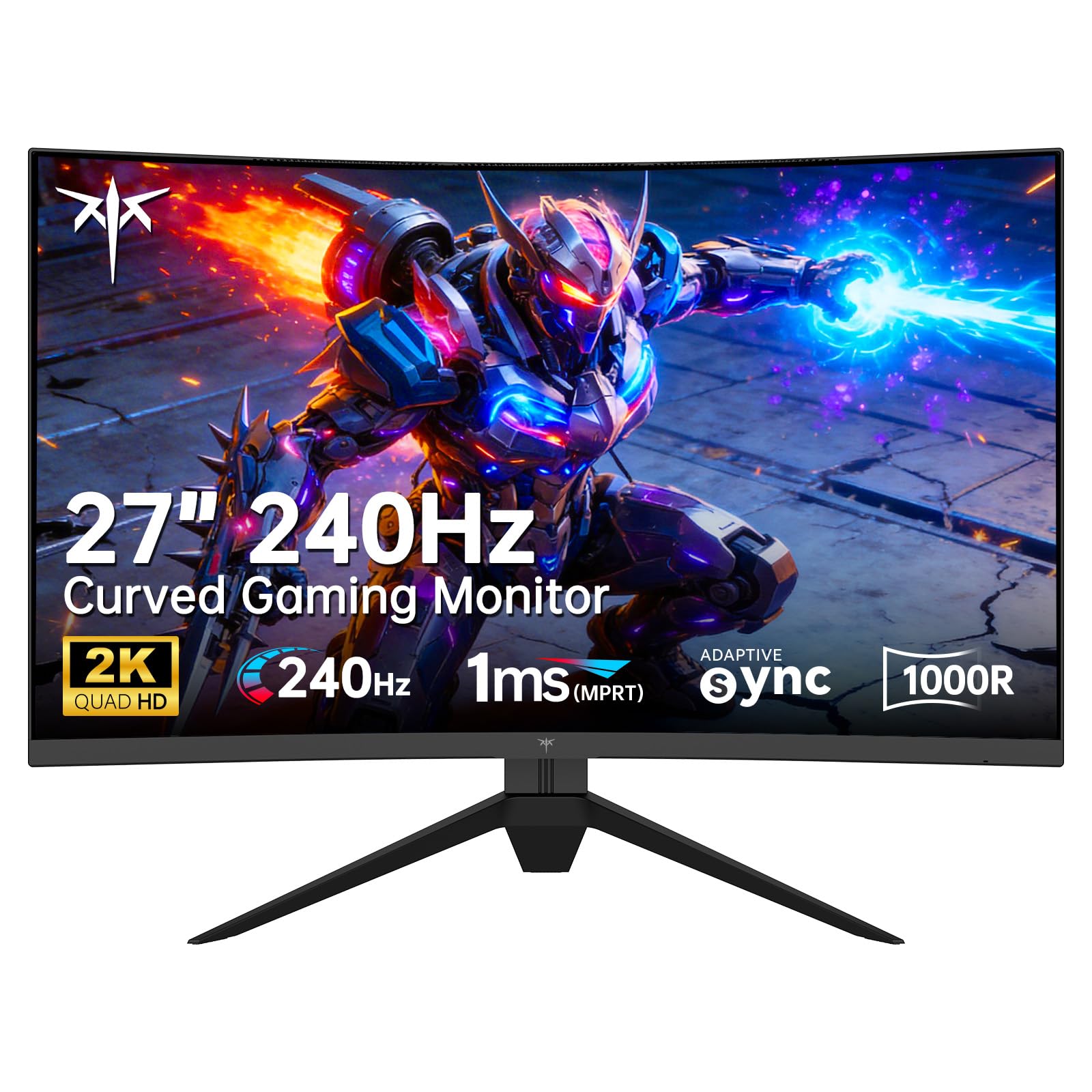
Image: Front view of the KTC H27S25E 27-inch 240Hz Curved Gaming Monitor.
What's in the Box
Verify that all components are present before proceeding with the setup.
- 1 x KTC H27S25E 27-inch 240Hz Curved Gaming Monitor
- 1 x Adaptor
- 1 x Power Cord
- 2 x Screwdrivers
- 1 x Monitor Base
- 1 x Quick Start Guide (QSG)
- 1 x DP1.4 Cable
Setup Instructions
1. Assembling the Monitor Stand
- Attach the monitor base to the stand arm using the provided screws and screwdriver.
- Align the stand assembly with the mounting slot on the back of the monitor.
- Gently push the stand into the slot until it clicks into place, ensuring it is securely fastened.

Image: Diagram showing the quick release assembly steps for the monitor stand.
2. Connecting the Monitor
The monitor offers multiple connectivity options. Ensure your device is powered off before making connections.
- Power Connection: Connect the power cord to the adaptor, then to the monitor's DC input, and finally to a power outlet.
- DisplayPort Connection: Use the provided DP1.4 cable to connect your computer's DisplayPort output to one of the monitor's DP1.4 inputs. This is recommended for optimal performance (2560x1440@240Hz).
- HDMI Connection: Use an HDMI 2.0 cable (not included) to connect your computer's HDMI output to one of the monitor's HDMI 2.0 inputs. This supports 2560x1440@240Hz.
- USB Connection: Connect a USB 2.0 cable (not included) from your computer to the monitor's USB 2.0 port for additional peripheral connectivity.
- Audio Output: Connect headphones or external speakers to the 3.5mm earphone jack for audio output.

Image: Rear view of the monitor highlighting available connectivity ports: DC, USB, HDMI (x2), DisplayPort (x2), and Earphone jack.
3. Adjusting the Monitor Position
The monitor stand allows for tilt adjustment to optimize your viewing angle.
- Tilt: Gently tilt the monitor screen forward or backward between -5° and 15° to find your preferred viewing angle.
- VESA Mounting: The monitor is VESA compatible (100x100mm) for alternative mounting solutions (e.g., wall mounts, monitor arms).

Image: Diagram illustrating the tilt adjustment range of the monitor.
Operating Instructions
1. Powering On/Off and OSD Navigation
Locate the power button and OSD (On-Screen Display) control joystick/buttons, typically on the back or bottom of the monitor. Use these controls to power the monitor on/off and navigate the OSD menu for various settings.
2. Key Features and Settings
- 240Hz Refresh Rate: This monitor supports a 240Hz refresh rate for smooth motion. Ensure your graphics card and connection cable (DP1.4 or HDMI 2.0) support this refresh rate, and configure your operating system's display settings accordingly.
- QHD 1440P Resolution: The 2560x1440 resolution provides sharp and detailed visuals. Adjust your system's display resolution to 2560x1440 for optimal clarity.
- 1000R Curved Screen: The 1000R curvature is designed to provide an immersive viewing experience by closely matching the natural curve of the human eye.
- Adaptive Sync Technology: This monitor supports Adaptive-Sync (FreeSync/G-Sync compatible) to eliminate screen tearing and stuttering. Enable this feature in your graphics card control panel for a smoother gaming experience.
- Color Accuracy: With 124% sRGB color gamut and a 2500:1 contrast ratio, the monitor delivers vibrant and accurate colors. For precise color work, consider using the pre-set sRGB mode and color calibration technology.
- HDR Support: The monitor supports HDR (High Dynamic Range) for enhanced contrast and color depth. Enable HDR in your operating system and application settings for compatible content.
- Eye Care Features: The monitor includes an Anti-Blue Light Screen and Flicker-free technology to reduce eye strain during extended use. These features are designed to enhance viewing comfort.
Video: Demonstration of the KTC 27 Inch 2K 240Hz Curved Gaming Monitor's features, including refresh rate, HDR, and Adaptive Sync.
Maintenance
Proper maintenance ensures the longevity and optimal performance of your monitor.
- Cleaning the Screen:
- Power off the monitor and unplug the power cord.
- Use a soft, lint-free cloth slightly dampened with water or a specialized screen cleaner.
- Gently wipe the screen surface. Avoid applying excessive pressure or using harsh chemicals, which can damage the display.
- Cleaning the Casing: Use a soft, dry cloth to wipe the monitor casing. Avoid abrasive materials.
- Storage: If storing the monitor for an extended period, ensure it is powered off, unplugged, and stored in a cool, dry place away from direct sunlight and extreme temperatures.
Troubleshooting
Refer to the following common issues and solutions before contacting customer support.
| Problem | Possible Cause | Solution |
|---|---|---|
| No image on screen | Power cable disconnected; Video cable disconnected; Incorrect input source selected. | Ensure power and video cables are securely connected. Press the OSD button to select the correct input source (DP, HDMI). |
| Screen flickering or tearing | Adaptive-Sync not enabled; Graphics card driver issues; Cable quality. | Enable Adaptive-Sync in your graphics card settings. Update graphics drivers. Use a high-quality DP1.4 or HDMI 2.0 cable. |
| Image too dark/bright or colors are off | Incorrect brightness/contrast settings; Color profile issues. | Adjust brightness, contrast, and color settings via the OSD menu. Ensure the correct color profile (e.g., sRGB) is selected. |
| Monitor does not wake up from sleep | Power saving settings; Connectivity issues. | Check power saving settings on your computer. Ensure video cables are firmly connected. Power cycle the monitor. |
| Dead pixels or dim spots | Manufacturing defect. | While minor pixel issues can occur, if significant, refer to the warranty section for support. |
Specifications
| Feature | Detail |
|---|---|
| Brand | KTC |
| Model Number | H27S25E |
| Screen Size | 27 inches |
| Resolution | QHD Ultra Wide 1440p (2560 x 1440 pixels) |
| Aspect Ratio | 16:9 |
| Screen Surface | Matte |
| Contrast Ratio | 2500:1 |
| Refresh Rate | 240 Hz |
| Response Time | 1 ms |
| Display Type | LCD |
| Viewing Angle | 178 degrees |
| Brightness | 300 candela/square meter |
| Color Gamut | 124% sRGB |
| Picture Quality Enhancement | HDR |
| Dimensions (D x W x H) | 9.9"D x 24"W x 18.16"H |
| Item Weight | 14.9 pounds |
| HDMI Ports | 2 (HDMI 2.0) |
| DisplayPort Ports | 2 (DP 1.4) |
| USB Ports | 1 (USB 2.0) |
| Additional Features | Adaptive Sync, Blue Light Filter, Curved, Tilt Adjustment |
| Power Consumption | 54 watts |
| Voltage | 12 volts |
Warranty Information
Your KTC H27S25E monitor comes with a 3-Year Manufacturer Warranty. This warranty covers defects in materials and workmanship under normal use. Please retain your proof of purchase for warranty claims.
For detailed warranty terms and conditions, please refer to the official KTC website or contact customer support.
Customer Support
If you encounter issues not covered in the troubleshooting section or require further assistance, please contact KTC customer support.
You can typically find support contact information on the official KTC website or through the retailer where you purchased the product.
When contacting support, please have your monitor's model number (H27S25E) and proof of purchase ready.

Image: Steps to contact customer support via the retailer's platform.