
1. Introduction
This manual provides essential information for the proper setup, operation, and maintenance of your FYHXele 32 inch 4K 144Hz Gaming Monitor. Please read this manual thoroughly before using the product to ensure optimal performance and safety.
The FYHXele 32 inch 4K 144Hz Gaming Monitor features a UHD 3840x2160 resolution, a 144Hz refresh rate, and a 1ms response time for a smooth visual experience. It utilizes a Fast IPS panel with 100% sRGB color accuracy and HDR400 support, delivering vibrant and detailed images. The monitor is compatible with FreeSync and G-SYNC technologies to reduce screen tearing and stuttering. Additional features include PBP/PIP split-screen functionality, blue light reduction for eye comfort, and VESA mount compatibility.
2. Safety Information
Observe the following safety precautions to prevent damage to the monitor and ensure user safety:
- Do not place the monitor in an unstable location.
- Avoid exposing the monitor to direct sunlight, excessive heat, dust, or moisture.
- Do not block ventilation openings.
- Use only the power adapter and cables provided by the manufacturer.
- Disconnect the power cable from the outlet before cleaning.
- Do not attempt to repair the monitor yourself. Refer all servicing to qualified personnel.
3. Package Contents
Verify that all items are present in the package:
- FYHXele 32 inch 4K 144Hz Gaming Monitor
- Monitor Stand (Base and Neck)
- Power Adapter and Power Cable
- HDMI Cable
- DisplayPort (DP) Cable
- USB-C Cable
- USB-B to USB-A Cable
- User Manual
4. Setup
4.1 Assembling the Stand
- Carefully place the monitor face down on a soft, clean surface to prevent scratches.
- Attach the stand neck to the back of the monitor, aligning the mounting holes. Secure with screws if provided.
- Attach the stand base to the stand neck. Secure with the thumb screw or screws provided.
- Carefully lift the monitor and place it on a stable, flat surface.
4.2 Connecting Cables
Connect the necessary cables to the corresponding ports on the monitor and your computer or other devices.

Image: Rear view of the monitor displaying HDMI 2.0, HDMI 2.1, DP 1.4, Type-C, USB-B, USBx2, and Audio Out ports, along with VESA 100x100mm wall mount points and tilt adjustment range.
- Power: Connect the power adapter to the monitor's power input and then to a power outlet.
- DisplayPort (DP): For 4K resolution at 144Hz, connect a DisplayPort cable from your computer's graphics card to the monitor's DP 1.4 port.
- HDMI: For 4K resolution, connect an HDMI cable from your device to the monitor's HDMI 2.0 or HDMI 2.1 port. HDMI 2.1 supports higher refresh rates at 4K.
- USB-C: Connect a USB-C cable for video, data, and power delivery (if supported by your device).
- USB Hub: Connect the USB-B to USB-A cable from your computer to the monitor's USB-B upstream port to enable the monitor's USB downstream ports (USBx2).
- Audio Out: Connect external speakers or headphones to the 3.5mm audio out port.
4.3 Wall Mounting (Optional)
The monitor supports VESA 100x100mm mounting. Ensure you use VESA-compatible mounting hardware (not included) and follow the instructions provided with your wall mount.
5. Operating Instructions
5.1 Power On/Off
Press the power button, usually located on the back or bottom of the monitor, to turn the monitor on or off. The power indicator light will illuminate when the monitor is on.
5.2 On-Screen Display (OSD) Menu
The OSD menu allows you to adjust various monitor settings. Use the joystick or buttons (refer to your monitor's physical layout) to navigate the menu.
- Input Source: Select between DP, HDMI 1, HDMI 2, or Type-C inputs.
- Picture Settings: Adjust brightness, contrast, sharpness, and color temperature.
- Display Settings: Configure resolution, refresh rate, and aspect ratio.
- Audio: Adjust volume for connected audio devices.
- OSD Settings: Customize OSD language, transparency, and timeout.
- Gaming Features: Enable/disable FreeSync/G-Sync, adjust response time (1ms), and other gaming-specific settings.

Image: Visual comparison demonstrating the difference between 144Hz and 100Hz refresh rates, highlighting the smoother motion provided by 144Hz for an enhanced gaming experience.
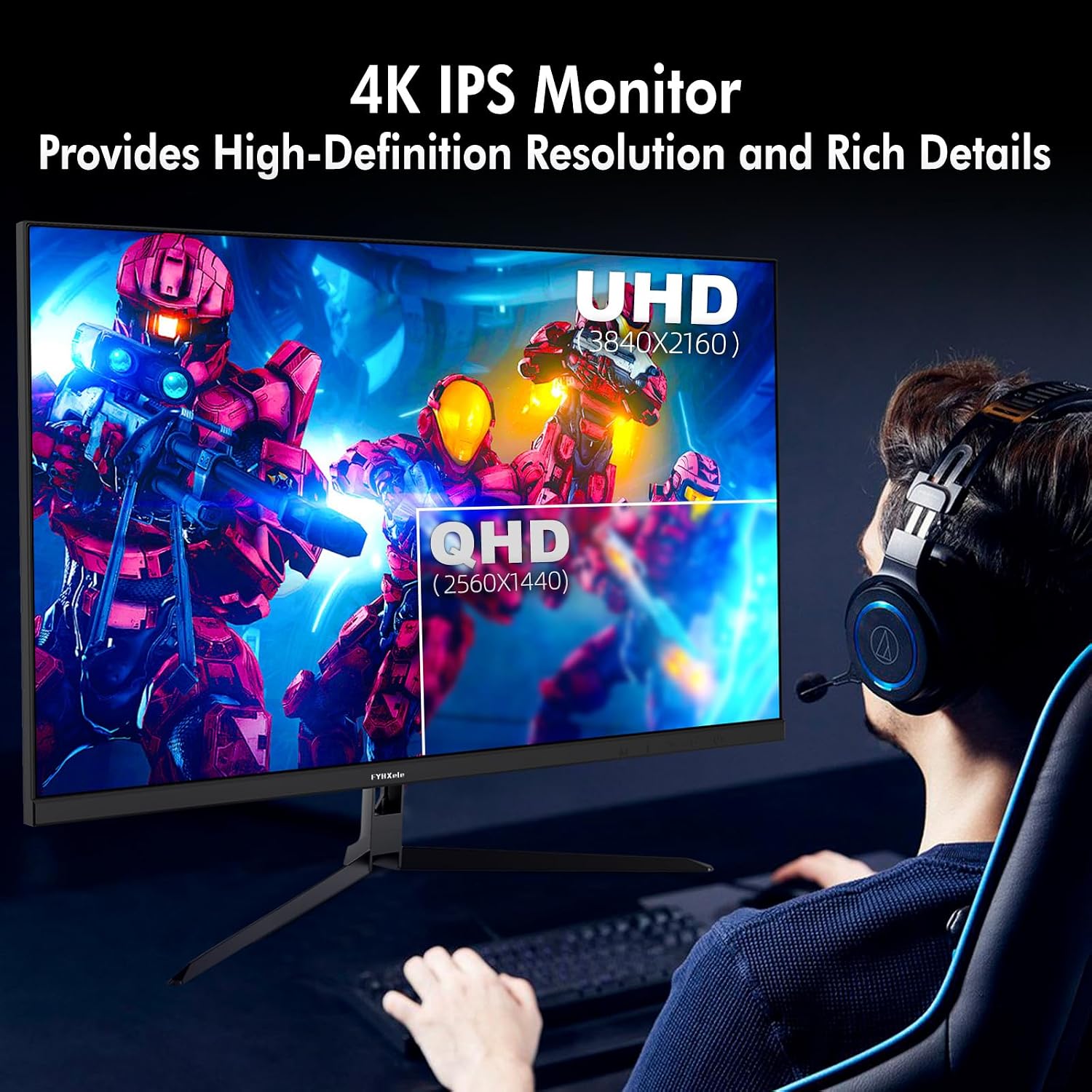
Image: A visual representation comparing the clarity and detail of 4K UHD (3840x2160) resolution against QHD (2560x1440) resolution, illustrating the superior image quality of 4K.
5.3 Adaptive Sync Technology (FreeSync/G-Sync Compatible)
This monitor supports Adaptive Sync technology to synchronize the monitor's refresh rate with your graphics card's frame rate, eliminating screen tearing and stuttering. Ensure this feature is enabled in both the monitor's OSD menu and your graphics card's control panel.

Image: A side-by-side comparison illustrating the effect of Adaptive Sync (FreeSync) technology, showing a torn image when FreeSync is off and a smooth, tear-free image when FreeSync is on.
5.4 HDR (High Dynamic Range)
The monitor supports HDR400, providing enhanced contrast and a wider color gamut for more realistic visuals. Enable HDR in your operating system display settings and ensure your content supports HDR.
Image: A visual comparison demonstrating the benefits of HDR400 support on the FYHXele monitor, showcasing deeper blacks, brighter whites, and more vibrant colors compared to a non-HDR display.
5.5 PBP/PIP (Picture-by-Picture/Picture-in-Picture)
The monitor supports PBP/PIP functions, allowing you to display content from multiple input sources simultaneously. Refer to the OSD menu for options to configure the layout and input sources for these modes.
5.6 Tilt Adjustment
The monitor stand allows for tilt adjustment from -5° to 15° to optimize your viewing angle.
6. Maintenance
6.1 Cleaning the Monitor
- Always unplug the monitor from the power outlet before cleaning.
- Use a soft, lint-free cloth lightly dampened with water or a non-abrasive screen cleaner.
- Do not spray cleaner directly onto the screen.
- Avoid using benzene, thinner, ammonia-based cleaners, or abrasive materials.
6.2 General Care
- Keep the monitor away from strong magnetic fields.
- Do not place heavy objects on the monitor or its cables.
- Ensure adequate ventilation around the monitor to prevent overheating.
7. Troubleshooting
If you encounter issues with your monitor, refer to the following common problems and solutions:
| Problem | Possible Solution |
|---|---|
| No image on screen |
|
| Image is flickering or unstable |
|
| Colors are incorrect or washed out |
|
| Monitor turns off/on intermittently |
|
| Vertical shadow or lines appear on screen |
|
8. Specifications
| Feature | Specification |
|---|---|
| Model | 32INCH-4K 144HZ |
| Screen Size | 32 Inches |
| Panel Type | Fast IPS |
| Resolution | 3840 x 2160 (4K UHD) |
| Refresh Rate | 144Hz |
| Response Time | 1ms (GTG) |
| Aspect Ratio | 16:9 |
| Color Gamut | 100% sRGB |
| HDR Support | HDR400 |
| Contrast Ratio | 1000:1 |
| Brightness | 300 cd/m² |
| Viewing Angle | 178° (Horizontal/Vertical) |
| Adaptive Sync | FreeSync and G-SYNC Compatible |
| Connectivity | 2x HDMI (2.0/2.1), 1x DisplayPort (1.4), 1x Type-C, 1x USB-B (Upstream), 2x USB (Downstream), 1x Audio Out |
| VESA Mount | 100x100mm |
| Tilt Adjustment | -5° to 15° |
| Product Dimensions (without stand) | 1.68 x 22.31 x 13.85 inches (approx.) |
| Item Weight | 4 pounds (approx.) |
9. Warranty & Support
9.1 Warranty Information
Your FYHXele monitor comes with a manufacturer's warranty. Please refer to the warranty card included in your package or visit the official FYHXele website for detailed warranty terms and conditions.
9.2 Customer Support
For technical assistance, troubleshooting, or warranty claims, please contact FYHXele customer service. We provide 24-hour professional after-sales service.
- Website: Visit the official FYHXele website for support resources and contact information.
- Email: Refer to your warranty card or product packaging for customer support email addresses.
