
1. Introduction
The TOPDON TC001 Max is a compact, high-resolution thermal camera designed for a wide range of diagnostic and inspection tasks. This device combines infrared thermal imaging with a visible-light camera to provide detailed and accurate temperature readings and visual context. Compatible with USB-C iPhone, iPad, Android, and Windows devices, it offers a plug-and-play solution for professionals and enthusiasts alike. This manual provides essential information on setting up, operating, and maintaining your TC001 Max thermal camera.
2. Product Overview
2.1 Key Features
- Dual-Lens Thermal Imaging: Integrates infrared thermal imaging with a 1.5MP visual light camera for sharper outlines and clearer detail.
- Wide Device Compatibility: Designed for USB-C iPhone, iPad, Android, and Windows devices, offering true plug-and-play functionality without external power.
- High-Resolution Thermal Clarity: Features TOPDON's patented TISR technology, enhancing thermal resolution from 256x192 to 512x384.
- Smooth Imaging: 25Hz refresh rate and ≤40mK NETD for smooth thermal imaging and high sensitivity to subtle temperature differences.
- Advanced App Features: Utilize TopInfrared or TopView apps for photo/video capture, image rotation, 3D temperature data analysis, real-time graphs, and multiple color palettes.
- Compact and Portable: Pocket-sized design (7.1 × 4.2 cm, 33 g) with case-friendly construction for direct connection to your phone.
2.2 What's in the Box
Upon unpacking your TOPDON TC001 Max, please ensure all items are present:
- TOPDON TC001 Max Thermal Camera
- USB Cable/Adapter (includes USB-C and Lightning adapters)
- Microfiber Cleaning Cloth
- User Manual (this document)
- Protective Carry Case
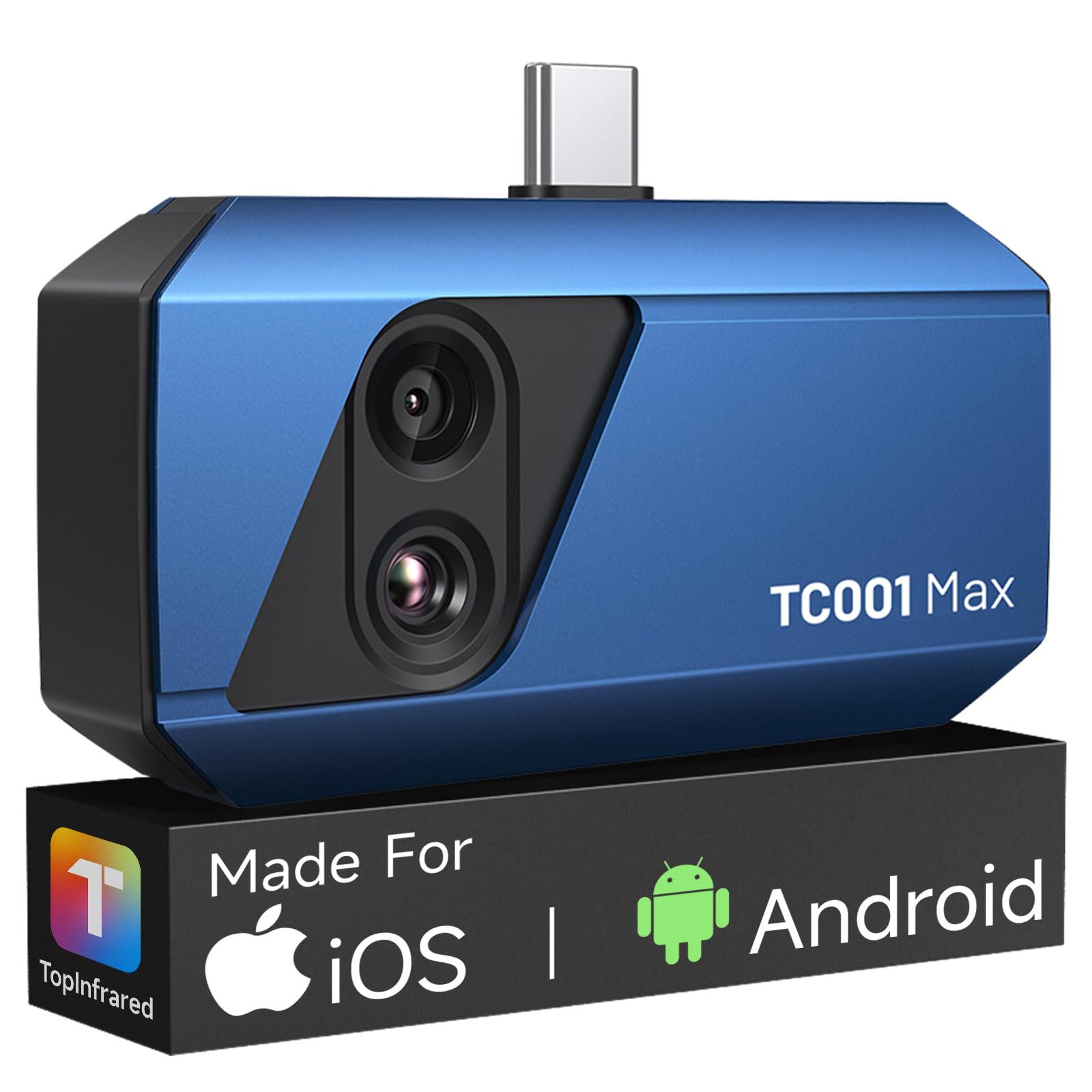
Figure 1: The TOPDON TC001 Max Thermal Camera connected to a smartphone, demonstrating its compact size and direct connectivity.
3. Setup
3.1 App Installation
- For Android/iOS: Search for "TopInfrared" or "TopView" in your device's app store (Google Play Store for Android, Apple App Store for iOS).
- Download and install the application.
- For Windows: Visit the official TOPDON website to download the compatible Windows software.
3.2 Connecting the Device
- Ensure the thermal camera is clean and free of debris.
- Select the appropriate adapter (USB-C or Lightning) for your smartphone or tablet.
- Connect the TC001 Max directly to your device's charging port. The device is designed to be case-friendly, allowing connection without removing most phone cases.
- Once connected, launch the "TopInfrared" or "TopView" app. The camera should be automatically detected and ready for use.
- For Windows devices, connect the camera via the provided USB cable and launch the installed software.
Note: The TC001 Max draws power directly from your connected device, requiring no internal batteries or charging.
4. Operating Instructions
4.1 Basic Operation
- After connecting the TC001 Max and launching the app, the live thermal feed will appear on your screen.
- Point the camera at the object or area you wish to inspect.
- The app will display real-time temperature readings and a thermal image.
4.2 Image Modes
The TC001 Max offers three distinct image modes to suit various inspection needs:
- Thermal Image: Displays a pure infrared thermal image, highlighting temperature differences.
- Vision Imaging: Utilizes the 1.5MP visual light camera to provide a standard optical image.
- Fusion Imaging: Combines the thermal and visual images to provide a detailed view with clear contours and temperature overlays, enhancing identification of heat-related issues.
Switch between these modes within the app interface to optimize your view.
4.3 Advanced App Features
The companion app provides powerful tools for analysis and documentation:
- Capture: Take photos and record videos of thermal inspections.
- Image Rotation: Adjust the orientation of the thermal image for optimal viewing.
- Temperature Data Analysis: Analyze temperature data in 3D, track trends with real-time graphs, and pinpoint specific temperature points.
- Color Palettes: Apply multiple color palettes (e.g., Iron, Rainbow, White Hot, Black Hot) to visualize temperature differences more clearly.
- Emissivity Adjustment: Adjust the emissivity setting within the app for more accurate temperature measurements on different materials.
4.4 Calibration
For the most accurate temperature readings, it is crucial to calibrate the camera for the ambient environment. If you move the camera from one environment to another with a significant temperature difference (e.g., from indoors to outdoors in cold weather), perform a recalibration within the app to ensure precise measurements.
5. Maintenance
5.1 Cleaning
- Use the provided microfiber cloth to gently clean the lenses of the thermal camera.
- Do not use abrasive cleaners, solvents, or harsh chemicals, as these can damage the lenses or casing.
- Keep the USB connector free from dust and debris.
5.2 Storage
- When not in use, store the TC001 Max in its protective carry case to prevent damage.
- Store in a cool, dry place away from direct sunlight and extreme temperatures.
6. Troubleshooting
| Problem | Possible Cause | Solution |
|---|---|---|
| Camera not detected by device/app. | Loose connection, incorrect adapter, app not launched, device not compatible. |
|
| Inaccurate temperature readings. | Incorrect emissivity setting, lack of calibration, environmental factors. |
|
| App crashes or freezes. | Software bug, insufficient device resources, outdated app version. |
|
If you encounter issues not listed here or require further assistance, please contact TOPDON customer support.
7. Specifications
| Feature | Detail |
|---|---|
| Model Number | TC001 Max |
| Infrared Resolution | 256 x 192 (Enhanced to 512 x 384 with TISR) |
| Visual Camera Resolution | 1.5 MP |
| Temperature Range | -4°F to 1022°F (-20°C to 550°C) |
| NETD | ≤40mK |
| Refresh Rate | 25Hz |
| Product Dimensions (Device) | 7.1 × 4.2 cm (2.8 × 1.65 inches) |
| Product Dimensions (Packaging) | 3.94 x 1.97 x 5.51 inches |
| Item Weight (Device) | 33 g (1.16 oz) |
| Item Weight (Packaging) | 7.7 ounces |
| Compatibility | USB-C iPhone, iPad, Android, Windows devices |
| Power Source | Device powered (no internal battery) |
8. Warranty and Support
8.1 Warranty Information
TOPDON products are manufactured to high-quality standards. For detailed warranty terms and conditions, please refer to the warranty card included with your product or visit the official TOPDON website. Keep your purchase receipt as proof of purchase for warranty claims.
8.2 Customer Support
If you have any questions, require technical assistance, or need to report an issue with your TOPDON TC001 Max, please contact TOPDON customer support. Contact information can typically be found on the official TOPDON website or within the product packaging.
Official TOPDON Website: www.topdon.com


