
1. Introduction
This manual provides detailed instructions for the JRHC 1D 2D Finger Barcode Scanner, a compact and versatile device designed for efficient barcode data capture. This scanner offers multiple connection options and broad compatibility, making it suitable for various professional environments requiring hands-free operation.
2. Package Contents
Verify that all items are present in the package:
- JRHC 1D 2D Finger Barcode Scanner
- USB Charging Cable
- 2.4G Wireless Dongle
- User Manual

The product package includes the JRHC finger barcode scanner, a user manual, a USB charging cable, and a 2.4G wireless dongle for convenient setup and operation.
3. Product Features
- Wearable Ring Design: Allows for hands-free operation, enhancing work efficiency.
- Multiple Connection Modes: Supports 2.4GHz wireless, Bluetooth, and USB wired connections for versatile use.
- Broad Compatibility: Works with Windows XP/7/8/10, Android, iOS, and macOS devices.
- Powerful Decoding: Capable of scanning most 1D (EAN, UPC, Code 39, Code 128, etc.) and 2D (QR, DataMatrix, PDF417, Aztec, Maxicode, Hanxin) barcodes from both paper and digital screens.
- Adjustable Alerts: Features sound and vibration alerts, with options to turn them on or off.
- Dual Upload Modes: Supports instant upload for real-time data transfer and storage mode for offline data collection (16MB capacity).
- Portable and Lightweight: Weighs approximately 60g, designed for comfortable extended use.
- Long Battery Life: Equipped with an 800mAh battery, offering up to 12 hours of continuous scanning or 720 hours of standby time.
4. Setup
4.1 Charging the Scanner
Before initial use, fully charge the scanner. Connect the provided USB charging cable to the scanner's charging port and a power source (e.g., computer USB port or USB wall adapter). The charging indicator light will show the charging status.

The scanner is equipped with an 800mAh high-capacity battery, designed for low power consumption to ensure extended operational time.
4.2 Connection Modes
The scanner supports three connection methods:
- 2.4G Wireless Mode: Insert the 2.4G wireless dongle into your computer's USB port. The scanner will automatically connect.
- Bluetooth Mode: Scan the Bluetooth pairing barcode (usually found in the full user manual or quick start guide). Enable Bluetooth on your host device (smartphone, tablet, PC) and select the scanner from the list of available devices to pair.
- USB Wired Mode: Connect the scanner directly to your computer using the USB cable. The scanner will function as a wired device.

This image displays the JRHC finger barcode scanner and highlights its three connection options: USB Wired, 2.4G Wireless, and Bluetooth 4.1. The scanner weighs 36g (1.27oz).
4.3 Compatibility
The scanner is compatible with a wide range of devices and operating systems:
- Operating Systems: Windows XP, Win 7, Win 8/10, Android, iOS, macOS, Linux.
- Devices: Laptops, Smartphones, Desktops, Tablets.
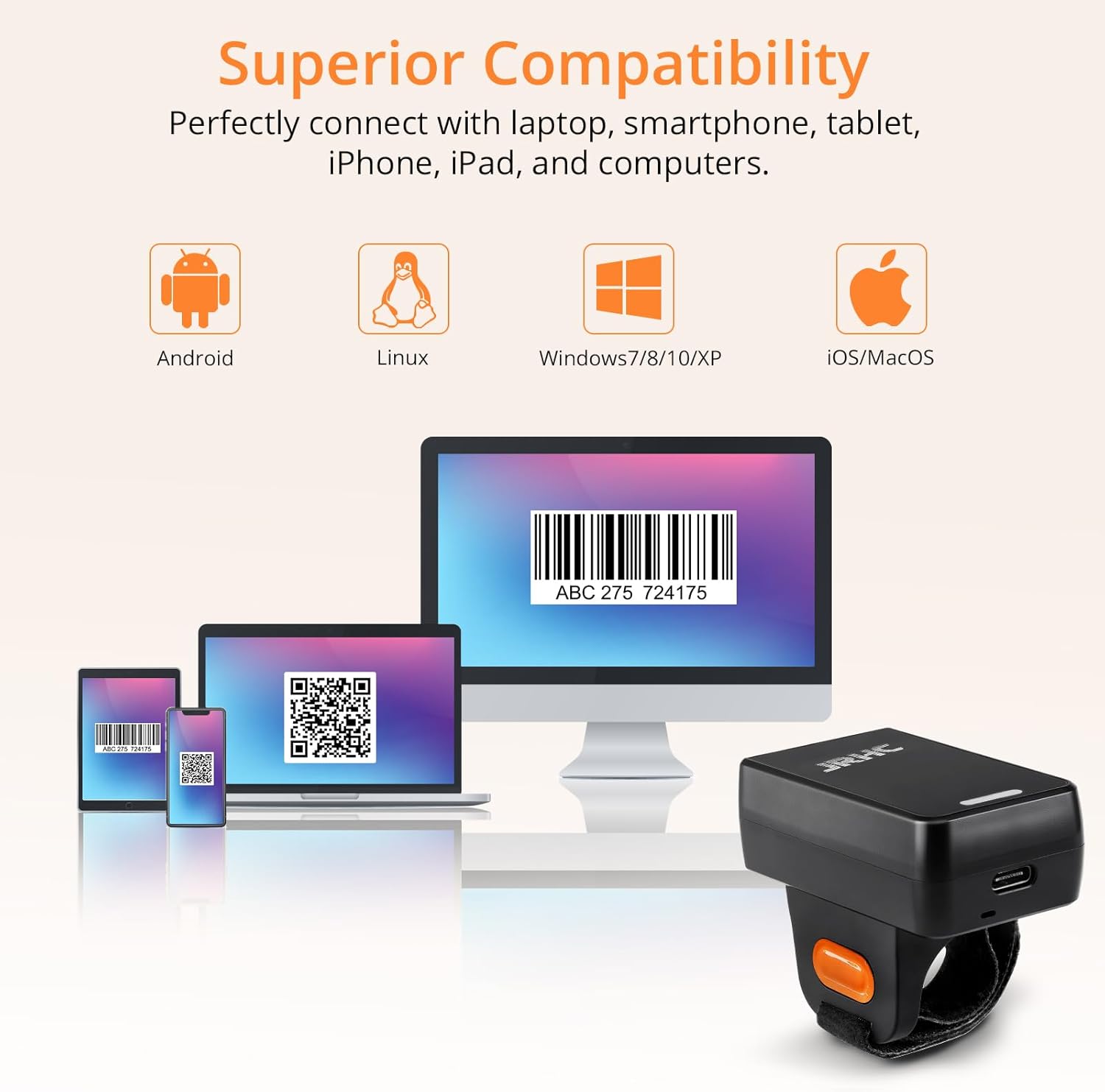
The scanner is compatible with a wide range of operating systems, including Android, Linux, Windows 7/8/10/XP, and iOS/macOS, allowing connection to laptops, smartphones, tablets, and desktop computers.
5. Operating Instructions
5.1 Wearing the Scanner
The scanner is designed to be worn on your finger. Adjust the strap for a comfortable and secure fit. The scanning trigger button should be easily accessible by your thumb or index finger, depending on whether you wear it on your left or right hand.

The ergonomic ring design allows the scanner to be worn comfortably on either the left or right hand, providing flexibility and ease of use for various tasks.
5.2 Basic Scanning
To scan a barcode, point the scanner's window at the barcode and press the trigger button. A successful scan will typically be indicated by a beep and/or vibration. The scanned data will be transmitted to your connected device.

This scanner offers superior decoding capabilities for both 1D and 2D barcodes, including QR Code, Data Matrix, Maxicode, and Aztec code. It can effectively scan damaged, distorted, colorful, fuzzy, and reflective barcodes.
5.3 Sound & Vibration Alerts
The scanner provides both sound and vibration feedback for successful scans. You can configure these settings by scanning specific function barcodes found in the comprehensive user manual. To operate in a quiet environment, the sound can be turned off, relying solely on vibration for scan confirmation.
5.4 Upload Modes
The scanner supports two data upload modes:
- Instant Upload Mode: Scanned data is immediately transmitted to the connected device.
- Storage Mode: Scanned data is stored internally (up to 16MB) and can be uploaded later when a connection is established or manually triggered.

The scanner supports two data upload modes: Instant Upload Mode for real-time data transfer and Storage Mode, which allows storing up to 16MB of barcode data for later upload.
6. Maintenance
6.1 Cleaning
To maintain optimal performance, keep the scanner's scanning window clean. Use a soft, dry, lint-free cloth to gently wipe the surface. Avoid using abrasive cleaners or solvents that could damage the device.
6.2 Battery Care
To prolong battery life, avoid fully discharging the scanner frequently. If the scanner will not be used for an extended period, charge it to approximately 50% and store it in a cool, dry place. Recharge it every few months to prevent deep discharge.
7. Troubleshooting
Refer to the table below for common issues and their solutions:
| Problem | Possible Cause | Solution |
|---|---|---|
| Scanner does not power on. | Low battery. | Charge the scanner fully. |
| Scanner does not connect to device. | Incorrect connection mode selected; Bluetooth not paired; 2.4G dongle not recognized. | Ensure the correct connection mode is active. Re-pair Bluetooth or re-insert 2.4G dongle. Refer to the full manual for specific pairing barcodes. |
| Scanner does not read barcodes. | Barcode damaged or unclear; scanner window dirty; incorrect barcode type enabled. | Clean the scanning window. Ensure the barcode is clear. Check if the scanner supports the barcode type. |
| Scanned data is incorrect or incomplete. | Partial scan; data format settings. | Ensure the entire barcode is within the scanning area. Check data formatting settings in the full user manual. |
8. Specifications
| Feature | Specification |
|---|---|
| Model | B0GCCZ1SLF |
| Brand | JRHC |
| Connectivity Technology | Bluetooth, USB Cable, 2.4G Wireless |
| Compatible Devices | Laptop, Smartphone, Desktop, Tablet |
| Power Source | Battery Powered |
| Battery Type | 1 Lithium Polymer battery (included) |
| Battery Capacity | 800 mAh |
| Item Dimensions (D x W x H) | 2.36"D x 0.82"W x 1.8"H |
| Item Weight | 55 g |
| Energy Specifications Met | CE, FCC, RoHS |
9. Warranty and Support
This JRHC product comes with a 180-day manufacturer's warranty from the date of purchase. This warranty covers defects in materials and workmanship under normal use. It does not cover damage caused by misuse, accidents, unauthorized modifications, or improper maintenance.
For technical support, warranty claims, or further assistance, please contact JRHC customer service through the retailer's platform or the official JRHC website. Please have your product model number (B0GCCZ1SLF) and proof of purchase ready when contacting support.