Introduction
This user manual provides comprehensive instructions for the Camiysn K1 RGB LED Backlit Gaming Keyboard and Mouse Combo. Please read this manual carefully before using the product to ensure proper setup, operation, and maintenance. This combo is designed for use with personal computers and laptops, offering a full-size keyboard with RGB backlighting and a high-resolution gaming mouse.
Product Overview
Keyboard Features:
- Full-Size Layout: 104 keys with standard layout, including F-keys and a number pad.
- Ergonomic Design: Scientific high and low keycap layout for natural hand fit and reduced fatigue.
- RGB LED Backlight: Features 8 light colors, 5 light modes, and adjustable brightness/speed. Double-shot injection moulding ensures durable, fade-resistant key legends with good light transmission.
- Floating Keycaps: Removable keycaps for easy cleaning and comfortable typing.
- Stability: Non-slip pads on the bottom prevent movement during use.
Mouse Features:
- Adjustable DPI: 6 levels of speed (600/800/1200/1600/2400/3200 DPI) for various scenarios.
- 7-Color Breathing LED: Dynamic LED backlighting with a color-lock function (press side button + middle button).
- High-Speed Transmission: Ensures fast and accurate movement.
General Features:
- Wired Connection: USB 2.0 cable with gold-plated interface and anti-interference magnet ring for stable data transmission.
- Durability: Constructed with ABS engineering plastic to resist wear and tear.
- Wide Compatibility: Supports Windows XP/Vista/Win7/Win8/Win10, MAC, and Linux operating systems.

Image: The Camiysn K1 keyboard featuring a clear housing design, highlighting the internal RGB LED backlighting.
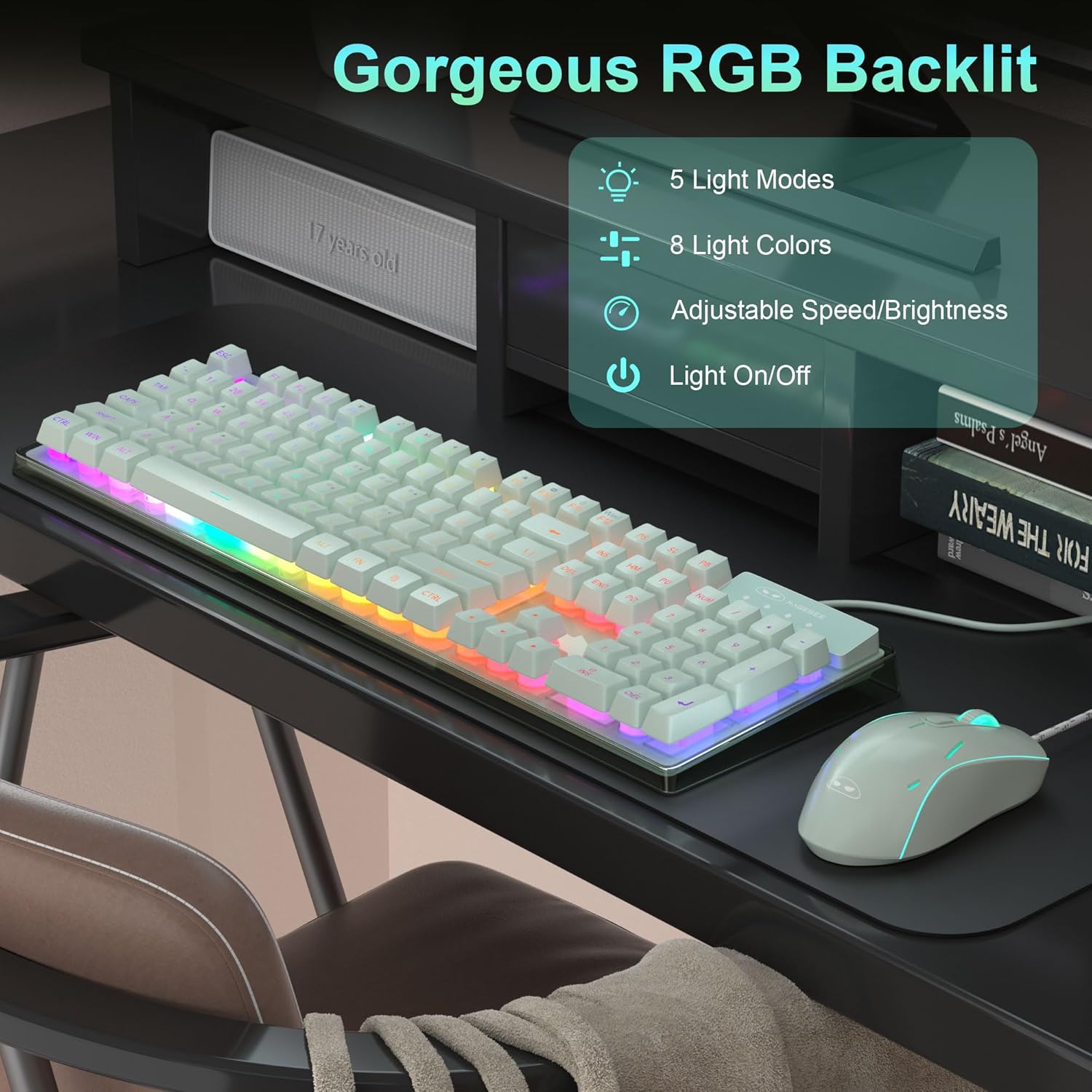
Image: The Camiysn K1 keyboard and mouse combo displayed on a desk, showcasing the vibrant RGB backlighting effects.

Image: A diagram illustrating the multimedia functions accessible via the FN key combinations on the Camiysn K1 keyboard.

Image: The Camiysn K1 gaming mouse, demonstrating its 7-color cycled breathing LED lighting in various hues.
Setup Instructions
- Unpack the Combo: Carefully remove the keyboard and mouse from their packaging.
- Connect the Keyboard: Locate an available USB port on your computer or laptop. Plug the USB connector of the keyboard into the USB port.
- Connect the Mouse: Locate another available USB port on your computer or laptop. Plug the USB connector of the mouse into the USB port.
- Automatic Installation: The operating system will automatically detect and install the necessary drivers. No additional software or drivers are required.
- Verify Functionality: Once installed, test the keyboard by typing and the mouse by moving the cursor and clicking.
The Camiysn K1 combo is designed for plug-and-play functionality, making setup quick and straightforward.
Operating Instructions
Keyboard Operation:
- RGB Backlight Control:
- Change Light Modes: Use specific key combinations (refer to keyboard markings or product details for exact keys, typically FN + a function key like INS, HOME, PGUP, PGDN, DEL, END) to cycle through 5 different lighting modes.
- Change Light Colors: Cycle through 8 available light colors.
- Adjust Brightness: Increase or decrease the backlight brightness.
- Adjust Speed: Modify the speed of dynamic lighting effects.
- Turn Light On/Off: The backlight can be completely turned off if desired.
- Multimedia Functions: The keyboard includes dedicated multimedia keys or FN key combinations for quick access to functions such as:
- Volume Up/Down/Mute
- Play/Pause, Previous/Next Track
- Web Browser, Email, Calculator
- Win Lock (disables Windows key during gaming)
Refer to the keyboard's keycap legends for specific FN key combinations (e.g., FN+F1 for Mute, FN+F12 for Win Lock).
Mouse Operation:
- DPI Adjustment: Use the DPI button (usually located below the scroll wheel) to cycle through the 6 available DPI settings (600/800/1200/1600/2400/3200). Each setting typically corresponds to a different LED color flash for easy identification.
- LED Backlight Control: The mouse features a 7-color breathing LED backlight. To lock the current color, press the side button (forward or back button) and the middle button (scroll wheel click) simultaneously.
Maintenance
- Cleaning the Keyboard:
- Disconnect the keyboard from your computer.
- Use a soft, dry cloth to wipe the surface of the keyboard.
- For dust and debris between keycaps, use compressed air.
- Keycaps are removable for deeper cleaning if necessary. Use a keycap puller (not included) to gently remove them.
- Cleaning the Mouse:
- Disconnect the mouse from your computer.
- Wipe the surface with a soft, slightly damp cloth. Avoid excessive moisture.
- Clean the optical sensor area on the bottom of the mouse with a cotton swab if tracking issues occur.
- Storage: Store the keyboard and mouse in a dry, cool place away from direct sunlight and extreme temperatures.
- Avoid Liquids: While the keyboard cable is waterproof, avoid spilling liquids directly onto the keyboard or mouse to prevent damage to internal components.
Troubleshooting
| Problem | Possible Cause | Solution |
|---|---|---|
| Keyboard/Mouse not responding | Loose USB connection, faulty USB port, driver issue. |
|
| Keyboard backlight not working | Backlight turned off, brightness set to minimum, software glitch. |
|
| Mouse tracking is erratic or not smooth | Dirty optical sensor, unsuitable mouse pad surface, incorrect DPI setting. |
|
| Mouse LED color not changing or stuck | Color lock activated. |
|
Specifications
| Feature | Detail |
|---|---|
| Brand | Camiysn |
| Model | K1 |
| Keyboard Keys | 104 Keys (Full Size) |
| Keyboard Backlight | RGB LED (8 colors, 5 modes) |
| Mouse DPI Levels | 600/800/1200/1600/2400/3200 |
| Mouse Backlight | 7-Color Breathing LED |
| Connectivity | Wired USB 2.0 |
| Compatible Devices | PC, Laptop, Gaming Console, Tablet |
| Operating Systems | Windows XP/Vista/7/8/10, MAC, Linux |
| Material | ABS Engineering Plastic |
| Item Weight (Mouse) | 3.53 ounces |
| Package Dimensions | 5.12 x 3.15 x 3.15 inches |

Image: Diagram showing the physical dimensions of the Camiysn K1 keyboard and mouse.
Warranty and Support
For warranty information and customer support, please refer to the documentation included with your purchase or visit the official Camiysn store page on Amazon. The manufacturer strives to provide a good purchase experience and prompt after-sales support.
Online Store: Camiysn Store on Amazon
Protection plans may be available for purchase separately to extend coverage beyond the standard warranty period. Please check the product listing for details on available protection plans.


