
Introduction
Welcome to your new Memorex 11-inch Android 14 Tablet Bundle. This comprehensive guide provides detailed instructions to help you set up, operate, maintain, and troubleshoot your device and its included accessories. Please read this manual thoroughly to ensure optimal performance and longevity of your product.
What's in the Box
Upon unboxing, please verify that all the following items are present:
- Memorex 11-inch Tablet
- Bluetooth Keyboard
- Wireless Headphones
- Protective Case with Stand
- AC Adapter Charger & Cable
- Instruction Manual (this document)
- Quick Start Guide

Image: The Memorex 11-inch tablet with its accompanying Bluetooth keyboard and wireless headphones, set up on a table in a living room environment.
Setup
1. Initial Charging
Before first use, fully charge your tablet. Connect the provided AC adapter and cable to the tablet's charging port and plug it into a power outlet. The battery indicator on the screen will show charging status.
2. Powering On/Off
- To Power On: Press and hold the Power button located on the side of the tablet until the Memorex logo appears.
- To Power Off: Press and hold the Power button, then select 'Power off' from the options that appear on the screen.
- To Restart: Press and hold the Power button, then select 'Restart' from the options.
3. Initial Android Setup
Follow the on-screen prompts to complete the initial setup of your Android 14 operating system. This typically includes selecting your language, connecting to a Wi-Fi network, and signing in with or creating a Google account.
4. Connecting Bluetooth Accessories
Your tablet bundle includes a Bluetooth Keyboard and Wireless Headphones. To connect them:
- Ensure the accessory (keyboard or headphones) is charged and in pairing mode (refer to the accessory's specific instructions if needed).
- On your tablet, go to Settings > Connected devices > Bluetooth.
- Turn Bluetooth On.
- The tablet will scan for available devices. Select the name of your Bluetooth Keyboard or Wireless Headphones from the list.
- Follow any on-screen prompts to complete the pairing process.
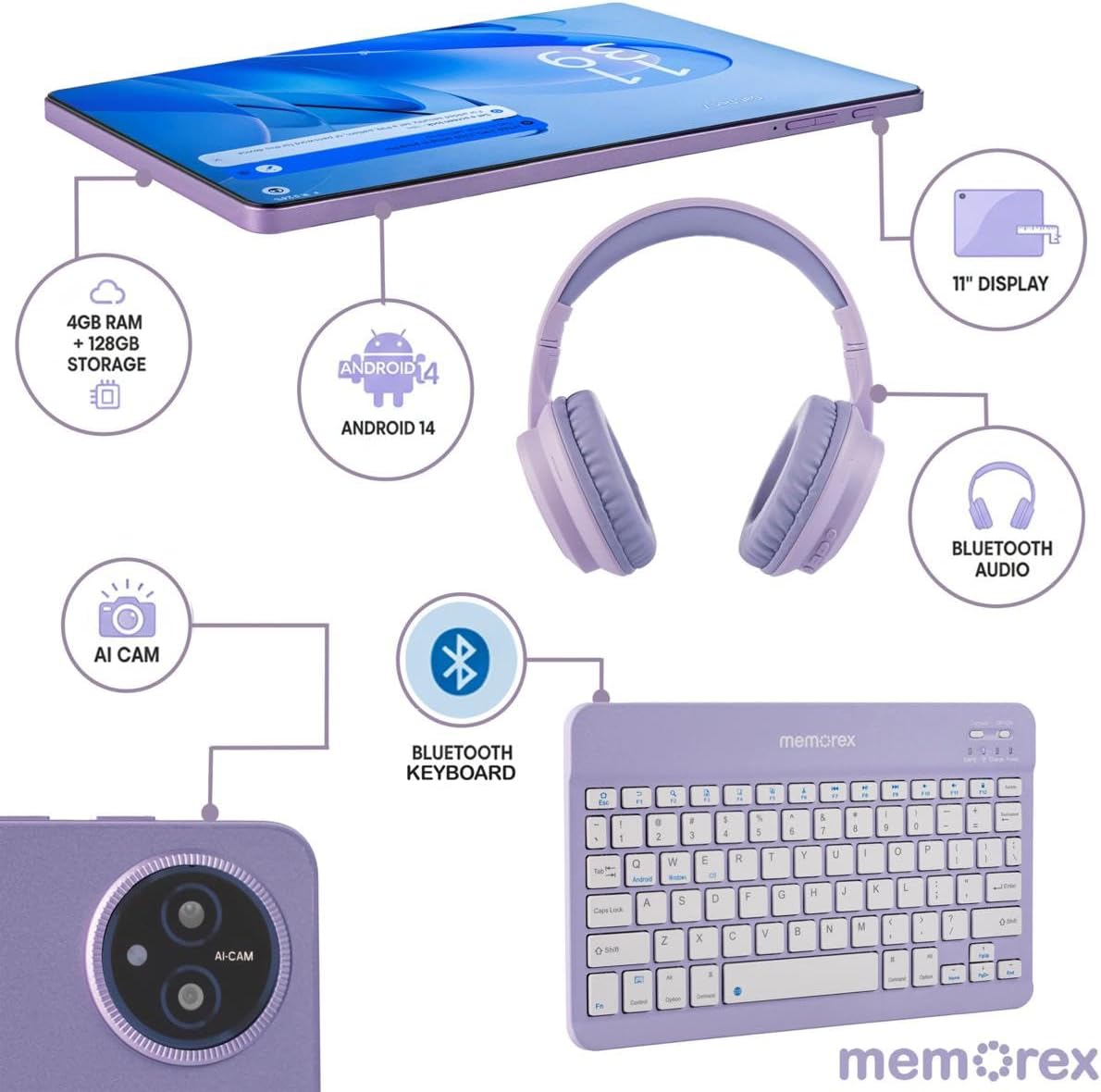
Image: A visual representation of the Memorex tablet and its accessories, including the Bluetooth keyboard and headphones, illustrating their connection points and features.
Operating Instructions
1. Basic Navigation
Your tablet features an 11-inch FHD IPS touchscreen. Navigate by tapping, swiping, pinching, and spreading fingers on the display. The Android 14 interface is intuitive, allowing you to access apps, settings, and notifications easily.
2. Using the Bluetooth Keyboard
Once paired, the Bluetooth keyboard functions like a standard computer keyboard. It can be used for typing documents, emails, and navigating the tablet's interface more efficiently. Ensure the keyboard is powered on and connected via Bluetooth.
3. Camera Operation
The tablet is equipped with an 8MP front camera and a 13MP rear camera. To use the camera:
- Open the Camera application from your home screen or app drawer.
- Tap the camera icon to switch between front and rear cameras.
- Tap the shutter button to take photos or start/stop video recording.
4. Storage Management
Your tablet comes with 128GB of internal storage. If more storage is needed, you can expand it using a microSD card (sold separately). Insert the microSD card into the designated slot on the tablet.
5. Battery Usage Tips
The 6000 mAh battery provides extended usage. To maximize battery life:
- Adjust screen brightness to a comfortable level.
- Close unused applications running in the background.
- Turn off Wi-Fi and Bluetooth when not in use.
- Enable battery saver mode in settings.

Image: A user comfortably operating the Memorex tablet with its keyboard and headphones, demonstrating its use for work or entertainment.
Maintenance
1. Cleaning the Device
Use a soft, lint-free cloth to clean the tablet screen and body. For stubborn smudges, slightly dampen the cloth with water or a screen-safe cleaning solution. Avoid harsh chemicals or abrasive materials.
2. Software Updates
Regularly check for and install system updates to ensure your tablet has the latest features, security patches, and performance improvements. Go to Settings > System > System update.
3. Battery Care
To prolong battery lifespan, avoid extreme temperatures and do not leave the tablet fully discharged for extended periods. It is recommended to keep the battery charge between 20% and 80% for optimal health.
4. Storage Optimization
Periodically review and delete unnecessary files, apps, and media to free up storage space and maintain tablet performance. Utilize cloud storage services for backups of important data.
Troubleshooting
This section addresses common issues you might encounter with your Memorex tablet.
| Problem | Solution |
|---|---|
| Tablet does not turn on | Ensure the tablet is charged. Connect to the AC adapter and wait a few minutes before attempting to power on again. If still unresponsive, perform a forced restart by holding the power button for 10-15 seconds. |
| Wi-Fi connectivity issues | Check if Wi-Fi is enabled in settings. Restart your Wi-Fi router. Forget the network and reconnect. Ensure you are within range of the Wi-Fi signal. |
| Bluetooth device not pairing | Ensure the Bluetooth accessory is in pairing mode and fully charged. Turn Bluetooth off and on again on the tablet. Make sure no other devices are connected to the accessory. |
| Slow performance | Close unused apps. Clear cache for frequently used apps. Check available storage space and delete unnecessary files. Restart the tablet. |
| Rapid battery drain | Reduce screen brightness. Disable Wi-Fi/Bluetooth when not in use. Identify and close power-intensive apps. Check battery usage in settings to pinpoint culprits. |
Specifications
Key technical specifications for your Memorex MXTAB11 Tablet Bundle:
- Brand: Memorex
- Model Name: 11-inch Tablet PC
- Model Number: MXTAB11
- Operating System: Android 14
- Processor: ARM Cortex-A523 Octa-Core Processor, 2 GHz
- RAM: 4 GB
- Internal Storage: 128 GB
- Expandable Storage: microSD compatible
- Screen Size: 11 Inches
- Display Resolution: 1200 x 1920 pixels (FHD IPS)
- Rear Camera: 13 MP
- Front Camera: 8 MP
- Battery Capacity: 6000 Milliamp Hours
- Connectivity: Wi-Fi (802.11ac, 802.11ax), Bluetooth, USB
- Human-Interface Input: Touchscreen
- Color: Black

Image: An infographic detailing the core specifications of the Memorex tablet, including storage, RAM, build material, connectivity, and battery capacity.
Warranty and Support
1. Warranty Information
Your Memorex MXTAB11 Tablet Bundle is covered by a 1-Year Limited Warranty. This warranty covers manufacturing defects and workmanship under normal use. Please retain your proof of purchase for warranty claims. The warranty does not cover damage caused by misuse, accidents, unauthorized repairs, or normal wear and tear.
2. Customer Support
For technical assistance, troubleshooting beyond this manual, or warranty inquiries, please contact Memorex customer support. Refer to the contact information provided in your product packaging or visit the official Memorex website for support resources.