
Important Safety Information
Please read all instructions carefully before installation and operation. Retain this manual for future reference.
- Ensure the power supply is disconnected before any installation, maintenance, or filter replacement.
- The system must be installed by a qualified professional or a person with adequate plumbing knowledge.
- Do not operate the system if any part is damaged or appears to be malfunctioning.
- This appliance produces hot water. Exercise caution to prevent burns. Utilize the child safety lock feature on the smart faucet.
- Only use genuine MIZUDO replacement filters to ensure optimal performance and safety.
- Operating water pressure range: 15-100 PSI. Ensure your water pressure is within this range.
- Operating water temperature range: 40-100°F (5-38°C) for incoming water.
What's in the Box
Verify that all components are present before beginning installation:
- MIZUDO Smart WiFi 800GPD Tankless Reverse Osmosis System Unit
- PCF Filter (Pre-Carbon Filter)
- RO Filter (Reverse Osmosis Membrane Filter)
- Chrome LED Smart Faucet
- Water Inlet Tubing
- Drain Water Outlet Tubing
- Drain Connector
- Angle Stop Valve
- Power Adapter

Figure 1: Included components and basic connection diagram.
Product Specifications
| Feature | Specification |
|---|---|
| Model Name | Megaflo Hot 800GPD WIFI (WD800A1G) |
| Daily Production Capacity | 800 GPD (Gallons Per Day) |
| Purification Method | Granular Activated Carbon, Reverse Osmosis (9-Stage Filtration) |
| Installation Type | Under Sink |
| Product Dimensions (L x W x H) | 18.5" x 7.3" x 17.7" |
| Item Weight | 37.5 pounds |
| Power Source | Corded Electric (110-120 VAC 50/60 Hz) |
| Rated Power | 1100 W |
| Operating Water Pressure | 15-100 PSI (0.1-0.7 MPa) |
| Operating Water Temperature | 40-100°F (5-38°C) |
| Maximum Flow Rate | 2.1 Liters Per Minute |
| Water Saving Percentage | 75% (3:1 Pure to Drain Ratio) |
| Filter Life Cycle (RO) | Up to 3 Years |
| Filter Life Cycle (PCF) | Up to 1 Year |
| Special Features | Adjustable Temperature, Built-in TDS Meter, Child Safety Lock, Instant Hot Water, WiFi Enabled |

Figure 2: Detailed product dimensions and general information.
Setup and Installation
The MIZUDO Smart WiFi RO System is designed for under-sink installation. Installation typically takes around 30 minutes and does not require specialized tools.
Pre-Installation Checklist
- Ensure adequate space under your sink for the main unit (18.5"L x 7.3"W x 17.7"H).
- Confirm access to a cold water supply line and a drain pipe.
- Verify a standard 110-120V AC power outlet is available under the sink. If the outlet is controlled by a switch (e.g., for a garbage disposal), ensure it can be kept continuously on or use a wireless outlet adapter.
- Gather basic tools: adjustable wrench, drill (for faucet hole if needed), screwdriver.
Installation Steps
- Turn off Water Supply and Power: Locate and turn off the cold water supply valve under your sink. Disconnect power to any existing appliances under the sink.
- Install Smart Faucet: Drill a hole (if necessary) in your countertop or sink for the smart faucet. Secure the faucet according to the included instructions.
- Connect Water Inlet: Install the angle stop valve to your cold water supply line. Connect the water inlet tubing from the RO system to the angle stop valve.
- Connect Drain: Install the drain connector onto your sink's drain pipe. Connect the drain water outlet tubing from the RO system to the drain connector.
- Connect Pure Water to Faucet: Connect the pure water tubing from the RO system to the smart faucet.
- Install Filters: Remove the front cover of the main unit. Insert the PCF and RO filters into their designated slots. Rotate them clockwise until they lock into place.
- Connect Power: Plug the power adapter into the RO system and then into a grounded electrical outlet.
- Restore Water Supply and Power: Slowly turn on the cold water supply. Check for any leaks. Restore power to the system.
- Flush New Filters: Press the 'Ambient' button on the smart faucet. The system will flush the new filters for approximately 8 minutes. This is crucial to prepare the filters for use.
Figure 3: Installation diagram showing tubing and wire connections.
Video 1: Overview of the MIZUDO Smart WiFi 800GPD Tankless Reverse Osmosis System.
Operating Instructions
Smart Faucet Controls
The smart faucet provides real-time information and easy control over water dispensing.
- Real-Time Display: Monitor water temperature, real-time TDS (Total Dissolved Solids) levels, and filter life directly on the faucet's LED screen.
- Temperature Adjustment: Instantly adjust water temperatures with simple touch controls.
- Child Safety Lock: A dedicated child lock feature prevents accidental dispensing of hot water. Activate and deactivate as needed.
- Water Modes: Select between Hot, Warm, and Ambient water modes.

Figure 4: Smart Faucet display and controls.
Temperature Settings
The system offers 6 precise temperature settings for various needs, with hot water delivered in approximately 20 seconds.
- 104°F (40°C): Ideal for baby formula.
- 113°F (45°C): Suitable for dissolving milk powder.
- 131°F (55°C): Perfect for honey water.
- 167°F (75°C): Recommended for baby cereal.
- 185°F (85°C): Great for making tea.
- 203°F (95°C): Optimal for brewing coffee.

Figure 5: Recommended temperature settings for common uses.
Smart WiFi App Control
Control and monitor your MIZUDO RO system from your smartphone using the dedicated app.
- Real-Time TDS Monitoring: View the Total Dissolved Solids level of your filtered water.
- Water Quality Alerts: Receive notifications regarding water quality.
- Filter Life Alerts: Get reminders when filters need replacement.
- Temperature Management: Adjust water temperatures remotely.
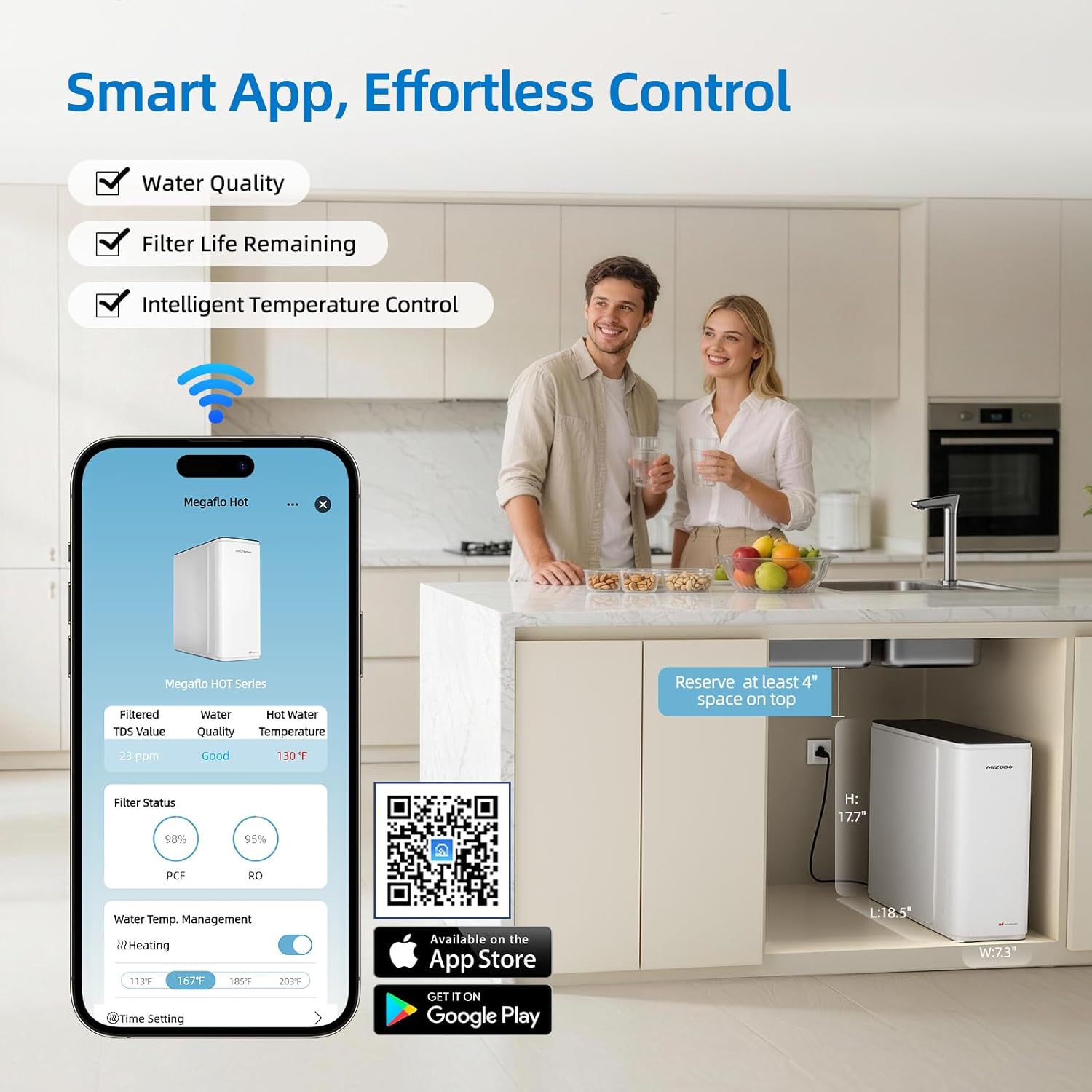
Figure 6: Smart app interface for remote control and monitoring.
Download the app: https://a.smart321.com/fogattiandroidletsmart
Video 2: Demonstration of the Smart WiFi Instant Hot Water Dispenser features.
Maintenance and Filter Replacement
Regular filter replacement is essential for maintaining water quality and system performance. The MIZUDO system features tool-free filter replacement for convenience.
Filter Life Monitoring
- The smart faucet display and the mobile app will indicate the remaining life of your PCF and RO filters.
- The PCF filter typically lasts up to 1 year, and the RO filter up to 3 years, depending on water quality and usage.
Replacing Filters
- Turn off Water and Power: Before replacing filters, turn off the water supply to the system and unplug the power cord.
- Remove Front Cover: Gently remove the front cover of the main unit.
- Remove Old Filter: Identify the filter that needs replacement. Rotate it anticlockwise until it unlocks, then gently pull it out.
- Install New Filter: Insert the new filter into the slot. Rotate it clockwise until the triangle icon on the filter aligns with the lock icon on the system, securing it in place.
- Replace Front Cover: Put the front cover back onto the main unit.
- Restore Water and Power: Turn on the water supply and plug the power cord back in.
- Reset Filter Lifetime: Press and hold the reset button (usually labeled PCF or RO depending on the filter replaced) for 3 seconds to reset the filter lifetime indicator.
- Flush New Filter: Press the 'Ambient' button on the smart faucet. The system will flush the new filter for approximately 8 minutes.

Figure 7: Tool-free filter replacement process.
Video 3: Detailed instructions on how to replace the filters in your MIZUDO RO system.
Troubleshooting
This section addresses common issues you might encounter with your MIZUDO RO system.
| Problem | Possible Cause | Solution |
|---|---|---|
| No water flow from faucet | Water supply off, system unplugged, filters clogged, air in lines. | Check water supply valve, ensure power is connected, replace filters if indicated, flush system. |
| Low water pressure | Low incoming water pressure, clogged filters, kinked tubing. | Check household water pressure, replace filters, inspect tubing for kinks. |
| Water tastes unusual | New filters not flushed, old filters, system not used for a long time. | Flush new filters for 8 minutes, replace old filters, flush system if unused for extended periods. |
| High TDS reading | RO filter needs replacement, system malfunction. | Check RO filter life indicator and replace if necessary. Contact customer support if issue persists. |
| Leaking | Loose connections, damaged O-rings, cracked housing. | Tighten all connections. Inspect O-rings and housing for damage. Turn off water supply immediately and contact support. |
| Hot water not dispensing | Child safety lock active, heating element issue, power interruption. | Deactivate child safety lock. Ensure system has power. If issue persists, contact customer support. |
Warranty and Support
MIZUDO stands behind the quality of its products.
- Warranty: This product is backed by a 1-year free repair/replacement service.
- Quality Guarantee: MIZUDO offers a lifetime quality guarantee from U.S. experts.
- Customer Support: For technical assistance, warranty claims, or general inquiries, please refer to the contact information provided with your purchase or visit the official MIZUDO website.