
Introduction
The Memorex MTAB10 10.1-inch Tablet Bundle is designed for everyday productivity, entertainment, and convenience. This manual provides essential information for setting up, operating, and maintaining your tablet and its accessories. Please read this guide thoroughly to ensure proper use and to maximize your device's potential.
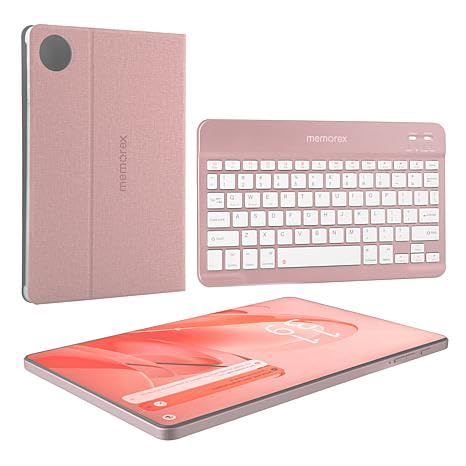
Image: The Memorex MTAB10 tablet in its protective case with the Bluetooth keyboard attached, showcasing the complete bundle.
What's in the Box
Verify that all items are present in the package:
- Memorex 10.1" Tablet
- Bluetooth Keyboard
- Protective Case Cover with Stand
- AC Adapter Charger and Cable
- Instruction Manual (this document)
- Quick Start Guide
Setup
1. Initial Power On and Basic Setup
- Charge the Tablet: Before first use, connect the tablet to the AC adapter and charge it fully. The charging port is typically located on the side of the tablet.
- Power On: Press and hold the power button (usually on the side or top edge) for a few seconds until the Memorex logo appears.
- Follow On-Screen Prompts: The tablet will guide you through the initial setup process, which includes selecting your language, connecting to Wi-Fi, setting up your Google account, and configuring basic settings.

Image: The Memorex MTAB10 tablet secured in its protective case, displaying the home screen with notifications.
2. Connecting the Bluetooth Keyboard
- Charge the Keyboard: Ensure the Bluetooth keyboard is charged. Connect it to a power source if necessary.
- Turn On Keyboard: Locate the power switch on the keyboard and slide it to the "On" position.
- Enable Bluetooth on Tablet:
- Go to Settings on your tablet.
- Tap on Connected devices or Bluetooth & device connection.
- Toggle Bluetooth to "On".
- Pair the Keyboard:
- On the keyboard, press the Connect or Pairing button (refer to the keyboard's specific instructions if available).
- On your tablet, in the Bluetooth settings, look for available devices. The keyboard should appear as "Bluetooth Keyboard" or a similar name.
- Tap on the keyboard's name to initiate pairing. You may be prompted to enter a code on the keyboard and press Enter.
- Confirmation: Once paired, the tablet will indicate that the keyboard is connected.
3. Wi-Fi Setup
- Access Wi-Fi Settings:
- Swipe down from the top of the screen to open the Quick Settings panel.
- Tap and hold the Wi-Fi icon, or go to Settings > Network & internet > Wi-Fi.
- Connect to a Network:
- Ensure Wi-Fi is turned "On".
- Select your desired Wi-Fi network from the list of available networks.
- If prompted, enter the network password and tap Connect.
- Confirmation: A Wi-Fi icon will appear in the status bar once connected.
Operating the Tablet
1. Basic Navigation
- Touchscreen Gestures:
- Tap: Select an item or open an app.
- Swipe: Scroll through pages or lists.
- Pinch-to-Zoom: Enlarge or reduce content (e.g., photos, web pages).
- Long Press: Access contextual menus or move icons.
- Home Screen: The central hub for your apps and widgets. Customize it by long-pressing on empty space.
- Navigation Bar: Typically at the bottom of the screen, includes Back, Home, and Recent Apps buttons.
2. Android 14 Features
Your Memorex MTAB10 tablet runs on Android 14, offering enhanced privacy controls, improved system performance, and new customization options. Explore the Settings menu to discover all available features and personalize your experience.
3. Using the Bluetooth Keyboard
- Typing: Use the keyboard for text input in any application that supports it (e.g., word processors, email, web browsers).
- Function Keys: Many keyboards include function keys (Fn keys) that can control tablet features like volume, screen brightness, and media playback. Refer to your keyboard's specific layout for details.
- Trackpad/Mouse (if applicable): If your keyboard case includes a trackpad, it functions similarly to a laptop trackpad for cursor control.

Image: The Memorex MTAB10 tablet with its Bluetooth keyboard and protective case, set up on a desk for productivity.
Maintenance
1. Cleaning Your Tablet
- Screen: Use a soft, lint-free cloth (e.g., microfiber) slightly dampened with water or a screen cleaner specifically designed for electronics. Avoid harsh chemicals.
- Body: Wipe the tablet's body and case with a soft, dry cloth.
- Ports: Keep charging ports and headphone jacks free of dust and debris. Use a soft brush or compressed air if necessary, but avoid inserting sharp objects.
2. Battery Care
- Optimal Charging: Avoid completely draining the battery frequently. Charge it when the battery level is low (e.g., 20-30%).
- Avoid Extreme Temperatures: Do not expose the tablet to very high or very low temperatures, as this can degrade battery life.
- Use Original Charger: Always use the provided AC adapter and cable for charging to ensure compatibility and safety.
3. Software Updates
Regularly check for and install software updates to ensure your tablet has the latest security patches, bug fixes, and performance improvements.
- Go to Settings > System > System update.
- Follow the on-screen instructions to check for and install any available updates. Ensure your tablet is sufficiently charged or connected to power during updates.
Troubleshooting
This section addresses common issues you might encounter with your Memorex MTAB10 tablet.
Tablet Will Not Turn On
- Check Battery: Ensure the tablet is charged. Connect it to the AC adapter and let it charge for at least 30 minutes before attempting to power it on again.
- Force Restart: Press and hold the power button for 10-15 seconds. This can sometimes resolve minor software glitches.
Wi-Fi Connectivity Issues
- Restart Router: Power cycle your Wi-Fi router and modem.
- Forget Network: Go to Wi-Fi settings, tap on the problematic network, and select "Forget". Then, try to reconnect.
- Check Signal: Ensure you are within range of your Wi-Fi router.
Bluetooth Keyboard Not Connecting
- Keyboard Power/Charge: Ensure the keyboard is turned on and fully charged.
- Re-pair: Go to tablet's Bluetooth settings, "Forget" the keyboard if it's listed, then repeat the pairing process.
- Interference: Move away from other Bluetooth or wireless devices that might cause interference.
Slow Performance
- Close Background Apps: Close unused applications running in the background.
- Clear Cache: Periodically clear the cache of apps that consume a lot of storage.
- Free Up Storage: Delete unnecessary files, photos, or videos to free up internal storage.
- Restart Tablet: A simple restart can often improve performance.
Specifications
| Brand | Memorex |
| Model Name | 10.1 inch Tablet (MTAB10) |
| Operating System | Android 14 |
| Processor | A523 ARM Cortex-A523 Octa-Core Processor (up to 2.0 GHz) |
| RAM Memory | 4 GB |
| Storage Capacity | 128 GB |
| Screen Size | 10.1 Inches |
| Display Resolution | 1200 x 1920 pixels (FHD IPS) |
| Battery Capacity | 6000 Milliamp Hours |
| Rear Camera | 13 MP |
| Front Camera | 8 MP |
| Connectivity | Wi-Fi (802.11 ac/b/g/n), Bluetooth |
| Item Weight | 3 Pounds |
Warranty and Support
Warranty Information
The Memorex MTAB10 tablet comes with a 1-Year Limited Warranty. This warranty covers manufacturing defects under normal use. Please retain your proof of purchase for warranty claims. For specific terms and conditions, refer to the warranty card included in your package or visit the official Memorex website.
Customer Support
If you encounter issues not covered in the troubleshooting section or require further assistance, please contact Memorex customer support. You can typically find contact information (phone, email, or support portal) on the official Memorex website or in the Quick Start Guide.
For the most up-to-date support resources, visit the Memorex Support Website (Note: This is a placeholder link, please refer to actual product documentation for the correct URL.)