
1. Introduction
This manual provides essential instructions for setting up, operating, and maintaining your Memorex MTAB10(K) 10.1-inch Android 14 Tablet. Please read this guide thoroughly before using your device to ensure proper function and longevity. This tablet bundle includes a Bluetooth keyboard and a protective case, enhancing its versatility for both productivity and entertainment.
2. What's in the Box
Verify that all items are present in the package:
- Memorex 10.1" Tablet
- Bluetooth Keyboard
- Protective Case Cover with Stand
- AC Adapter Charger and Cable
- Instruction Manual (this document)
- Quick Start Guide
3. Product Overview
The Memorex MTAB10(K) tablet features a 10.1-inch FHD IPS display, powered by an A523 ARM 8-core Cortex processor and Android 14. It comes with 128GB of storage and 4GB of RAM, designed for responsive performance.
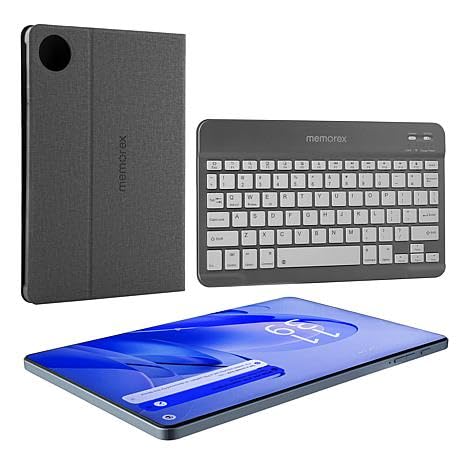
This image displays the Memorex MTAB10(K) tablet, its accompanying Bluetooth keyboard, and the protective case. The tablet features a large display, and the keyboard is designed for comfortable typing. The case provides protection and often includes a stand function.
Tablet Components and Controls
- Power Button: Located on the side/top edge. Press and hold to power on/off or restart.
- Volume Buttons: Located near the power button. Adjusts media and notification volume.
- USB-C Port: For charging and data transfer.
- Headphone Jack: 3.5mm port for audio output.
- Front Camera: For video calls and selfies.
- Rear Camera: For taking photos and videos.
- MicroSD Card Slot: For expanding storage (card not included).
4. Setup
4.1 Charging the Tablet
- Connect the AC adapter cable to the USB-C port on the tablet.
- Plug the AC adapter into a power outlet.
- Allow the tablet to charge fully before first use. The battery icon on the screen will indicate charging status.
4.2 Powering On/Off
- To Power On: Press and hold the Power button until the Memorex logo appears.
- To Power Off: Press and hold the Power button until the power options menu appears, then select "Power off."
- To Restart: Press and hold the Power button until the power options menu appears, then select "Restart."
4.3 Initial Setup Wizard
Upon first power-on, the tablet will guide you through the initial setup process:
- Select your preferred language.
- Connect to a Wi-Fi network.
- Sign in with your Google Account or create a new one. This is necessary for downloading apps from the Google Play Store.
- Follow the on-screen prompts to complete the setup, including setting up security features like a PIN or pattern.
5. Operating Instructions
5.1 Touchscreen Navigation
- Tap: Touch the screen once to select an item or open an app.
- Tap and Hold: Touch and hold an item to access additional options or move it.
- Swipe: Drag your finger across the screen to scroll through pages or lists.
- Pinch: Use two fingers to zoom in or out on photos and web pages.
5.2 Home Screen
The Home screen is your central hub for apps, widgets, and notifications. You can customize it by adding app shortcuts and widgets.
5.3 Notifications and Quick Settings
Swipe down from the top of the screen to access your notifications and quick settings panel. Here you can quickly toggle Wi-Fi, Bluetooth, adjust brightness, and more.
5.4 Connecting to Wi-Fi
- Go to Settings > Network & internet > Wi-Fi.
- Toggle Wi-Fi On.
- Select your desired network from the list.
- Enter the network password if prompted, then tap Connect.
5.5 Downloading Apps
Access the Google Play Store app to browse and download a wide variety of applications, games, movies, and books.
5.6 Adjusting Settings
The Settings app allows you to customize various aspects of your tablet, including:
- Display: Brightness, screen timeout, font size.
- Sound: Volume levels, notification sounds, ringtones.
- Battery: Battery usage, power saving modes.
- Storage: View storage usage and free up space.
6. Connecting the Bluetooth Keyboard
The included Bluetooth keyboard enhances your typing experience. Follow these steps to pair it with your tablet:
- Ensure the Bluetooth keyboard is charged (if applicable) and powered on. Look for a power switch or button on the keyboard.
- On your tablet, go to Settings > Connected devices > Bluetooth.
- Toggle Bluetooth On.
- The tablet will scan for available Bluetooth devices.
- Select the keyboard's name (e.g., "Memorex Keyboard" or similar) from the list of available devices.
- If prompted, enter the pairing code displayed on your tablet screen into the keyboard and press Enter.
- Once paired, the keyboard status will show as "Connected."
7. Maintenance
7.1 Cleaning the Device
- Use a soft, lint-free cloth to clean the tablet screen and body.
- Avoid using harsh chemicals, abrasive cleaners, or excessive moisture, as these can damage the device.
- For stubborn smudges, lightly dampen the cloth with water or a screen-specific cleaning solution.
7.2 Battery Care
- Avoid exposing the tablet to extreme temperatures (hot or cold), as this can degrade battery life.
- Do not allow the battery to fully discharge frequently. Charge it when the battery level is low.
- Use only the provided AC adapter and cable for charging.
7.3 Software Updates
Regularly check for and install software updates to ensure your tablet has the latest features, security patches, and performance improvements.
- Go to Settings > System > System update.
- Follow the on-screen instructions to check for and install any available updates.
8. Troubleshooting
8.1 Tablet Won't Turn On
- Ensure the tablet is sufficiently charged. Connect it to the AC adapter and allow it to charge for at least 30 minutes.
- Press and hold the Power button for 10-15 seconds to perform a forced restart.
8.2 Wi-Fi Connection Issues
- Verify that Wi-Fi is enabled in the tablet's settings.
- Restart your Wi-Fi router and modem.
- Ensure you are entering the correct Wi-Fi password.
- Try connecting to a different Wi-Fi network if available to isolate the issue.
8.3 Bluetooth Keyboard Not Connecting
- Ensure the keyboard is powered on and has sufficient battery.
- Turn Bluetooth off and then on again on your tablet.
- Forget the keyboard from the tablet's Bluetooth settings and attempt to re-pair it.
- Ensure the keyboard is within the effective Bluetooth range (typically 10 meters).
8.4 Apps Crashing or Freezing
- Close the problematic app and reopen it.
- Clear the app's cache: Go to Settings > Apps > [App Name] > Storage & cache > Clear cache.
- If the issue persists, try uninstalling and reinstalling the app.
- Ensure your tablet's operating system is up to date.
9. Specifications
| Model Name | 10.1 inch Tablet (MTAB10(K)) |
| Operating System | Android 14 |
| Screen Size | 10.1 Inches |
| Screen Resolution | 1200 x 1920 pixels (FHD IPS) |
| Processor | A523 ARM Cortex-A523 Octa-Core Processor (up to 2 GHz) |
| RAM | 4 GB |
| Flash Memory Size | 128 GB |
| Wireless Type | 802.11a/b/g/n/ac |
| Item Weight | 2.92 pounds |
| Product Dimensions | 10 x 3 x 12 inches |
| Color | Black |
10. Warranty and Support
For warranty information and technical support, please refer to the documentation included in your product packaging or visit the official Memorex website. Keep your purchase receipt as proof of purchase for warranty claims.