
1. Introduction
The Roconia Q7 Outdoor Projector is a portable smart projector designed for versatile entertainment. Featuring WiFi 6 and Bluetooth 5.2 connectivity, AI auto-focus, and native 1080P resolution with 4K decoding support, it delivers a high-quality viewing experience. This manual provides essential information for setting up, operating, and maintaining your projector.
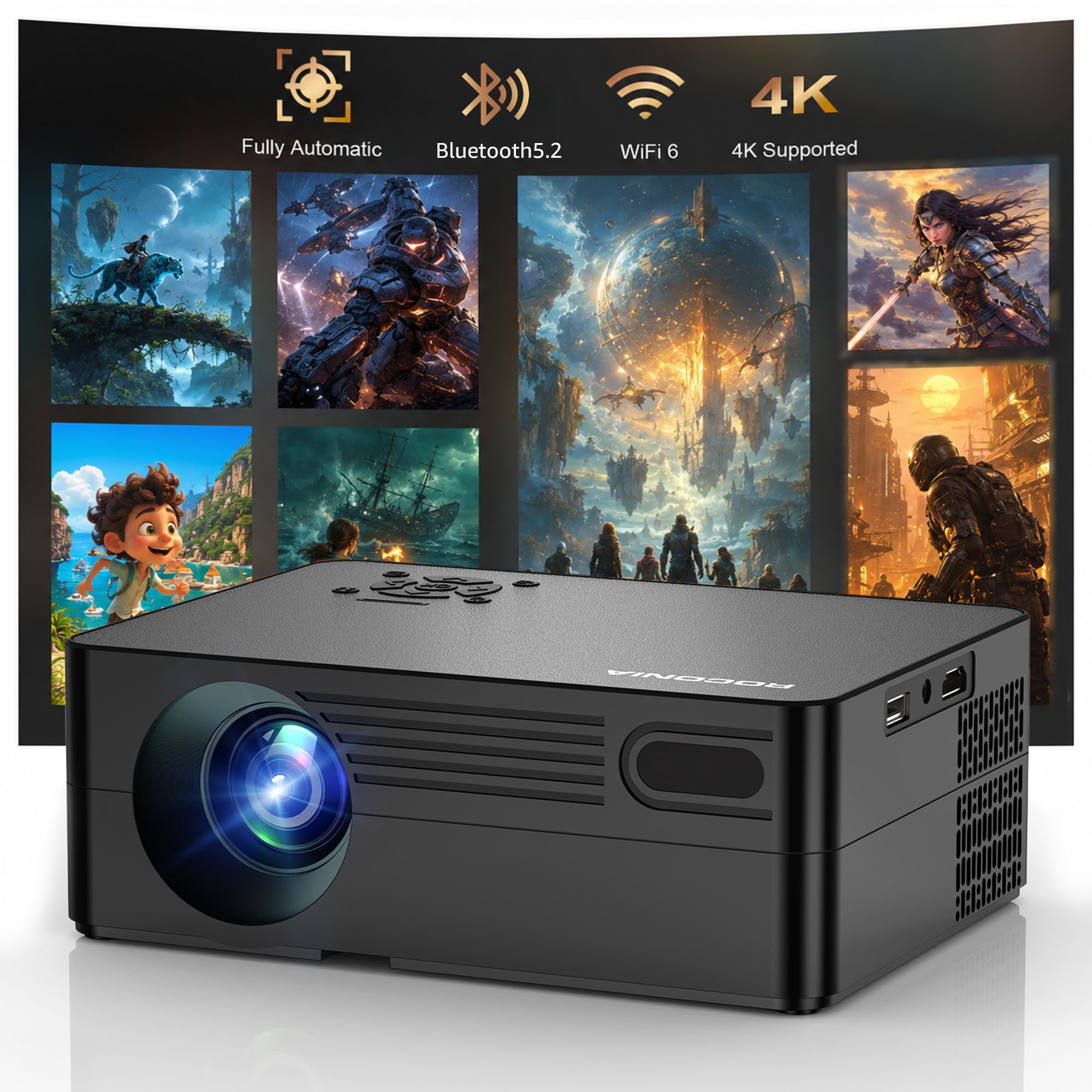
Image: The Roconia Q7 Outdoor Projector in its grayish-black finish.
2. What's in the Box
Upon unpacking, please ensure all the following items are included:
- Roconia Q7 Projector
- Instruction Manual
- Remote Control
- Power Cord
3. Key Features
- Built-in Streaming Apps: Preloaded with Netflix, YouTube, Prime Video, and more.
- High Brightness & 4K Decoding: Native 1080P resolution with support for 4K decoding, 25,000:1 contrast ratio, and 98% NTSC color gamut.
- AI-Powered Auto Focus & Keystone: Instant auto-focus, 6D keystone correction, obstacle avoidance, and screen-fit technology.
- Ultra-Fast WiFi 6 & Bluetooth 5.2: Dual-band 5G/2.4G WiFi for seamless streaming and Bluetooth 5.2 for low-latency audio.
- Flexible Installation & Portability: 1/4-inch screw hole and 180° rotating stand for various mounting options. Compact and lightweight design (2.03 lbs).
- Durable Design: Fully sealed optical engine, dual-fan cooling, and triple automatic temperature control system for extended lifespan.

Image: The Roconia Q7 Projector displaying a streaming service interface, highlighting its Netflix compatibility.

Image: Visual comparison demonstrating the superior clarity of Native 1080P on the Roconia Q7 Projector.

Image: The Roconia Q7 Projector automatically adjusting focus and keystone for optimal image quality.

Image: Illustration of the Roconia Q7 Projector's 5G+2.4G WiFi connectivity with various devices.

Image: The Roconia Q7 Projector wirelessly connected to external HIFI speakers via Bluetooth 5.2.
Video: This video demonstrates the Roconia Q7 Smart Projector's features, including its built-in apps, WiFi, and Bluetooth connectivity, showcasing its ease of use and high-definition display.
4. Setup
- Placement: Position the projector on a stable, flat surface or mount it using the 1/4-inch screw hole. The 180° rotating stand allows for projection onto ceilings, walls, or tents. Ensure the projection surface is clear and flat for optimal image quality.
- Power Connection: Connect the power cord to the projector and then to a power outlet.
- Initial Boot: Press the power button on the projector or remote control to turn it on. The projector will perform AI-powered auto-focus and keystone correction to adjust the image automatically.
- Connectivity: For external devices, connect via HDMI or USB ports. For wireless screen mirroring or streaming, ensure your device and the projector are connected to the same WiFi network.

Image: The Roconia Q7 Projector set up for an outdoor movie night, demonstrating its portability and ease of use.
5. Operating Instructions
5.1 Navigating the Interface
Use the provided remote control to navigate the projector's smart interface. The directional buttons allow you to move between options, and the 'OK' button confirms selections. The 'Back' button returns to the previous screen.
5.2 Using Built-in Apps
The projector comes with pre-installed streaming applications like Netflix, YouTube, and Prime Video. Select the desired app from the home screen to launch it. Ensure the projector is connected to the internet via WiFi for streaming content.

Image: The Roconia Q7 Projector displaying the Netflix application, ready for streaming.
5.3 WiFi Connection
- Go to 'Settings' on the home screen.
- Select 'Network' or 'WiFi Settings'.
- Choose your desired 5G or 2.4G WiFi network from the list.
- Enter the password and confirm to connect.
5.4 Bluetooth Connection
- Go to 'Settings' on the home screen.
- Select 'Bluetooth Settings'.
- Turn on Bluetooth and search for available devices.
- Select your Bluetooth speaker or headphones from the list to pair.
6. Maintenance
- Cleaning the Lens: Use a soft, lint-free cloth specifically designed for optical lenses to gently wipe the projector lens. Avoid abrasive materials or harsh chemicals.
- Cleaning the Exterior: Wipe the projector's exterior with a soft, dry cloth. Do not use liquid cleaners directly on the device.
- Dust Prevention: The projector features a fully sealed optical engine for superior dust resistance. However, regular cleaning of the surrounding area can further prevent dust accumulation.
- Ventilation: Ensure the projector's ventilation openings are not blocked to allow for proper heat dissipation. The dual-fan cooling system and triple automatic temperature control help maintain optimal operating temperature.
7. Troubleshooting
- No Power: Ensure the power cord is securely connected to both the projector and a working power outlet. Try a different outlet if necessary.
- No Image: Check if the projector is turned on. Verify that the input source is correctly selected (HDMI, USB, or internal apps). If using an external device, ensure it is powered on and sending a signal.
- Blurry Image: The projector has AI auto-focus. If the image remains blurry, try repositioning the projector or manually adjusting focus if an option is available in settings. Ensure the lens is clean.
- No Sound: Check the volume settings on both the projector and any connected external audio devices. Ensure Bluetooth speakers are properly paired.
- WiFi Connection Issues: Ensure the WiFi password is correct. Try restarting your router and the projector. Ensure the projector is within range of your WiFi network.
- Black or Yellow Screen: This can be caused by dust or overheating. Ensure proper ventilation and clean the projector as described in the Maintenance section. If the issue persists, contact customer support.
8. Specifications
| Feature | Detail |
|---|---|
| Brand | Roconia |
| Model Name | Q7 |
| Display Resolution | Native 1920 x 1080 (Supports 4K decoding) |
| Connectivity Technology | WiFi 6 (5G/2.4G), Bluetooth 5.2, HDMI, USB |
| Special Features | AI Auto Focus, 6D Keystone Correction, Obstacle Avoidance, Screen-Fit |
| Contrast Ratio | 25,000:1 |
| Color Gamut | 98% NTSC |
| Light Source Operating Life | Up to 100,000 hours |
| Maximum Image Size | 120 inches |
| Minimum Throw Distance | 4.5 feet |
| Maximum Throw Distance | 15 feet |
| Weight | 2.03 lbs |
| Power Consumption | 150 watts |
9. Warranty and Support
The Roconia Q7 Outdoor Projector comes with a 2-year guarantee and 3-year repair coverage. Additionally, lifetime technical support is provided to ensure complete peace of mind with your purchase.
For any technical assistance, troubleshooting, or warranty claims, please contact Roconia customer service. Our support team is available 24/7 to assist you.
Please refer to the contact information provided on the product packaging or the official Roconia website for the most up-to-date support channels.