
Introduction
Thank you for choosing the LYNCAST X7AR Smart Projector. This manual provides essential information for setting up, operating, and maintaining your projector. Please read it thoroughly before use to ensure proper functionality and to maximize your viewing experience. Keep this manual for future reference.
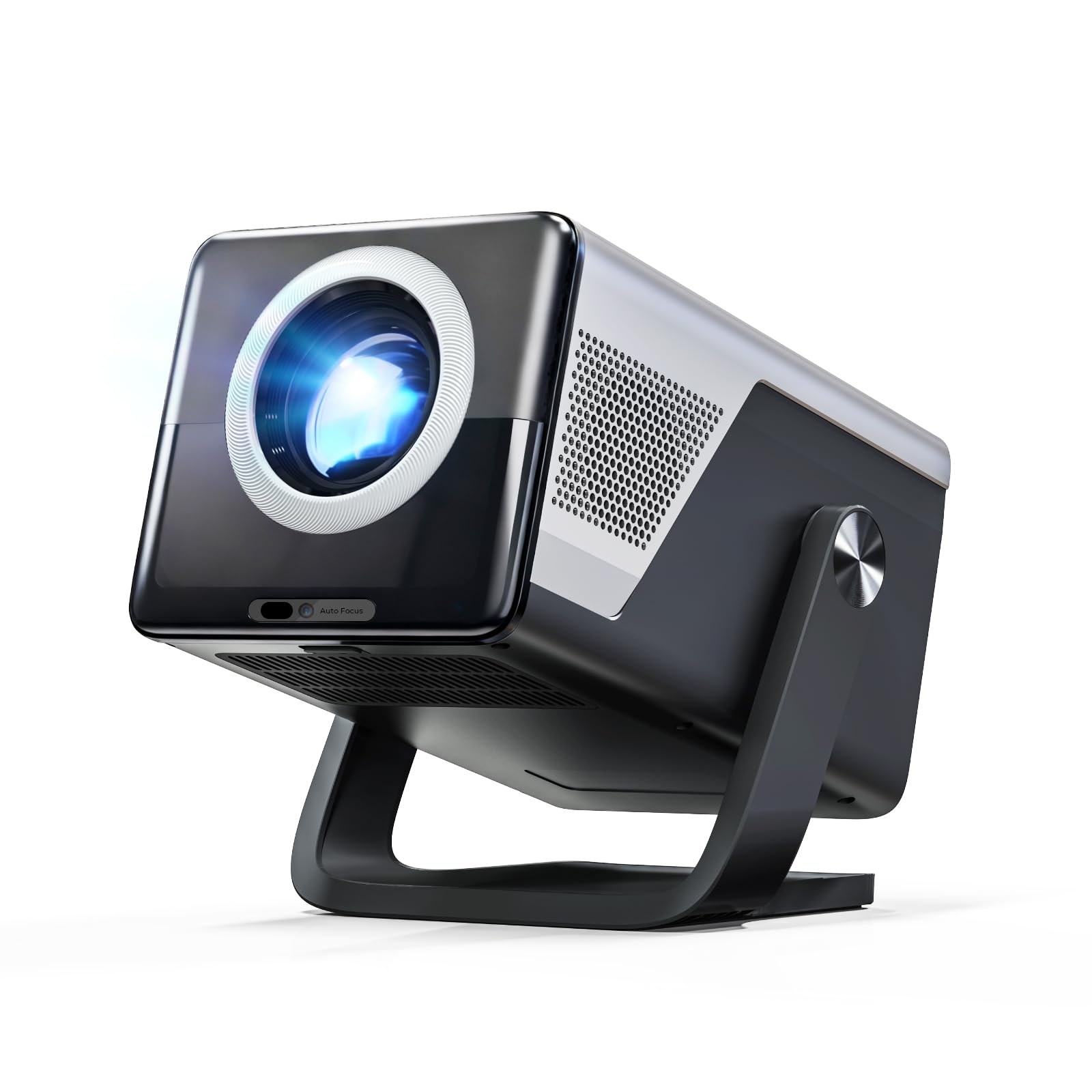
Figure 1: LYNCAST X7AR Smart Projector
This image displays the LYNCAST X7AR Smart Projector, showcasing its compact design and front lens. The projector is gold and black, with a sleek finish.
What's in the Box
Verify that all items are present in the packaging:
- LYNCAST X7AR Smart Projector
- User Manual (this document)
- Remote Control
- HDMI Cable
- Power Cord
- Cleaning Kit
Product Overview
Familiarize yourself with the projector's components and ports.
Front View
The front of the projector features the main projection lens and sensors for AI visual calibration.
Rear/Side View (Ports)
The projector includes various ports for connectivity:
- HDMI Port: For connecting external devices such as game consoles (PS5/Switch), laptops, or Blu-ray players.
- USB Port: For connecting USB drives to play media or other USB accessories.
- 3.5mm Audio Jack: For connecting external speakers or headphones.
- Power Input: For connecting the power cord.
Note: Specific port locations may vary slightly. Refer to the physical device for exact placement.
Setup
1. Placement
Position the projector on a stable, flat surface. It can be placed on a desktop, mounted on a tripod, or installed on a ceiling. Ensure there is adequate ventilation around the device. The projector supports 180° rotation for flexible projection angles.
2. Power Connection
- Connect the power cord to the projector's power input port.
- Plug the other end of the power cord into a power outlet.
3. Initial Power On
Press the power button on the projector or the remote control to turn on the device. The projector will boot up, displaying the Android 14 OS interface.
4. Network Connection (WiFi)
- Navigate to Settings on the home screen.
- Select Network & Internet.
- Turn on Wi-Fi and select your desired network from the list.
- Enter the Wi-Fi password if prompted. The projector supports Ultra-fast WiFi 6 for seamless streaming.
5. Bluetooth Pairing
The projector features Bi-directional Bluetooth 5.4 for connecting external audio devices or using the projector as a Bluetooth speaker.
- Go to Settings > Connected devices > Pair new device.
- Select your Bluetooth device from the list to pair.
6. Input Source Connection
To connect external devices:
- HDMI: Connect an HDMI cable from your external device (e.g., laptop, game console) to the projector's HDMI port. Select the HDMI input source from the projector's menu.
- USB: Insert a USB drive into the USB port. The system will typically prompt you to open the media player or file manager.
7. AI Visual Calibration
The LYNCAST X7AR features AI Visual Calibration for automatic image adjustment:
- AI Auto Focus: The projector automatically adjusts the focus for a clear image.
- Auto Keystone Correction: The image geometry is automatically corrected to be rectangular, even if the projector is at an angle.
- Auto Obstacle Avoidance: The projector detects and adjusts the image to avoid obstacles on the projection surface.
These features operate automatically upon startup or when the projector is moved. Manual adjustments can typically be found in the display settings menu if needed.
Operating Instructions
1. Basic Navigation (Android 14 OS)
Use the provided remote control to navigate the Android 14 operating system. The remote typically includes directional buttons, an OK/Enter button, a Back button, and a Home button. The interface is designed for intuitive use, similar to a smart TV.
2. App Installation (Play Store)
The built-in Play Store provides access to over 10,000 applications, including streaming services like Netflix, Prime Video, YouTube, and Hulu. To install apps:
- From the home screen, open the Play Store app.
- Search for your desired application.
- Select the app and choose Install.
- Once installed, the app will appear on your home screen or in the app drawer.
3. Media Playback (8K/4K Support)
The projector supports 8K/4K content playback without conversion, delivering native 1080P resolution with a high contrast ratio and wide color gamut. Stream content directly from installed apps or play media from USB drives.
4. Audio Settings (Dolby Atmos, HiFi Speakers)
The projector features HIFI Stereo Dual Speakers with Dolby Atmos support. Adjust audio settings via the system's sound menu. You can also connect external speakers via Bluetooth or the 3.5mm audio jack for enhanced sound.
5. Screen Mirroring (iOS, Android, Windows)
The projector supports screen mirroring from various devices using its Ultra-fast WiFi 6 connectivity. Look for screen mirroring or casting options within the projector's interface or your mobile device's settings (e.g., AirPlay for iOS, Cast for Android, Miracast for Windows).
6. Remote Control Usage
The remote control is your primary interface for the projector. Ensure batteries are correctly inserted. Point the remote towards the projector's IR receiver. Functions include power, volume, navigation, input selection, and quick access buttons for common features.
Maintenance
1. Cleaning
- Lens: Use the provided cleaning kit or a soft, lint-free cloth specifically designed for optical lenses. Do not use abrasive cleaners or harsh chemicals.
- Exterior: Wipe the projector's exterior with a soft, dry cloth. For stubborn marks, slightly dampen the cloth with water.
- Ventilation: Ensure the ventilation openings are clear of dust and debris to prevent overheating. Use a soft brush or compressed air to gently clean them.
2. Storage
When not in use for extended periods, store the projector in a cool, dry place, away from direct sunlight and extreme temperatures. It is recommended to use the original packaging or a protective case to prevent dust accumulation and physical damage.
Troubleshooting
| Problem | Possible Cause | Solution |
|---|---|---|
| No Power | Power cord not connected; Power outlet faulty; Projector off. | Ensure power cord is securely connected. Test the power outlet. Press the power button on the projector or remote. |
| No Image | Input source not selected; HDMI/USB cable loose or faulty; Device not powered on. | Select the correct input source. Check cable connections. Ensure the connected device is powered on. |
| Blurry Image | Auto focus issue; Lens dirty; Projector too far/close. | Allow AI Auto Focus to recalibrate. Clean the projector lens. Adjust projector distance or use manual focus if available in settings. |
| No Sound | Volume too low; Muted; External audio device not connected/selected. | Increase volume. Unmute the projector. Check external audio connections (Bluetooth, 3.5mm jack) and ensure they are selected as output. |
| Wi-Fi Connection Issues | Incorrect password; Router too far; Network interference. | Verify Wi-Fi password. Move projector closer to router. Restart router and projector. |
Specifications
| Feature | Detail |
|---|---|
| Brand | LYNCAST |
| Model Number | X7AR |
| Display Resolution | Native 1920 x 1080P (Supports 8K/4K) |
| Brightness | 2000 ANSI Lumens |
| Operating System | Android 14 OS |
| Connectivity | Wi-Fi 6, Bluetooth 5.4 (Bi-directional), HDMI, USB, 3.5mm Jack |
| Audio | HiFi Stereo Dual Speakers, Dolby Atmos support |
| Special Features | AI Auto Focus, Auto Keystone Correction, Auto Obstacle Avoidance, 180° Portable Design |
| Product Dimensions | 8.86 x 5.71 x 7.09 inches |
| Item Weight | 3.96 pounds (1.8 KG) |
Warranty and Support
The LYNCAST X7AR Smart Projector comes with a 2-Year Warranty and a 1-Year Free Replacement policy. For technical support, warranty claims, or any inquiries, please contact LYNCAST customer service through the official website or your purchase platform. Please have your model number (X7AR) and purchase details ready when contacting support.
Safety Information
- Do not look directly into the projector lens when the lamp is on.
- Ensure proper ventilation to prevent overheating. Do not block ventilation openings.
- Keep the projector away from water, moisture, and flammable materials.
- Use only the power adapter supplied with the projector.
- Do not attempt to disassemble or repair the projector yourself. Refer all servicing to qualified personnel.
- Keep out of reach of children.
- Unplug the projector during lightning storms or when unused for long periods.
Video Resources
No official product videos from the seller were provided in the product data. If available, relevant instructional videos would be embedded here with detailed descriptions.


